5. Service Catalog
Set this up once and you stop rebuilding the same service for every customer. Your account already comes with a starter catalog, so nothing here starts from an empty page.
5.1 Repeating services
A repeating service is one a customer is signed up for on a schedule — the weekly or monthly work that makes up most of your round. In the app these are called Recurring Billing Items.
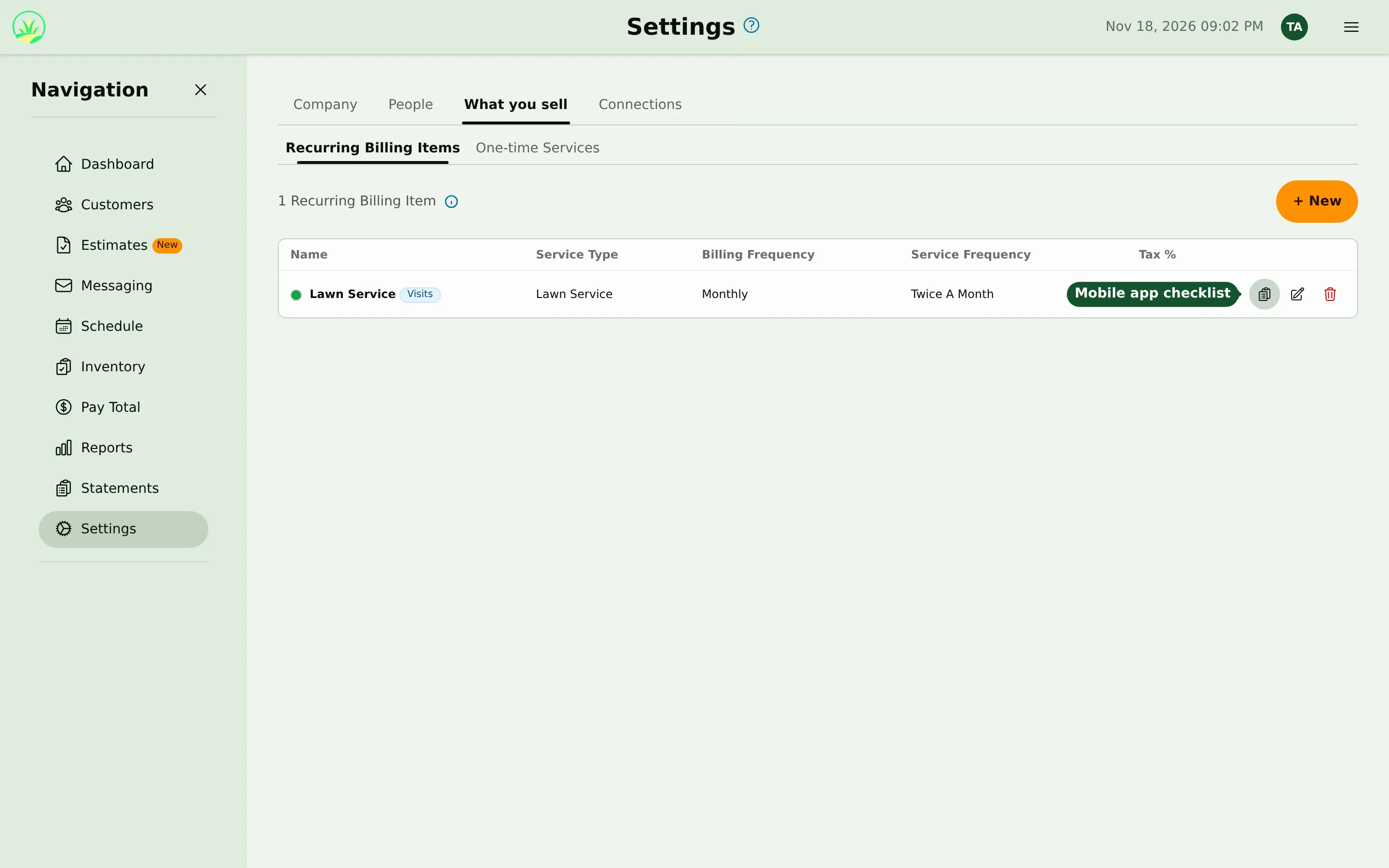
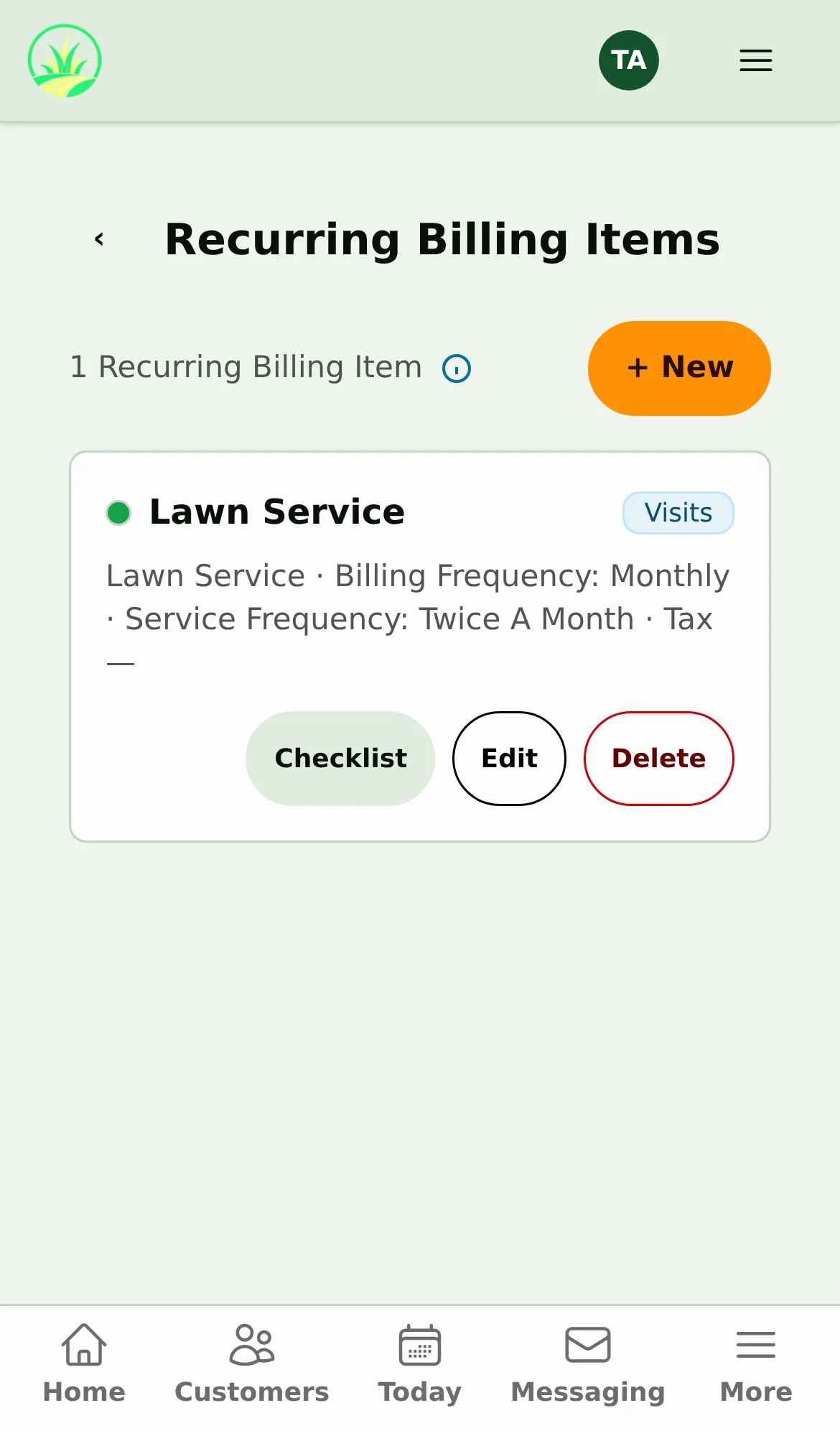
The list shows each item's Name, Service Type, Billing Frequency, Service Frequency (for the item with scheduled visits) and Tax %. On a phone each item is a card. The item with scheduled visits has a dot in the calendar colour of its service type (on a phone, a Visits badge).
To create one, go to Settings › What you sell › Recurring Billing Items and click + New. The form opens from the right on a computer and full screen on a phone; Save stays at the bottom. If you close it with unsaved changes, EZ Lawn Biller asks first.
| Field | What it means |
|---|---|
| Name | The name customers see on their statements (for example, "Weekly Mowing") |
| Service Type | The category it belongs to, which sets the length and calendar colour of the visits — see 5.2 |
| Billing Frequency | How often the customer is charged; it sets the dates of the recurring charges — see Section 6 |
| Prorate Method | How the first, partial period is charged when a customer starts: None, Weekly, Daily or Next month — see 6.4 |
| Tax Rate (%) | Sales tax on the charges of this item. Leave it blank (or enter 0) for no tax; enter a rate such as 8.25 to charge it |
There is no price on the item: the price is set for each customer when you sell the service (6.1).
Scheduled visits. One Recurring Billing Item in your company puts lawn services on the calendar: the service the technician actually drives to. Its form has a box, This Billing Item can have scheduled visits., with:
- Enable scheduled calendar visits — when on, EZ Lawn Biller creates visits on the schedule for the technicians. Off means the item only bills.
- Service Frequency — how often the lawn is visited (for example weekly), required when the switch is on. It is separate from the Billing Frequency: a service can be visited weekly and billed monthly. This is the value new sales start with: each customer can get another Service Frequency, and a weekly service several visits a week, for that customer only — see Section 6. When you change it here and customers use the service, EZ Lawn Biller asks you to confirm: those customers keep their current Service Frequency and their visits, and new sales get the new one. The Billing Frequency and the prices do not change.
- Mobile app checklist › — opens the item's checklist (5.4), once the item is saved with visits on and the form has no unsaved changes.
Each row also has Edit and Delete (on a computer, the pencil and the bin), and the item with visits has its checklist button (5.4).
5.2 Service types
A service type is the category a service belongs to. It sets the default length of the job and the colour it shows in on the calendar, so you can read the week at a glance.
There is no separate Service Types page. You edit types inside the service form: the Service Type field of a Recurring Billing Item is a searchable list, with two buttons under it:
- New type — a small form with Name, Default duration (min) and Calendar colour; Save type creates the type and selects it.
- Edit type — the same form for the type selected, with Delete type.
5.3 One-time services
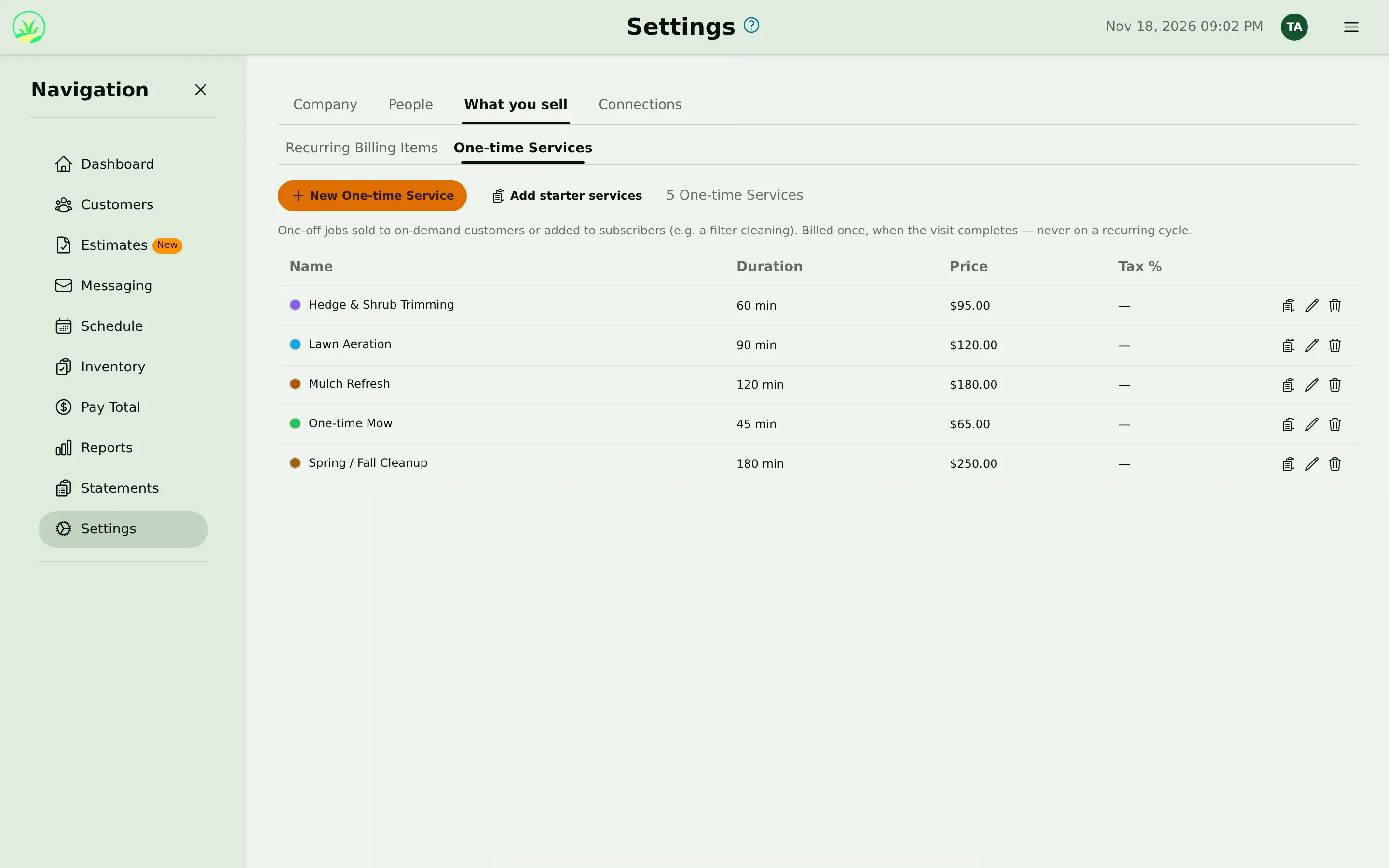
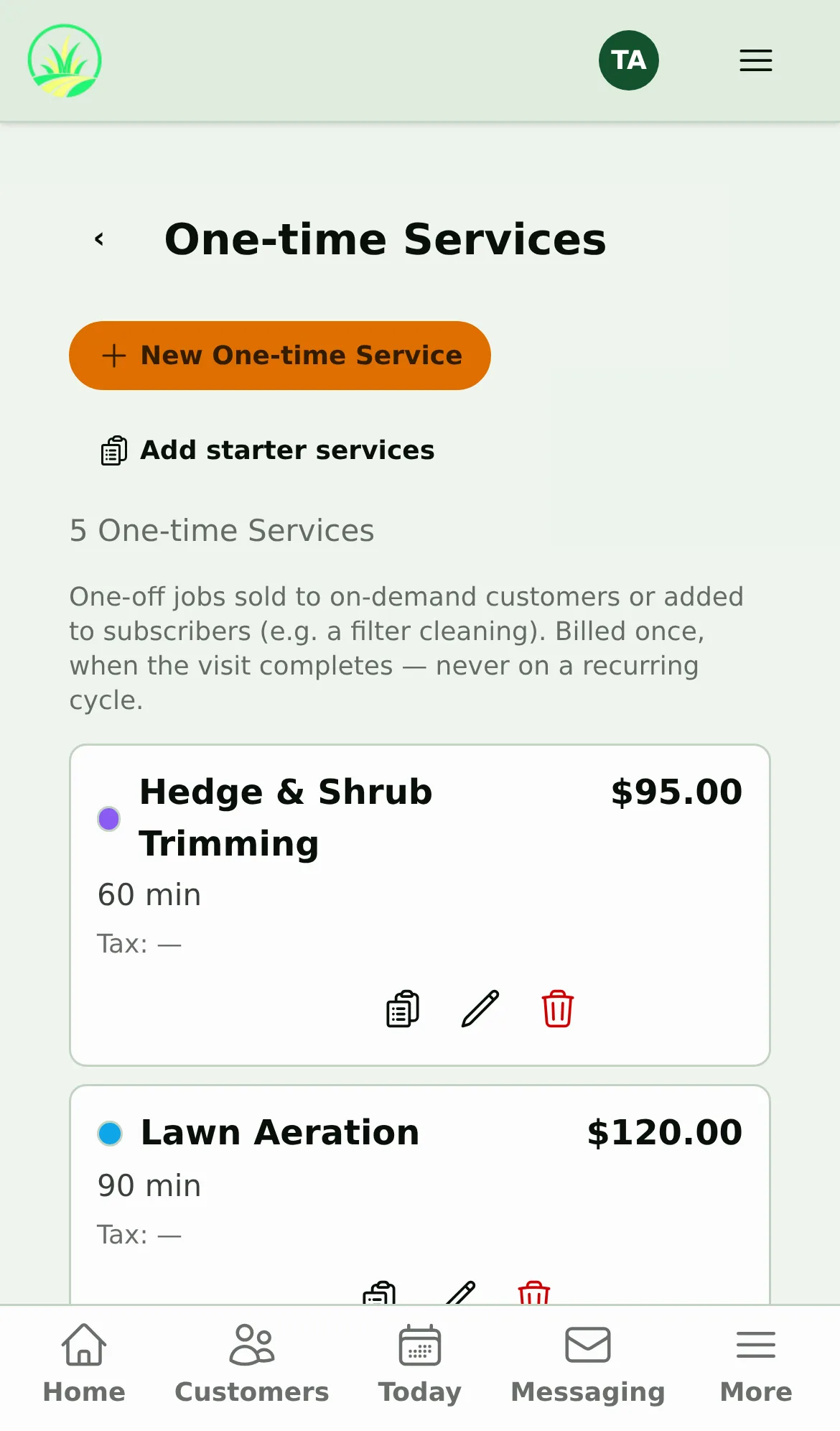
A one-time service is a job you sell once — no schedule, no repeating charge. These live under Settings › What you sell › One-time Services. Click New One-time Service to add one.
The form has:
| Field | What it means |
|---|---|
| Name | What the job is called on the statement |
| Price | What you charge for the job |
| Tax % (optional) | Sales tax on the job, if any |
| Service type | The category of the job. The colour and the length of the visit come from the type unless you set them below |
| Visit duration (min) | How long the job takes, when it differs from the type's |
| Calendar color | The colour of the job on the calendar; From type goes back to the type's colour |
On a saved service, Mobile app checklist › opens its checklist (5.4); save or cancel your changes first. The list itself has a checklist button, Edit and Delete on each row (on a phone, on each card). A one-time service can be deleted only while it has never been sold.
A one-time service is billed once, when the lawn service is completed, unless you choose another billing date when you sell it (see Section 8).
Your account starts with a set of common jobs for your trade. They're listed in Section 8, along with how to sell one.
5.4 Checklists — what the technician is asked
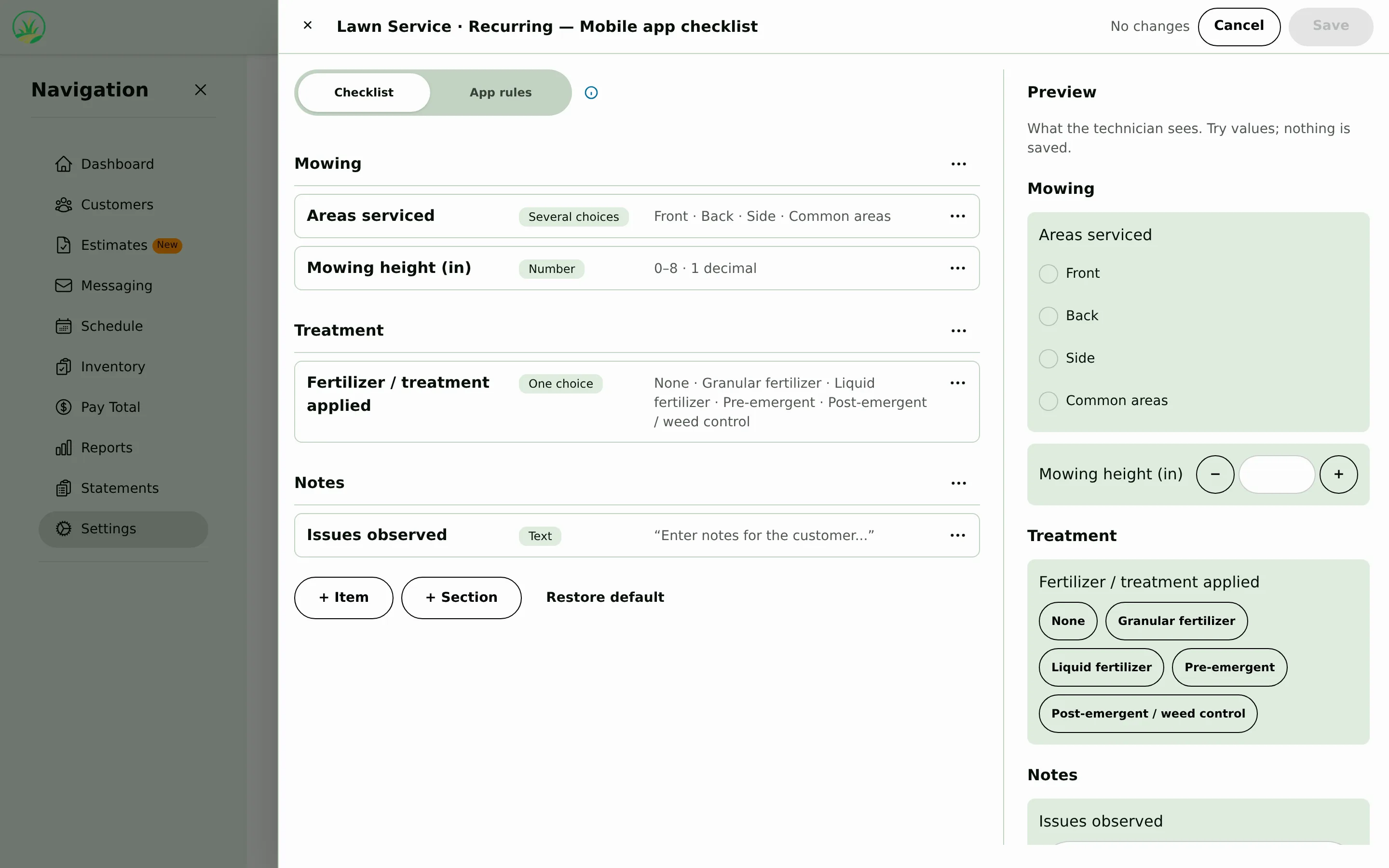
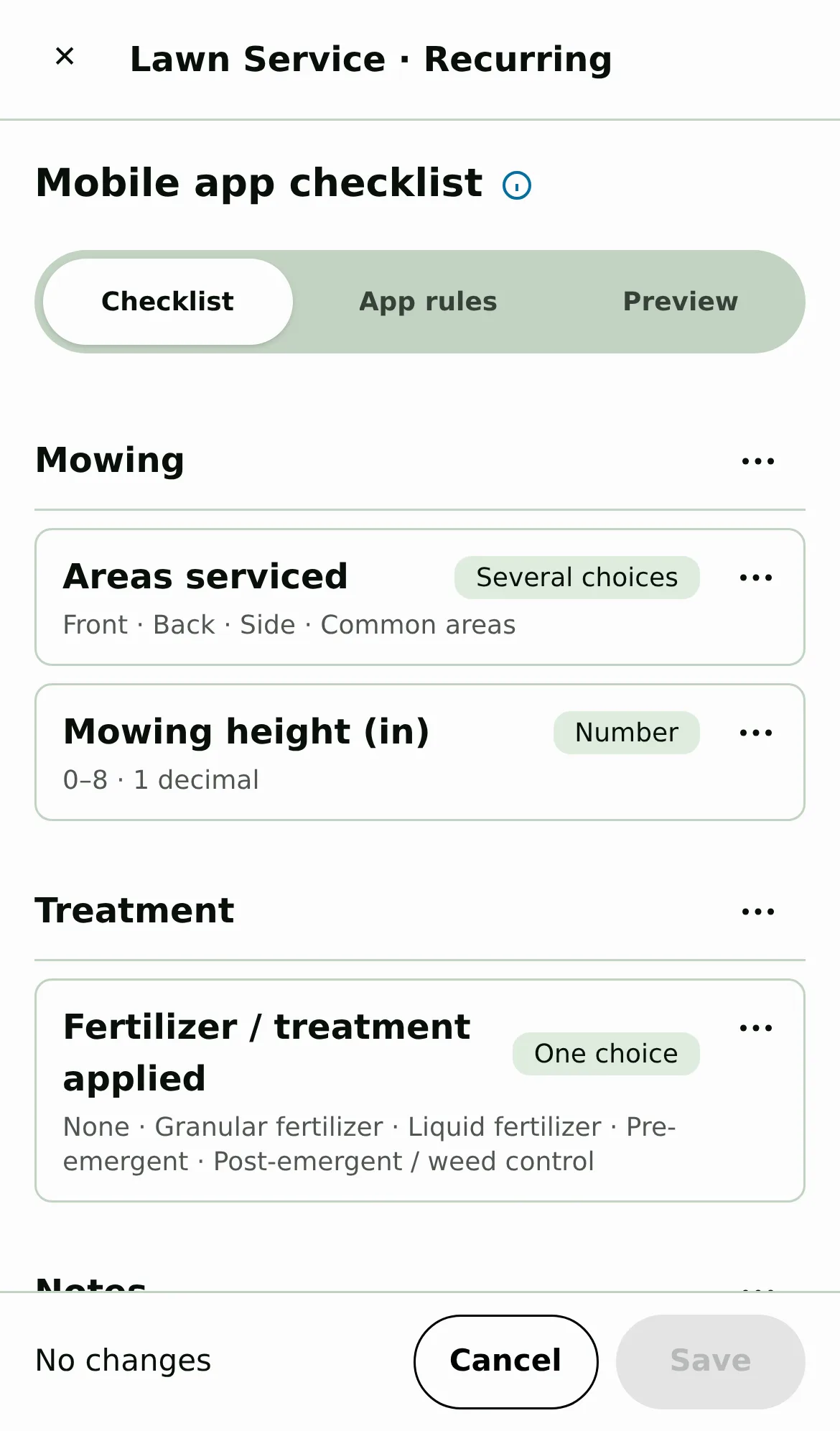
Every service can carry a checklist: what the technician fills in on the mobile app during the lawn service. It's also what feeds the customer's lawn service report.
Opening the checklist. On Recurring Billing Items, open it from the item with scheduled visits: the checklist button on its row (on a phone, Checklist on its card), or Mobile app checklist › in its form. On One-time Services, use the checklist button on the job's row or card, or Mobile app checklist › in its form. The editor opens over the list; its header names the service and its kind: the service's name followed by · Recurring or · One-time.
The editor has two tabs, Checklist and App rules (5.5), and a Preview of the checklist as the technician sees it, built from your unsaved changes. On a computer the preview stays beside the checklist and follows the item you are editing; on a phone, Preview is a third tab. You can try values in the preview; nothing there is saved.
Sections and items. The checklist is a list of items in the order the technician sees them, grouped under section titles. + Item adds an item, + Section adds a section title. Click an item to edit it; on a computer the form takes the place of the list, on a phone it opens from the bottom of the screen. Add (for a new item) or Done keeps your changes in the list.
| Field | What it means |
|---|---|
| Label | What the technician sees (for example, "Mowing height") |
| Type | Number, One choice, Several choices, Yes / No, Text or Photo. Answers already recorded keep their old form if you change it |
| Required | The item must be filled in before the visit can be completed, when the app rules require the checklist (5.5) |
| Choices | For One choice and Several choices: the answers offered (+ Choice adds one) |
A Number item also has:
- Unit — for example ppm.
- Lowest and Highest — the values the technician can enter.
- Decimals — None, 1 (0.1) or 2 (0.01).
- Ideal range (customer reports) — a reading outside it shows Low or High on the customer's lawn service report and in the readings on the customer's Services tab (4.8). Left empty, the standard range applies when there is one; the form shows it.
- Inventory item used — the amount entered is taken from the technician's truck stock (see Section 11).
More: hint, default, report group, ID opens the less common fields: Help text (shown under the field in the app), Hint, Placeholder (grey text in the empty field), Default value (filled in when the visit opens), Before the value and After the value (for example $ or %), and Report group, which decides under which heading of the lawn service report the answer appears (Automatic lets the report choose; None keeps it out of the report). The ID is made from the label when you save, and is then fixed: saved answers use it.
Moving and deleting. The … button beside an item offers Edit, Move up, Move down and Delete; beside a section title, Rename the section, Add an item to this section, Move the section up or down, and Delete the section. Moving an item past a section title moves it into that section. Deleting a section removes only its title; its items join the section above. Answers recorded on past visits are kept.
Saving. Every change waits in the editor until you click Save; the bar beside it counts the unsaved changes, and New or Changed marks the items concerned. One Save saves the checklist and the app rules together. If something needs correcting, nothing is saved and the items concerned are marked in red. Cancel, ✕, Escape or the phone's back gesture with unsaved changes asks Leave without saving? first.
Checklists come already filled in, and they differ by the kind of job:
- Repeating services get the standard checklist for your trade. For a lawn that's which areas were serviced, the mowing height, any treatment applied, and notes.
- One-time services get a checklist matched to that particular job. An aeration job asks about the aeration, not the mowing height.
Here's what your starter repeating service asks for:
| Asks for | Kind |
|---|---|
| Areas serviced | tick any that apply |
| Mowing height (in) | a number |
| Fertilizer / treatment applied | pick one |
| Issues observed | notes |
If you edit a checklist and want the original back, use Restore default under the list. It brings back the checklist for that job, not a generic one, and leaves the app rules as they are. Nothing is saved until you click Save; leaving without saving keeps the saved checklist.
5.5 App rules and inventory used
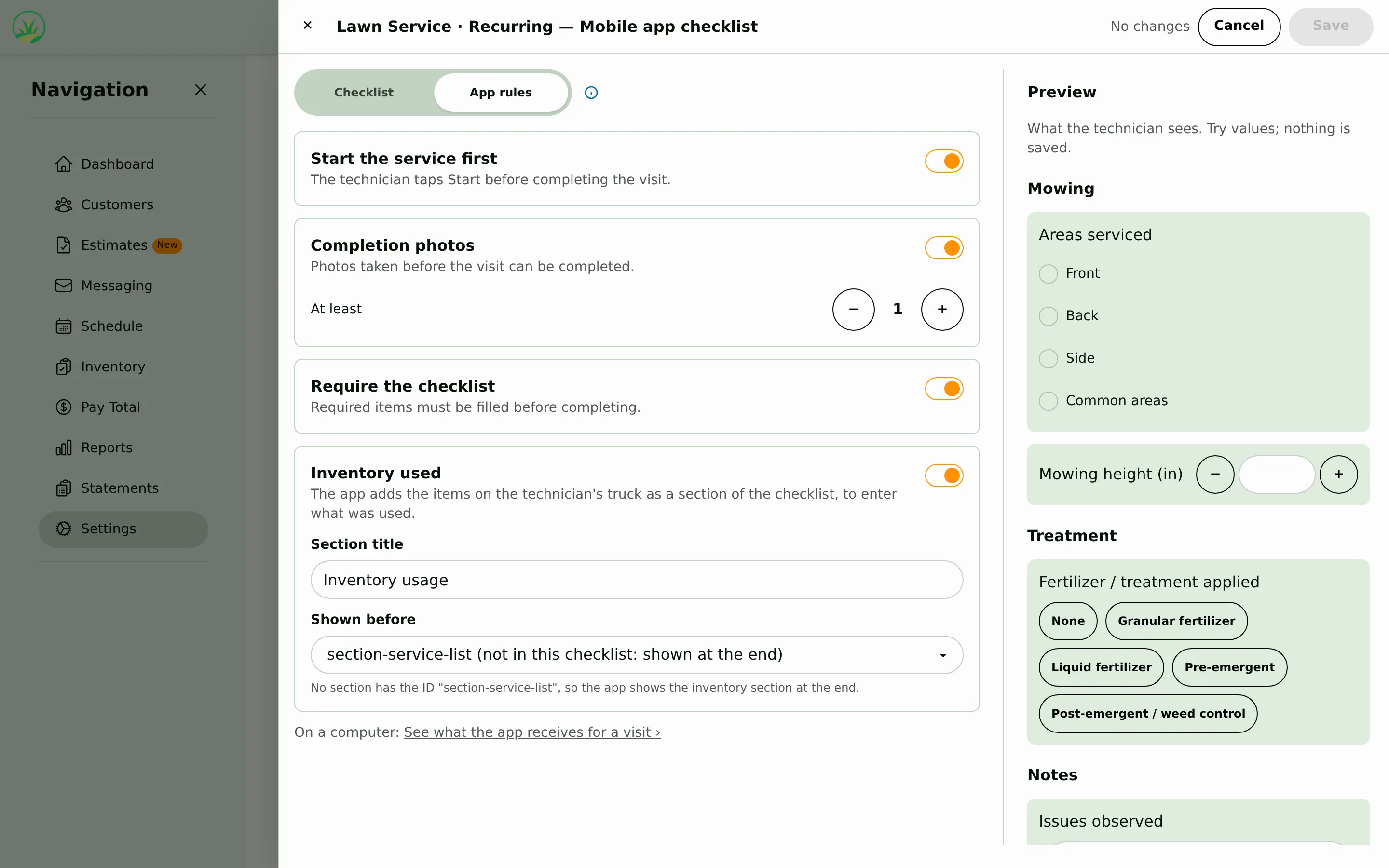
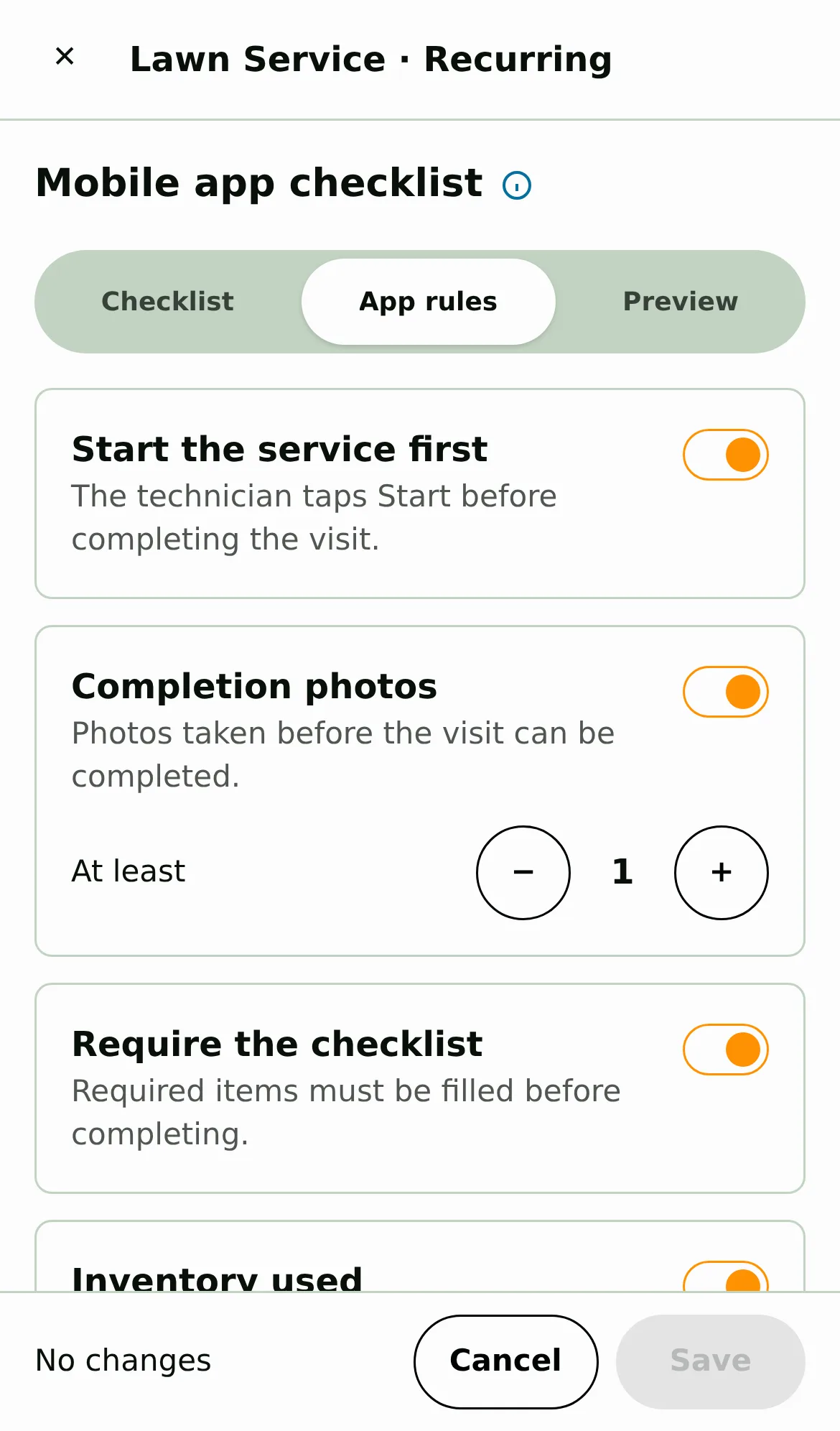
The App rules tab of the checklist editor holds what the mobile app requires for every lawn service of this service. A new service starts with all four on, with one completion photo and the inventory section titled "Inventory usage".
| Rule | What it does |
|---|---|
| Start the service first | The technician taps Start before completing the visit |
| Completion photos | Photos must be taken before the visit can be completed; At least sets how many (up to 20) |
| Require the checklist | Required items must be filled in before completing |
| Inventory used | The app adds the supplies on the technician's truck as a section of the checklist, to enter what was used |
With Inventory used on, Section title names that section in the app, and Shown before chooses the section it appears in front of (or At the end of the checklist). The preview shows it where the app puts it. When the technician completes the job, the amounts entered come off the truck's stock. See Section 11.
A single Number item can also take its amount from stock, with its Inventory item used field (5.4) — for example, "Fertilizer — 2 lb".
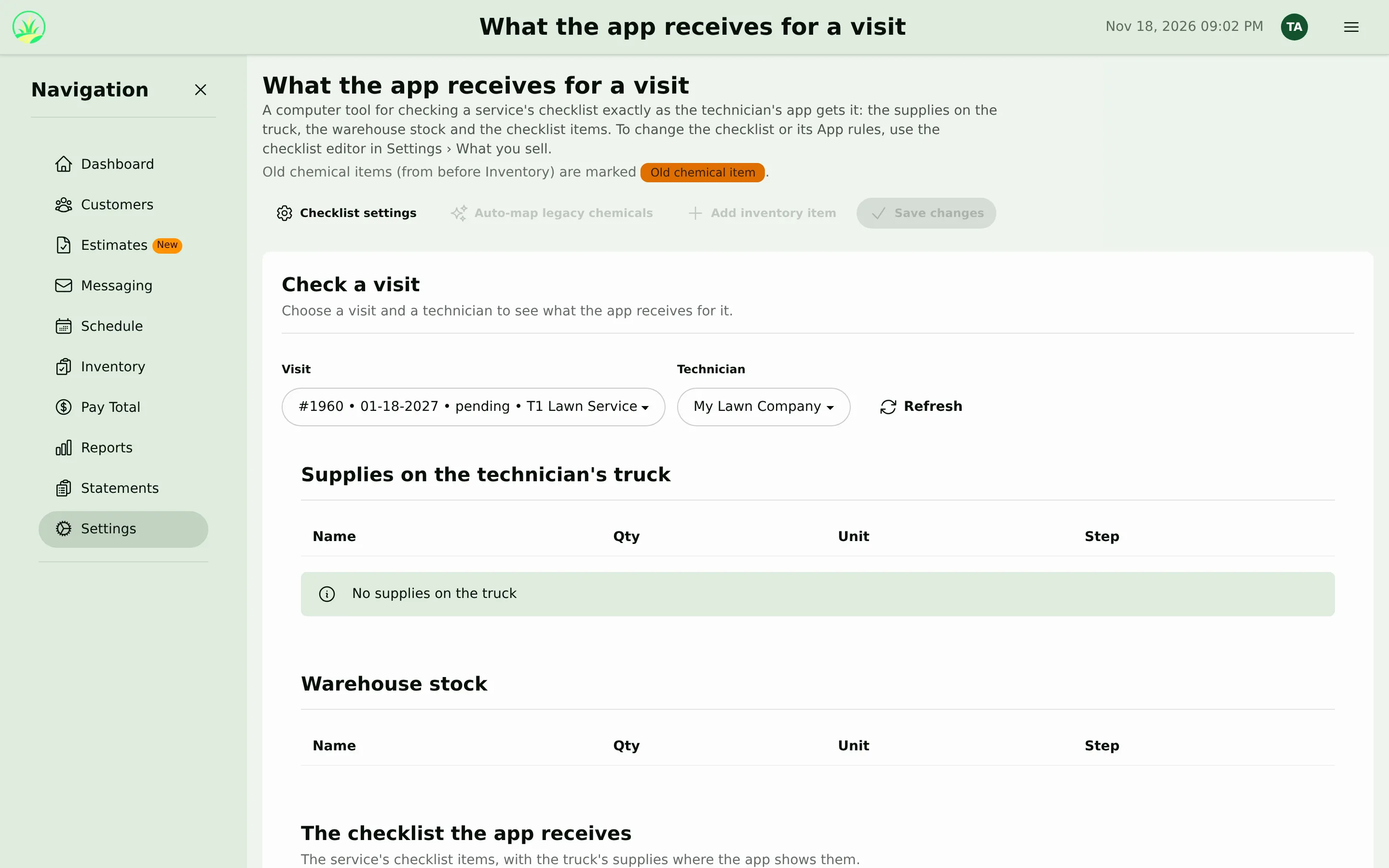
To check what the app actually receives, the App rules tab links, on a computer, to See what the app receives for a visit ›. That page, What the app receives for a visit, is a computer tool: under Check a visit, choose a Visit and a Technician to see the supplies on the technician's truck, the warehouse stock and the checklist exactly as the app gets them.
5.6 Packages
A package is a subscription with more than one item: for example your weekly lawn care plus a monthly equipment rental, or a filter clean every six months on top of the regular service. There's no separate package to build. You put the items together on the customer's subscription, so every customer can have their own mix.
When you create the subscription: in the wizard (6.1), pick every item you want in the billing items list. Each item keeps its own price, Billing Frequency and first charge date, so a monthly service and a twice-a-year extra can sit on the same subscription. The preview shows what each one will charge.
On a subscription the customer already has:
- Open the customer, then Billing › Recurring Billing (on a phone, Billing › Recurring).
- Click Add Item on the subscription.
- Choose the service, and set the Price, Tax Rate, Billing Frequency, Quantity and Start Date.
- Click Add Item.
Each item is charged on its own schedule and shows as its own line on the statement. Pausing or canceling the subscription applies to all of its items.