16. Reports
Most reports cover a period you choose (From and To) and have filters of their own; Balances is searched by customer name or Customer ID instead. Schedule and Lawn Treated also have Export CSV for a spreadsheet.
16.1 The tabs, in order
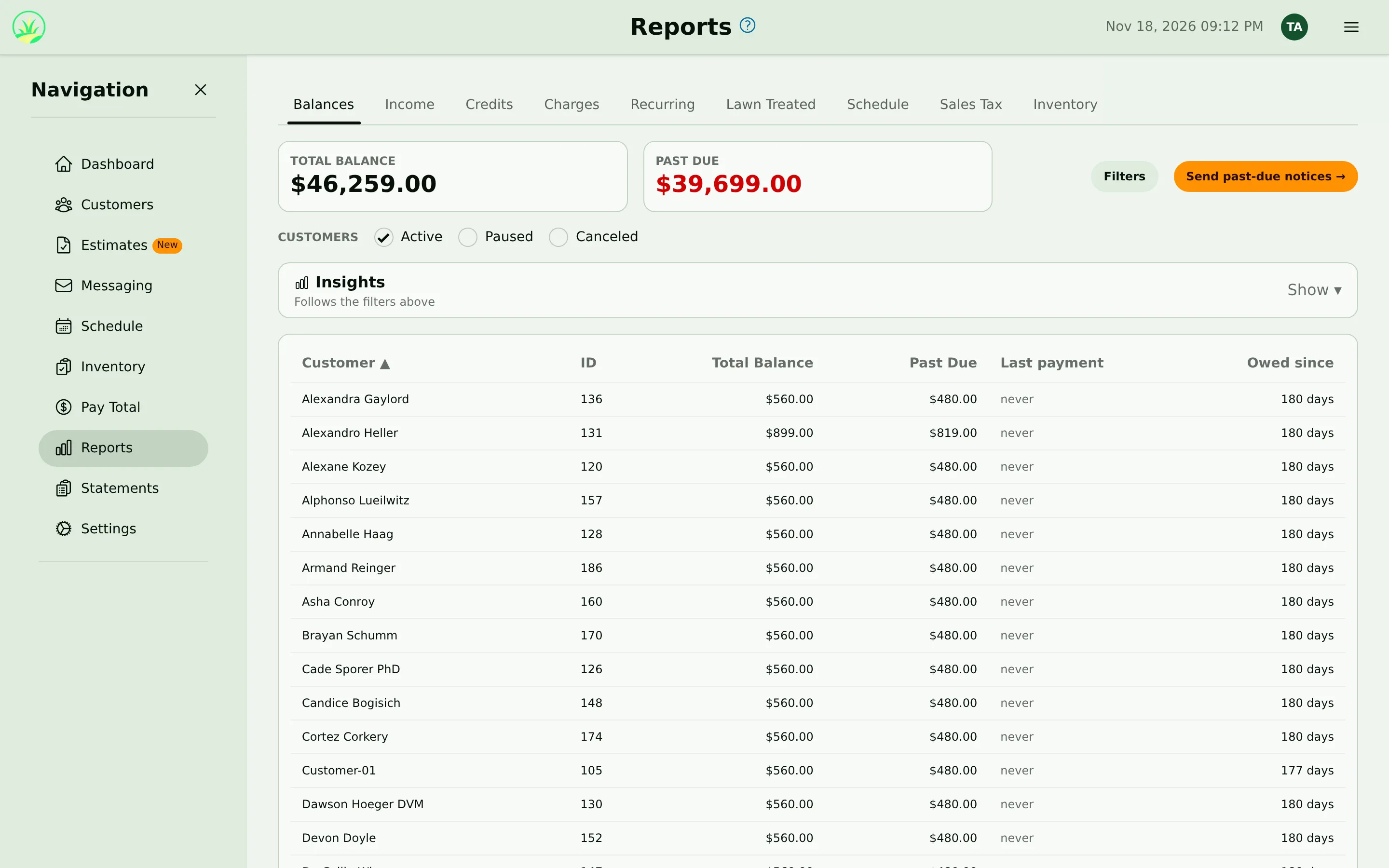
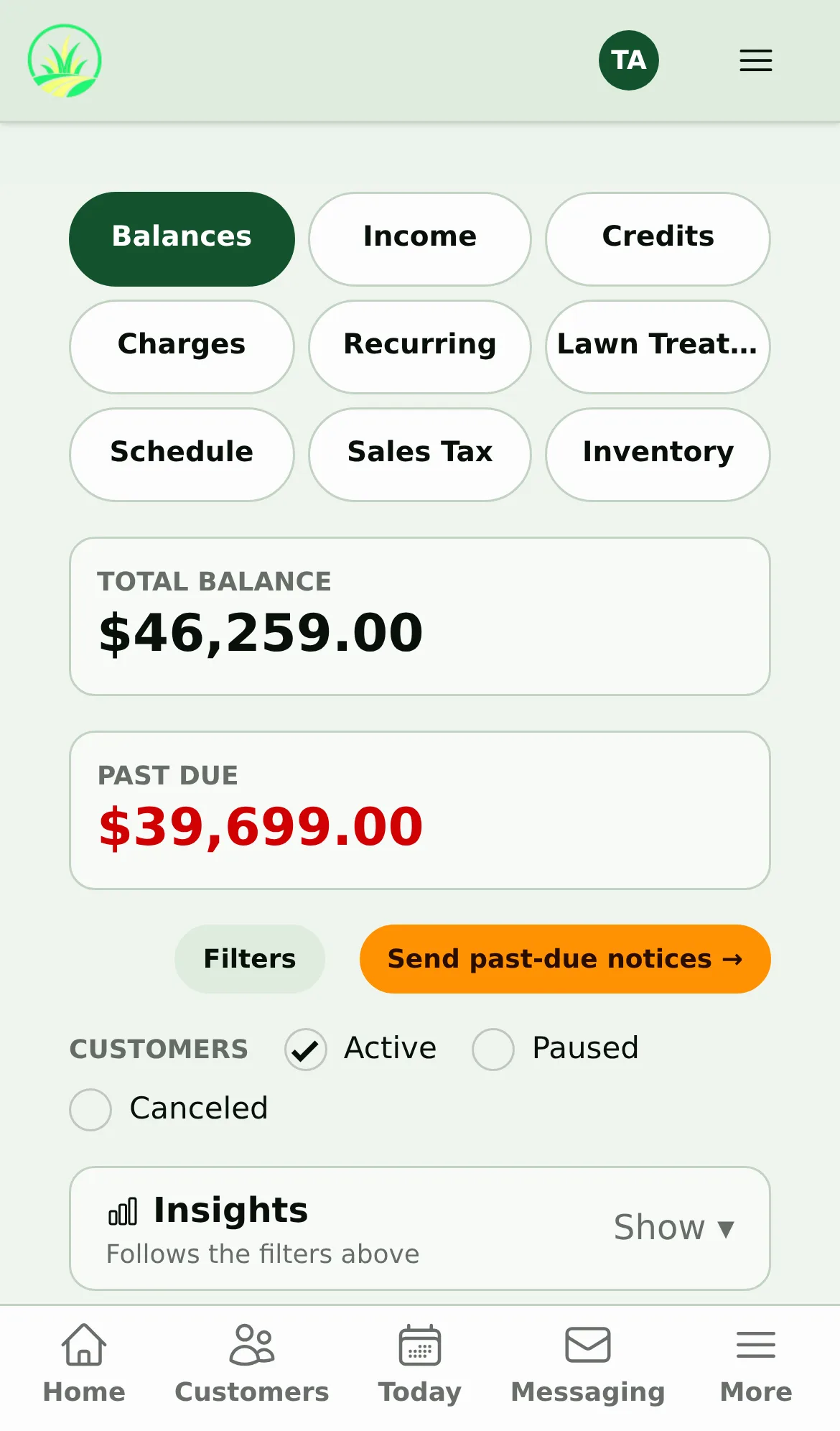
| Tab | What it tells you |
|---|---|
| Balances | Who owes you money, and how overdue it is |
| Income | Money actually received, by period |
| Credits | Every credit you've given out |
| Charges | Every charge posted, by period |
| Recurring | What your repeating services are worth per month, and whether that's growing |
| Lawn Treated | How many lawn services were finished, by technician, period, or service type. The Technicians filter takes one technician or several |
| Schedule | Who is booked where, for any period — on screen, as a PDF or route sheets, or as a spreadsheet. See 16.5 |
| Sales Tax | Tax collected per period, for filing |
| Inventory | What you've used and what it cost — see 16.2 |
| Ratings | How customers rated your lawn services, by technician — see 16.9 |
The tabs are in the order above. Income, Credits and Charges are explained in 16.6, Recurring in 16.7 and Lawn Treated in 16.8.
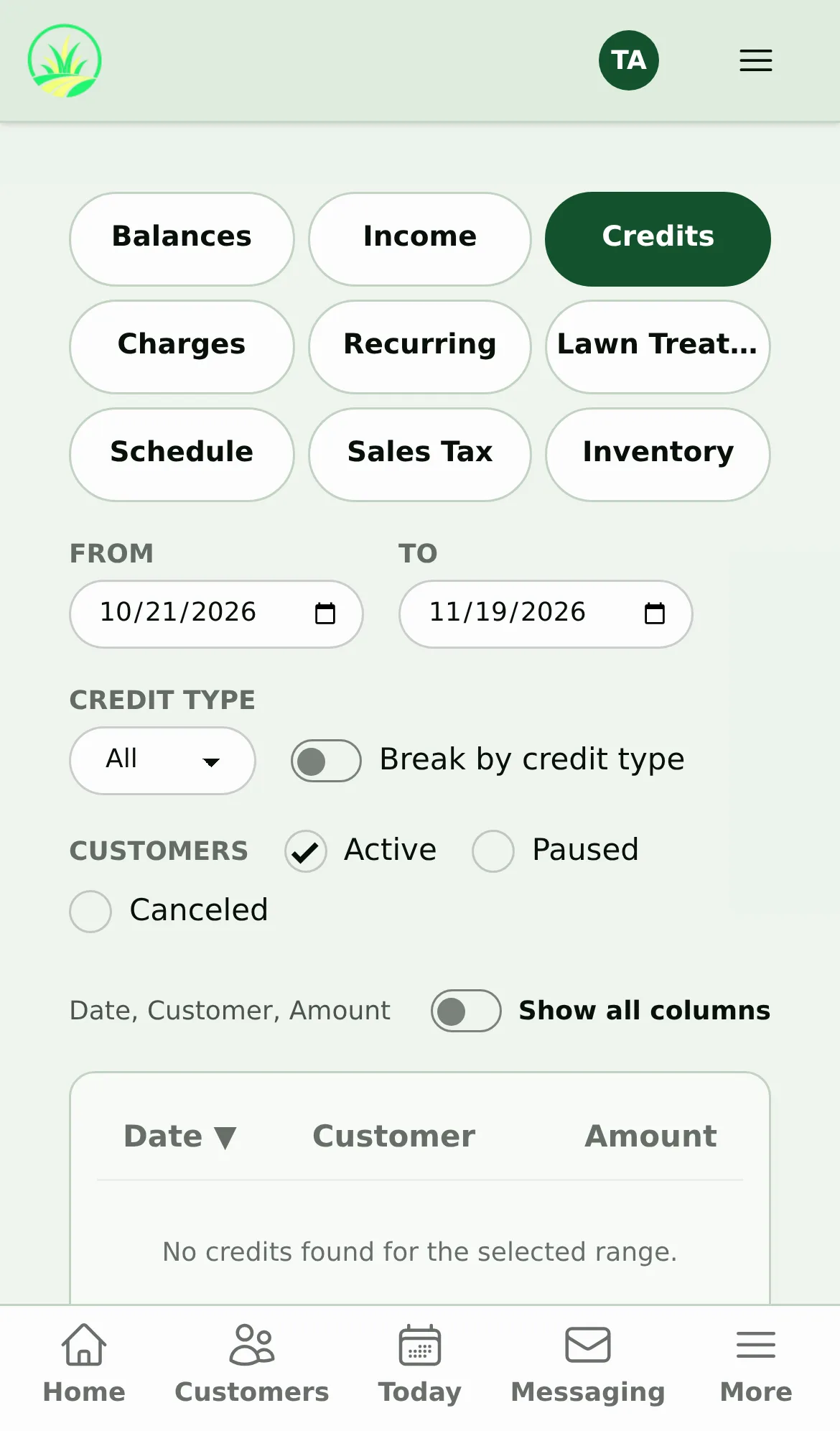
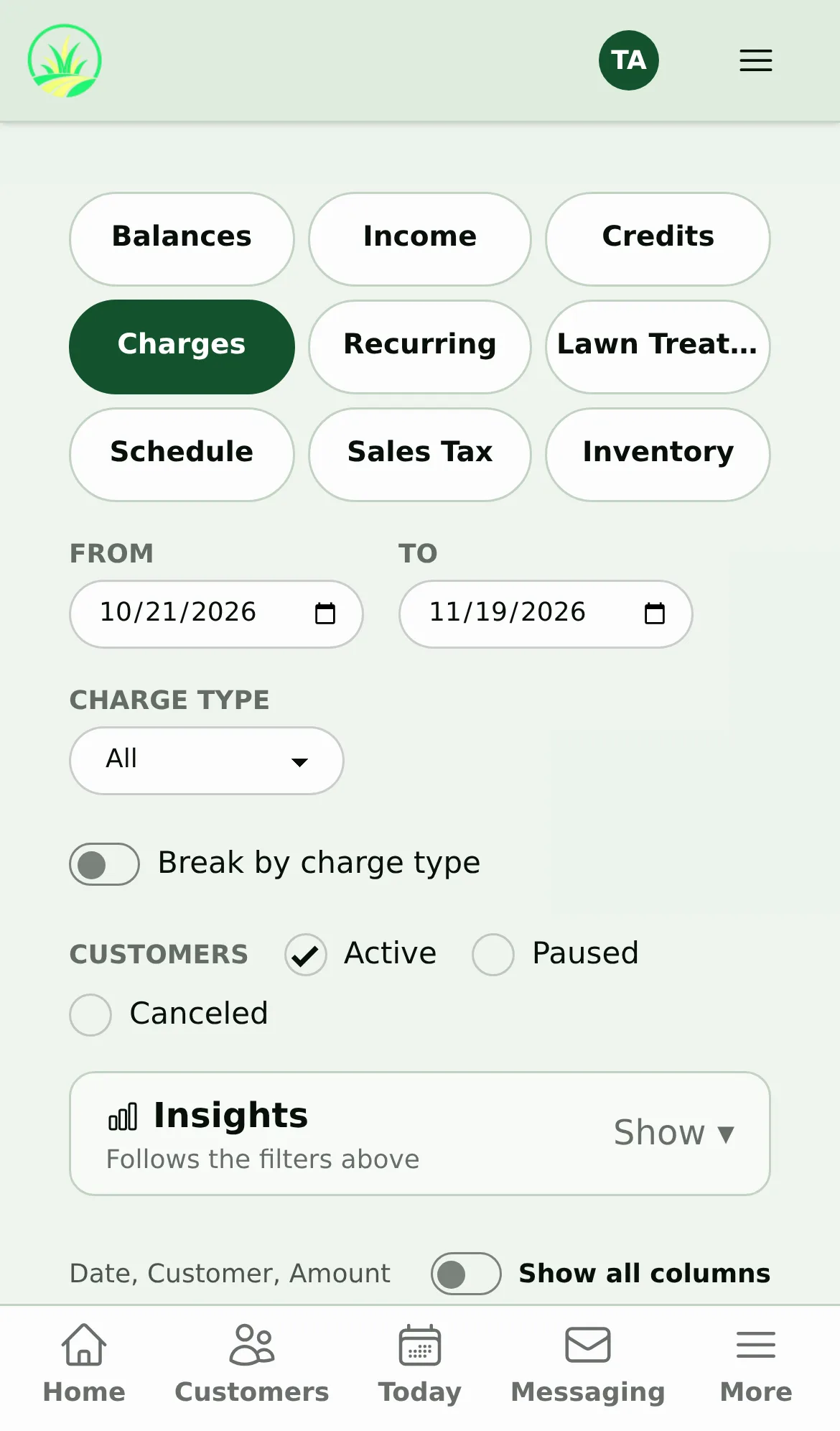
On a phone, the reports are buttons in rows of three instead of tabs. Each table shows its key columns only — for example Customer, Total Balance and Past Due on Balances — and Show all columns above the table brings back the rest. Your phone remembers the choice.
16.2 The Inventory tab
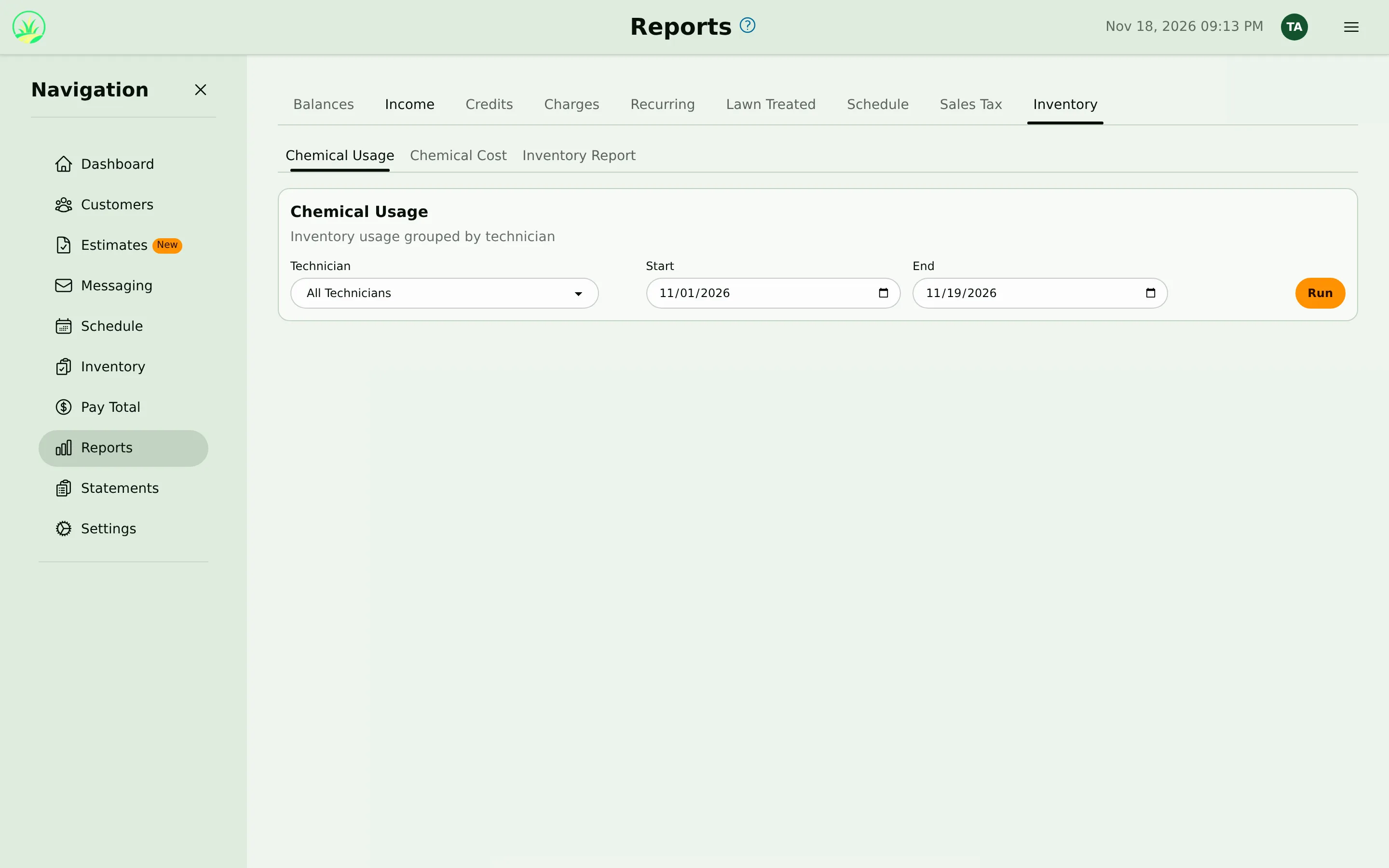
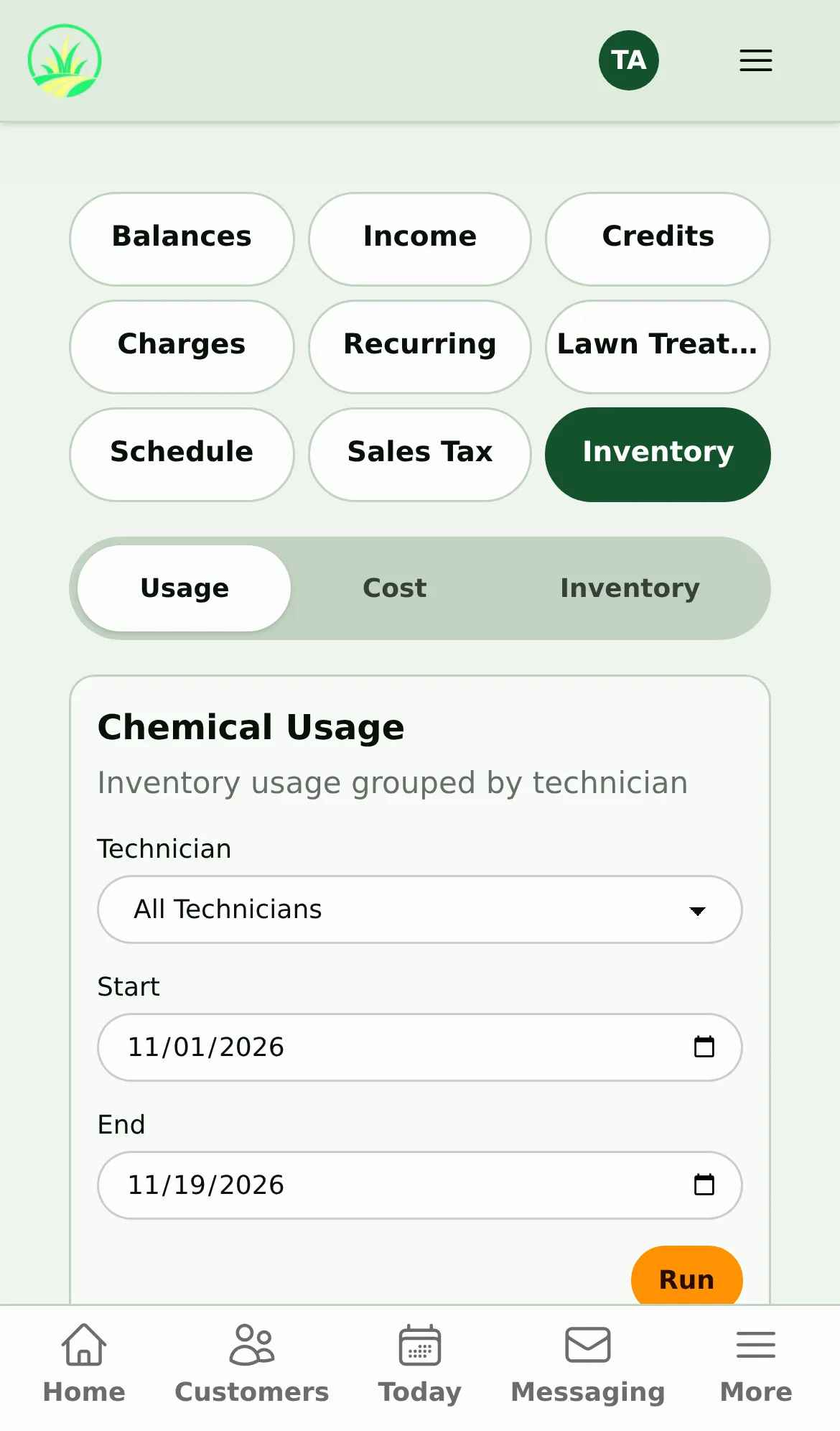
Three views inside one tab:
| View | What it tells you |
|---|---|
| Chemical Usage | How much of each item was used, by item, technician, or period |
| Chemical Cost | What that came to in money, per lawn, per technician, or in total |
| Inventory Report | What your stock on hand is worth right now |
16.3 Sales tax
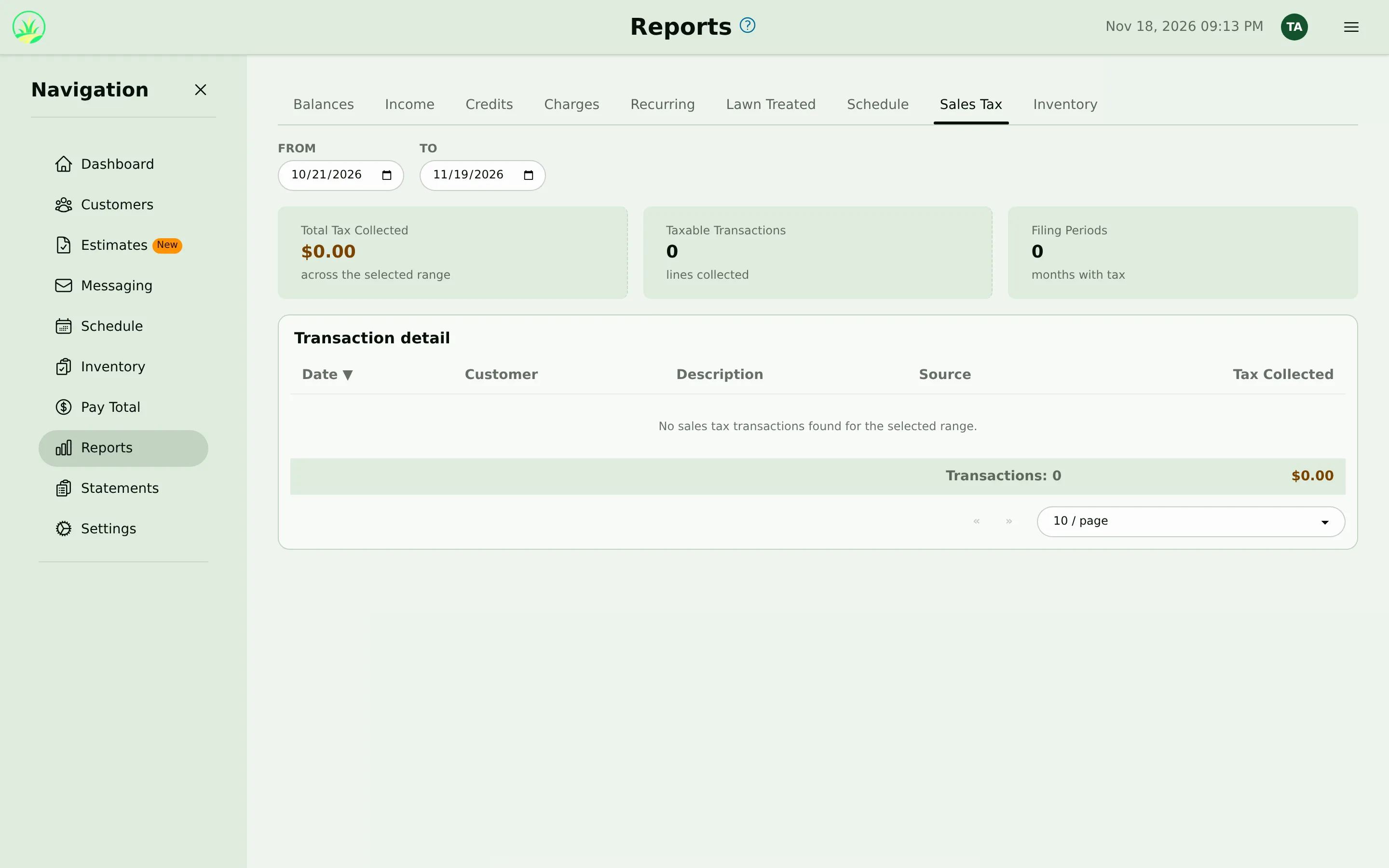
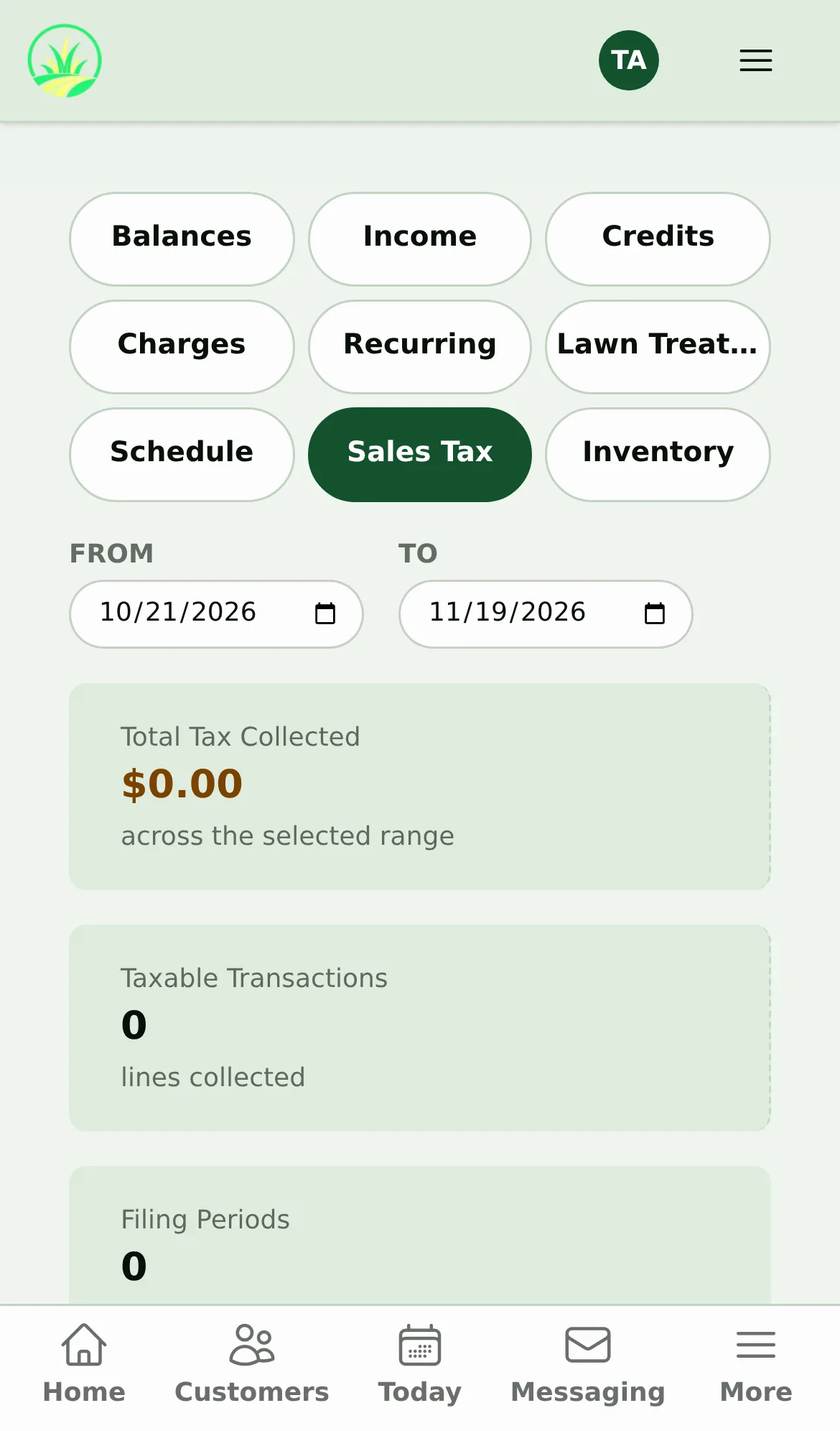
The Sales Tax report totals the tax you've collected in a period, so you can file the right amount without adding it up by hand.
16.4 Reading the numbers
- Balances answers "who should I chase?" Its Last payment and Owed for columns show how long each customer has owed, and Send past-due notices → takes the customers who owe you straight to chasing them (see 10.5 Past-Due Notices in Section 10).
- Income answers "what did we actually take?"
- Recurring answers "is the business growing?" — it's the one to watch month on month.
16.5 The Schedule tab
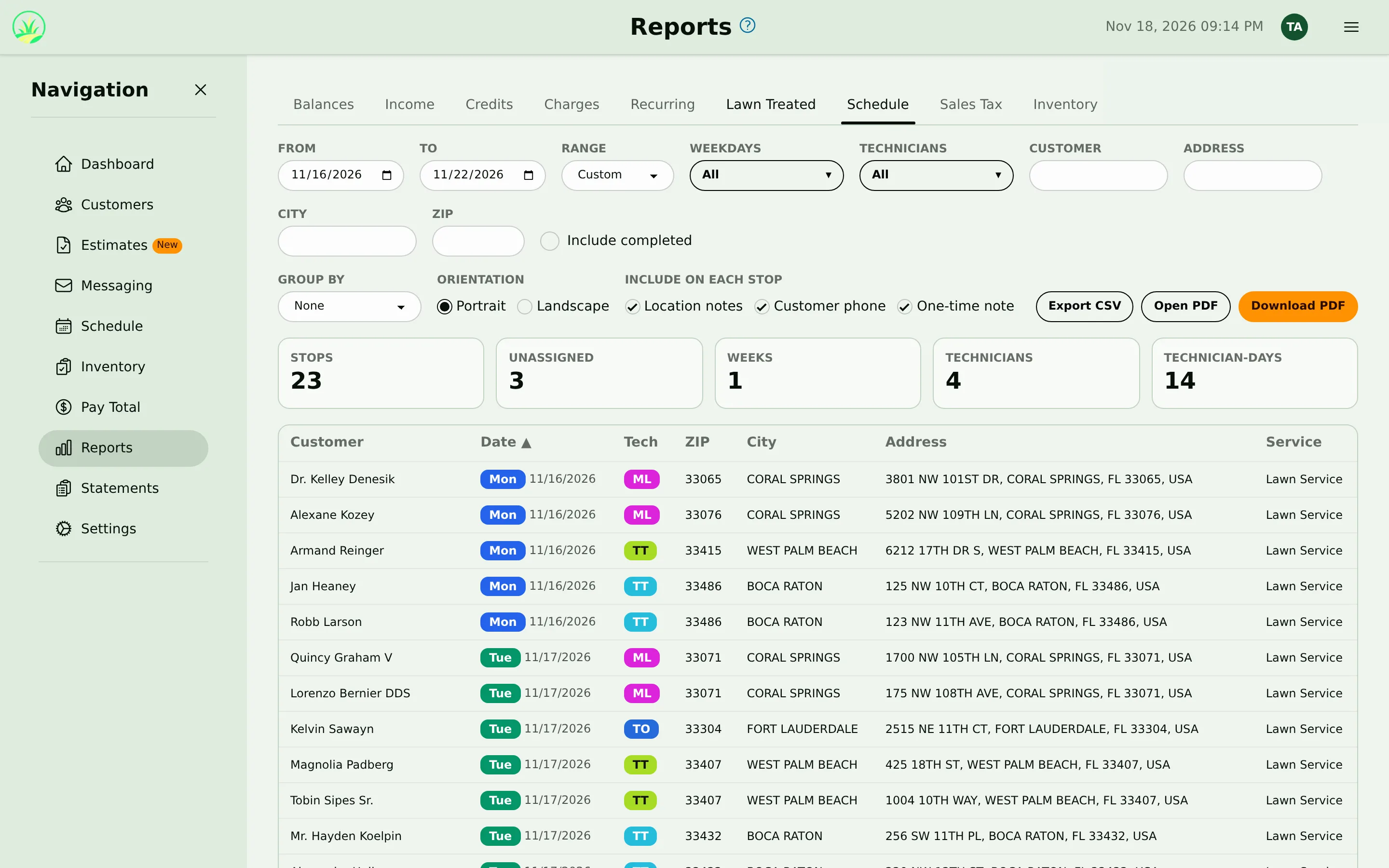
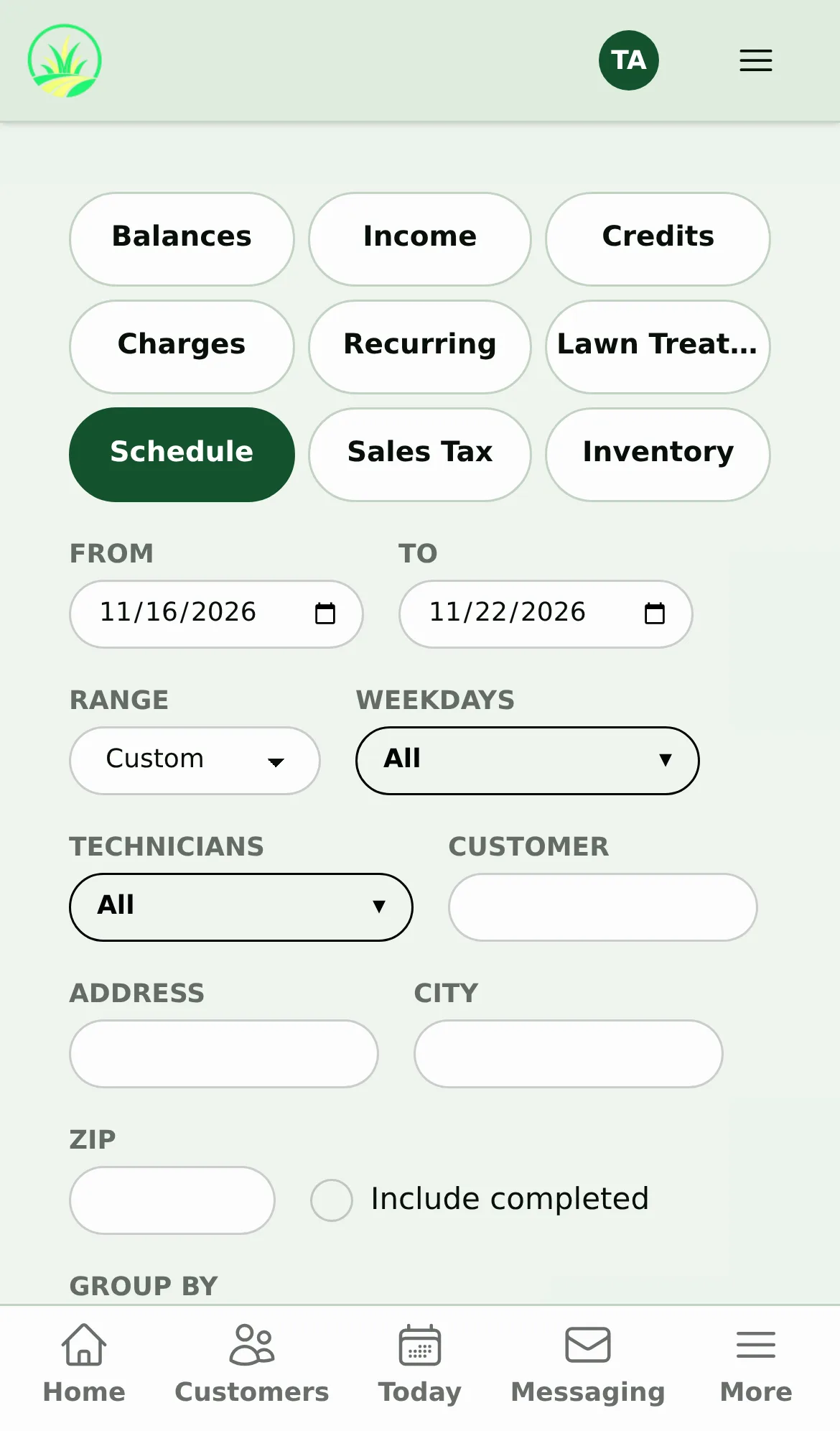
The Schedule tab lists the stops on your LIVE schedule for any period you choose — last month, next week, a whole season. It's the same list as Customize Routes (7.9), without the one-week limit, and it can be printed.
It opens on this week. To narrow it down:
| Filter | What it does |
|---|---|
| From / To, Range | The period. Range fills in this week, next week, last week, this month, last month or next month |
| Weekdays | One day or several — for example Monday and Thursday together |
| Technicians | One technician or several |
| Customer, Address, City, ZIP | Any part of the name or address |
| Include completed | Also list lawn services already finished, with a Status column. Off to start with |
The table on screen is a preview of the PDF: same columns, same order, same grouping. Click a column heading to sort by it.
Printing:
- Group by works as in 7.10: None, Technician, Weekday, or Technician + day for one page per technician per day (route sheets).
- Portrait or Landscape.
- Include on each stop: Location notes, Customer phone and One-time note. They're printed on route sheets, and they're extra columns in the spreadsheet.
- Open PDF shows the PDF in a new tab; Download PDF saves it. One PDF holds up to 1,000 rows. For more, choose a shorter period or narrower filters.
- Export CSV saves the whole list as a spreadsheet, with no row limit.
Stops that aren't on anybody yet are listed last, under Unassigned. They're left out when you filter by technician.
Good to know:
- With Include completed off, a past period only shows the lawn services that were never finished. A note above the table says how many finished ones are hidden, with a button to include them.
- If no schedule has been made yet for a week in your period, a note says so. Schedules are made a few weeks ahead.
- The report never shows a Draft (7.3): only what technicians can see.
- You may not see this if: your role doesn't include the Lawn Treated report. The two tabs go together.
16.6 Income, Credits and Charges
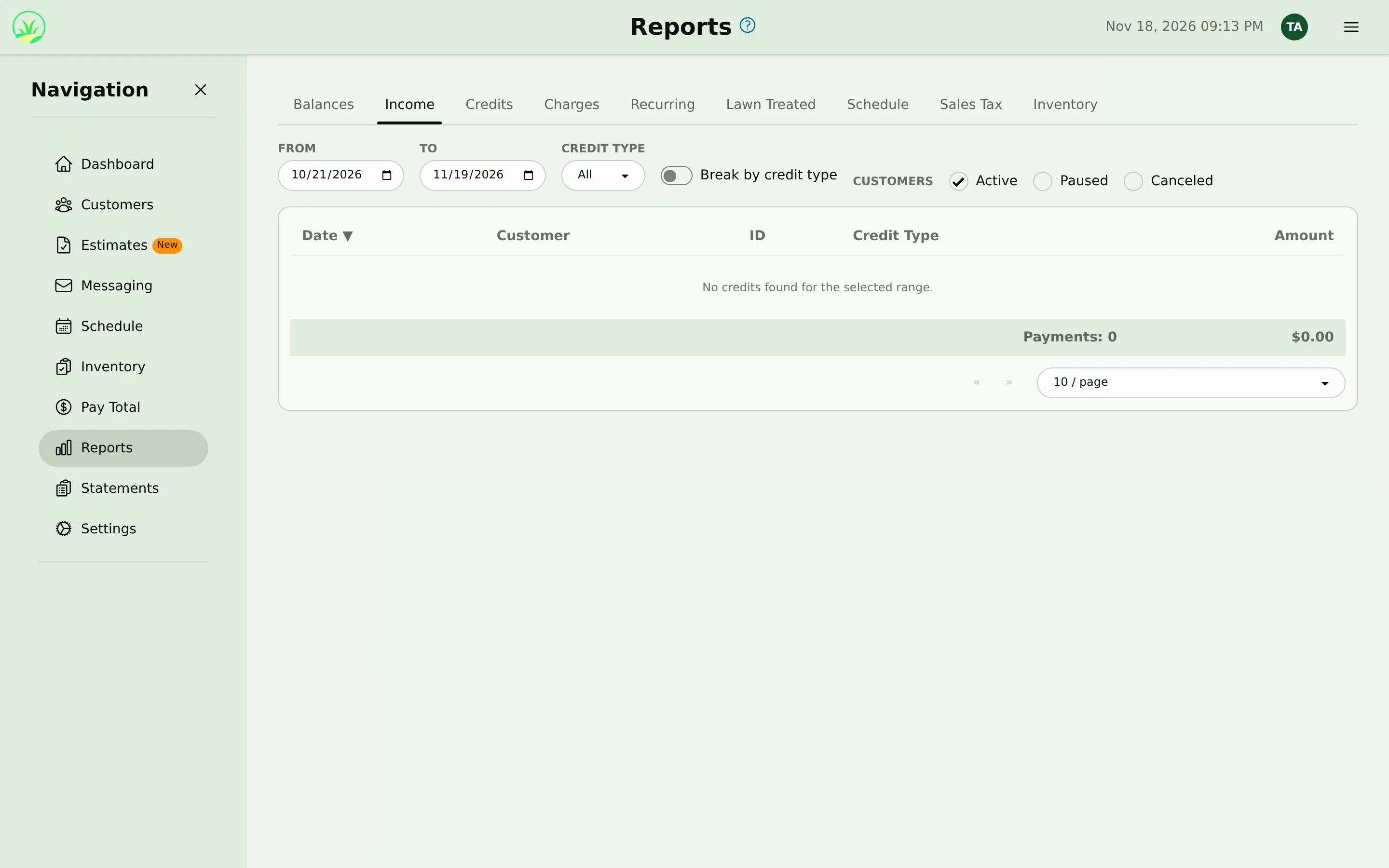
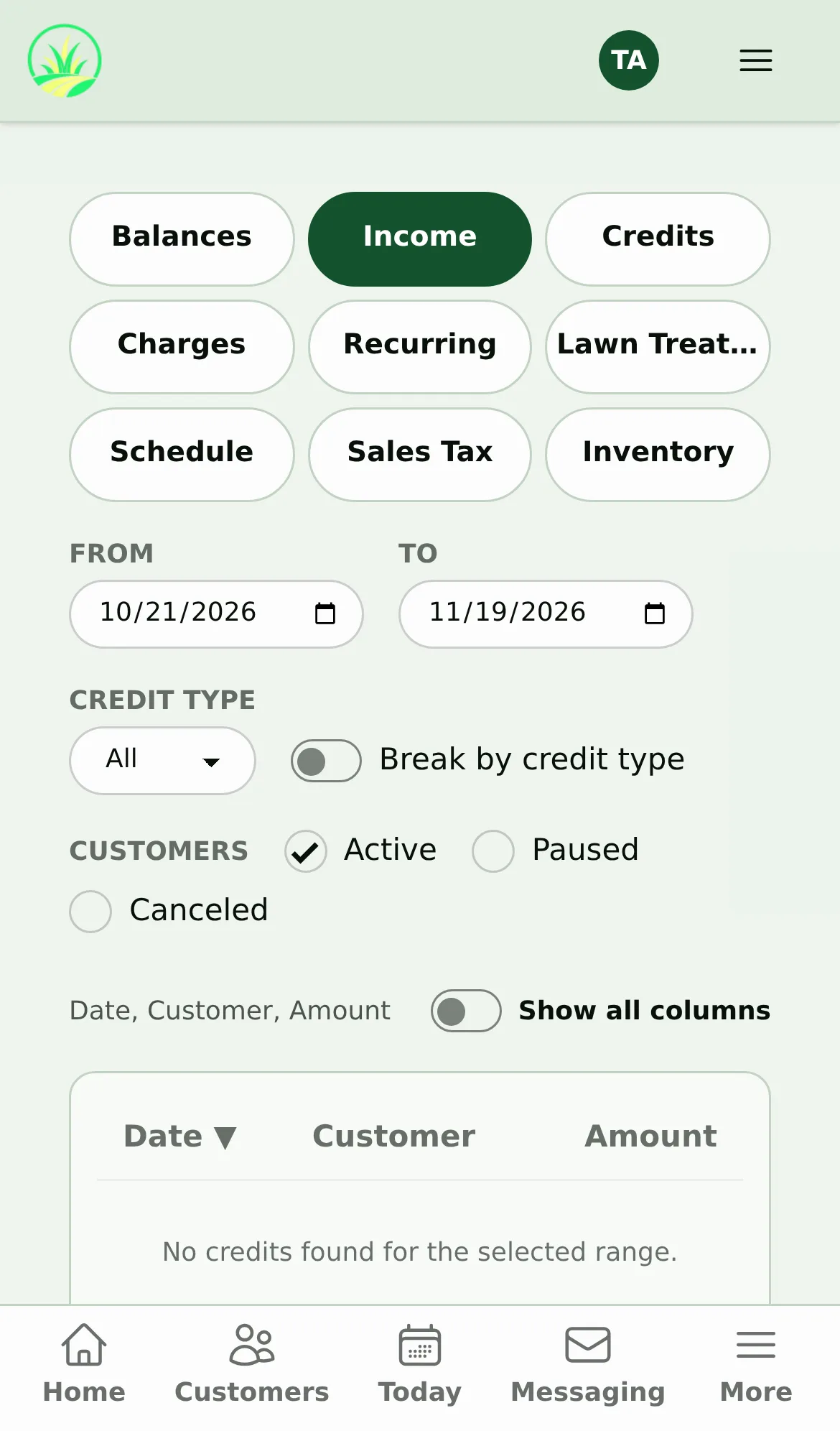
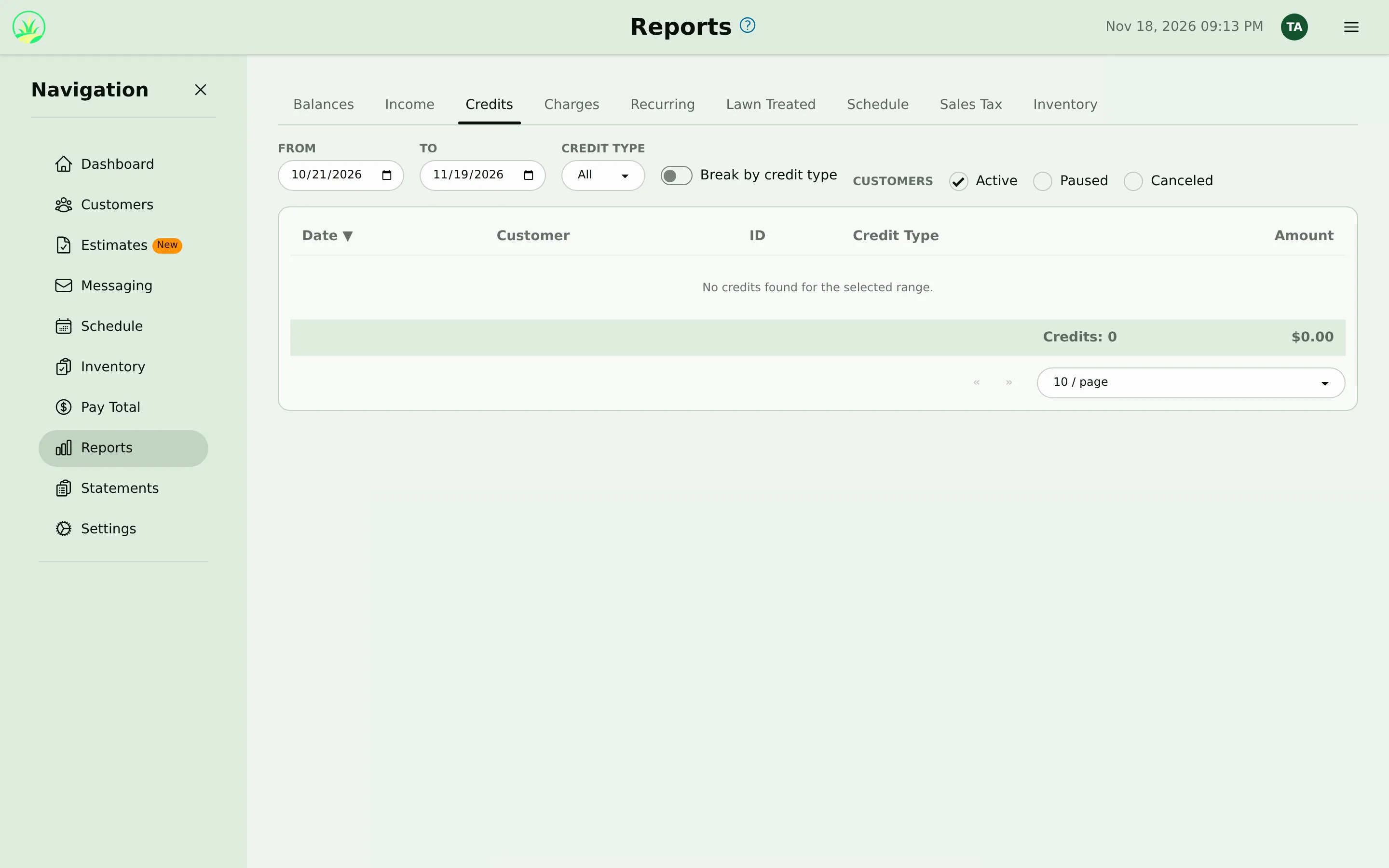
These three tabs work the same way, each on its own kind of entry:
| Tab | What it lists |
|---|---|
| Income | Every payment received |
| Credits | Every credit given |
| Charges | Every charge posted |
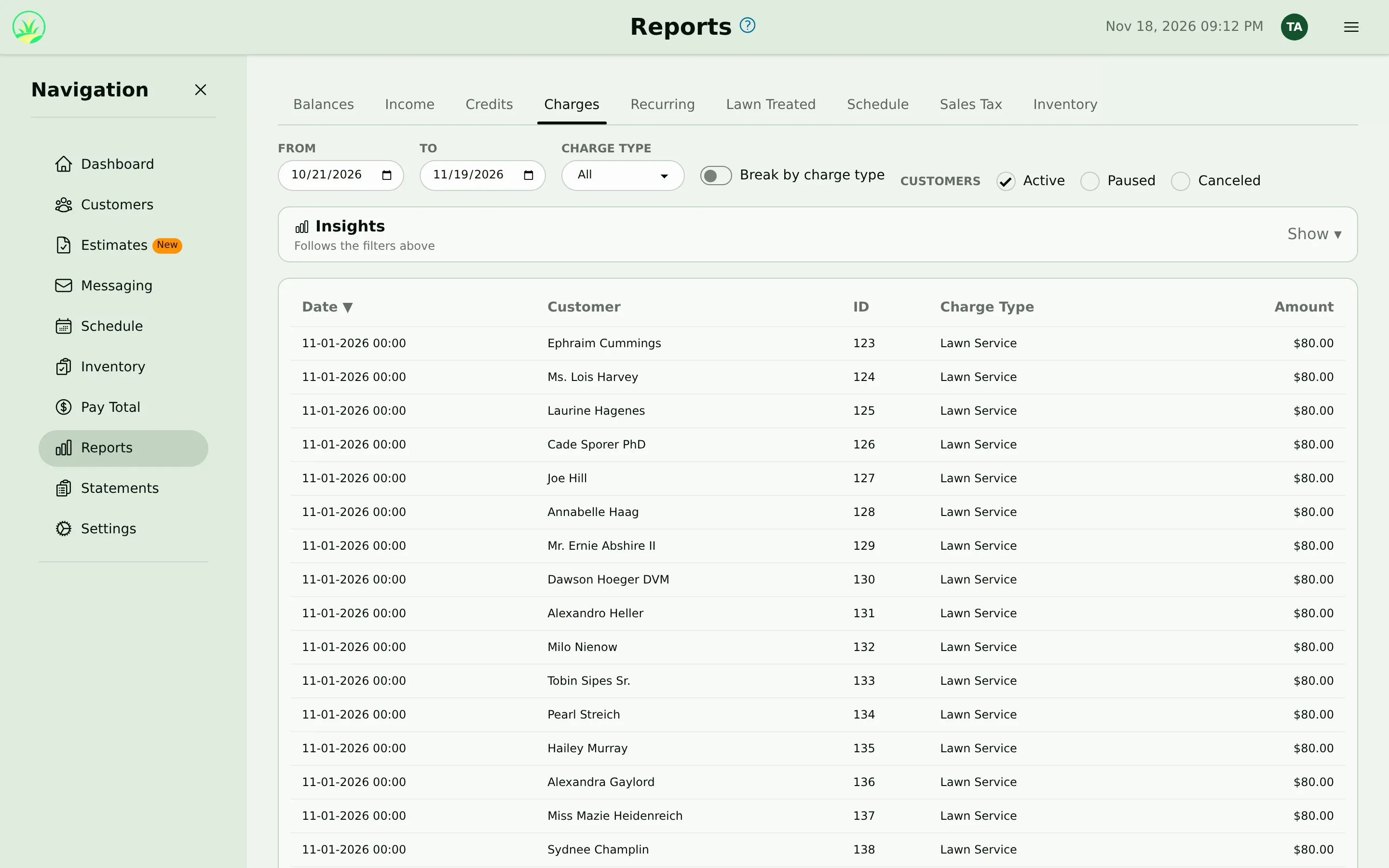
Choose the period with From and To, and which customers to include by their status. The Credit Type list (Charge Type on Charges) shows one type only; Break by credit type (Break by charge type) splits the table into one group per type, each with its own count and total. The table lists the Date, Customer, ID, the type and the Amount, with the totals at the bottom. On a phone it shows Date, Customer and Amount (see 16.1).
16.7 The Recurring tab
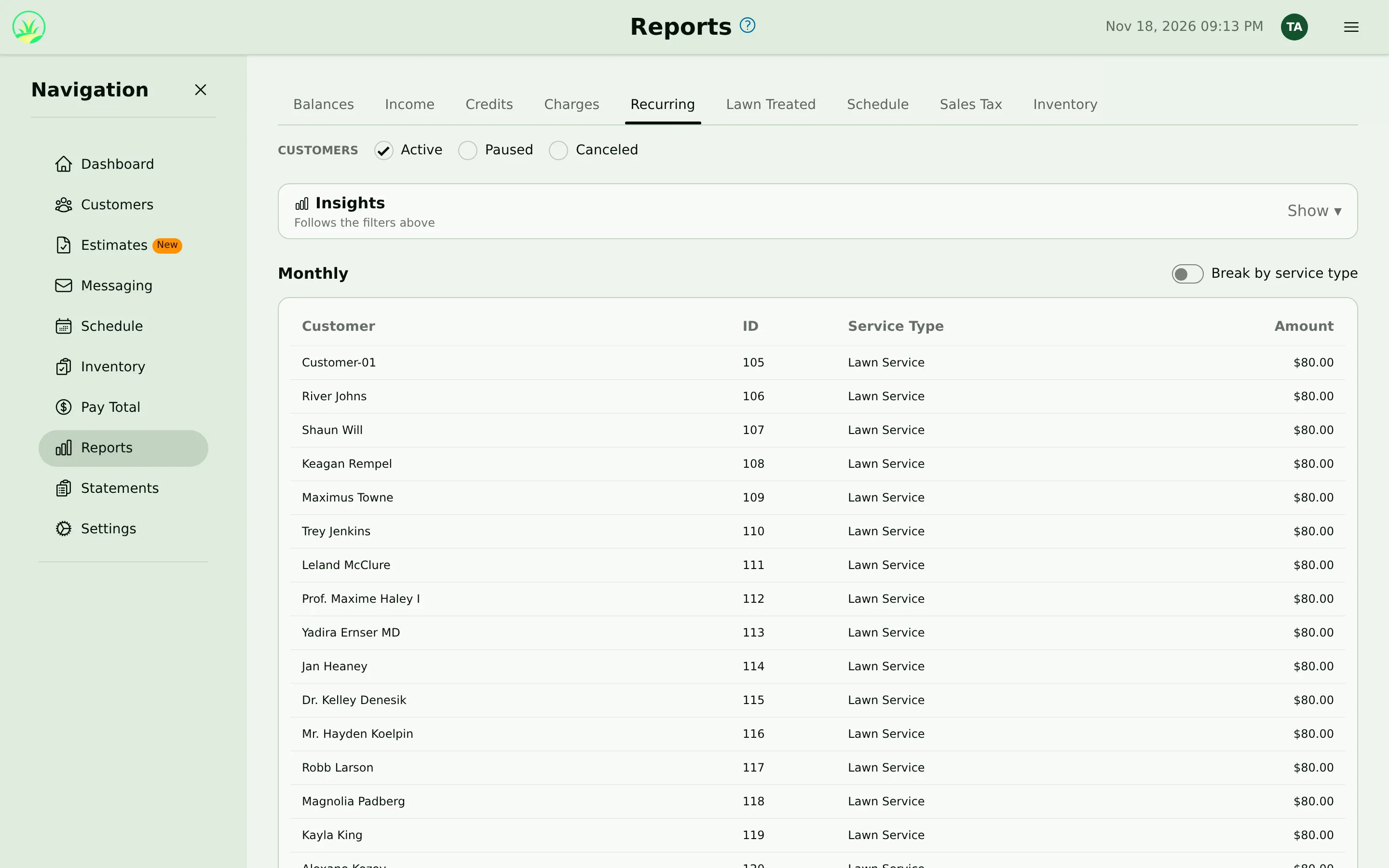
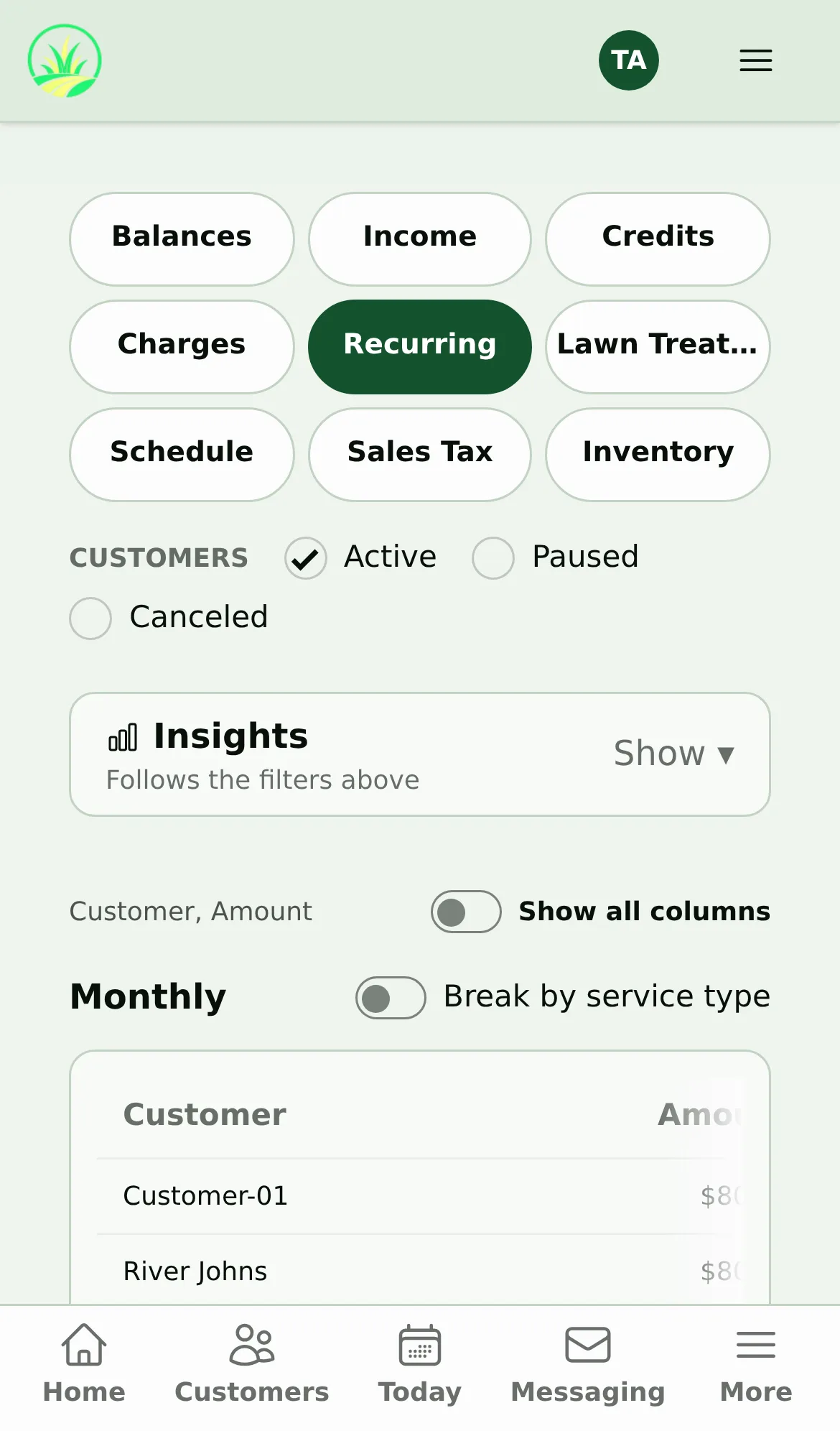
Recurring shows what your repeating services bring in, for the customers of the statuses you choose. Monthly lists the services billed every month and Other Frequencies the rest. Break by service type groups either list by service type, and Break by frequency groups the other frequencies. On a phone the table shows Customer and Amount; ID, Service Type and Billing Frequency are behind Show all columns.
16.8 The Lawn Treated tab
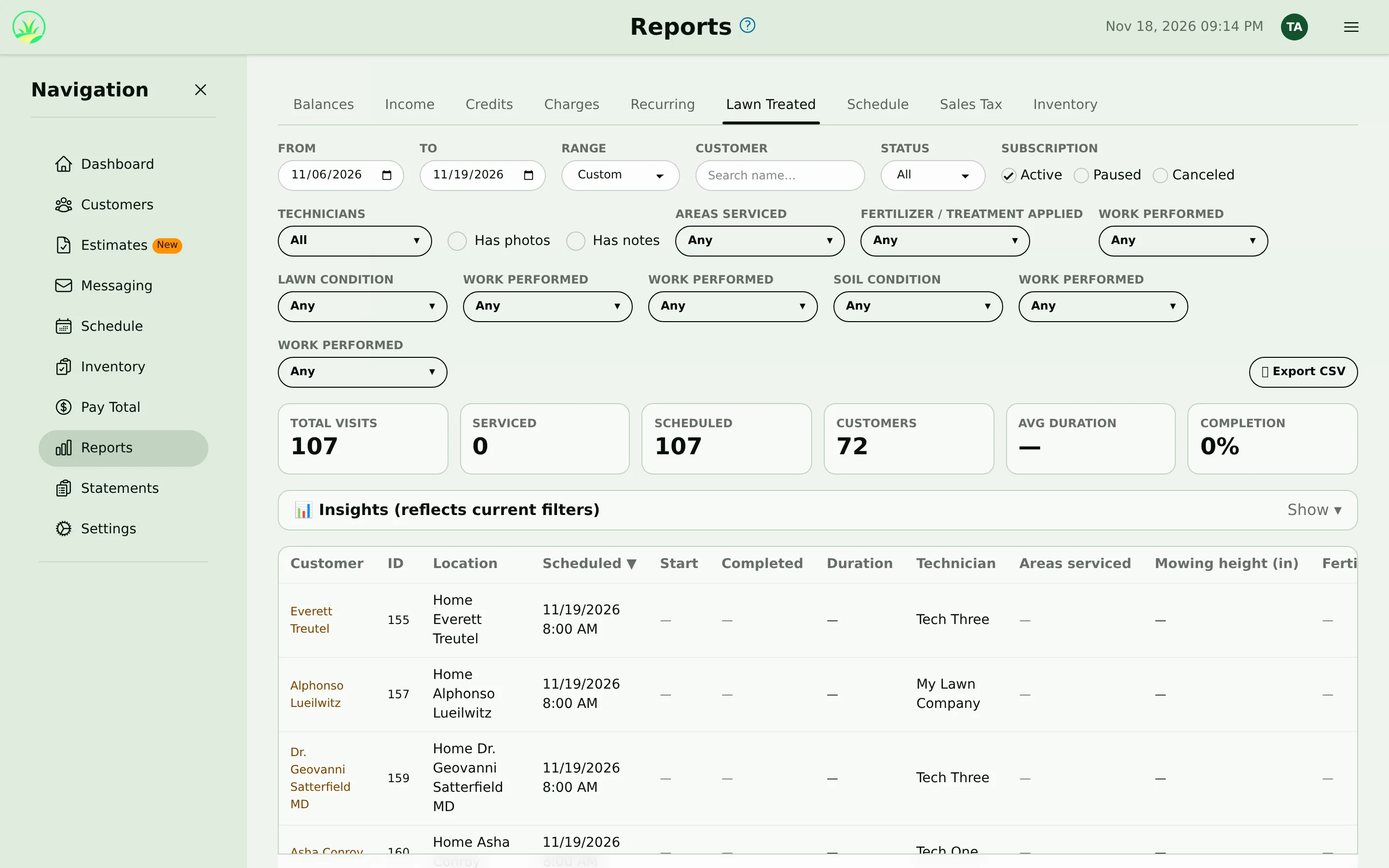
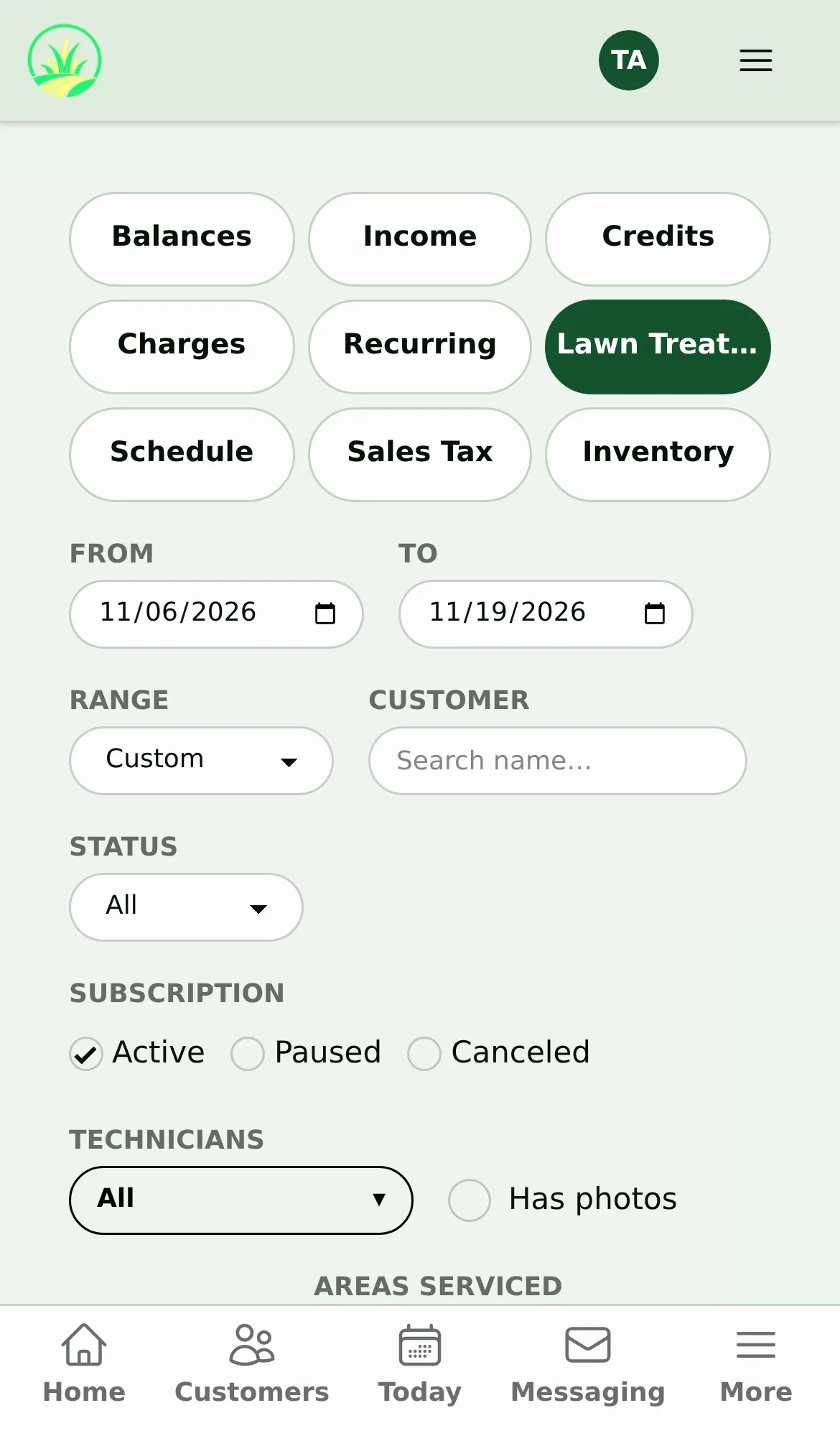
This tab counts the lawn services that were finished. It opens on the last 14 days and on customers with an Active subscription; the filters above the table narrow it down, and the Technicians filter takes one technician or several. Detailed columns shows every column, and Export CSV saves what the filters show as a spreadsheet. On a phone the table shows Customer, the scheduled date and Technician (see 16.1).
16.9 The Ratings tab
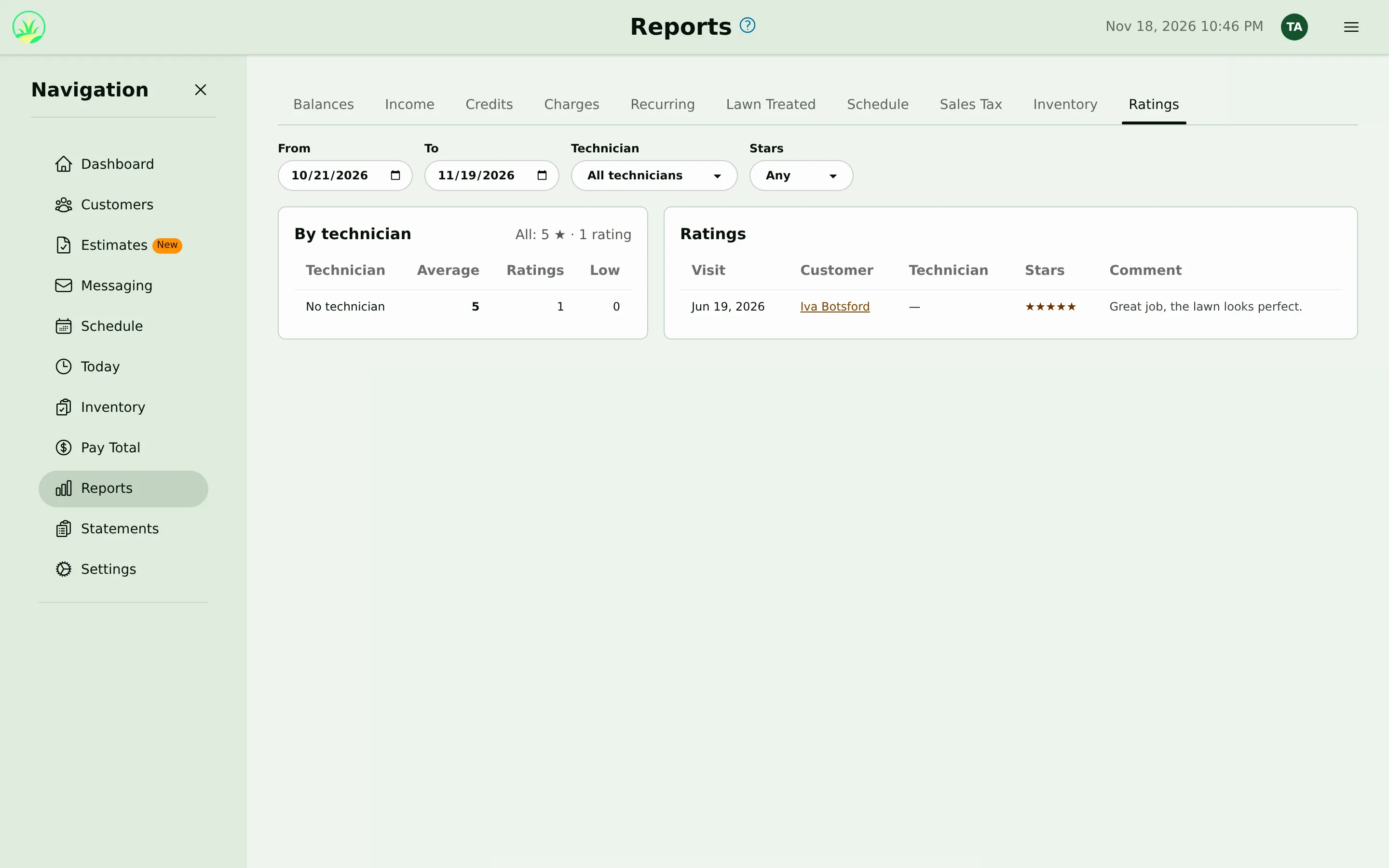
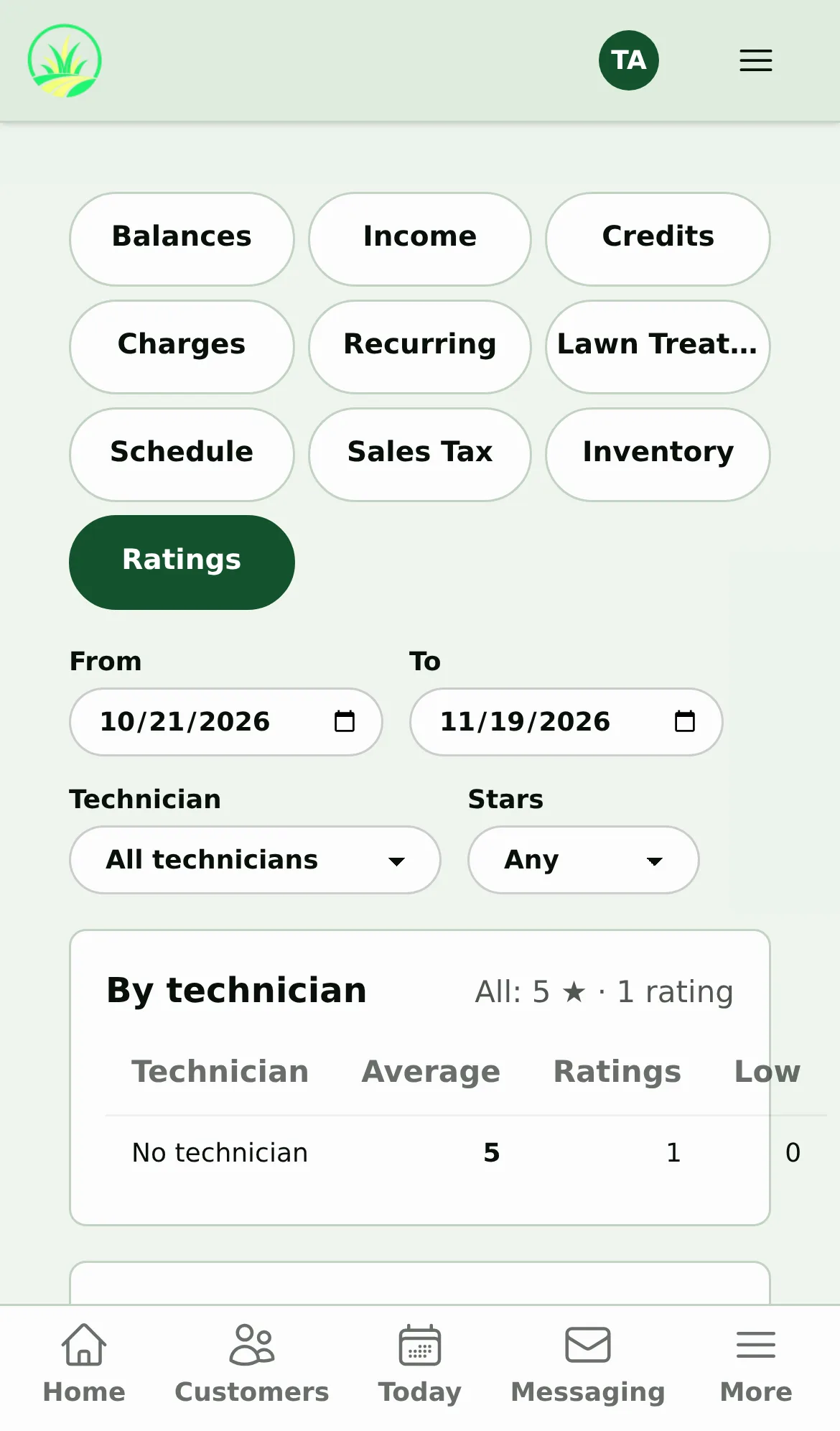
Ratings shows the stars and comments customers gave your lawn services (13.3, 14.5). It opens on the last 30 days. The filters are From, To, Technician and Stars (1–2 (low), or one number).
- By technician: each technician's average, how many ratings, and how many were low (1 or 2 stars), and the average of all of them.
- Ratings: one line per rating: the lawn service date, the customer (click to open them), the technician, the stars and the comment.
A low rating also appears on the Dashboard and the phone Home as Low ratings this week, which opens this tab showing the low ones of the last 7 days. No email is sent. Anyone who can open Reports sees this tab; technicians do not see their ratings.