15. Payroll
EZ Lawn Biller includes a built-in payroll calculator, Pay Total in the menu. It computes technician earnings — you then use those totals to run actual payroll through your payroll provider (e.g., Gusto, ADP, QuickBooks Payroll).
15.1 Technician Pay Profiles
Technicians are paid one of two ways:
| Pay type | How it works |
|---|---|
| Hourly | Paid for the hours worked, from the start and end times recorded in the mobile app |
| Per visit | Paid a set amount for each lawn service finished |
The company defaults are set in Pay Total, on the Settings tab, under Company Defaults: the Pay method (Per-visit or Hourly), the default amount per visit and the default amount per hour. Save Company Settings saves them. Under Location Override (Per-visit) you can set a different per-visit amount for one location, for example a large property that takes longer.
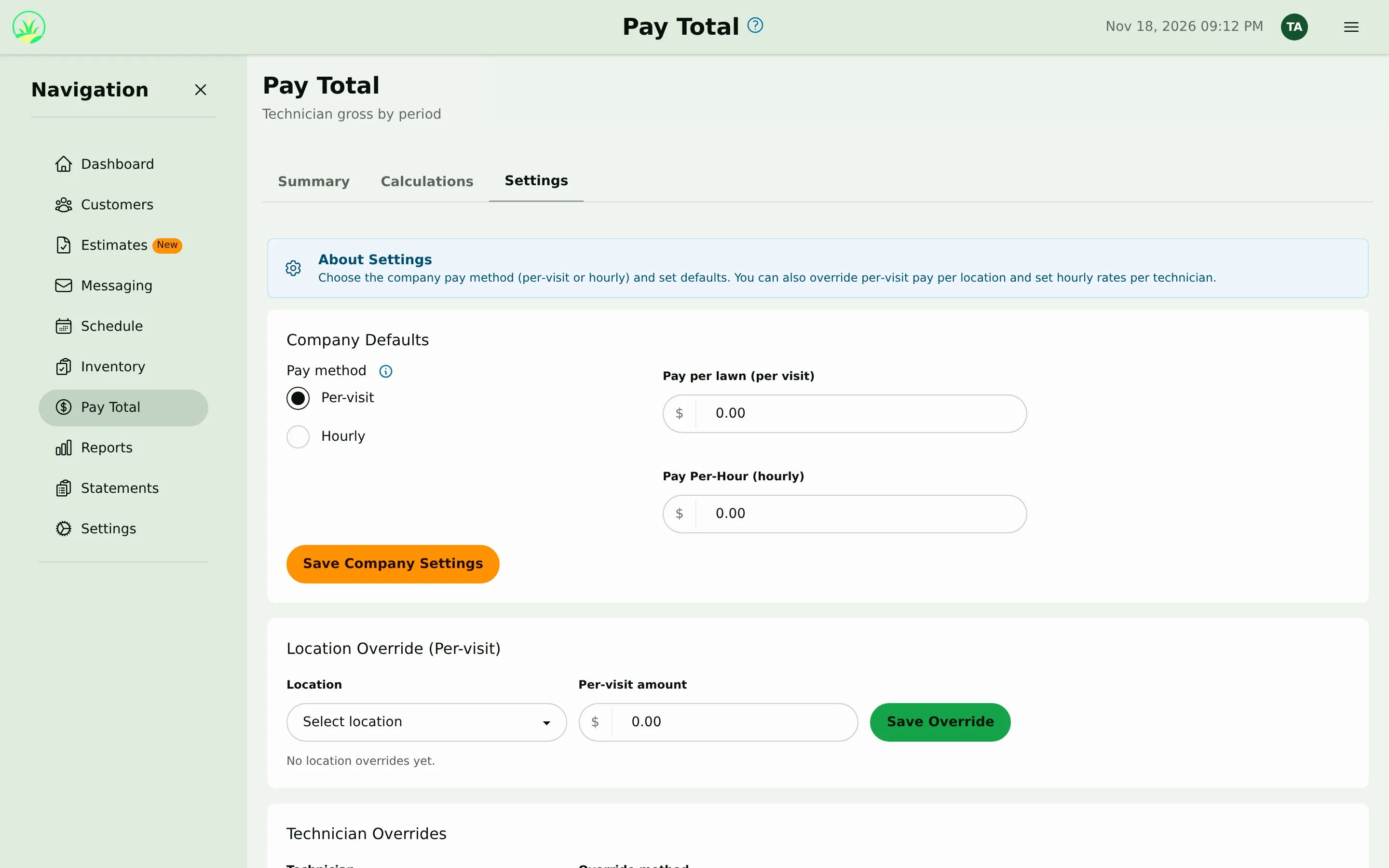
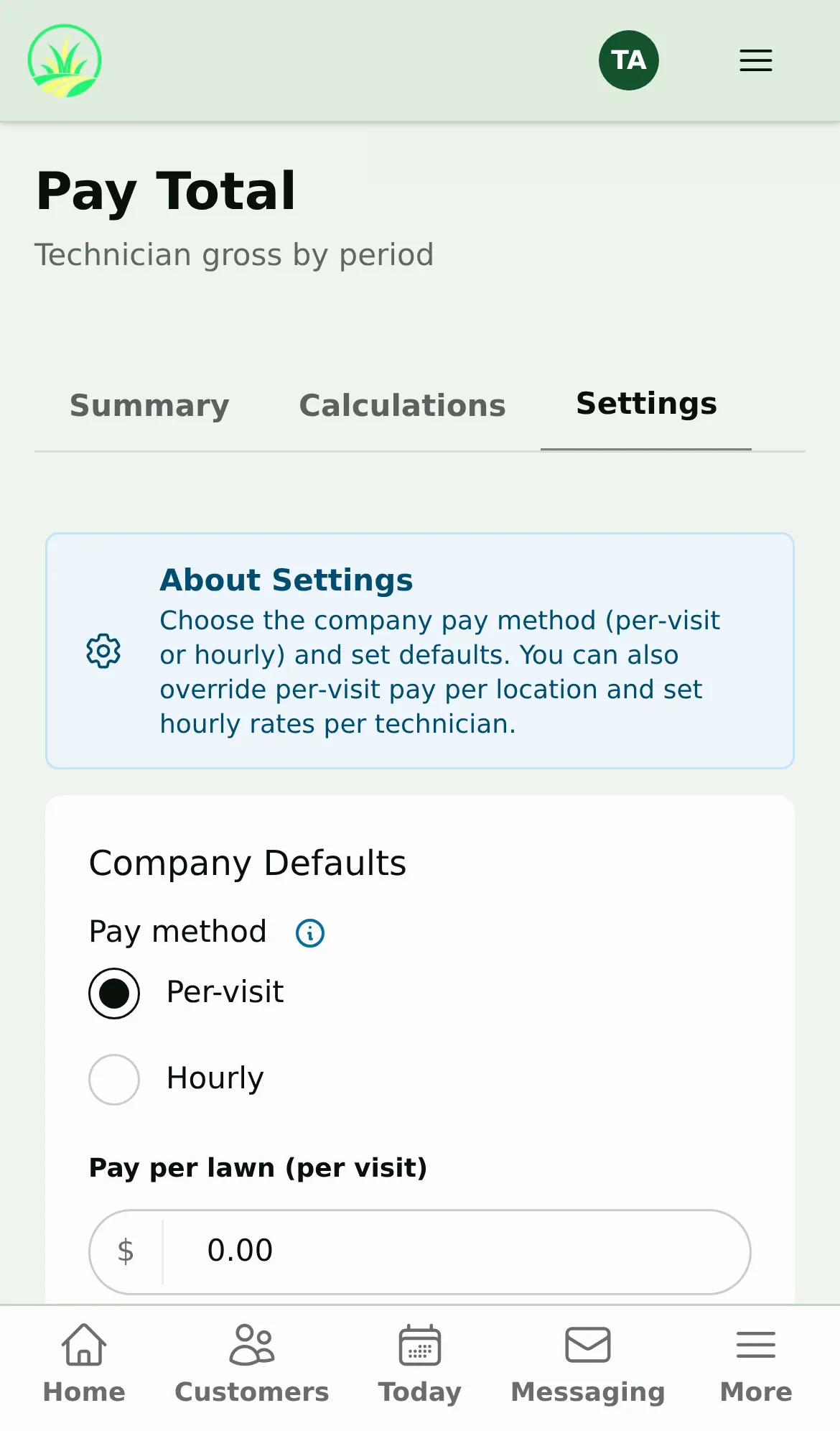
One technician's pay is set in Settings › People › Technicians: open the technician, and in the Pay and app group choose Pay:
| Pay | What it means |
|---|---|
| Company Default | No rate of their own; the company defaults apply |
| Hourly | An Hourly rate for this technician only. Example: 20.00 pays $20 an hour |
| Per visit | A Rate per visit for this technician only. Example: 14.00 pays $14 for each lawn service |
The technician list shows each technician's pay (Company Default, or their own rate). The same rates can also be set on the Settings tab of Pay Total, under Technician Overrides.
15.2 Running Payroll
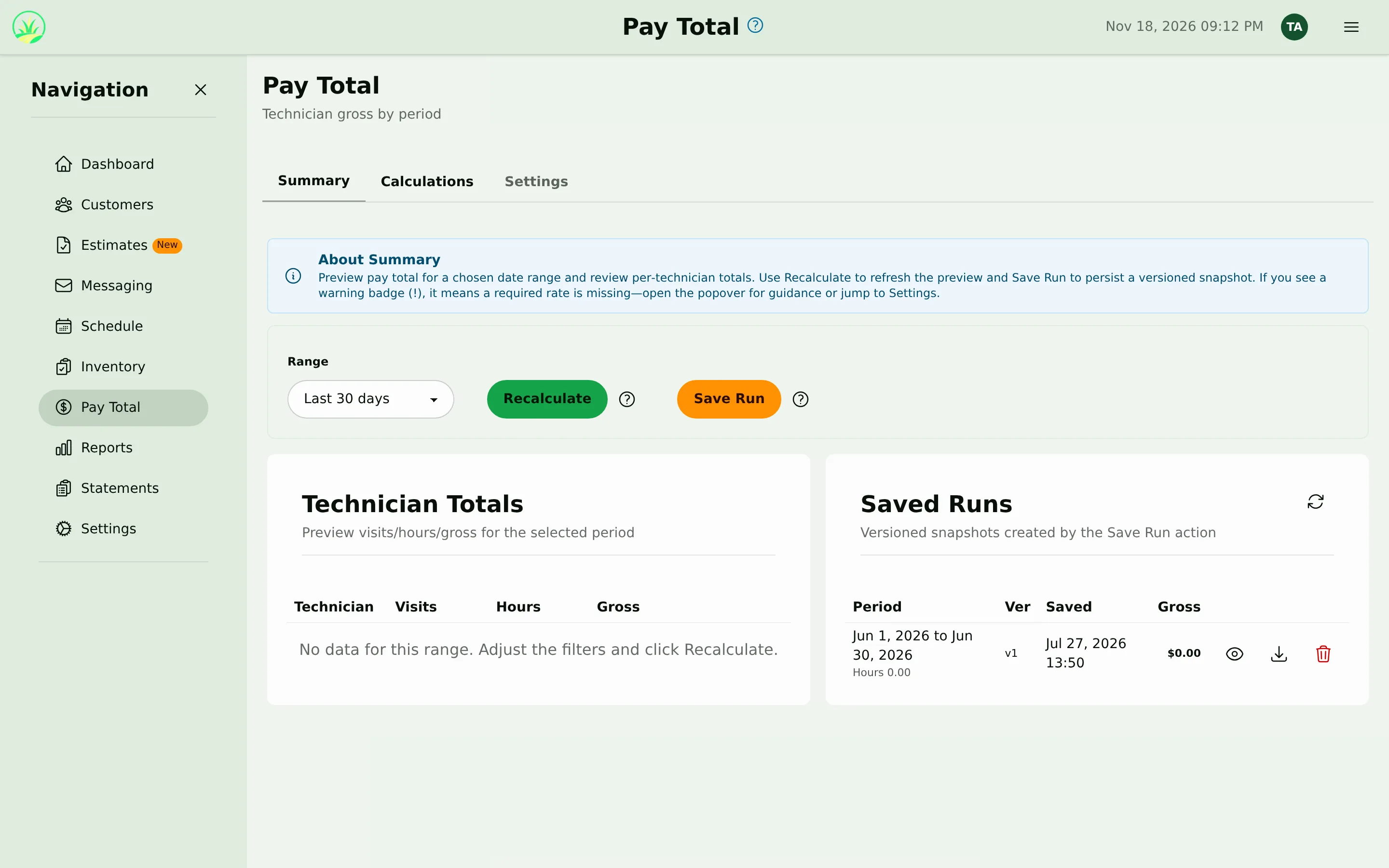
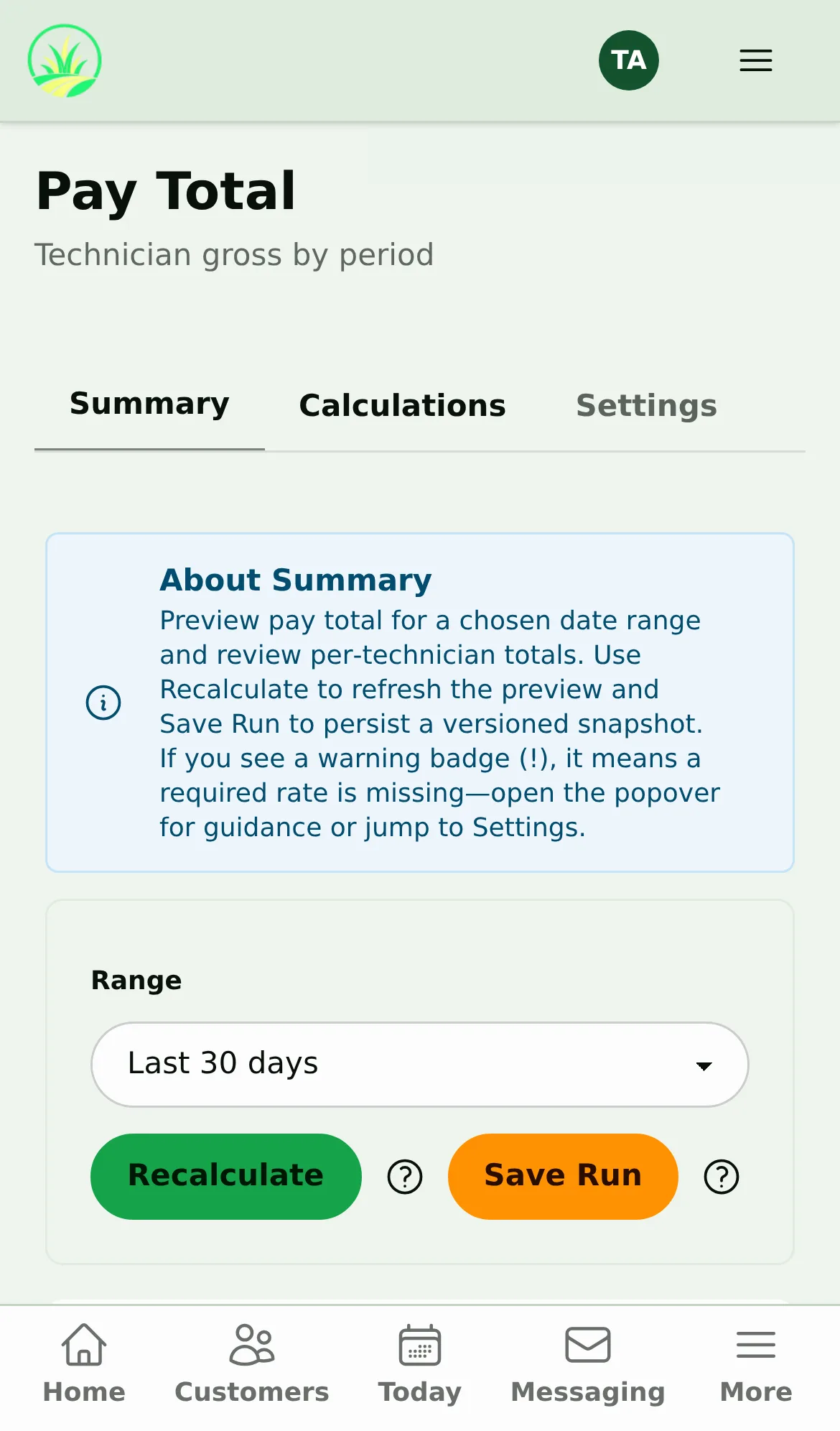
- Open Pay Total in the menu. It opens on the Summary tab.
- Choose the Range: Today, Yesterday, Last 7 days, Last 30 days, This month, Last month, or Custom with a Start and End date.
- Click Recalculate. Technician Totals shows each technician's Visits, Hours and Gross for the period. This is a preview: nothing is saved.
- Review the amounts. The Calculations tab shows how each amount was worked out, and the Services tab lists the completed lawn services behind the visits and hours.
- Click Save Run. The run is kept under Saved Runs with its Period, version (Ver), the date it was Saved and its Gross. Saving the same period again, for example after a rate changes, makes a new version.
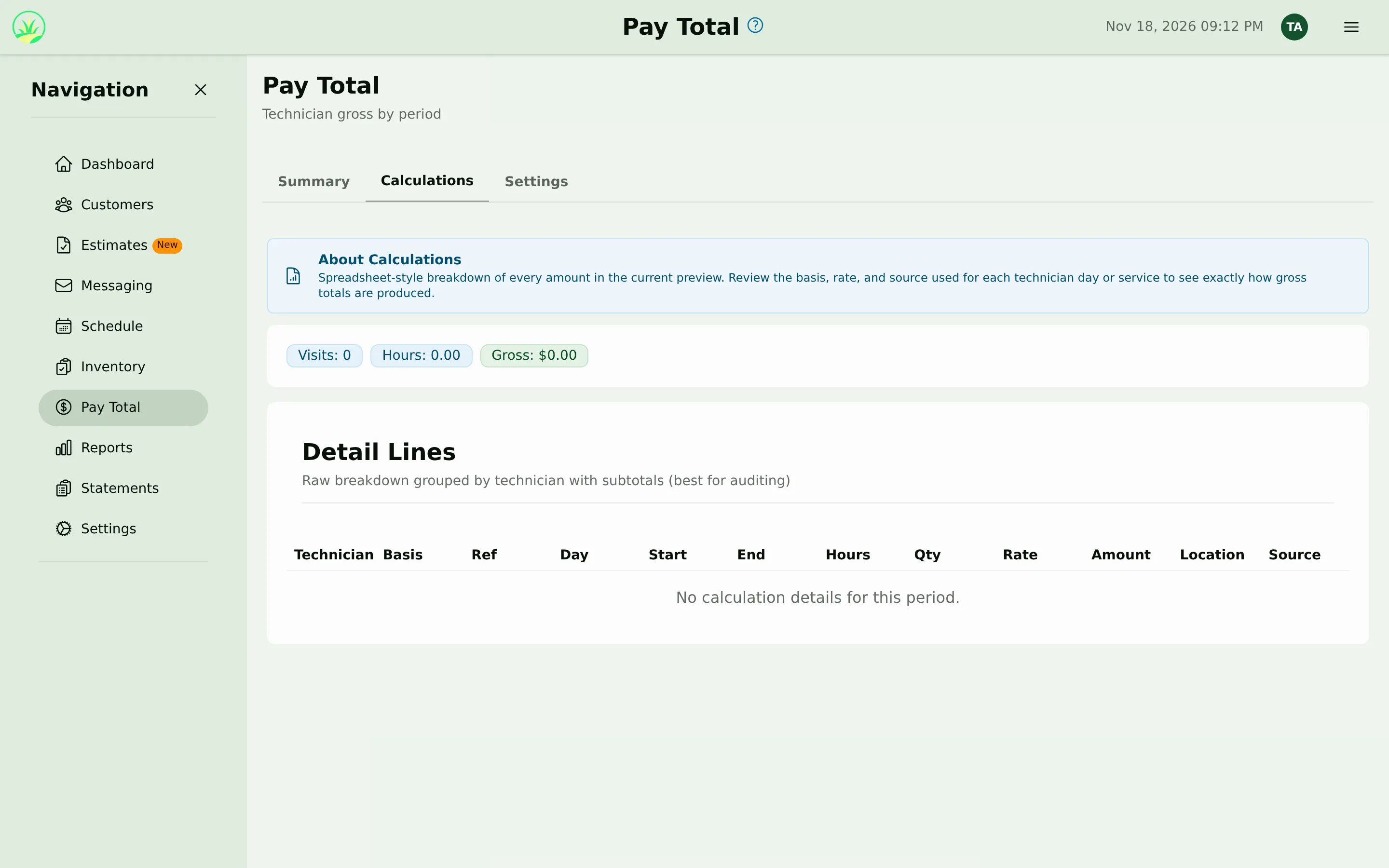
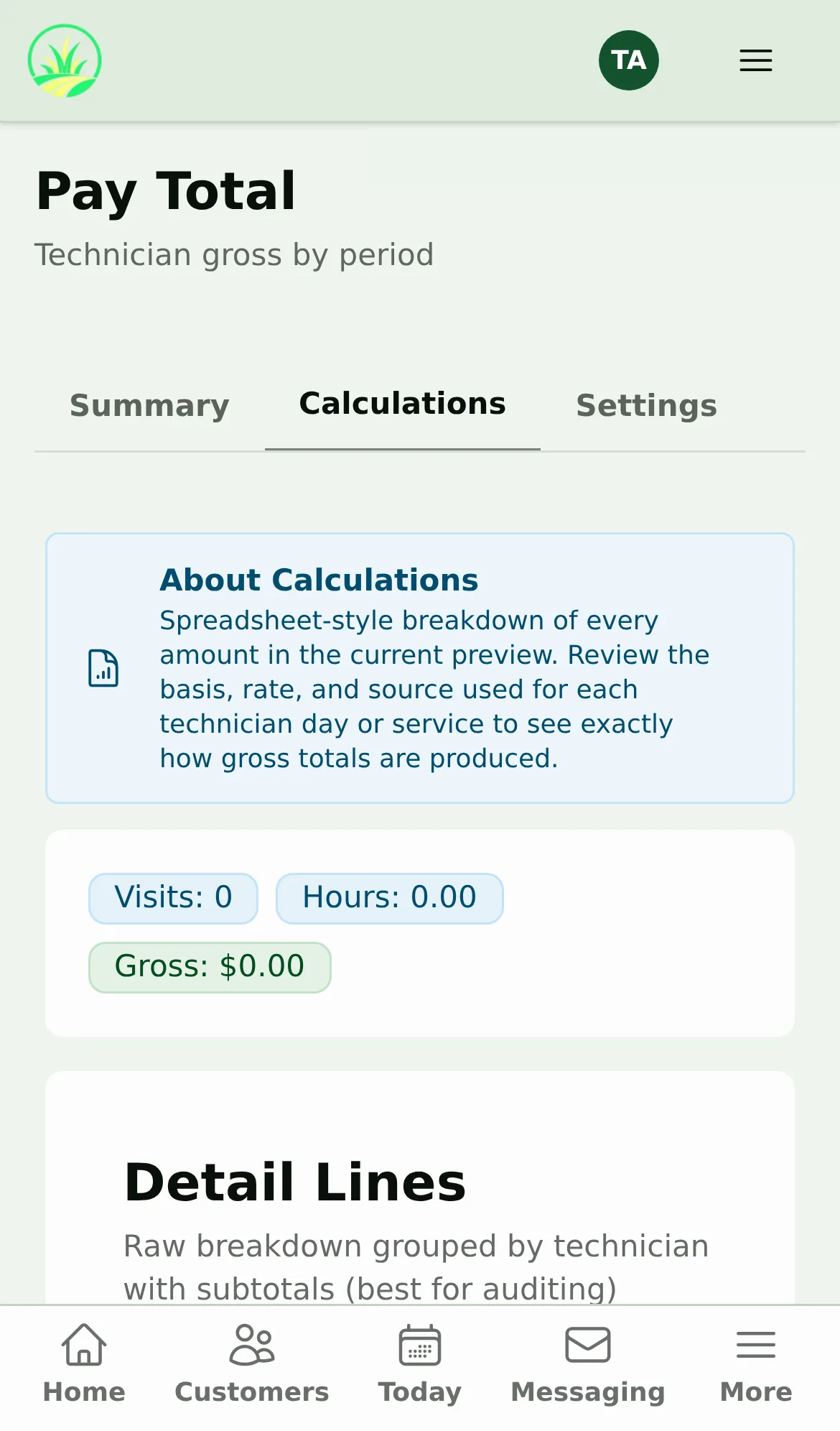
The Calculations tab shows the period's totals (visits, hours, gross), any alerts, and Detail Lines: every amount, grouped by technician, with its basis, rate and source.
On a phone, the wide tables of Pay Total show their key columns only, for example Period and Gross for saved runs. Turn on Show all columns above a table to see the rest; your phone remembers the choice.
15.3 Pay Statements & PDF Export
After you have worked out a period:
- Each technician has a pay statement: the eye button beside them in Technician Totals opens it, and the download button saves it as a PDF. It shows their earnings for the period, line by line, with the total.
- Each saved run can be opened (eye button) or downloaded as a PDF from Saved Runs. The bin button deletes a saved run.
Use the calculated totals to process actual payroll through your external payroll provider.