7. Scheduling & Routes
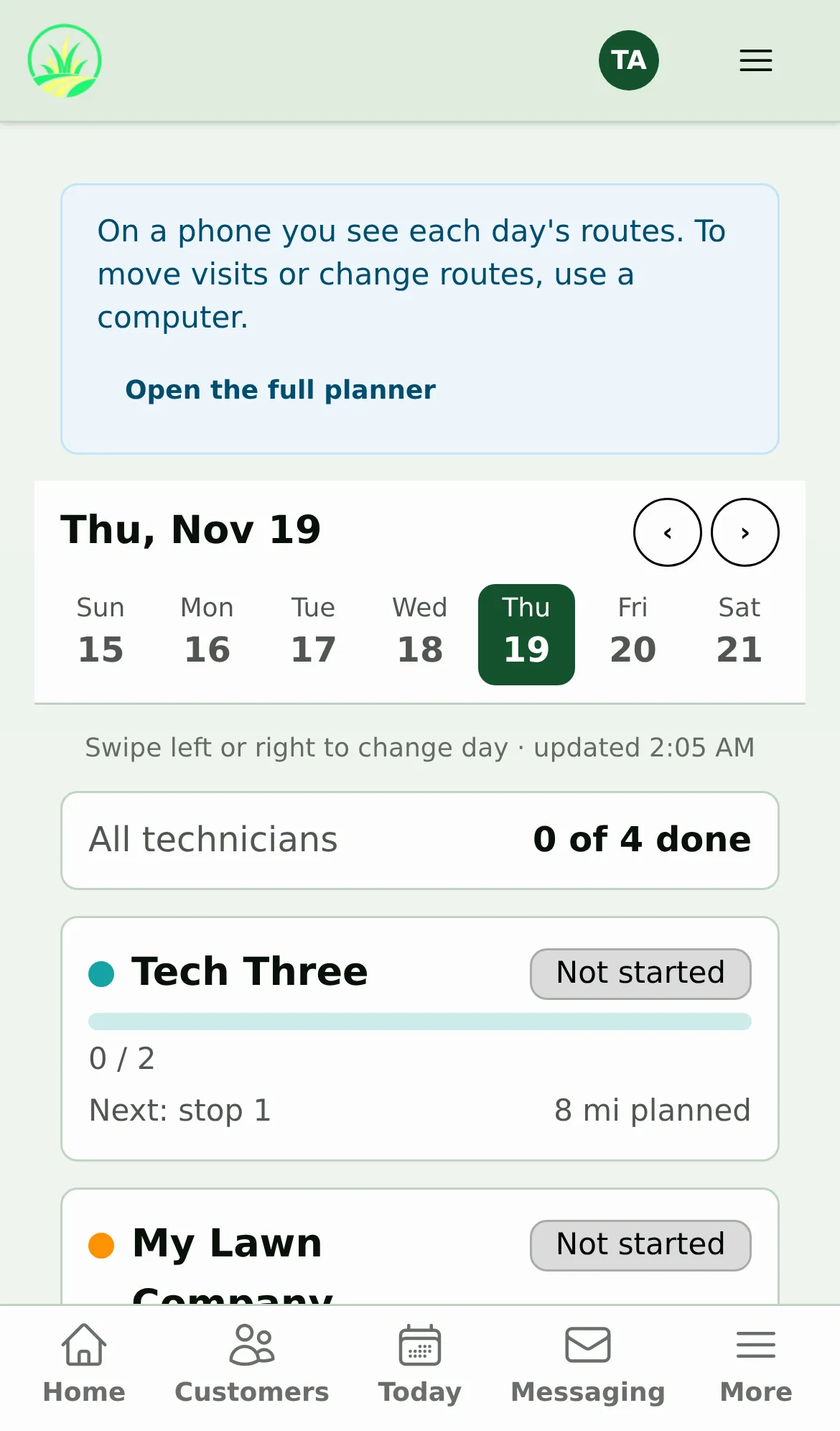
Planning routes is a computer task: the calendar, the Route Optimizer, Customize Routes and the PDF are built for a computer screen. On a phone, Schedule shows each day's routes, read only (7.12).
7.1 How it works
- Your repeating services create stops automatically — a weekly service makes one stop a week, or one on each visit day when it has several visit days a week.
- Those stops appear on the calendar.
- You put each one on a technician and a day, or let EZ Lawn Biller work it out.
- You publish the week, and technicians see it on their phones.
7.2 Week and month views
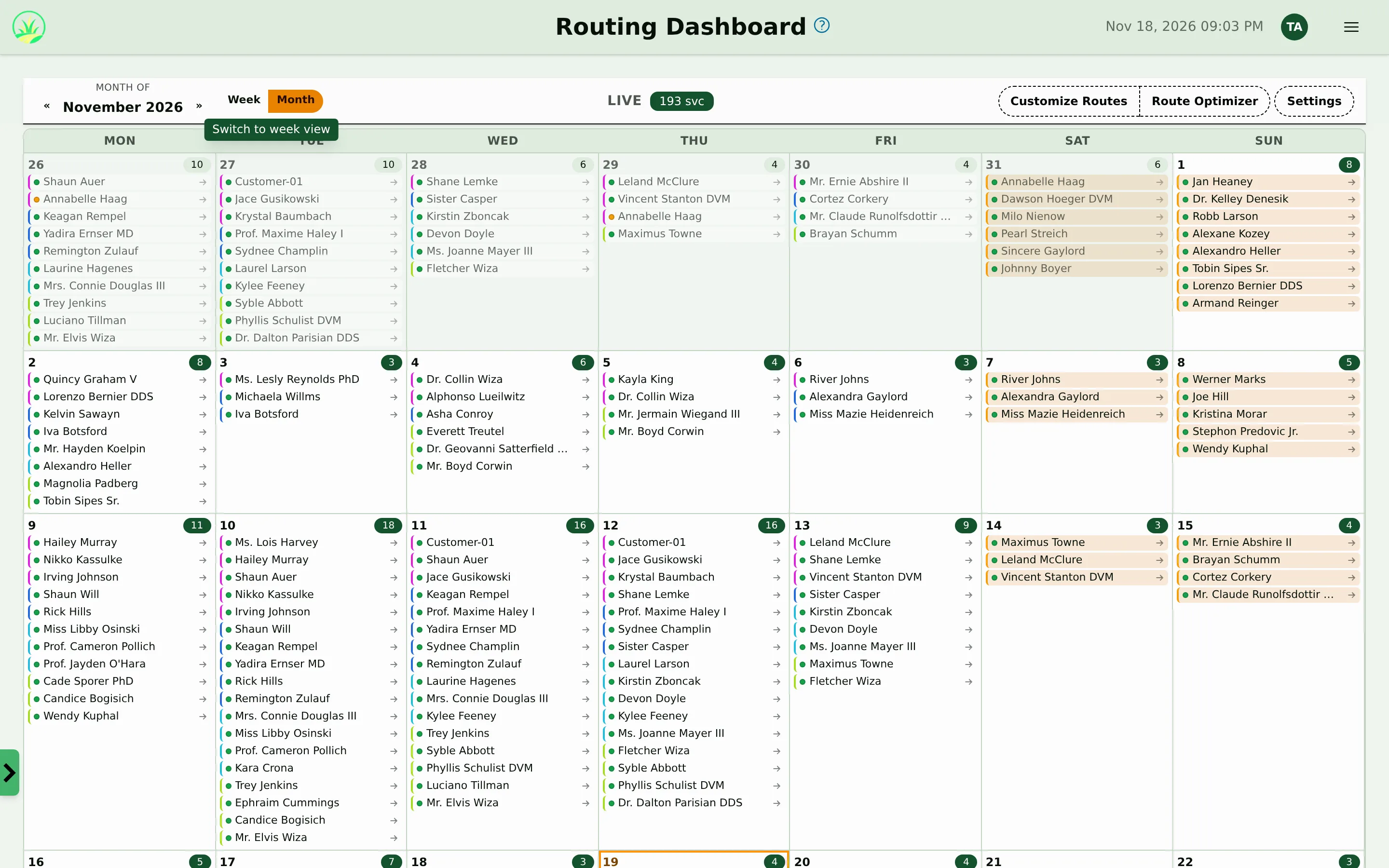
The calendar opens on the week view:
- Columns are the days.
- Rows are your technicians.
- Each stop is a small card showing the customer, the place, and the service. A coloured dot tells you which service it is at a glance.
There's also a month view for seeing the shape of a whole month. Use the arrows to move between weeks or months.
Click a day to open it and see everything booked that day. Hover a stop to see its details without opening anything.
7.3 Draft and LIVE
Two words matter on this page:
| What it is | |
|---|---|
| LIVE | What your technicians can see on their phones right now |
| DRAFT | Your private copy for making changes |
Nothing you do in a DRAFT reaches anybody until you publish it. Move stops around, change your mind, start over — technicians in the field see none of it.
To make changes safely:
- Click Create a Draft.
- Make your changes.
- Click Apply Draft to LIVE when you're happy.
Return to LIVE throws the draft away and puts you back to what technicians can see. Use it when you've made a mess and want to start again.
7.4 Moving stops around
- Drag a stop from one day or technician to another.
- Click a stop for its details, where you can change the technician, the day, and its place in the driving order.
- Stops that aren't on anybody yet sit in Overflow. Drag them onto a technician's day.
If a move breaks a rule — outside the technician's hours, or outside the hours that location allows — EZ Lawn Biller stops and tells you which rule. You can go back, or choose Force anyway if you know something it doesn't.
Changing future weeks too: when you move a stop, you can tick to apply the same change to future weeks. Handy when a customer permanently switches from Tuesdays to Thursdays — you change it once instead of week by week.
Services with several visit days a week: each visit day moves on its own. Moving the Monday stop and applying it to future weeks moves only the Monday stops; the Wednesday and Friday stops stay where they are. EZ Lawn Biller refuses a future-weeks move onto a day the service already visits, and warns you when a one-off move puts two stops of the same lawn on one day.
Services on days of the month (twice a month, monthly and so on): moving a stop to another date and applying it to future weeks changes only that day of the month (for example the 16th becomes the 18th); the other days stay. EZ Lawn Biller refuses a day the service already uses, and a day next to another of its days.
Biweekly services: moving a stop into the week between its visits and applying it to future weeks moves the customer to the other weeks; the calendar says so before you confirm.
Fixed visit days: route optimisation never moves a stop of a service whose days are fixed. You can still move one by hand: the calendar asks you to confirm first, and the Customize Routes sheet and drafts tell you after saving. Flexible days may be moved by route optimisation, keeping the visits apart.
7.5 Planning the route automatically
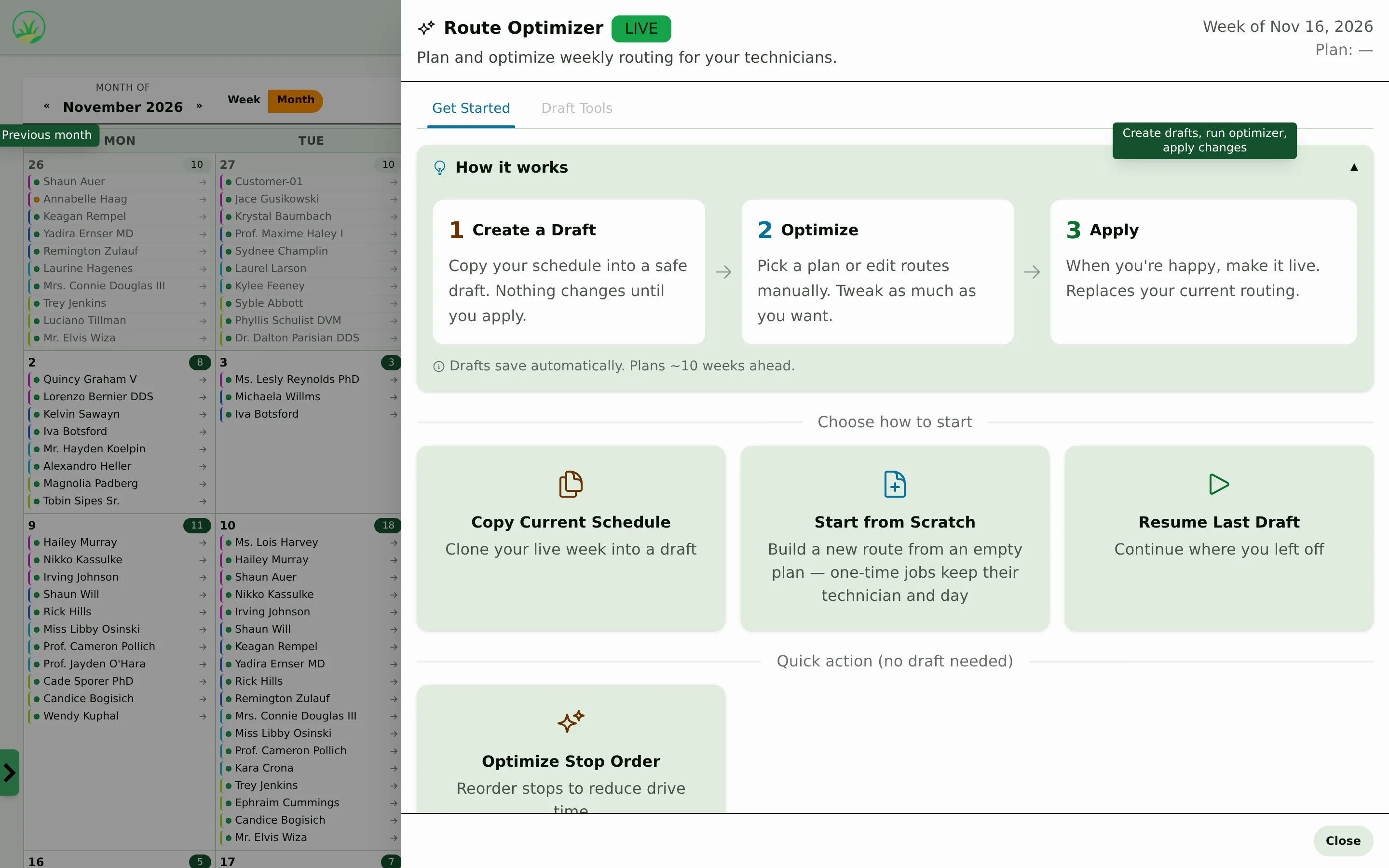
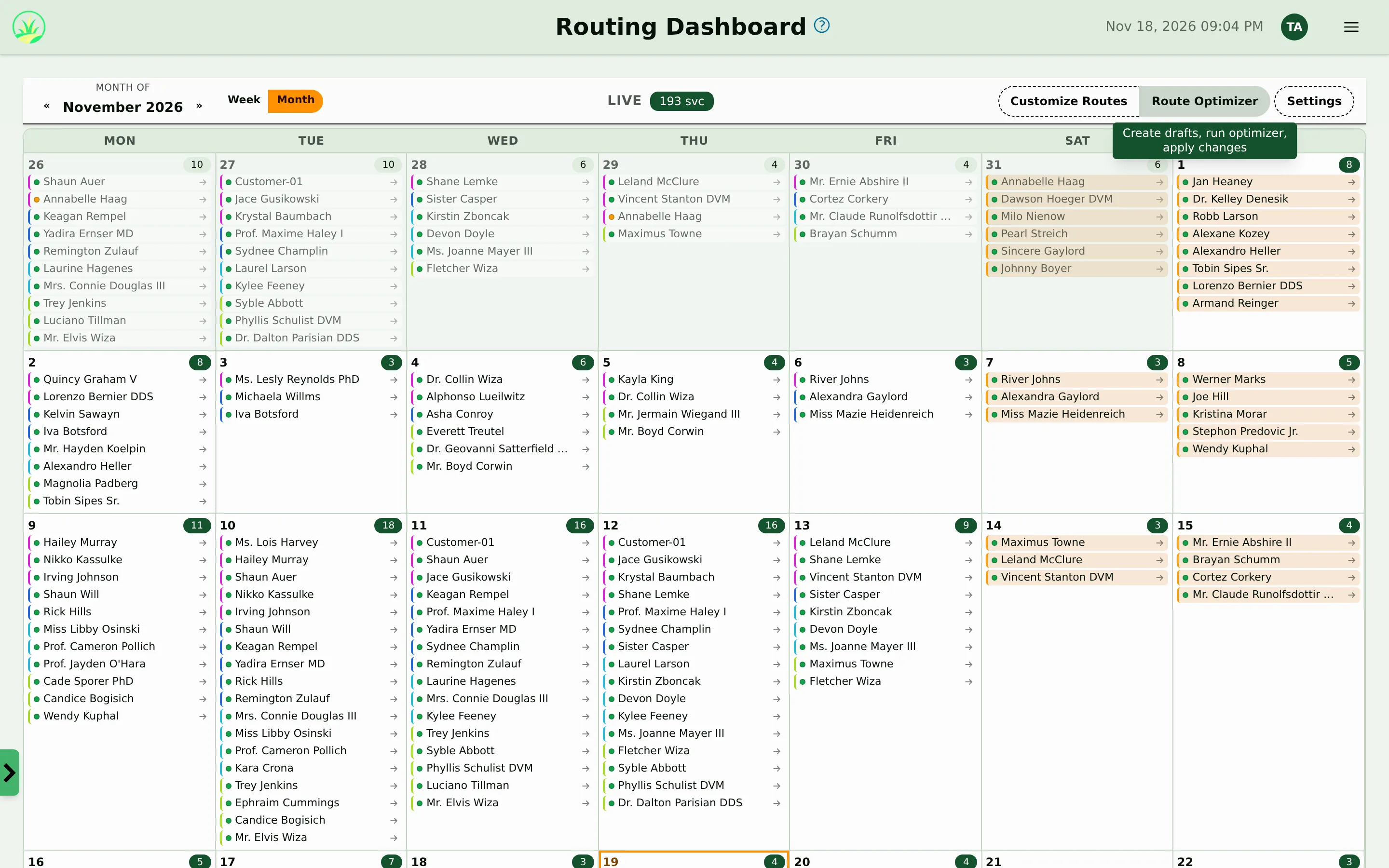
Open the Route Optimizer to have the driving order worked out for you.
- Make a Draft first (7.3).
- Open Route Optimizer.
- Choose how you want the week arranged:
| Mode | What it does |
|---|---|
| Concentrate (fill early week) | Fills the earlier days first and leaves later days lighter, so you keep room to move |
| Even out workload | Spreads the work evenly across the week |
| Equal distribution (balance across techs) | Balances the load between technicians so nobody is buried |
| Single split route (contiguous days) | Keeps each technician's work in blocks of days, cutting back-and-forth |
- Run it, then look at the calendar and the map.
- Publish with Apply Draft to LIVE when it looks right.
Optimize Order is the smaller version: it leaves who-does-what alone and only fixes the driving order within each day.
Two ways to affect more than this week:
- Apply To All Weeks — the optimizer covers the whole term, not just the week you're looking at.
- Copy to Future Weeks — copy this week's technician, day and stop order onto every future week. The stop order is copied as you arranged it; it is not re-optimized.
Locking a stop: if a customer can only be done on a Tuesday, lock that stop first. The optimizer works around anything locked.
It also respects technician hours and breaks, how much each technician can take on, the hours each location allows, and who's qualified for the work.
7.6 The map
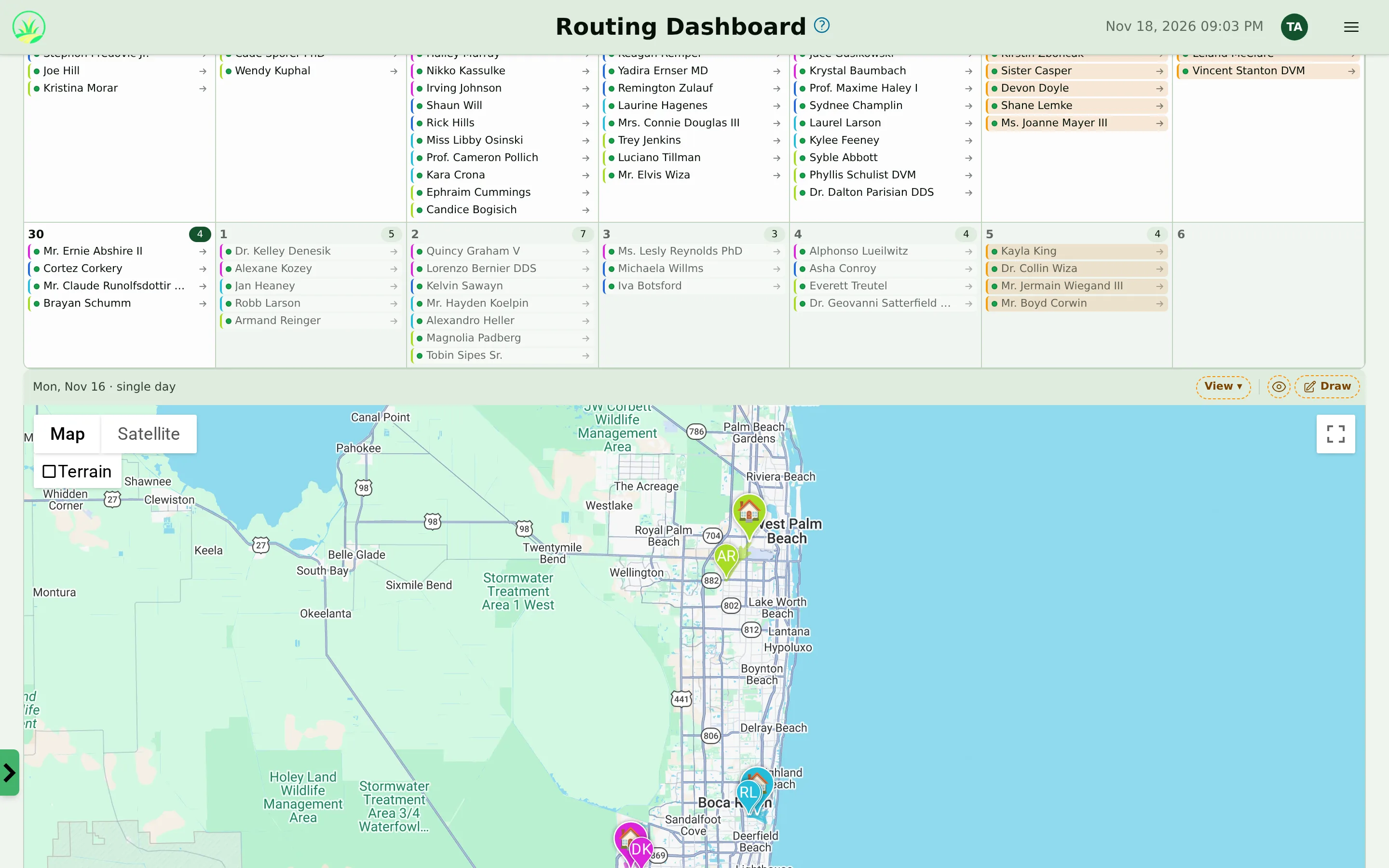
Switch to the map to see the stops as pins.
- Pin colours match the technician.
- Click a pin for the customer and address.
- Lines show the driving order.
- You can show your technicians on the map as well.
This is the quickest way to spot a stop on the wrong route — one pin miles from the rest usually means it's on the wrong person.
7.7 Changes during the week
Someone reschedules, a technician calls in sick, a one-off job comes in.
- Create a Draft for this week.
- Make the changes.
- Apply Draft to LIVE.
Technicians' phones pick it up straight away — nobody has to log out or refresh.
7.8 Marking work done from the office
If a job was finished but never closed on the phone, open the customer's page, go to the Services tab and click the tick (Complete & bill the visit) beside the lawn service. The window Mark service completed? says "This completes the visit and bills the customer for it."; click Complete & bill. Useful for tidying up at the end of the week.
A lawn service that is completed, or cancelled, has no tick.
7.9 Customize Routes: many stops at once
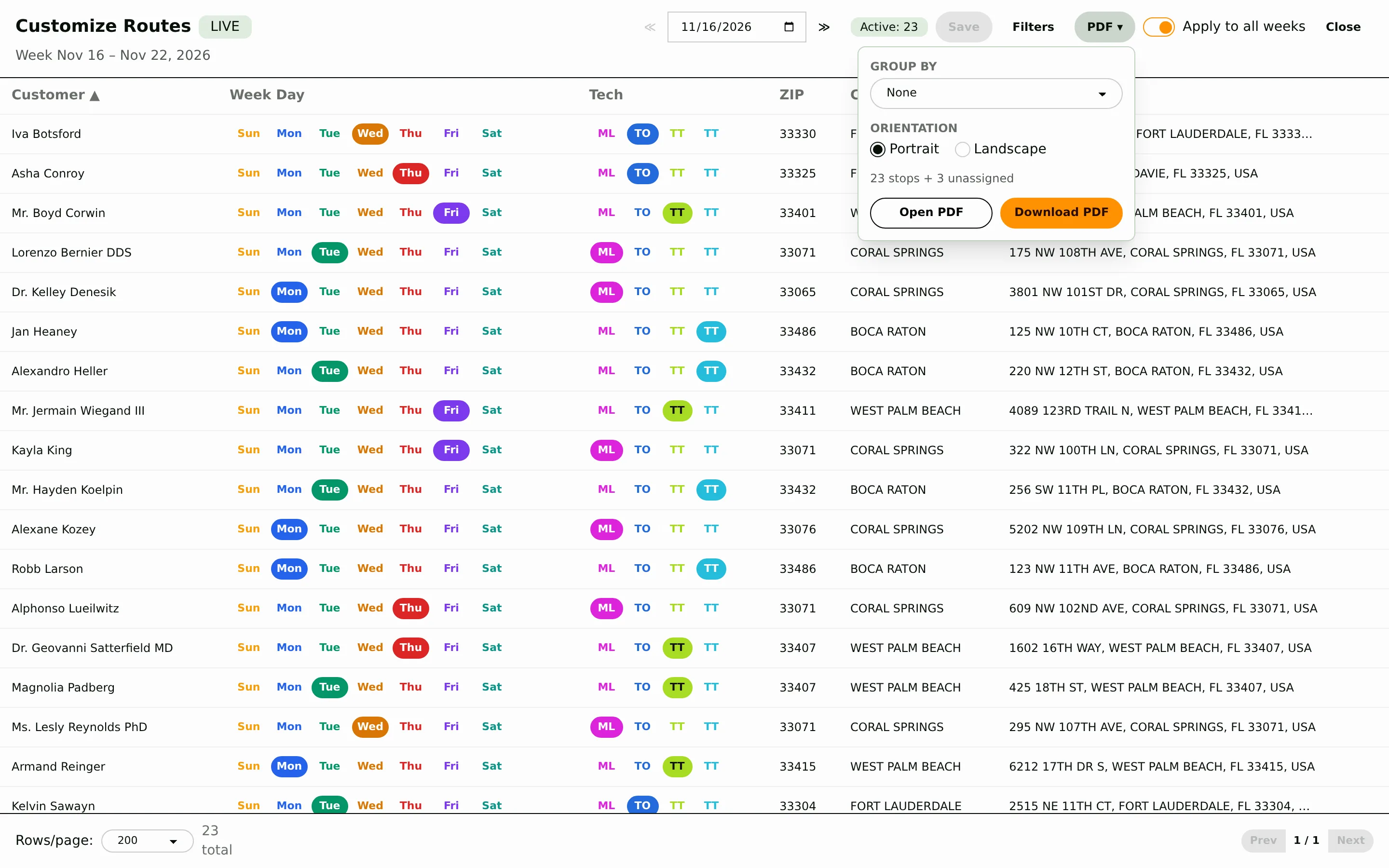
Customize Routes (top right of the Schedule page) lists the week's stops as a table, one row per stop: the customer, the day, the technician, the ZIP, the city and the address. It is the quickest way to move a lot of stops in one go.
You may not see this if: your role can look at the schedule but not change it.
- Click a day button to move a stop to another day, or a technician's initials to give it to someone else. Changed rows stay highlighted until you save.
- Save stores every change at once, then works out a new driving order for the days you touched.
- Apply to all weeks (on to start with) makes the same change in every future week, not only the one on screen.
- Filters narrows the list by weekday, technician, customer, address, city or ZIP. Click a column heading to sort by it. Customer sorts by last name.
- Use the arrows or the date box to change weeks. Past weeks can't be opened here; use the Schedule report for those (16.5).
Finished lawn services aren't listed: there's nothing left to move.
7.10 Printing the week
PDF, next to Filters in Customize Routes, prints the week you're looking at: the same stops, the same filters and the same order as the table.
- Open Customize Routes and filter or sort the list the way you want it on paper.
- Click PDF.
- Choose Group by:
| Group by | What you get |
|---|---|
| None | One list, exactly like the table |
| Technician | One section per technician |
| Weekday | One section per day |
| Technician + day | One page per technician per day, to hand out as route sheets. The heading shows the day's miles |
- Choose Portrait or Landscape. Landscape keeps long addresses on one line.
- With Technician + day, choose what to print under each stop: Location notes (gate codes, pets), Customer phone and One-time note. All three start ticked.
- Click Open PDF to look at it in a new tab, or Download PDF to save it.
Every stop shows its customer, day, technician, ZIP, city, address and service; on route sheets the technician and the day are in the page heading instead. Stops that aren't on anybody yet come last, under Unassigned.
Good to know:
- The PDF button is greyed out while you're in a Draft: only the LIVE schedule is printed. It's also greyed out while you have changes you haven't saved.
- Customer phone only appears if your role is allowed to see customers' phone numbers.
- One PDF holds up to 1,000 rows. For more, print a narrower list, or use the Schedule report (16.5) for other periods.
7.11 Today: the day's routes
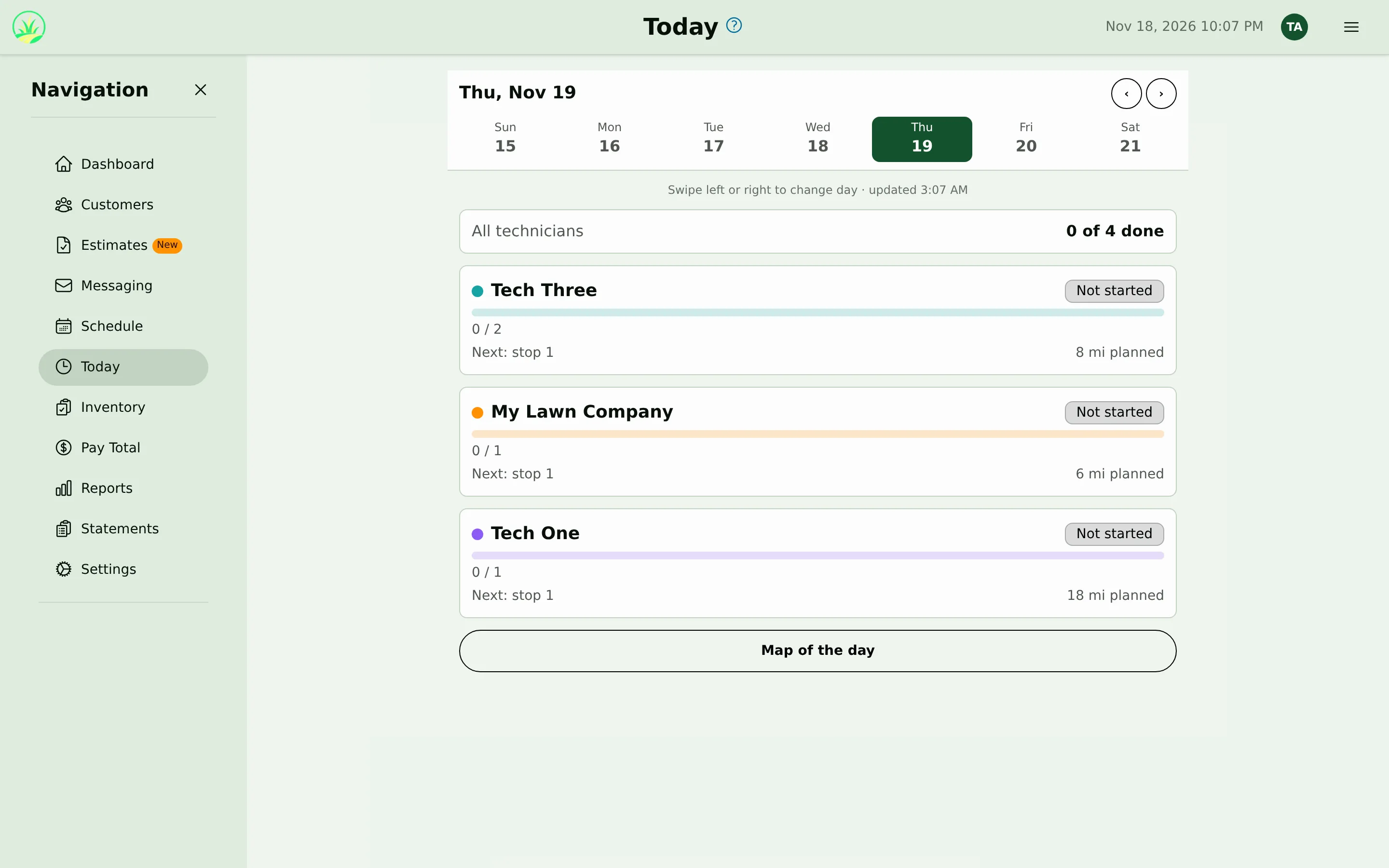
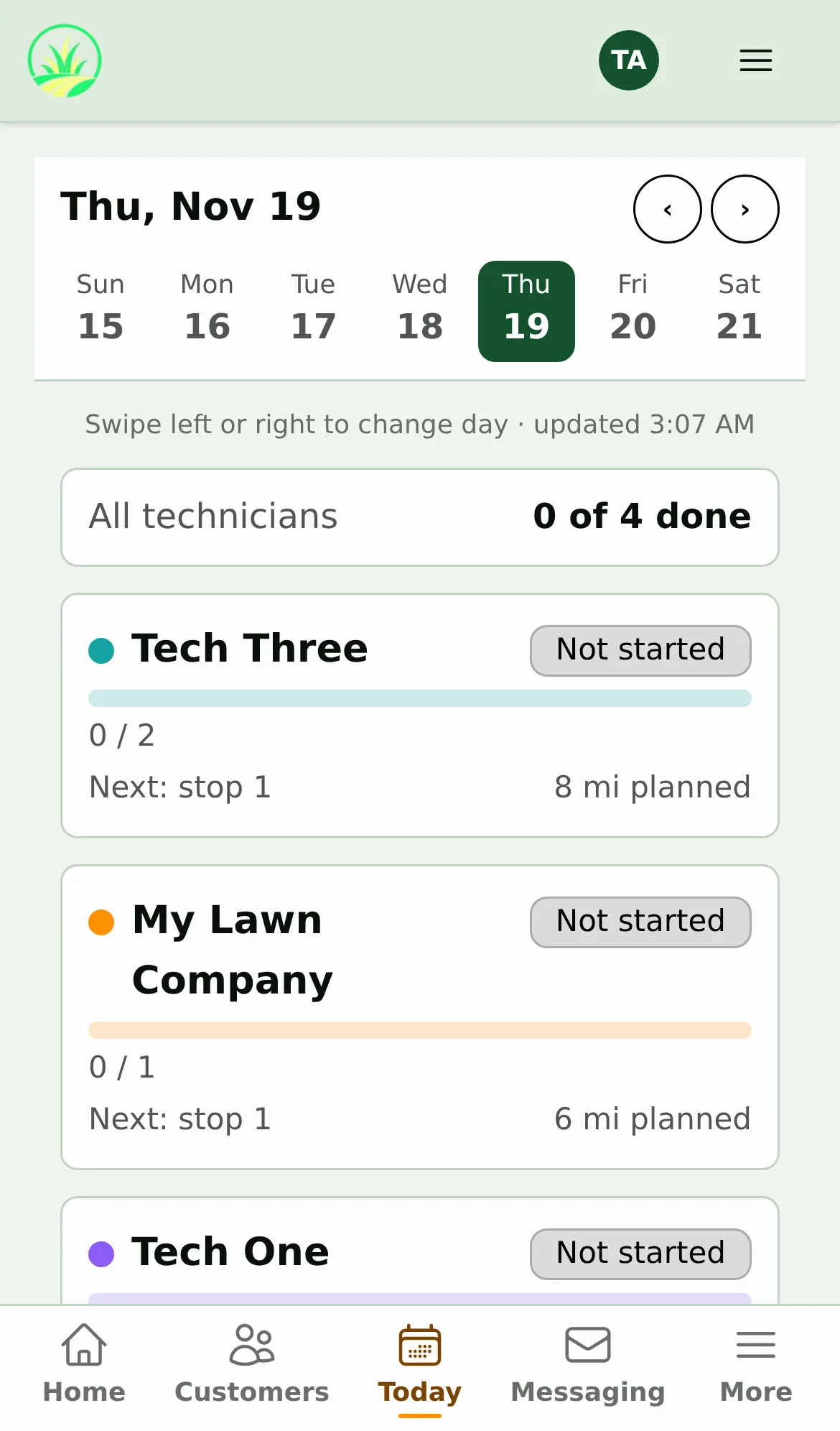
Today shows every technician's route for one day and how far each one has got. It is made for a phone, the phone's version of the Schedule, and it also works on a computer.
The day. The page opens on today. To see another day:
- swipe left or right across the page (left for the next day, right for the day before);
- tap a day in the strip of seven days at the top;
- or use the ‹ and › buttons beside the title.
The page shows the LIVE schedule (7.3), or the draft when no schedule is LIVE yet. It updates by itself every minute; the line under the day strip says when it last did, for example "updated 10:42 AM". A day without routes says No routes on this day.
All technicians. The first line gives the total for the day, for example 12 of 30 done. Below it, each technician has a card with:
- their name and colour, and a badge: Done, On site now, On route (some stops done) or Not started;
- a progress bar, the stops done of the total, when they started their first stop and when they completed their latest one;
- the stop they are at (for example "At stop 5 since 11:20 AM") or the next one, and the miles planned for the day.
Not placed in a route counts the lawn services of the day that are not on any technician yet (the Overflow of 7.4).
One technician's stops. Tap a technician's card to see their stops in driving order. The line at the top counts what is done, on site and left. Each stop shows its number, the customer, the address and its status:
| Status | What it means |
|---|---|
| Done | Completed, with the time it was completed and the minutes on site |
| On site | The technician has started the stop in the app and not finished it yet, with the time they started |
| Not done | A day that has passed, and the stop is still open |
| To do | Not started yet |
Tap a stop to open the customer's page; for a completed stop it opens on the Services tab.
Map of the day. Map of the day, at the bottom of the list, shows every stop of the day as a numbered pin in the technician's colour, with a line in the order of the route. A green ring around a pin means the stop is done. A house is the technician's home: the Starting point on their technician form (Settings › People › Technicians, see Section 3). The route line starts there. Under the map, each technician is listed with their stops done of the total.
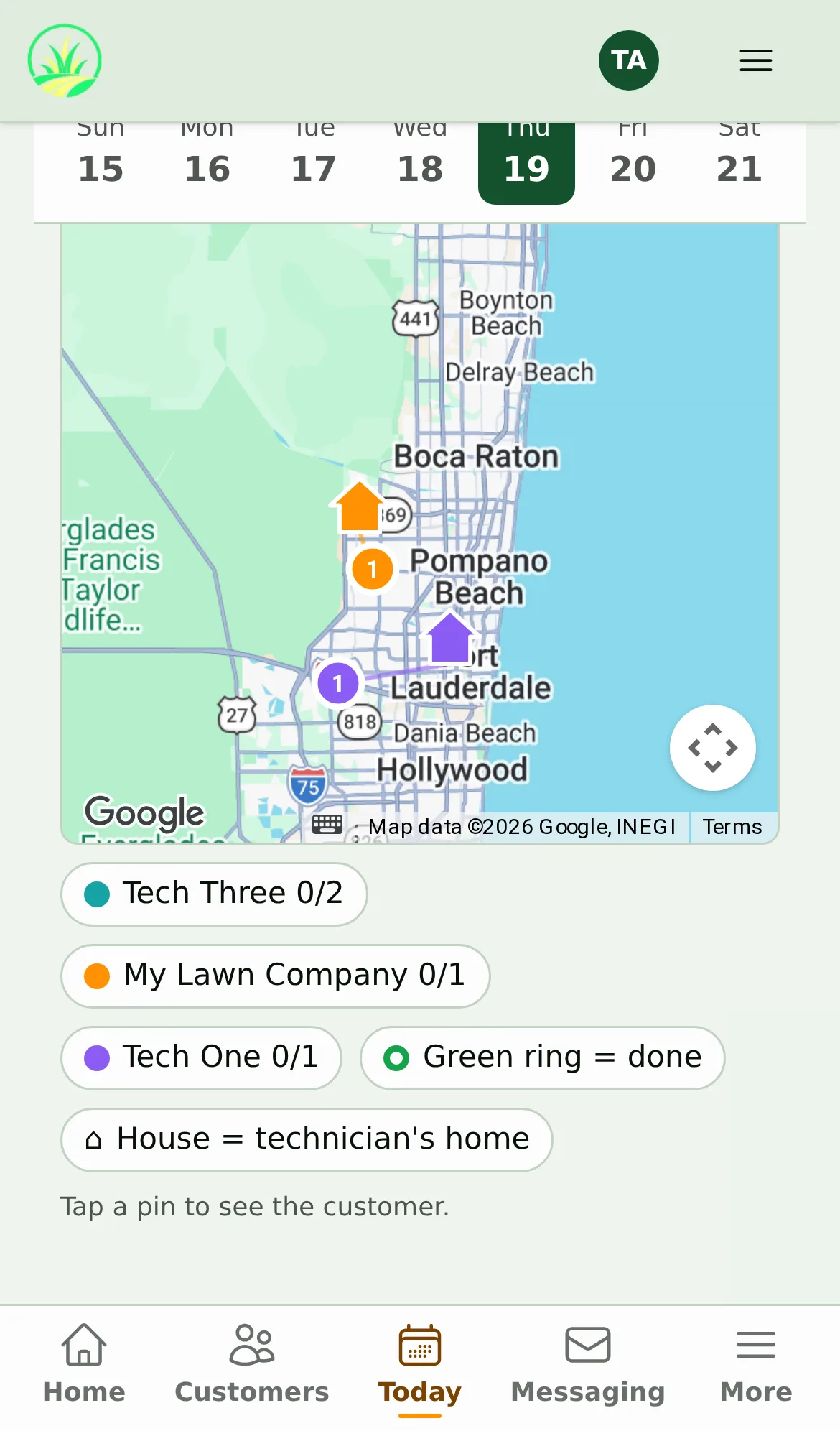
- Tap a stop's pin to see the customer, the address, the stop number, the technician and the status. Open customer › opens the customer's page.
- Tap a house to see whose home it is.
- On the map, swiping moves the map; use the day strip or the ‹ and › buttons to change day.
Going back. ‹ All technicians at the top returns from a technician's stops or from the map to the list. The phone's or the browser's Back button does the same, so it never takes you off the page by surprise: from a technician's stops or the map, Back returns to the list of technicians first.
Today shows the routes only: nothing on it moves a stop. To change the routes, use Schedule on a computer.
7.12 Scheduling on a phone
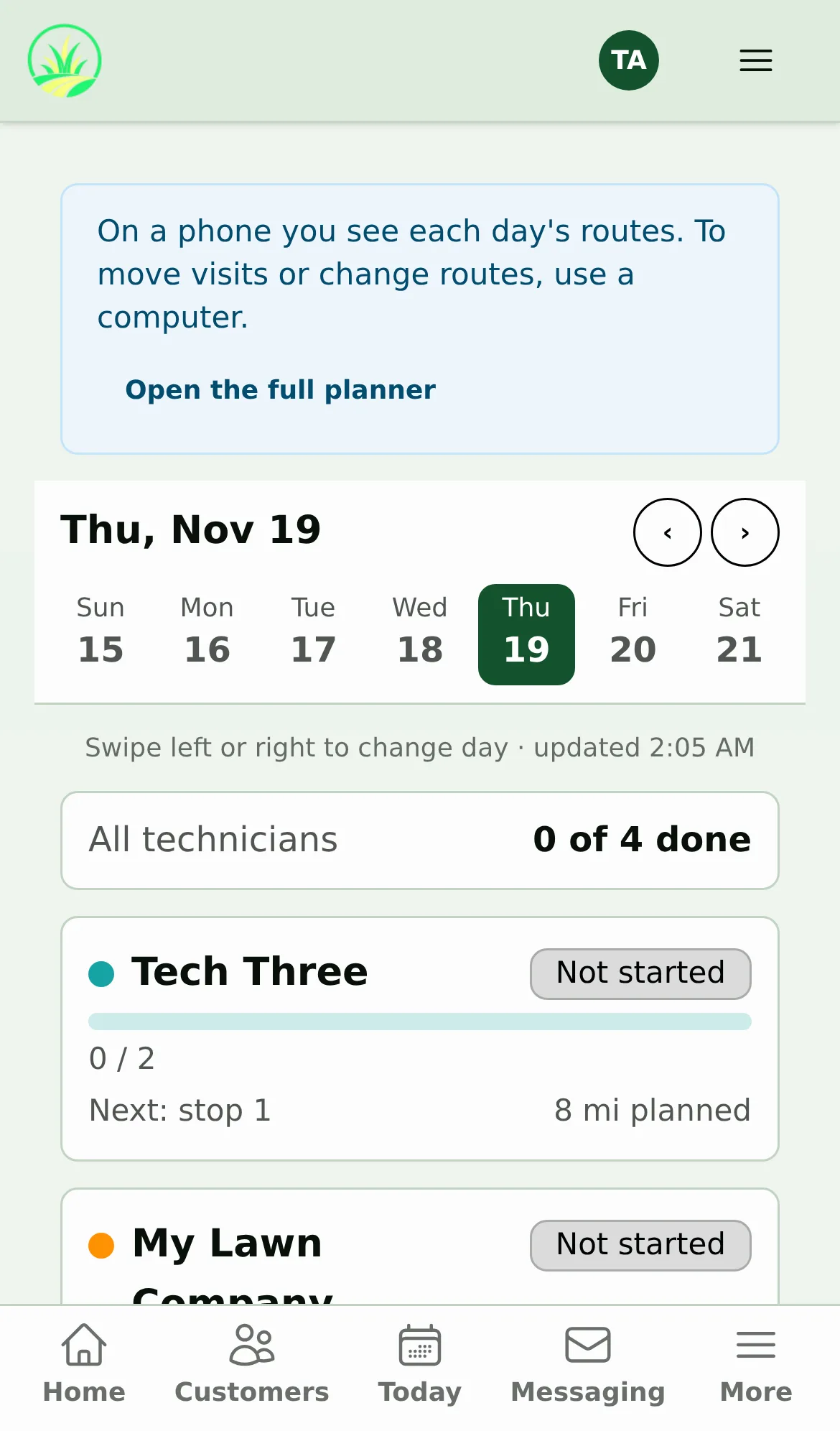
On a phone, Schedule does not show the week calendar. It shows the day's routes, read only, exactly as Today does (7.11): the technicians and their progress, each technician's stops in order, and Map of the day. A note at the top says On a phone you see each day's routes. To move visits or change routes, use a computer.
Open the full planner, in that note, shows the full calendar anyway, with drafts, the Route Optimizer and Customize Routes. It is built for a computer screen and is hard to use on a small one: plan and change routes on a computer.