11. Inventory
Track your supplies from the moment you buy them to the moment they're used on a lawn.
Where to find it: Inventory in the menu. It needs the permission to view inventory; adding, moving and correcting stock, and changing the catalog, need the permission to manage it.
The Inventory page is organized into four tabs: Stock, Reports, Activity, and Catalog. On a phone, the four tabs are buttons in one row at the top of the page.
11.1 Setting Up Your Inventory Catalog
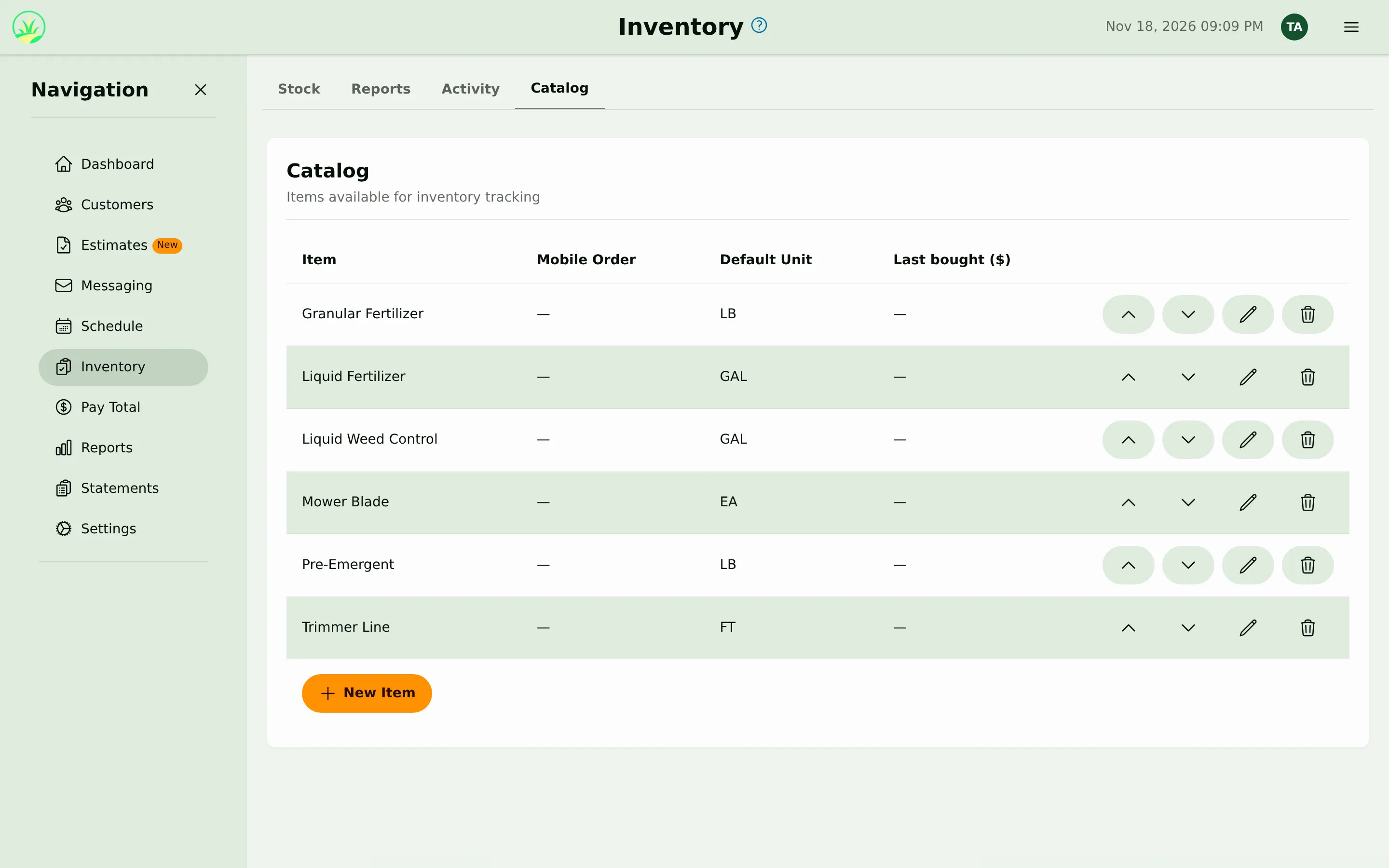
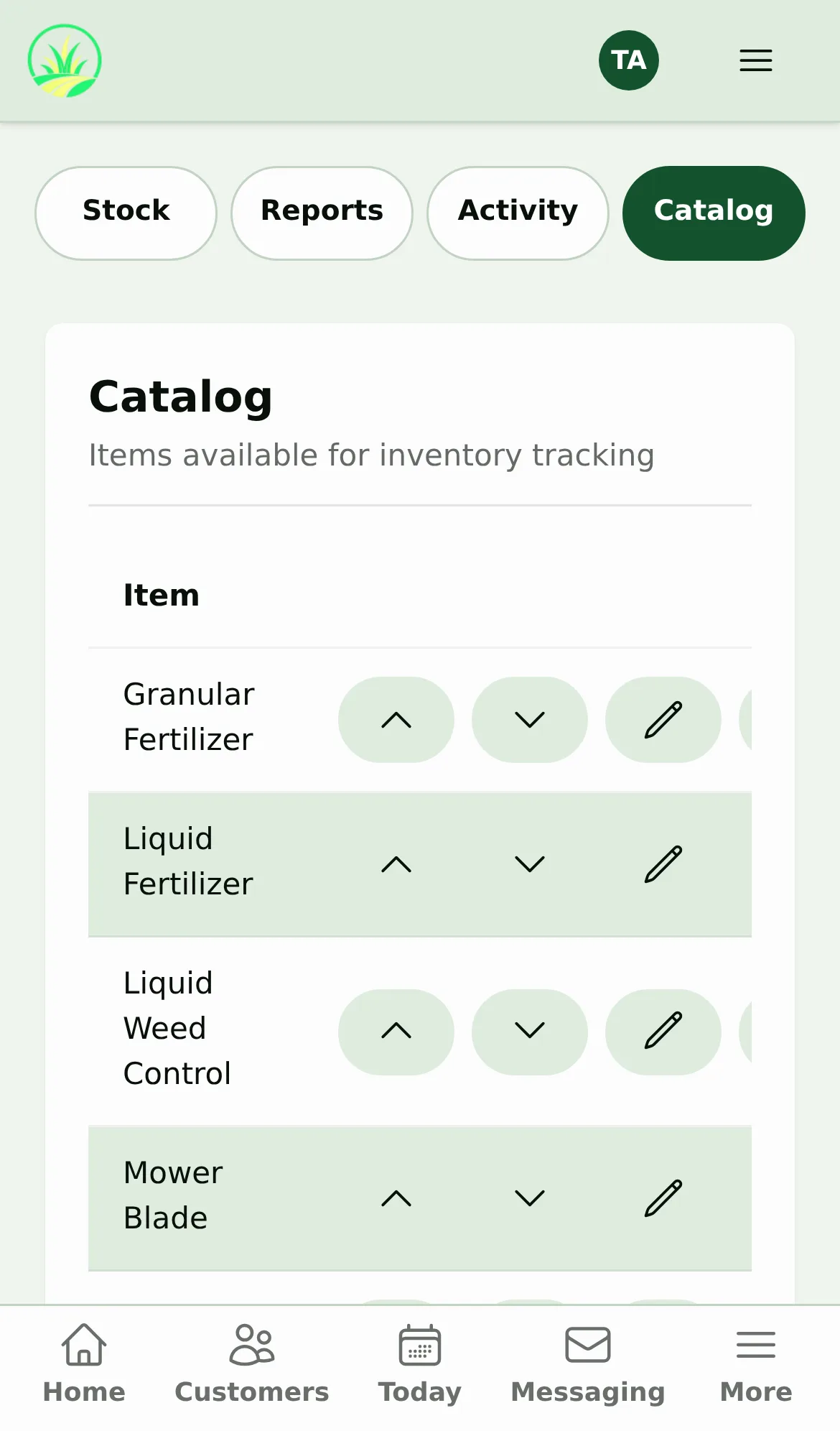
Open Inventory › Catalog to define your inventory items. The list shows each Item, its Mobile Order, its Default Unit and the price it was Last bought ($) at. The arrows move an item up or down, the pencil edits it, and the bin deletes it with the stock records that refer to it, after a confirmation.
Creating an Inventory Item: click New Item and fill in:
| Field | What it is | Example |
|---|---|---|
| Name (required) | The name shown on the inventory screens and in the mobile app | Granular Fertilizer |
| Default unit (required) | The unit quantities are recorded in, stored in lowercase | lb |
| Mobile order (optional) | The order of the items in the mobile app: lower numbers come first | 1 |
| Allowed decimals (optional) | How many decimal places the technician may enter, from 0 (whole numbers) to 6 | 1 (0.1 lb) |
Click Create item (or Save changes when editing). An item has no price of its own: the price comes from what you pay when you add stock (11.3), and the catalog shows the last one.
11.2 Inventory Locations & Truck Stock
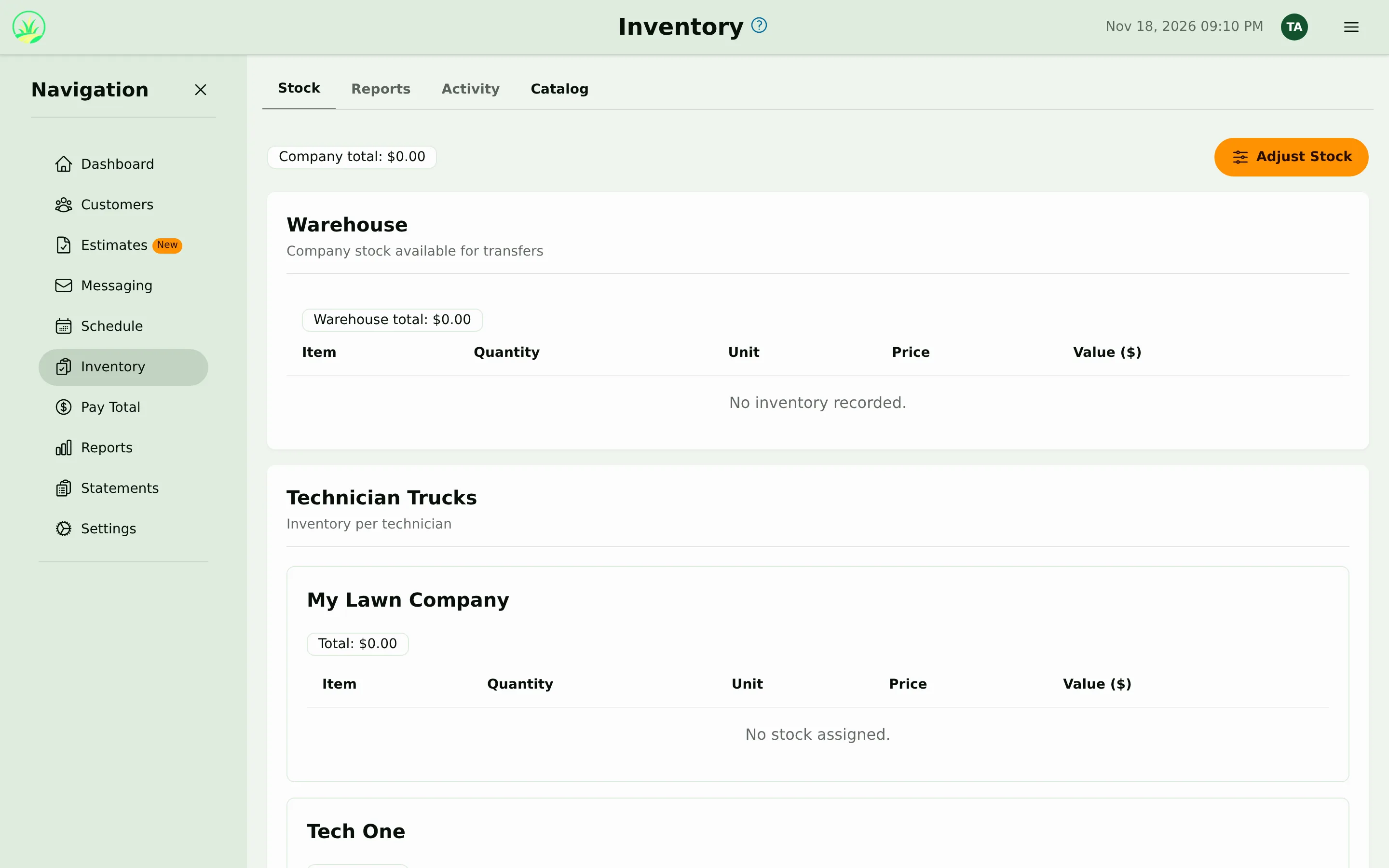
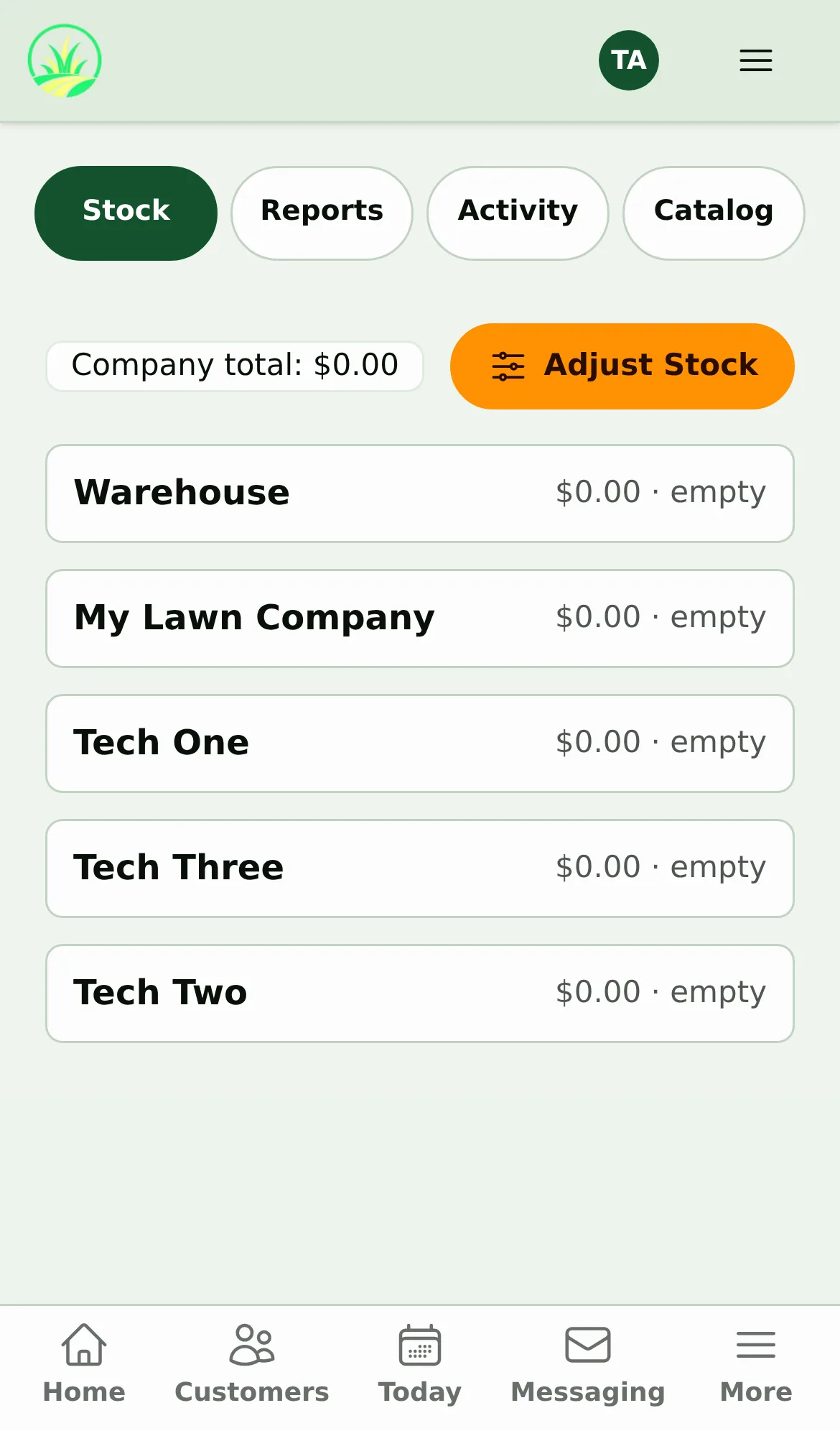
The Stock tab shows current inventory levels tracked by location, with the Company total value at the top:
- Warehouse — your company stock, available for transfers.
- Technician Trucks — each technician's truck is a separate inventory location.
This lets you see exactly what's on each truck and what's in the warehouse.
On a phone, each place (the warehouse, then each truck) is one card listing its items, with the quantity, the unit and the value, and the place's total value at the top. A truck with nothing on it folds to one line marked empty. Tap an item to see its price and, if you may manage stock, a Transfer button.
11.3 Stock Movements & Activity
Adding Stock (Receiving):
- Click Adjust Stock on the Stock tab, and stay on its Add stock tab ("Record bought items and their cost").
- Choose the Location and the Item (Add item, beside it, creates a new catalog item on the spot), then the Quantity, the Unit cost ($) or the Total ($), and an optional Note. Click Add Stock.
- Recent purchases, below, lists what was added; its Save button corrects a purchase price.
Transferring Between Locations:
- Click Transfer beside an item on the warehouse or a truck. The Transfer Stock window ("Move inventory between locations") asks for the Quantity, From and To: from the warehouse to a truck, or from one truck to another.
Manual Adjustments:
- Use adjustments for breakage, spillage, miscounts, or returns: Adjust Stock, tab Manage Stock. Choose the location and the item, the quantity, the Direction (Add stock or Remove stock) and an optional Note, then click Save Adjustment.
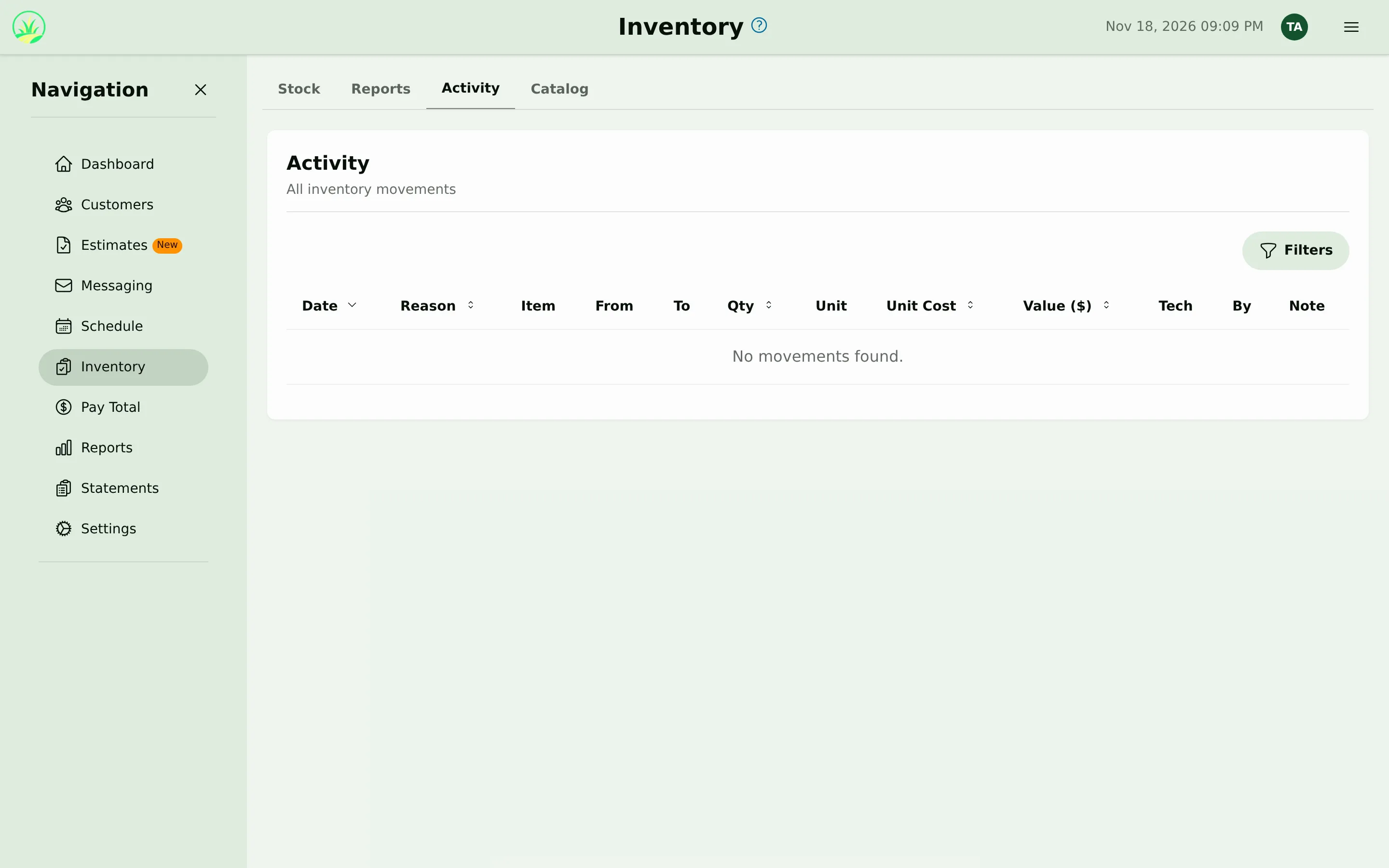
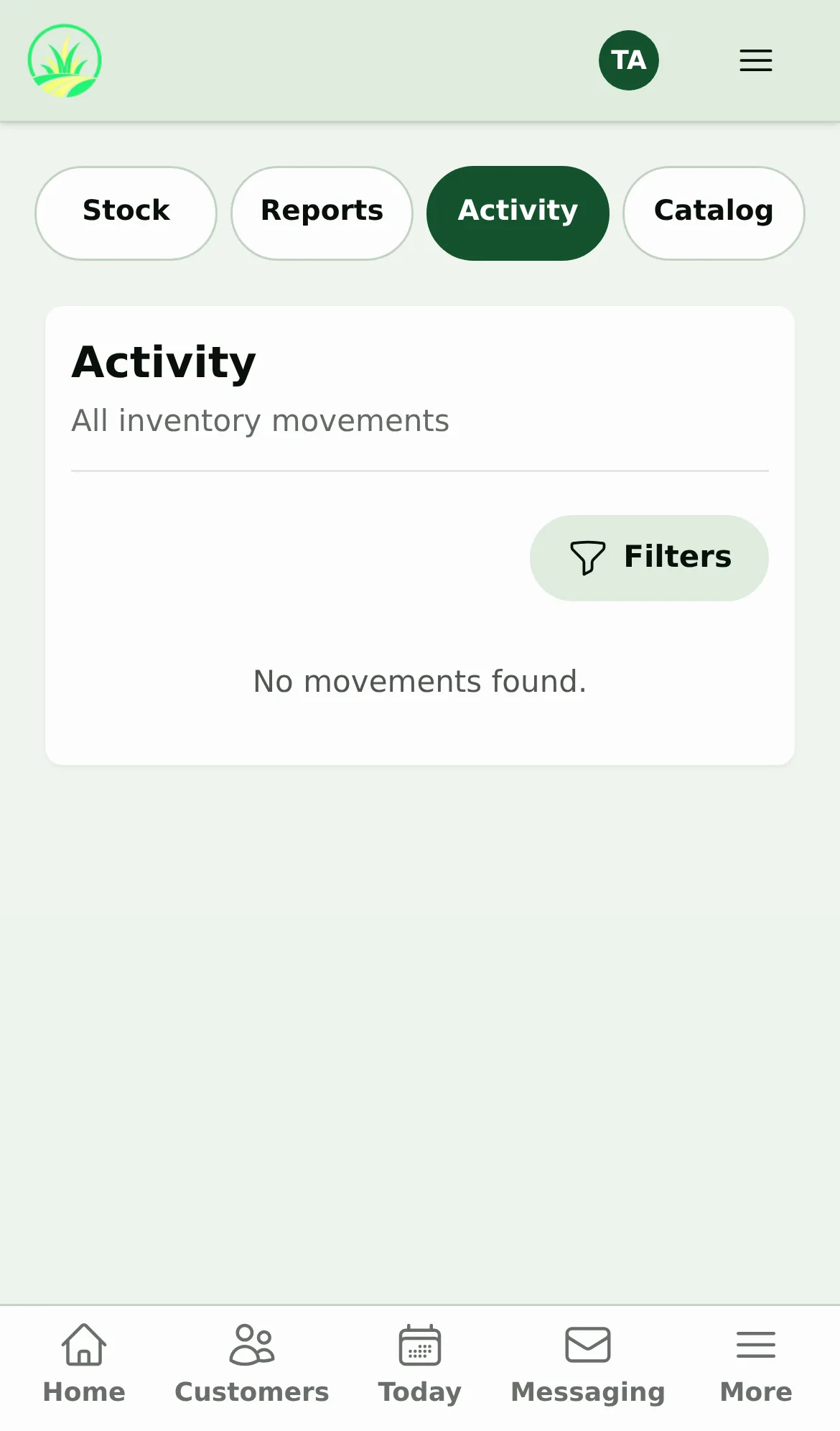
All movements are recorded in the Activity tab with timestamps and user attribution. Filters narrows the list. On a phone, each movement is a card: the reason and the date, the item with its quantity and value, where it came from and where it went (for a lawn service, the customer, with a link to their page), the technician, who recorded it, and the note.
11.4 Auto-Deduction on Service Completion
When a technician completes a service visit, the supplies they used are deducted automatically from their truck stock:
- The service's checklist decides whether the technician is asked. In the checklist editor (see Section 5), the App rules tab has the rule Inventory used: "The app adds the items on the technician's truck as a section of the checklist, to enter what was used." With it on, you choose the Section title and where the section is Shown before (or At the end of the checklist).
- In the app, that section lists only the items the technician has in stock on their truck, and no more than they have. The technician enters what was used; when the visit is completed, those quantities come off the truck and appear on the Activity tab.
- A technician with nothing on their truck is not shown the section.
This ensures your inventory counts stay accurate without manual entry.
11.5 Inventory Reports
The Reports tab within the Inventory page provides:
| Report | What It Shows |
|---|---|
| Chemical Usage | How much of each item was used over a period |
| Chemical Cost | What those items cost in total |
Use these reports to:
- Spot a technician getting through far more than everyone else — usually waste worth a conversation.
- Plan purchasing based on usage trends.
- Track the cost per lawn, so you can see which work actually makes money.