14. Messaging, SMS & Notifications
14.1 Email Notifications
EZ Lawn Biller sends these emails on its own:
| When It's Sent | |
|---|---|
| Statement | When a monthly statement closes (if auto-email is enabled) |
| Payment Confirmation | When a payment is received |
| Payment Failed | When an autopay charge fails |
| Password Reset | When a customer or staff member requests a password reset |
| Subscription Paused | When a subscription is auto-paused for nonpayment |
| Subscription Resumed | When a subscription is auto-resumed after payment |
| Visit Report | After a service visit is completed (if enabled) |
| Portal Login | When a customer receives a magic login link |
| Late Fee Added | When an automatic late fee is added (only if switched on in the Late Fees box, 2.2; off by default) |
Who receives them
Every email above goes to the customer's main address and their second address, if they have one — see Section 4. Anyone set up as a CC gets a copy too, limited to the message types you chose for them.
Nobody is emailed twice. If the same address appears in more than one place, it's only sent once.
If a customer's main address is missing or was never valid, the second address is used instead, and CC addresses still get their copies — so the message still lands somewhere.
14.2 The Messaging page
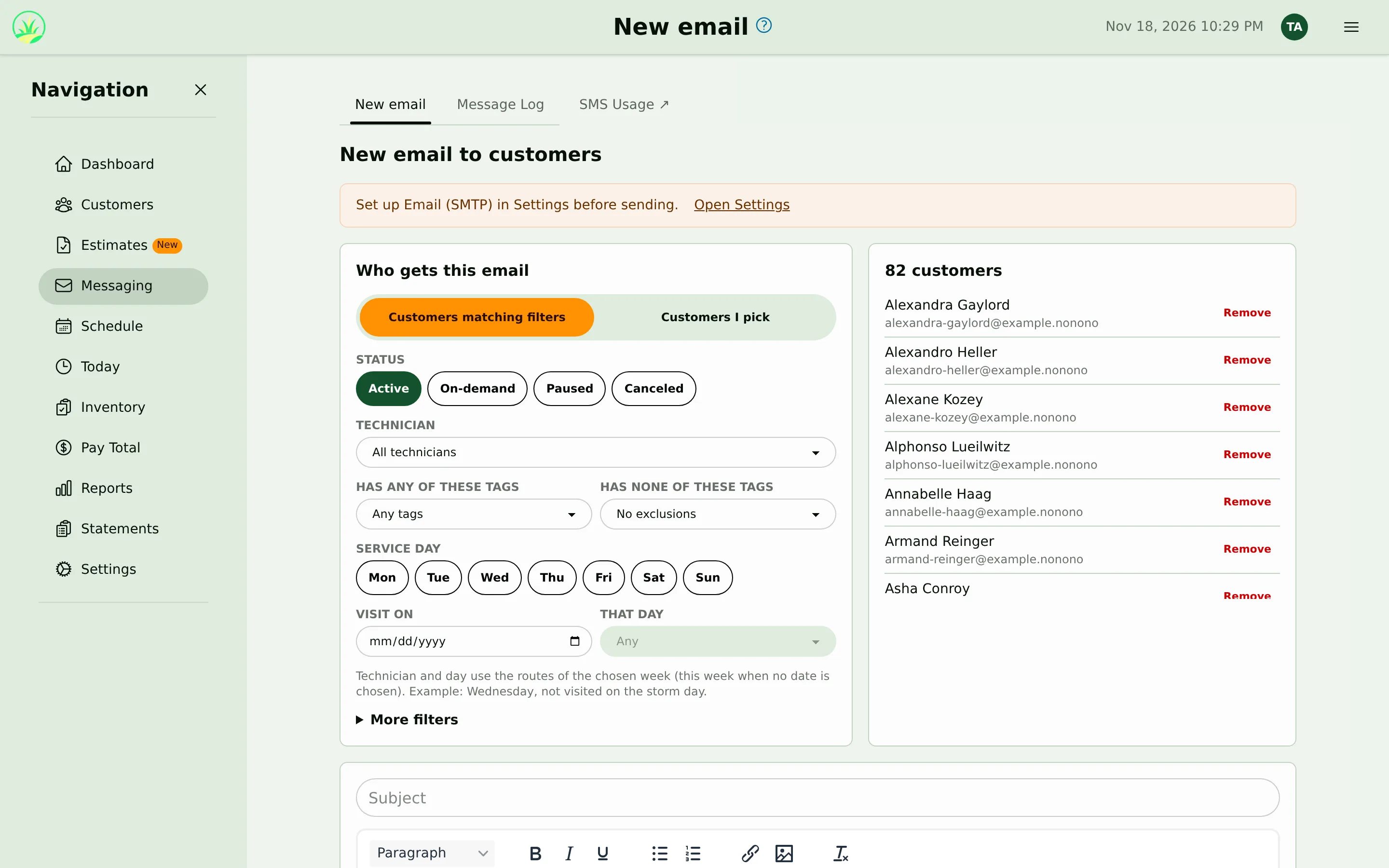
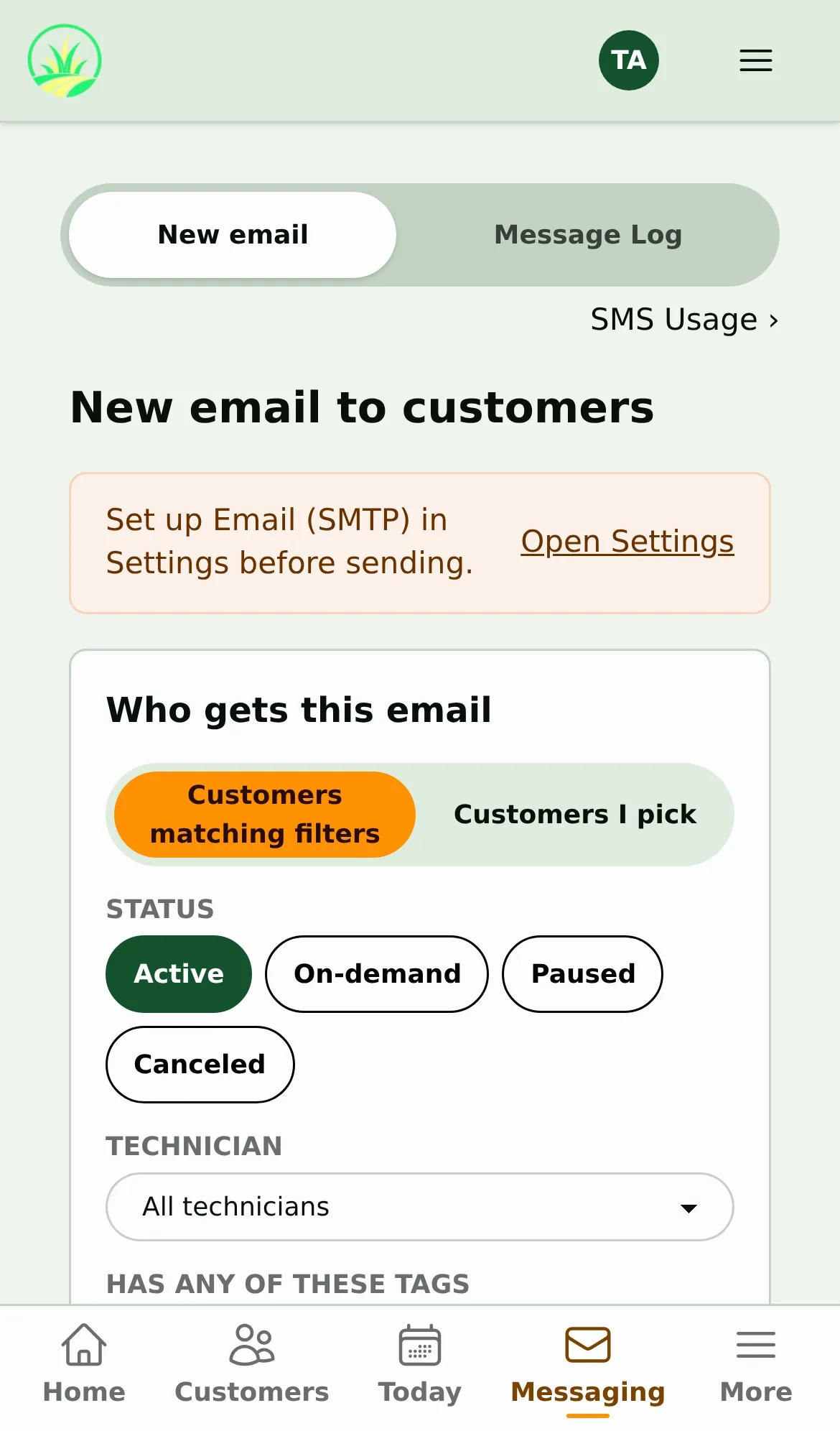
Messaging in the menu has two parts, New email and Message Log. On a computer they are tabs; on a phone they are a two-part switch at the top. A link beside them, SMS Usage, opens its own page (14.4).
| Part | What it's for |
|---|---|
| New email | Write one email and send it to a group of customers |
| Message Log | Every email and text that's been sent, and whether it arrived |
Sending a new email
Who gets this email has two choices, Customers matching filters and Customers I pick.
Customers matching filters sends to everyone who matches the filters. Start with Status (Active, On-demand, Paused, Canceled; Active to start with), then narrow it down:
| Filter | What it does |
|---|---|
| Technician | One technician or several, picked from a list you can search and tick. Empty means All technicians |
| Has any of these tags and Has none of these tags | Customers with at least one of the chosen tags, and leaving out customers with any of the others (4.9). Example: Salt pool, but not Late payer. They show once you have tags |
| Service day | One day of the week or several |
| Visit on and That day | A date, and whether the customers were Visited or Not visited that day. Example: Wednesday customers not visited on the storm day |
| More filters | A name, email, street or customer number; the service type; a list of customer numbers; the dates the customers were added (Added from, Added to) |
Technician and day use the routes of the chosen week (this week when no date is chosen). The list beside the filters (under them on a phone) shows who will get the email; Remove takes someone out of this send, and Put back returns them.
Customers I pick sends to the customers you choose one by one. Search by name, email, street or customer number, and tick the customers you want (Tick all ticks every customer found). Every status is searched; customers without an email address are not listed. Only the customers you ticked get the email, and your ticks stay when you search again.
Then write the Subject and the message. Your logo goes at the top of the email and your Notice for customers (13.1) at the bottom. On a phone the editor offers bold only; on a computer it has headings, lists, links and pictures.
Send me a test sends the email to your own sending address first, so you can see it as a customer will. Send to … customers, then Yes, send, sends it; the emails then appear in the Message Log as they go out.
14.3 Text messages
Once text messaging is switched on for your account, EZ Lawn Biller can send:
- The link to a customer's visit report after each lawn service (14.5).
- A customer's statement as a text message with a link.
- An estimate, with the link the customer approves it from (see Section 9).
Group messages from the Messaging page are sent by email only (14.2).
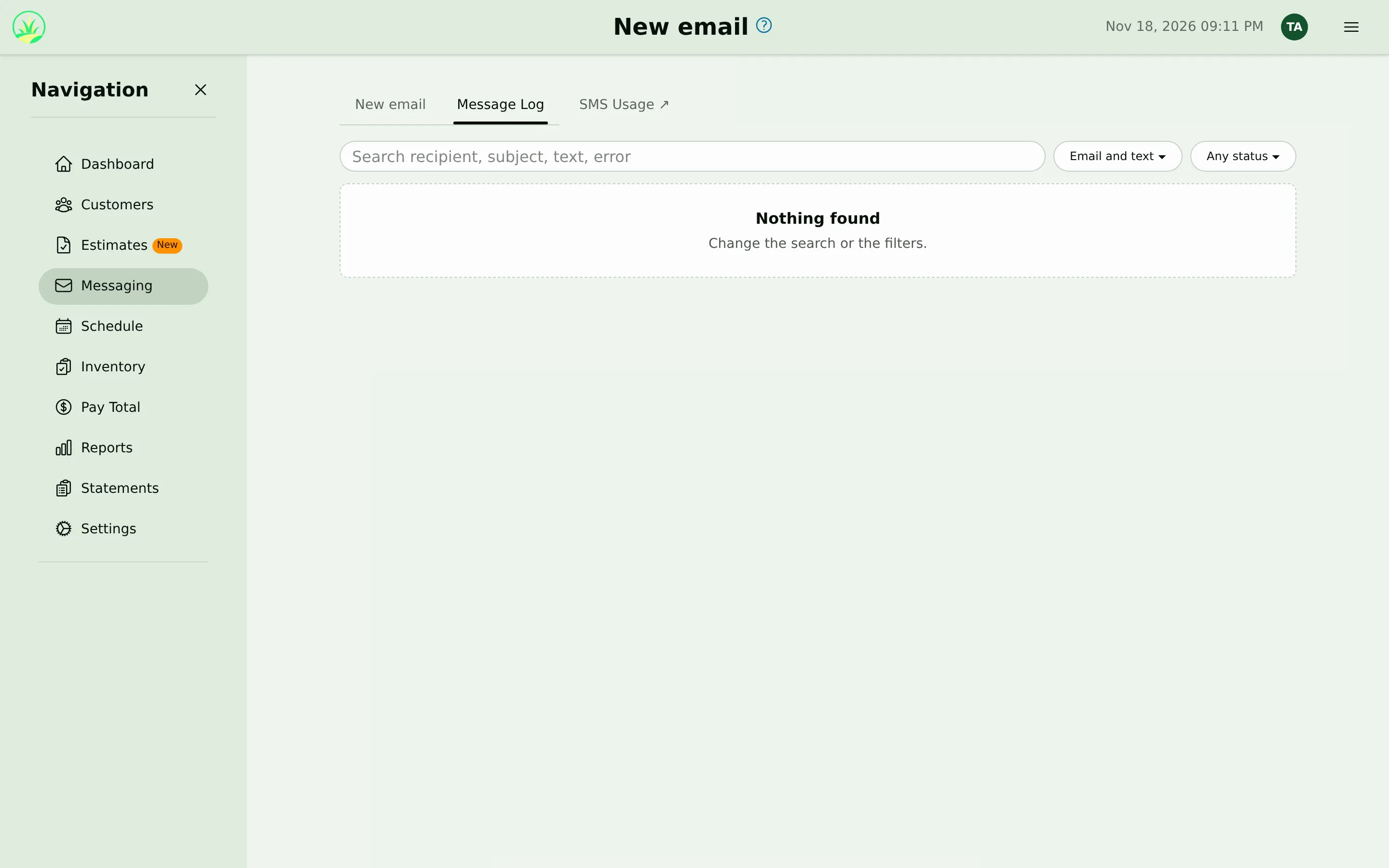
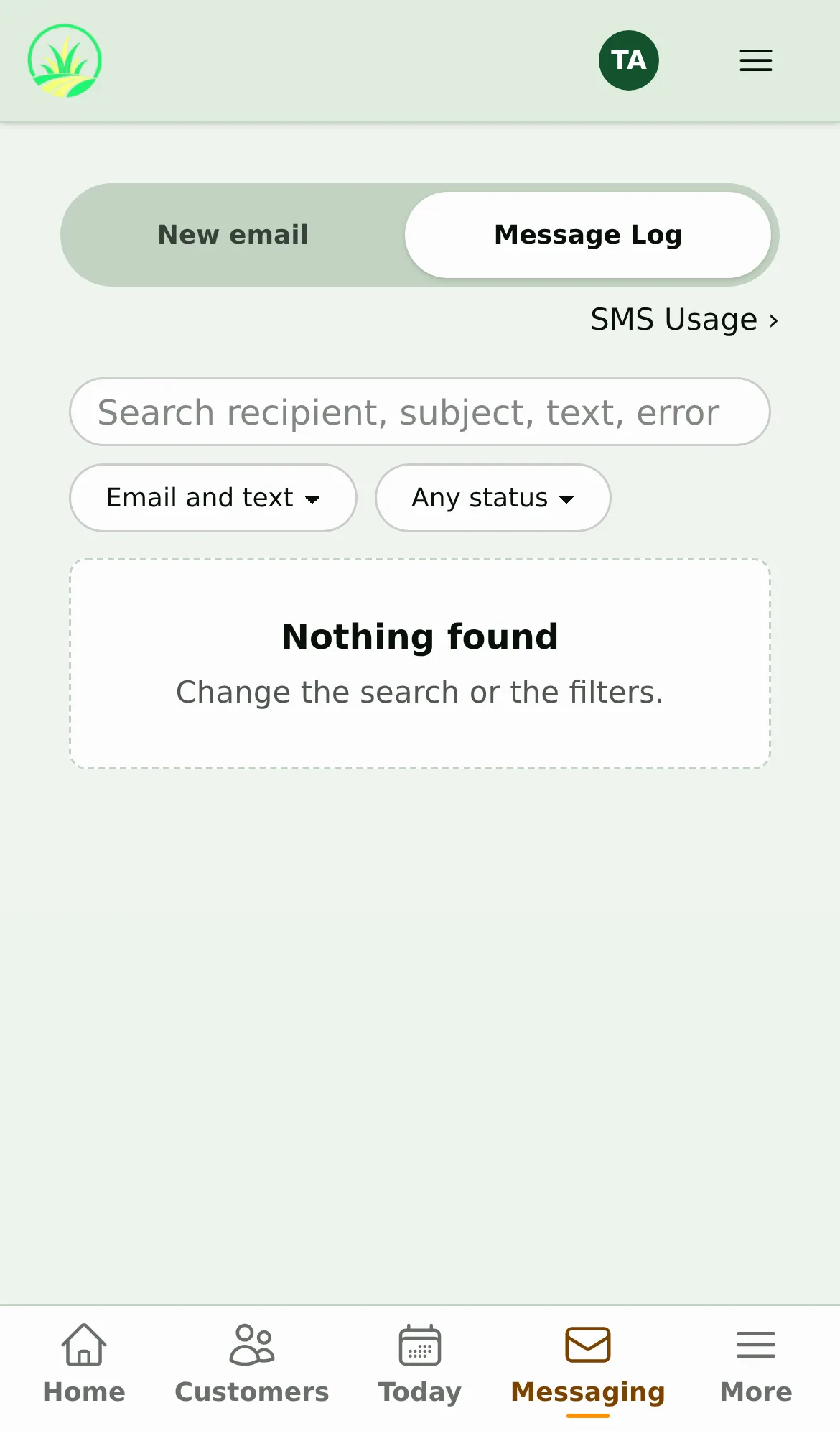
Message Log shows what happened to each message — sent, delivered, or failed — so you can tell the difference between "they ignored it" and "it never arrived". Search by recipient, subject, text or error, and filter by Email or Text and by status. Clicking a message opens it, with the error when it failed. On a phone each message is a card.
14.4 What your texts are costing you
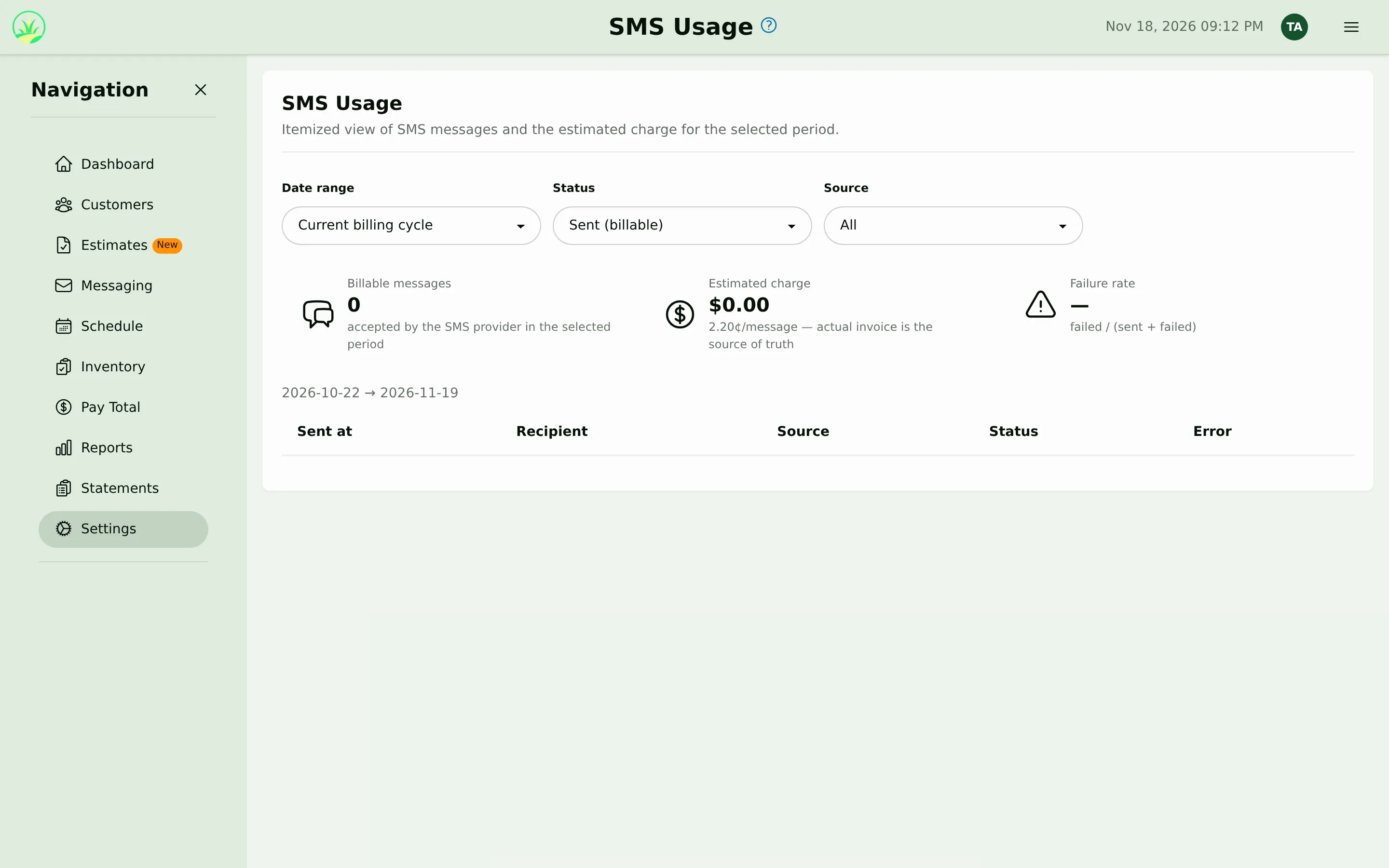
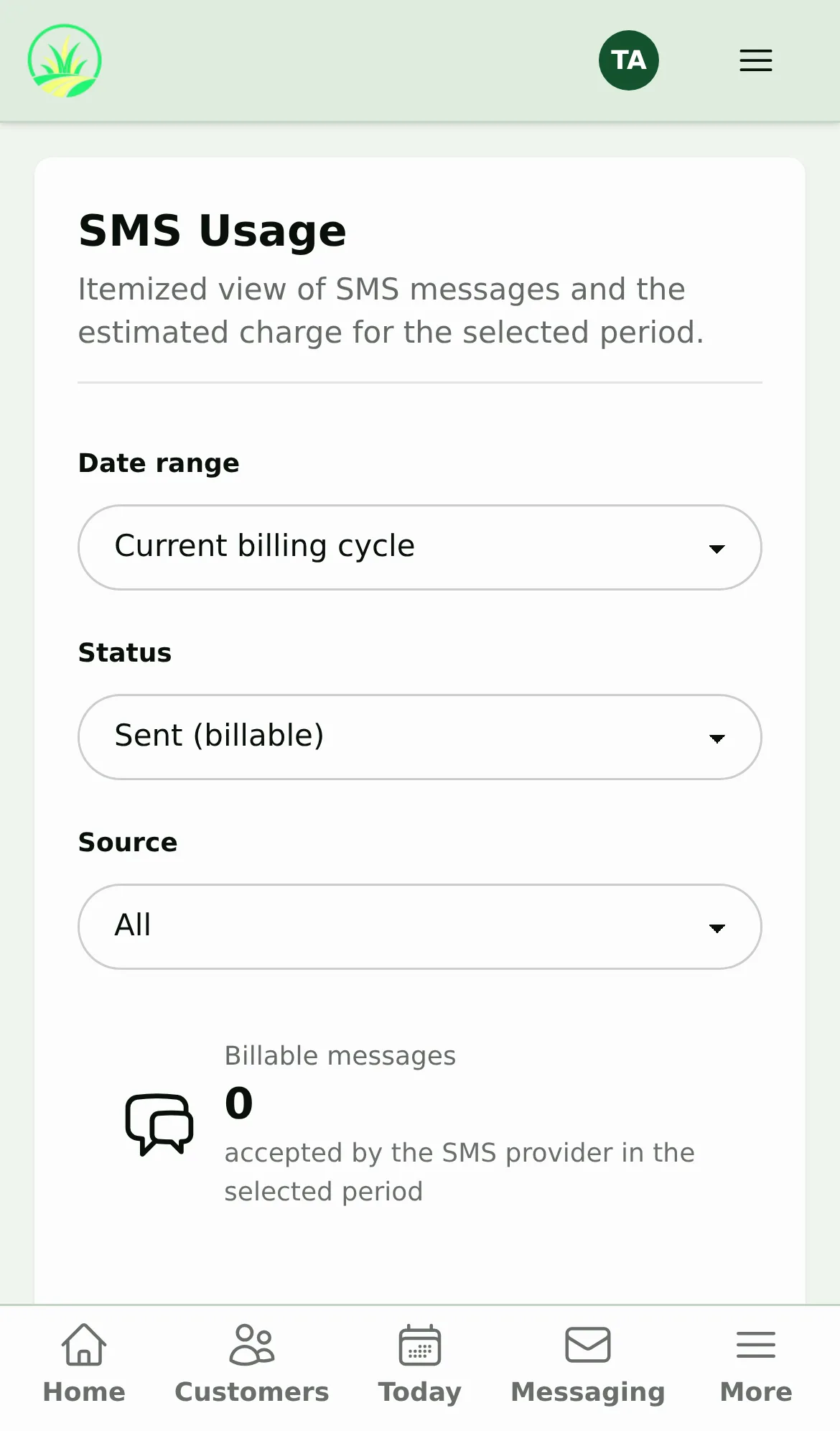
SMS Usage (the link on the Messaging page) is a page of its own. It shows how many texts you've sent over a period and what they cost. Worth a look before turning on text messages for every customer.
14.5 Visit Reports
Visit reports are emails (and, with SMS turned on, text messages with a link) sent to customers after each completed lawn service. The date always shows. Everything else is chosen in Settings › Company › Visit Reports (see 2.5) and shows only when the lawn service recorded it: the address, the technician, the service performed, the start and completion times, the time on site, photos, the measurements, the service summary, the products used, notes to the customer, the next scheduled visit, and your company's address and phone.
Customers can unsubscribe from visit reports via a link in the email, or in the portal with Visit reports by email and Visit reports by text on Account (13.3). You can see and manage opt-out status from the customer's profile.
The text message has its own switch for each customer: on the customer's Messages tab, Visit Report SMS shows Subscribed or Unsubscribed, with a button to change it. An unsubscribed customer stops receiving the visit report text only; statement and estimate texts are not affected. To change many customers at once, use Customer Settings on the Customers page (see 4.5).
How did we do? While Ask customers to rate visits is on (2.5), the email ends with five stars. A star opens the report page with that many stars chosen; the customer can add a comment and presses Send rating. Opening the link alone never saves a rating, because email filters open links before anyone reads them. The report page shows the same stars for anyone who opens it from the email or a text. You read the ratings in Reports › Ratings (16.9) and on the customer's Services tab.
Did the customer read it? On the customer's Services tab, hover the report icon on a lawn service to see Visit report — read by customer (with the date) or Visit report — not read yet. Open the lawn service for its Report Access box:
| Shows | Meaning |
|---|---|
| Read by customer | Someone had the report open on screen. First read, Last read and Times read say when and how often |
| Opened — not confirmed | The link was opened, but nobody stayed on the page. Often it's an email filter checking the link, not a person |
| Never opened | The link hasn't been opened |
| No customer access | The only opens were by your own staff or by a known email filter, not the customer |
Business email filters open every link in a message before anyone reads it, which is why a quick open isn't counted as a read.
When an email can't be sent: if your mail server fails for a moment — slow to answer, briefly offline — the email is tried again automatically. If it still can't be sent, it shows as failed in the Message Log (14.2), statements included, so you know to send it again once your email works.
14.6 Statement Emails
When using Monthly Statement billing mode, statements can be automatically emailed to customers when the period closes. Turn on Email closed statements automatically in Settings › Company › General, in the Statements box, or directly from the Statements page.
Empty statements — a statement with a $0 balance and no charges, payments or credits in the period — are not emailed by default. This applies to the automatic email and to Email All Statements. To email them too, turn on Send empty statements next to the auto-email toggle. Email Selected always sends the statements you pick. A statement that ends at $0 because the customer paid during the period is not empty, so it is still sent.
Statement emails include:
- The statement period (e.g., March 1–31, 2026)
- Opening and closing balance
- A summary of charges, payments, and credits
- A link to the customer portal to view details or make a payment
- An attached PDF statement (optional)
To send a group of customers their statement with your own message, such as a reminder that they're past due, use Send past-due notices → on the Statements page. See 10.5 Past-Due Notices in Section 10.