12. The Mobile App
The EZ Lawn Biller app is available for iPhone and Android, and in a phone's web browser. It shows the technician's day, walks them through each stop, and keeps working without a signal. This chapter describes version 1.3.0 (November 2026).
12.1 Installing and signing in
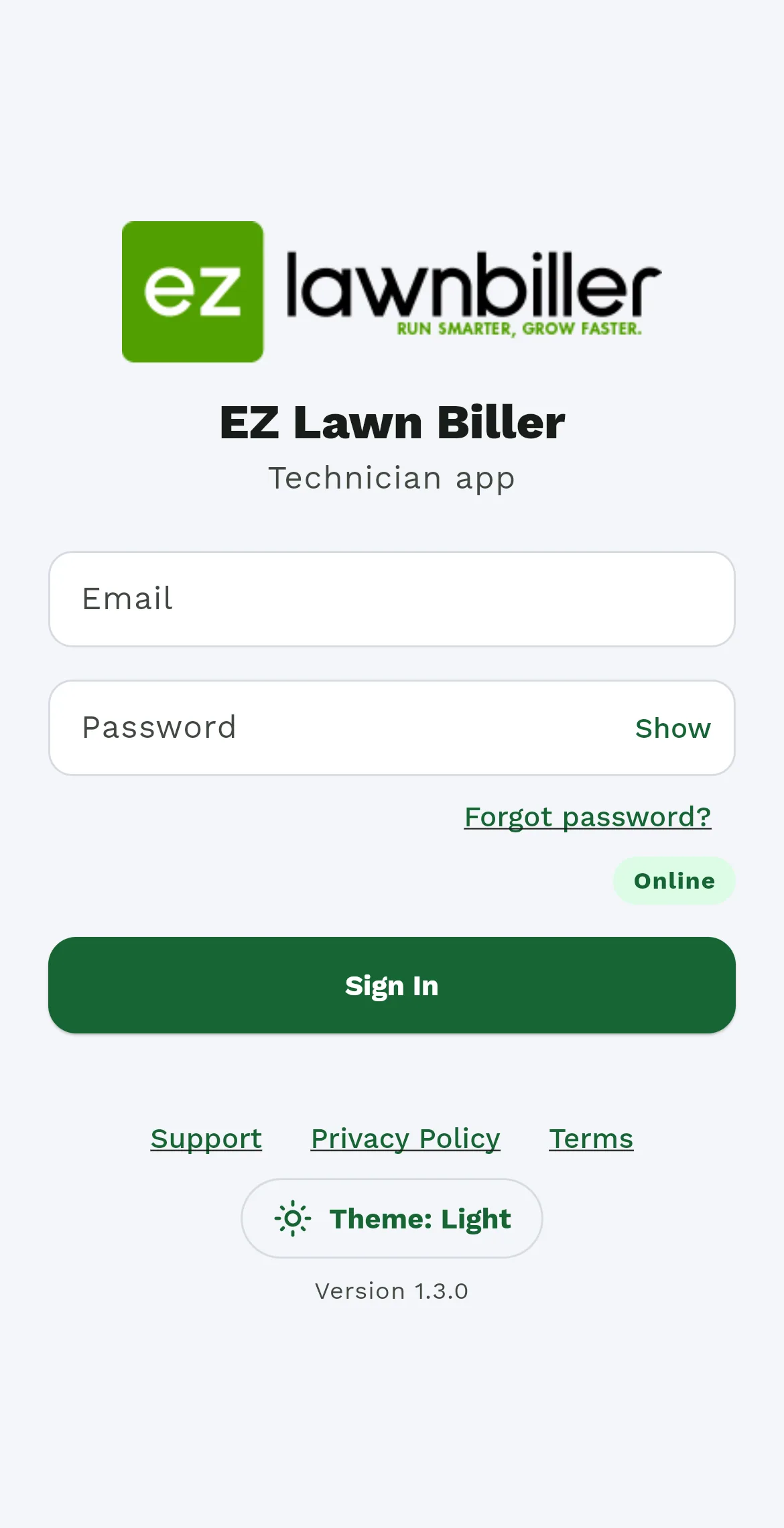
- Download the EZ Lawn Biller app from the App Store (iPhone) or Google Play (Android). Without either, open app.ezlawnbiller.com/mobile/ in the phone's browser: it is the same app.
- Open the app and enter the email and password your manager gave you (the email invite; see Section 3). Show reveals the password as you type.
- The first time, accept the Terms of Service. If your email belongs to more than one company, choose the company.
- The app offers "Use fingerprint / Face ID next time?". Yes means the next sign-in needs only your fingerprint or face; change it any time in Settings.
Forgot password? on the sign-in screen explains what to do: ask your office to reset it, or email support.
Theme, at the bottom of the sign-in screen, sets how the app looks: Light (the first choice), Dark, Same as the phone, or Outdoor (black on white, firm borders and larger text, for bright sunlight). The choice is kept on the phone, for every account, and can be changed again from the Menu or Settings.
Updates. When a newer version is in the store, the app says so after sign-in. When a version is too old to work with your company's system, the app shows an Update page with a button to the store, and nothing else, until it is updated.
12.2 Today: My day and Team
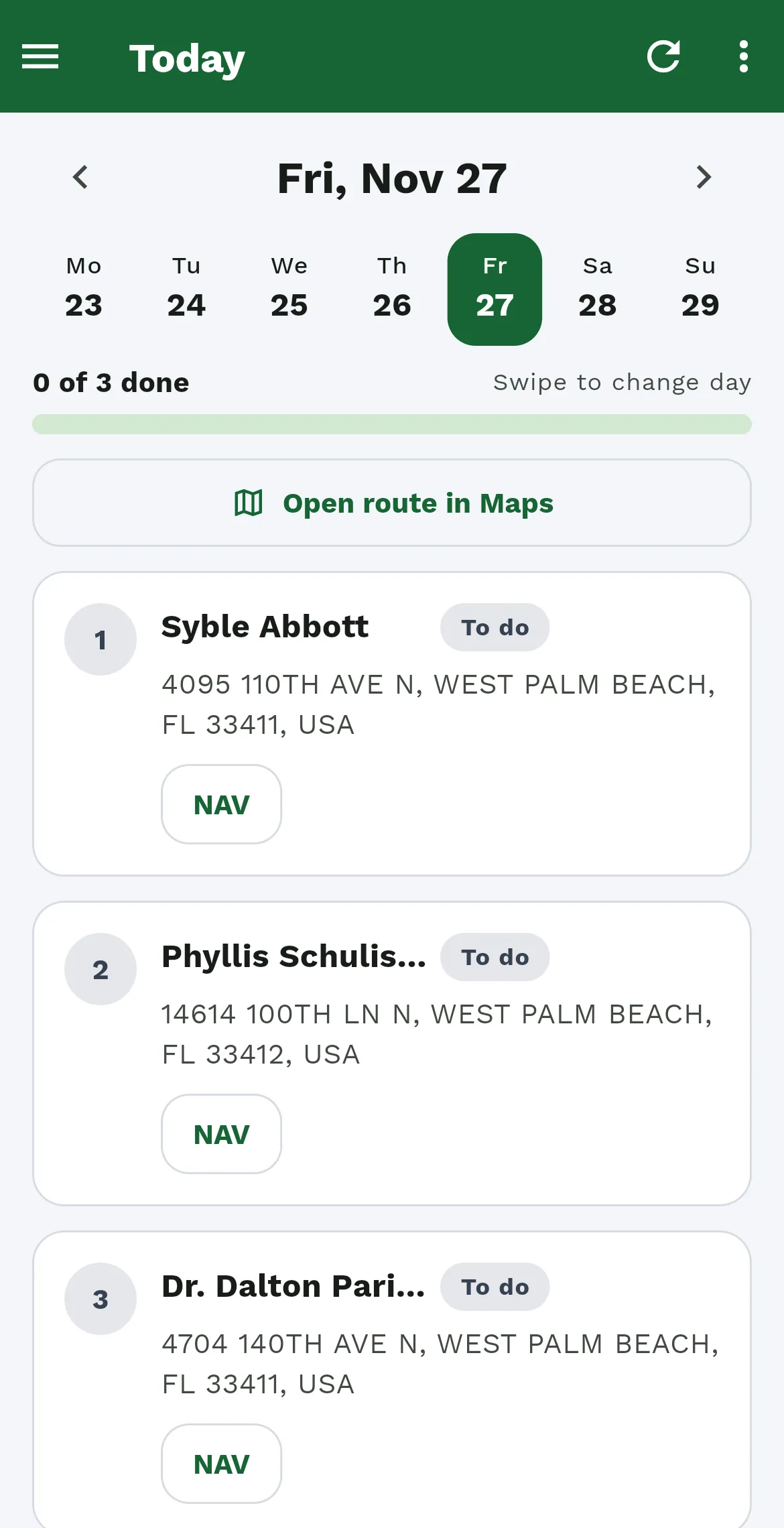
Today is the first screen after sign-in. Its My day tab lists your stops for the day, in route order, numbered as on the office's Today page. Each stop shows its status:
- To do — not started yet.
- On site — started, not completed.
- Done — completed. Done · waiting to send means it is completed on the phone and goes to the office with the next connection.
- Not done — a past day's stop that was neither completed nor marked Can't service.
- Can't service — marked with a reason (12.7).
The top of the list shows the day's progress ("3 of 8 done"). Swipe sideways, or tap a day in the week strip, to see another day: up to 14 days back and 14 days ahead. The ⋮ button sorts the stops by Route order, Nearest first or Farthest first; the refresh button reloads the day from the office.
Each stop card has quick buttons:
- NAV — directions in your map app (Apple Maps or Google Maps, chosen in Settings).
- Call and Text — the customer, when your company lets technicians see phone numbers.
- On my way — a text to the customer that you are coming (12.7), when your company has it turned on.
A New note mark on a card means the office sent a note for that stop that you have not read yet (12.3). Route to the next stop opens the directions to the next stop that is not done.
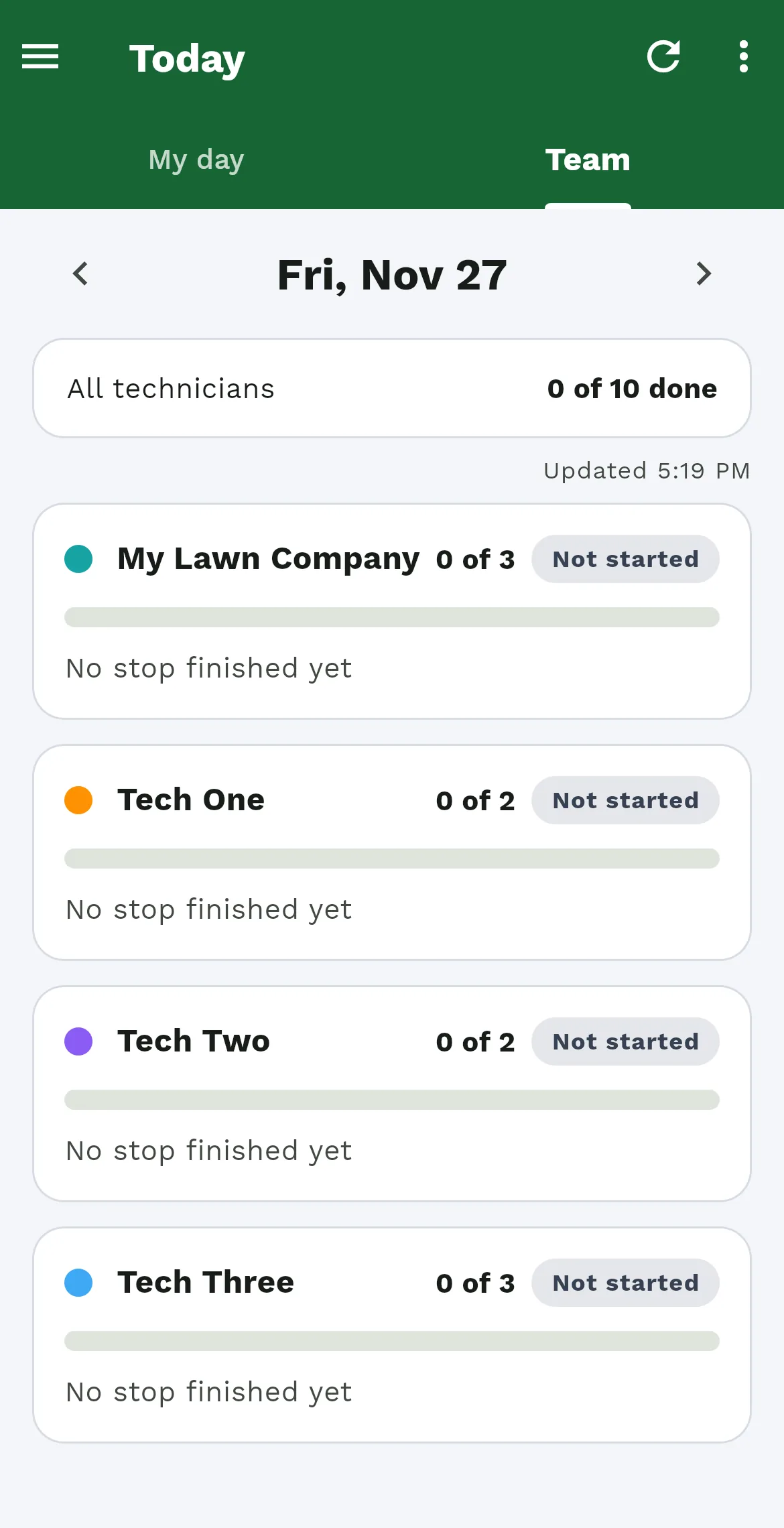
Team (second tab) shows every technician's day: their progress, their times and the label the office's Today page shows for them. Tap a technician to see their stops in order; tap a done stop to open its lawn service report in the phone's browser. Team only shows information, needs a connection, and appears only for accounts with Can see the whole team's day in the app (12.10).
12.3 A stop: Visit, Customer report and Office
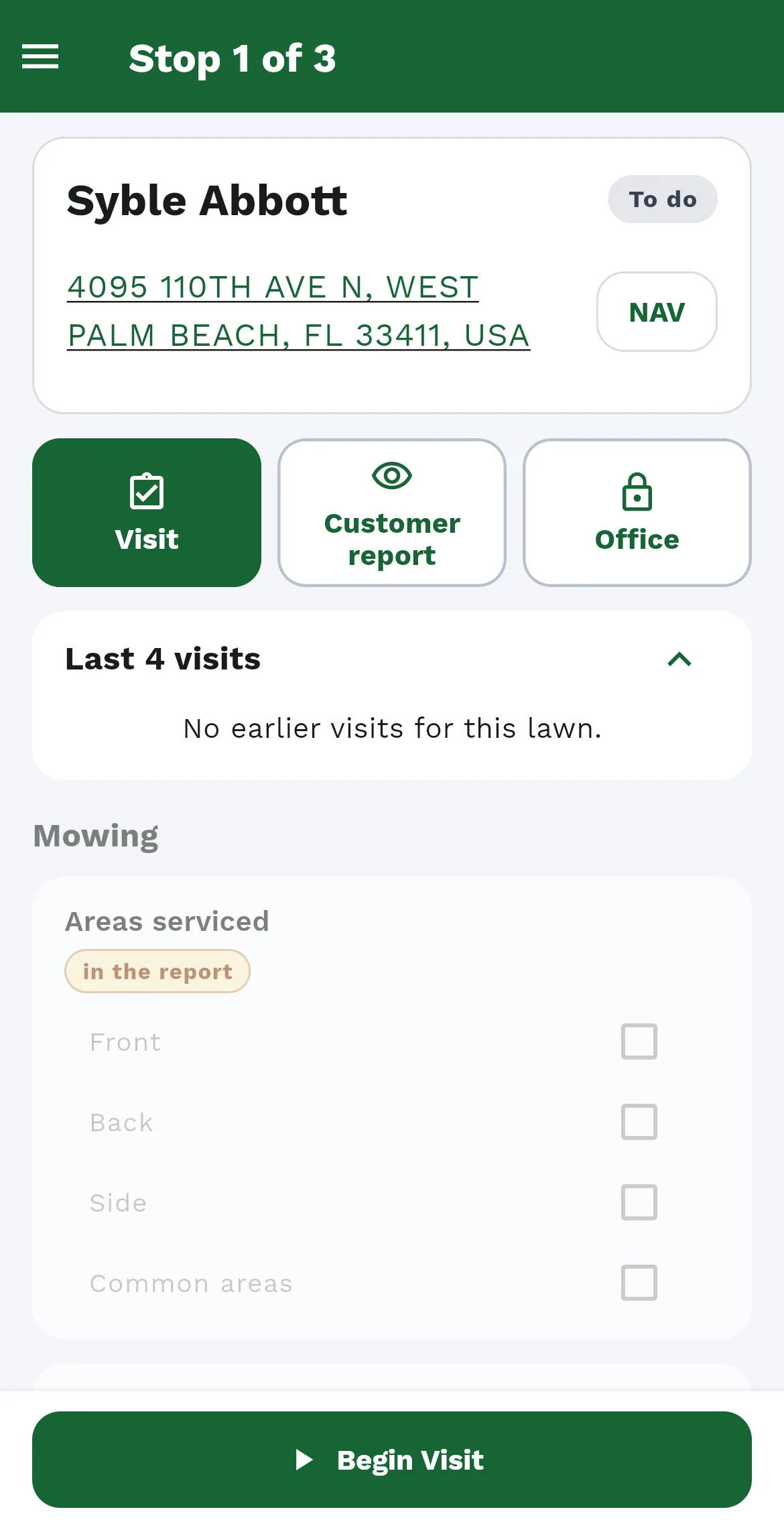
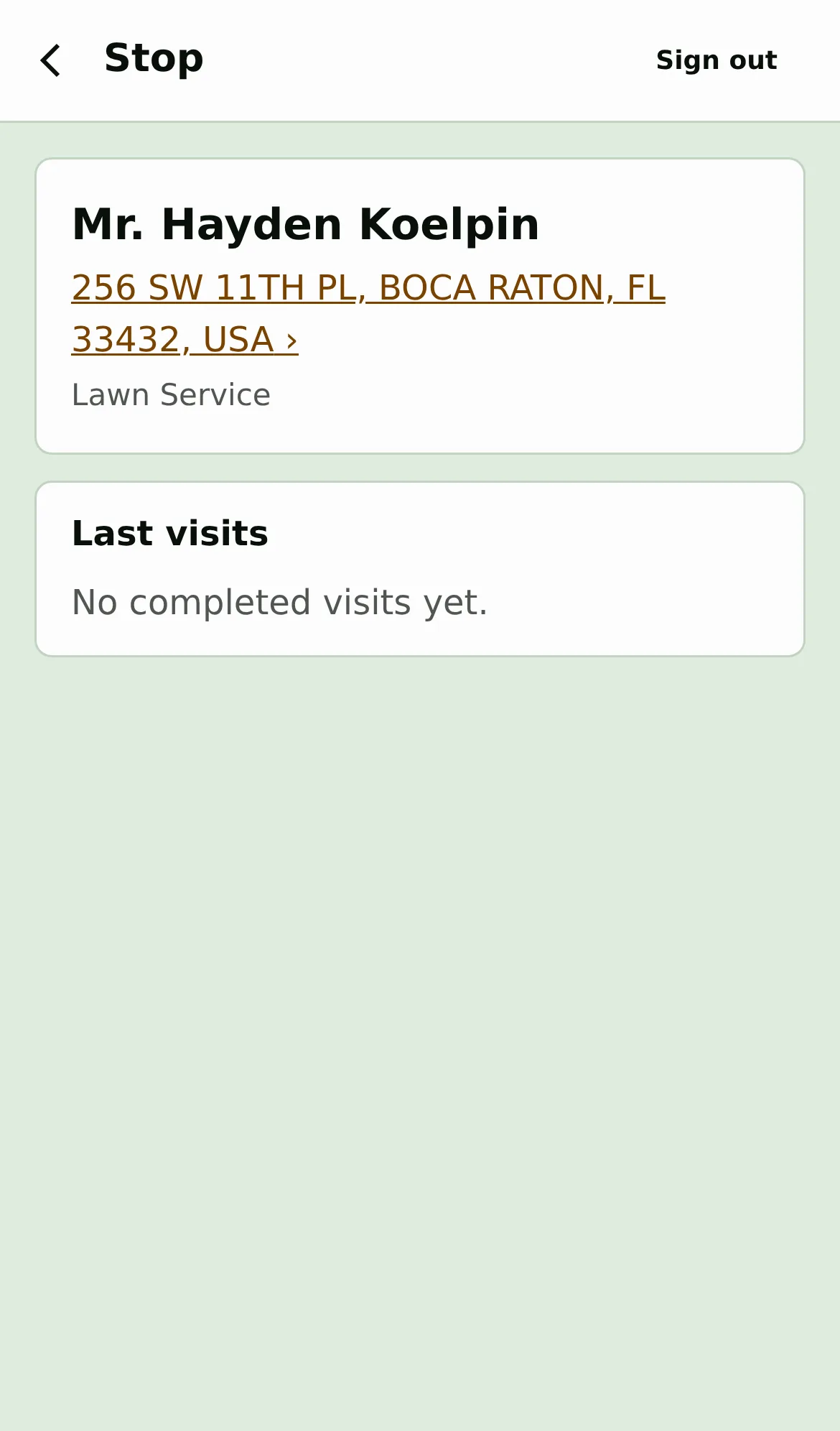
Tap a stop to open it. The card at the top shows the customer, the address (tap it for directions), the service, and the notes for the stop: the location notes (gate code, where the equipment is, pets) and any note for this visit only.
Below are three tabs, each a separate button:
- Visit — the work: readings, checklist, products and photos.
- Customer report — exactly what the customer will get, filled in from the Visit tab as you work, and the Note to the customer.
- Office — what only the office sees: messages from the office, the Note for the office, the location notes and Problem found. The customer never sees this tab.
Starting a visit:
- Arrive at the customer's location.
- Tap Begin Visit, pinned at the bottom of every tab. The fields stay locked until you do.
- The app records the time and your GPS location (compared with the service address).
Started by mistake? Undo Start, in the ⋮ menu, puts the stop back to To do.
Messages from the office. Notes the office writes for technicians arrive on the Office tab under From the office: the note for this visit, the customer's notes marked for technicians, and changes to the location notes. The Office tab button pulses while one is unread; Got it marks it read, and the office sees who has read it.
Completing a visit:
- Tap Complete Visit.
- If the office sent a note you have not read, the app shows it first: Open the Office tab, or Got it, continue.
- Review before completing shows side by side what the customer will get and what only the office will see, and anything still missing (a required checklist item, the minimum number of photos).
- Tap Complete. The app records the time and your GPS location again, and the stop turns Done.
- If your company sends lawn service reports, the customer gets theirs by email, text message or both (see Section 2).
What the app requires before a visit can be completed is set for each service in the checklist editor's App rules (Settings › What you sell › Recurring Billing Items, the service's Checklist button; see Section 5): Start the service first, Completion photos, Require the checklist and Inventory used.
12.4 Readings and notes
At each stop the technician records the Service summary. This is what the standard checklist asks for:
| Asks for | Kind |
|---|---|
| Areas serviced | tick any that apply |
| Mowing height (in) | a number |
| Fertilizer / treatment applied | pick one |
| Issues observed | notes |
Number entries such as mowing height show their ideal range and an OK, Low or High mark as you type, and entries outside a sensible range are refused, so a slipped decimal point is caught at the lawn rather than in the office.
Last 4 visits, on the Visit tab, puts the lawn's last four completed lawn services side by side, newest first: the work done and the products used. When the table is wider than the screen, swipe it sideways or use the ‹ › buttons under it. Each date is a button: it shows that visit's Note for the office and Note to the customer.
Two notes, two readers:
- Note to the customer (Customer report tab) — goes into the customer's lawn service report, when your company shows notes there (Settings › Company › Visit Reports, see Section 2). It is the checklist's notes item (Issues observed on the standard checklist).
- Note for the office (Office tab) — only the office reads it. It can be changed for 48 hours after the visit.
Saved phrases appear as buttons above the notes: a tap adds the phrase to the note. Your company keeps the list (12.10).
Whatever the technician enters is saved to the customer's history.
12.5 Photos
Photos are proof of service and protect against disputes:
- Take a picture on the Visit tab opens the camera; All photos lists the visit's photos, where Take photo and Choose from library (a picture already on the phone) add more.
- A photo can carry a label — Before, After or Problem — shown under it in the customer's report.
- Mark up draws on a photo (circle the crack, point at the leak) before it is sent. The marks go into the photo; the unmarked copy is not kept.
- Each photo is watermarked with the date and time, the technician's name and the GPS position.
- Photos are always available in the admin portal. They appear in the customer's lawn service report when your company turns on Photos in Settings › Company › Visit Reports, up to its Maximum photos.
- A minimum number of photos can be required before a visit can be completed: Completion photos in the checklist editor's App rules, set for each service (see Section 5).
- Taken without a signal, a photo waits on the phone and is sent with the next connection.
12.6 Checklists in the field
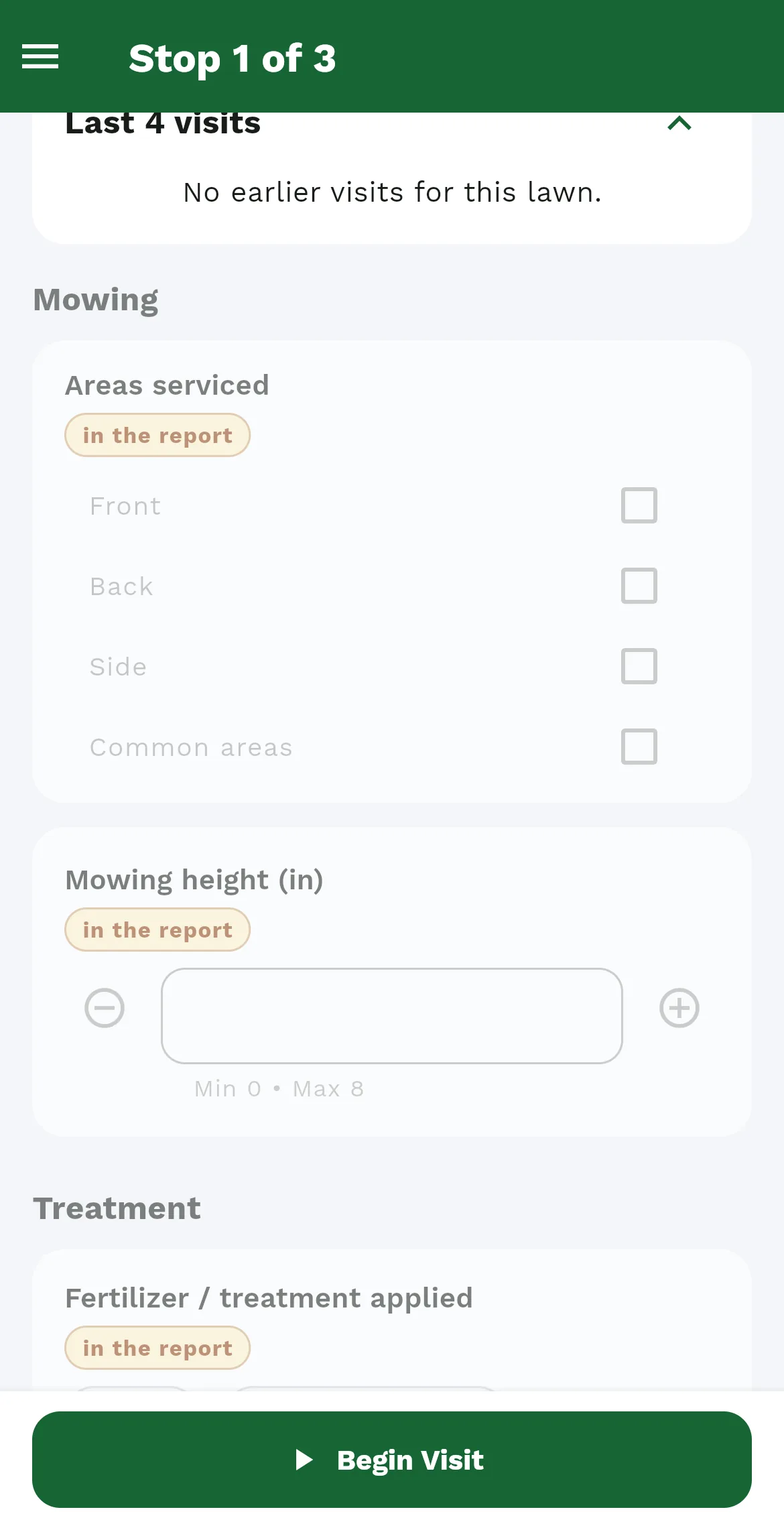
If the service has a checklist, it appears on the Visit tab:
- Required items (marked with an asterisk) must be filled in before the visit can be completed, when the service's App rules include Require the checklist (see Section 5).
- Optional items can be skipped.
- Each item shows whether its answer goes into the customer's report; the Customer report tab shows the result.
12.7 Can't service, Problem found and On my way
Can't service — for a stop that cannot be done today. On the stop's Visit tab:
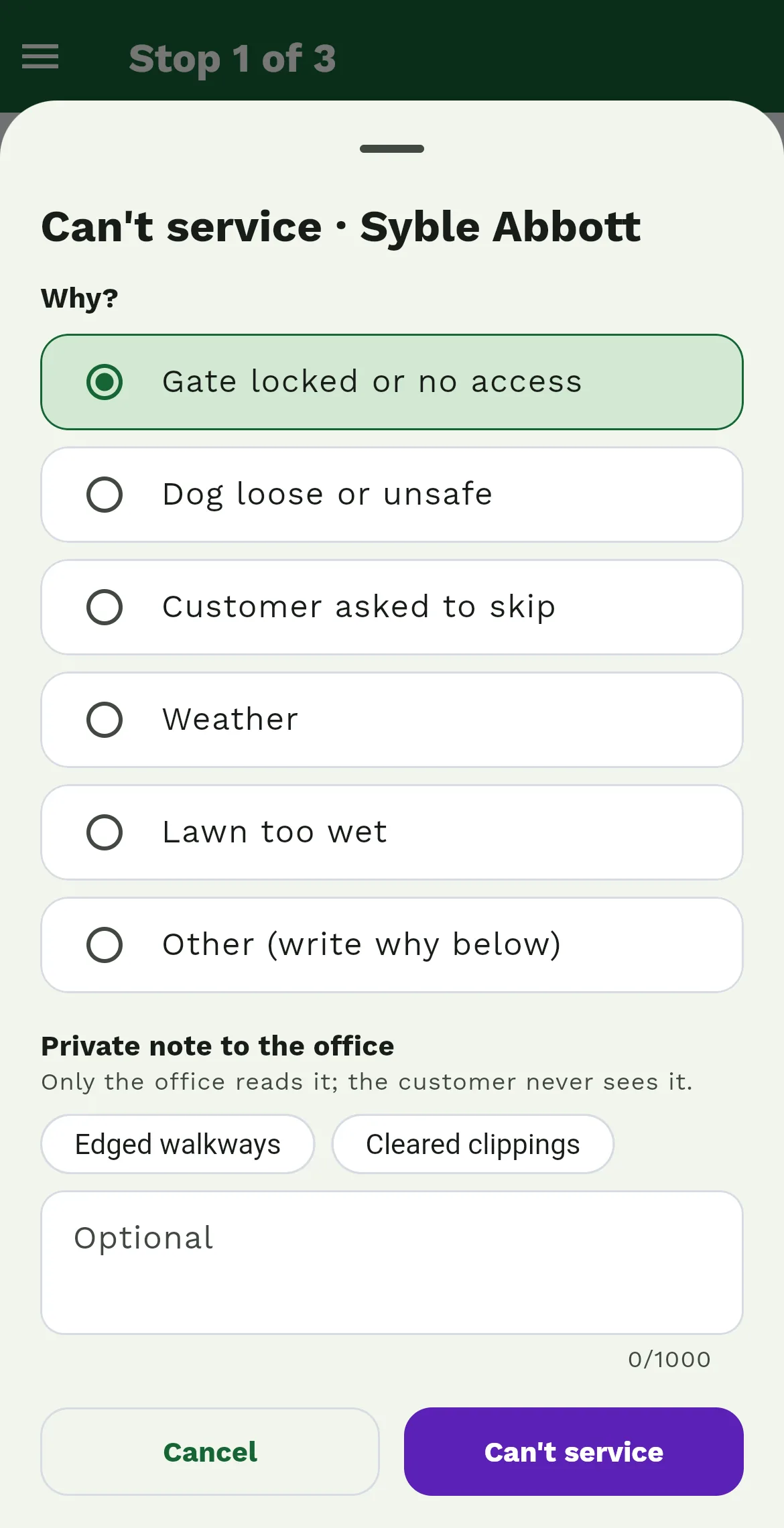
- Tap Can't service and choose why: Gate locked or no access, Dog loose or unsafe, Customer asked to skip, Weather, Lawn too wet or Other.
- Add a Private note to the office if useful (required for Other) and, optionally, a picture. The customer never sees the note.
- Tell the customer appears only for technicians allowed to tell customers (12.10). It shows the message first: the customer gets an email (and a text, where your company sends lawn service reports by text) with the reason and the time.
The stop turns Can't service and stays open for the office, which gives it a new date. Marked by mistake? Undo works for the rest of that day; it never sends a second message.
Problem found — something that needs work beyond the lawn service (a leaking seal, a broken part). On the Office tab, Problem found (for a quote): write What is wrong?, choose How soon? (Can wait, Soon, Urgent) and add photos. The office receives it to prepare a quote (see Section 9); the customer does not see it, and these photos stay with the report, not with the visit's photos.
On my way — a text to the customer that you are coming. On the stop card, tap On my way, choose about 10, 20 or 30 minutes (or no time), and check the text under The customer gets before sending. It is available only when your company has turned it on (12.10) and the customer has a mobile number; one text per stop per day, between 8 AM and 8 PM company time. It needs a connection: it is never kept to send later.
12.8 Working offline
The app works without a signal (rural roads, equipment rooms behind thick walls):
- Today and the next 14 days are saved on the phone. Save the next 14 days for offline use, in the Menu, refreshes them before a day without coverage.
- Visits can be started and completed; readings, notes, photos, Can't service and problems are kept on the phone.
- When the connection returns, everything goes to the office in the order it was done, automatically.
- Waiting to send (in Settings) lists what has not reached the office yet, with Send now. A change the office refused (for example, a visit given to another technician meanwhile) is listed under Not accepted by the office.
Signing out warns when something has not been sent, and then removes the company's data from the phone.
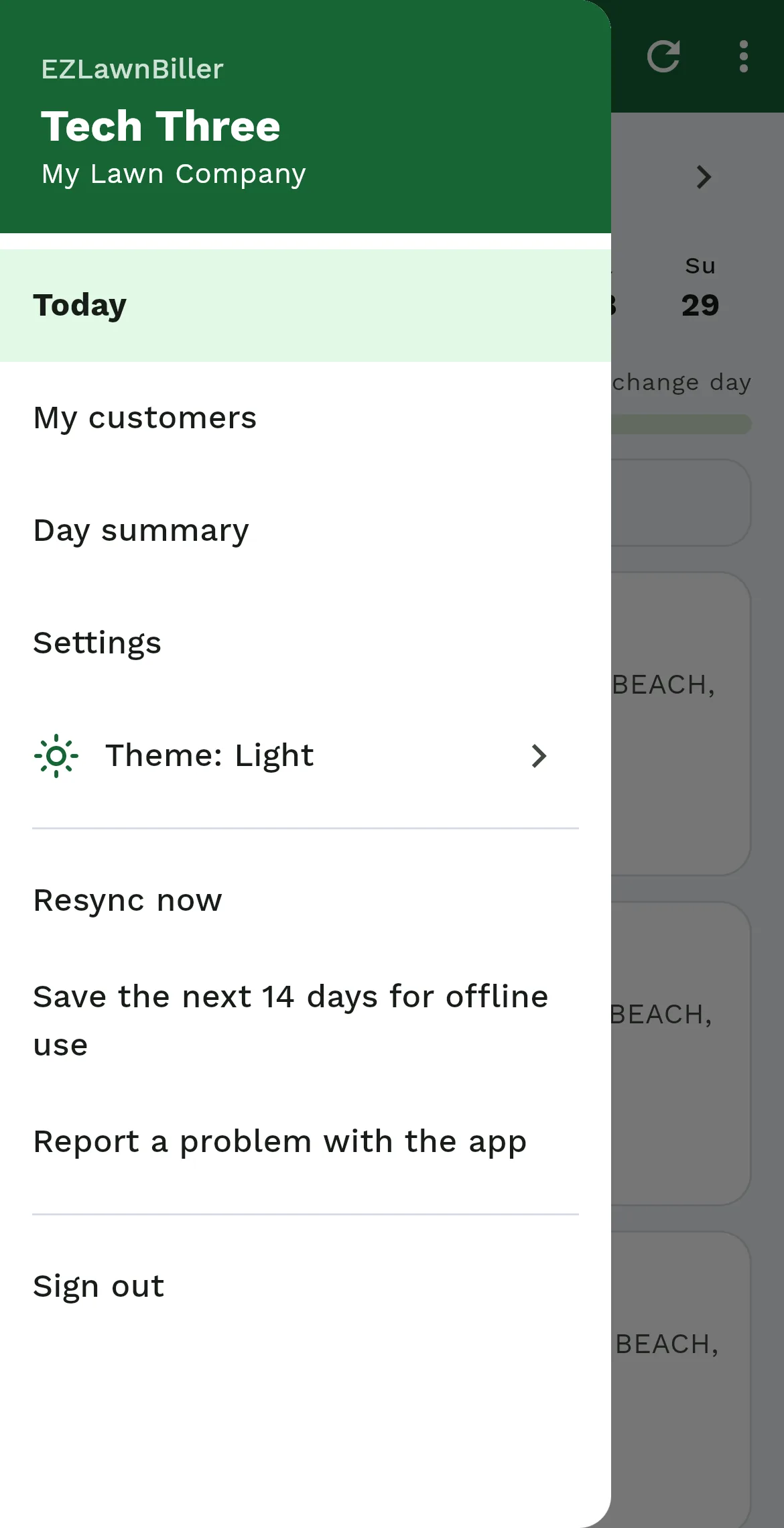
12.9 The Menu
The Menu (top left) holds the rest of the app:
- Today — back to the day's stops.
- My customers — every customer on your own routes, with a search, the address and the next visit date. A customer's page shows their Last 4 visits.
- Day summary — the day's numbers: stops done, can't service and not done, the first and last times, time at stops, texts sent and problems reported, with the stops still open and Send now if something has not reached the office.
- Settings — the theme, Fingerprint / Face ID, the Map app, Waiting to send, Report a problem with the app, the support email, the Terms of Service, the Privacy Policy and the app's version.
- Theme — the same four choices as on the sign-in screen.
- Resync now and Save the next 14 days for offline use.
- Report a problem with the app — describe what went wrong; the report reaches the support team with the app's version.
- Sign out.
12.10 Settings for the app, in the office
What the app offers is decided in the office:
- Settings › Company › Technician app
- Saved phrases — the phrases technicians add to notes with one tap. Technicians can put them in the note the customer reads, so write them for a customer. Drag to change the order; + Add a phrase.
- "On my way" — Let technicians text customers that they are on the way. Off until you turn it on. The box shows the exact text; each one is billed as a text message.
- Settings › Technicians (each technician)
- Can tell customers when a visit can't be done — shows Tell the customer on the app's Can't service sheet. Nobody has it at first: without it, the app never contacts the customer about a Can't service.
- Can see the whole team's day in the app — shows the Team tab. Admins and managers have it through their role (Settings › Roles & Permissions).
- Roles & Permissions › See problems found by technicians — who sees Problems found (see Section 9).
A stop marked Can't service shows its reason on the office's Today page, where Change date gives it a new day. Notes written for technicians show who has them on their phone and who has read them.
12.11 My day on the web
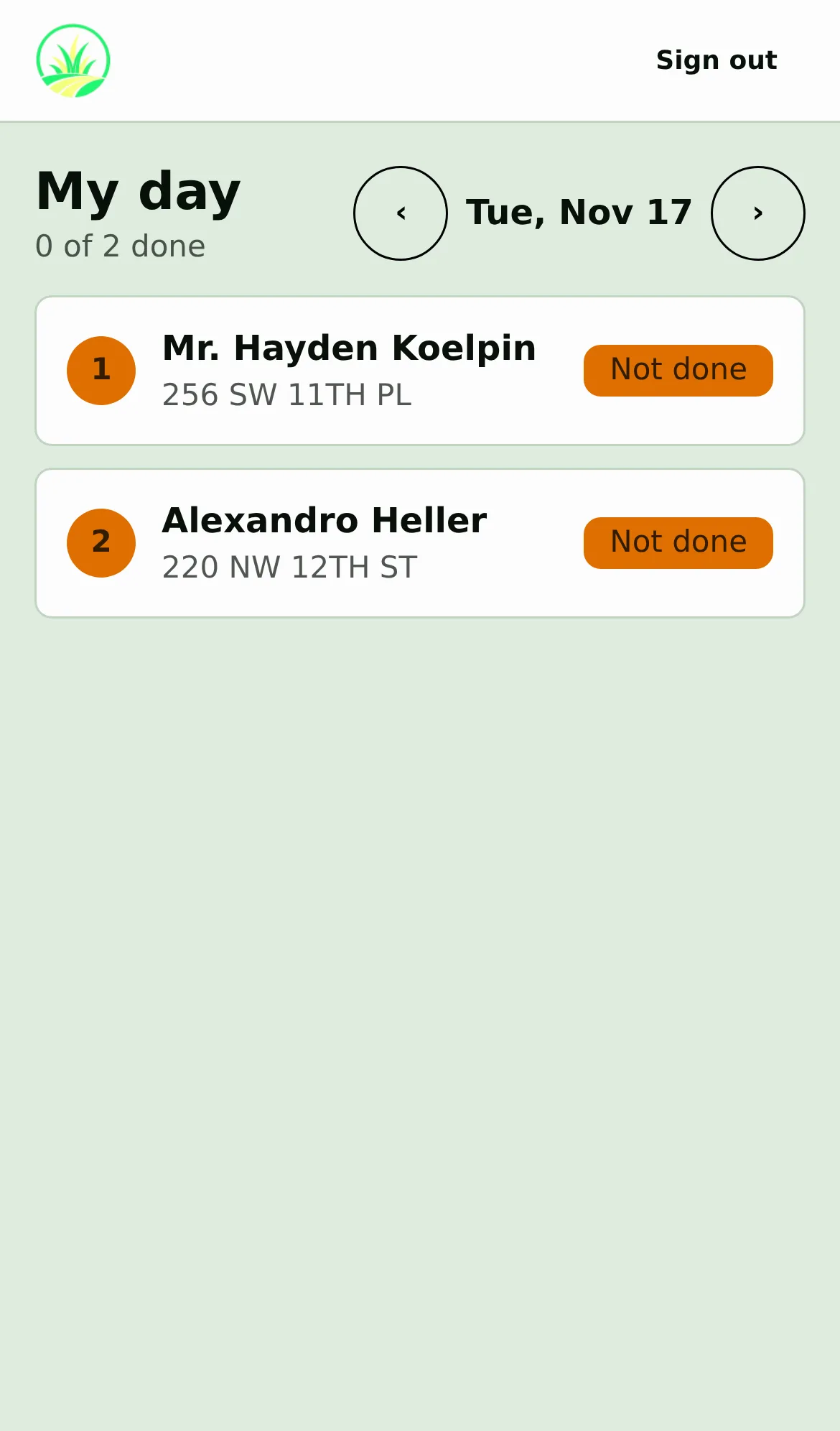
My day is a web page for technicians, opened in the phone's browser. It shows the technician's own stops and, for each lawn, the last 4 visits side by side. That makes it quick to see a trend before the work starts, for example a reading that was already high last week.
How a technician opens it: on the company's usual sign-in page, with the same email and password as the app. A technician whose role is only Technician lands on My day; it is the only web page that account can open. Anyone else can open it from the address /v2/my-day to see their own route, if they have one.
What it shows:
- The day: the technician's stops in route order, each marked Done, On site, To do or Not done, and "2 of 6 done". The arrows go back up to 14 days and ahead up to 7; tapping the date returns to today.
- A stop: the customer, the address (tap it for directions), the service, and every note the app shows for that stop: the note for this lawn service, the location notes, the service notes, the technician's notes, and an estimate job's payment warning.
- Last 4 visits: the readings and the chemicals added at the lawn's last 4 completed lawn services, oldest first. A reading above or below its ideal range is marked ↑ or ↓.
My day only shows information. Starting and completing lawn services, photos, readings and checklists stay in the app.