10. Billing & Payments
10.1 How Billing Works
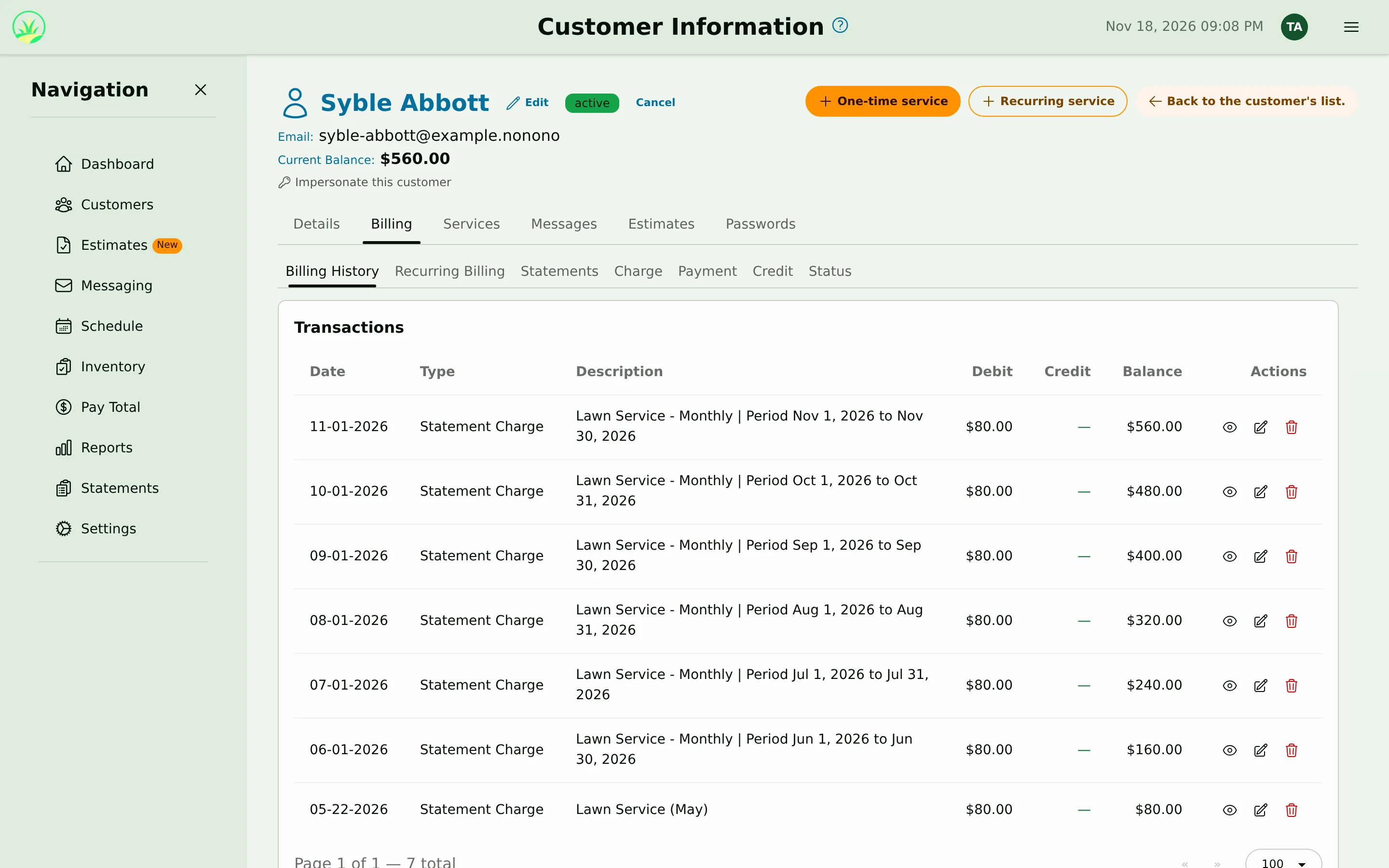
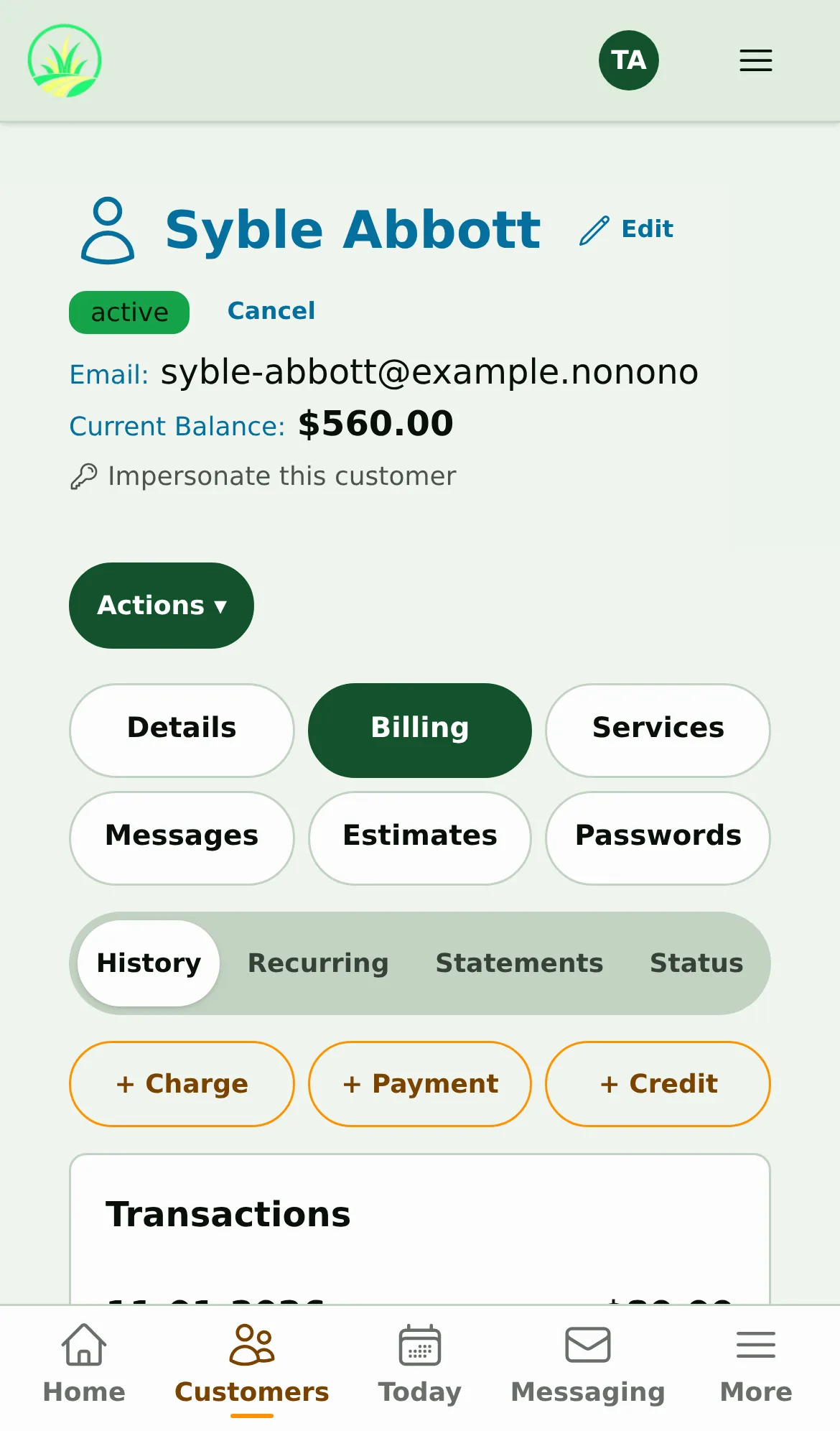
The billing system operates on a ledger model. Every financial event creates an immutable financial transaction on the customer's ledger:
- Service charges (positive — customer owes more)
- Payments received (negative — customer owes less)
- Credits (negative — customer owes less)
- Refunds (negative — reduces a previous payment)
- Sales tax (positive — added to charges)
The customer's current balance is the sum of all their financial transactions. A positive balance means they owe money; a negative balance means they have a credit.
10.2 One bill — the statement
Whichever billing method you use, a customer gets one running bill: their statement. There is no second document to send, chase or reconcile.
A statement covers a period, and it is in one of two states:
| State | What it means |
|---|---|
| Open | The period is still running. Charges, payments and credits land on it as they happen |
| Closed | The period has ended. The statement is finalised with an opening balance, everything that happened during the period, and a closing balance |
The billing method changes when a charge lands on that statement, not what the customer receives:
- Per-Service — a charge is posted the moment a job is finished, so the statement fills up visit by visit.
- Monthly Statement — the period's charges are collected and closed together.
A closed statement can be emailed to the customer automatically, downloaded as a PDF, or read in the customer portal. See 10.4 for the detail, and Section 2 for how the two methods are set.
10.3 Charges dated in the future — the "Scheduled" badge
Some charges are posted before the money is due. That happens when you sell a one-off job and choose Now, dated… with a date still to come (see Section 8), or when you post-date a charge yourself.
A charge like that sits on the customer's account marked Scheduled. It means: this is agreed, but it isn't due yet.
While a charge is Scheduled:
- It shows on the customer's Billing page so you and your staff can see it's coming.
- It is not counted in their current balance.
- It does not appear on their statement, so the customer isn't billed for it early.
On the date you set, it stops being Scheduled and behaves like any other charge — it joins the balance and appears on the statement covering that date.
Changing the date: open the charge and edit its date. Useful when a customer asks to be billed later.
10.4 Statements (Monthly Mode)
If you're using the Monthly Statement billing method:
- Each statement covers a period (e.g., March 1–31).
- During the period, all completed services, credits, payments, and fees are recorded as financial transactions.
- At the end of the period, the statement is closed with:
- Opening balance (carried from previous statement)
- All transactions for the period
- Closing balance
- The statement PDF shows your company details, the customer's name, the address of each of their locations, the period, and every line with the balance.
- The statement can be:
- Emailed to the customer automatically.
- Downloaded as PDF.
- Viewed in the customer portal.
Statement Integrity: Each statement has a cryptographic signature to ensure transaction data hasn't been altered.
To chase customers who haven't paid, sending each one their statement with your own message, see Past-Due Notices below.
To send customers next month's statement before the month starts, see Next Month's Statements below.
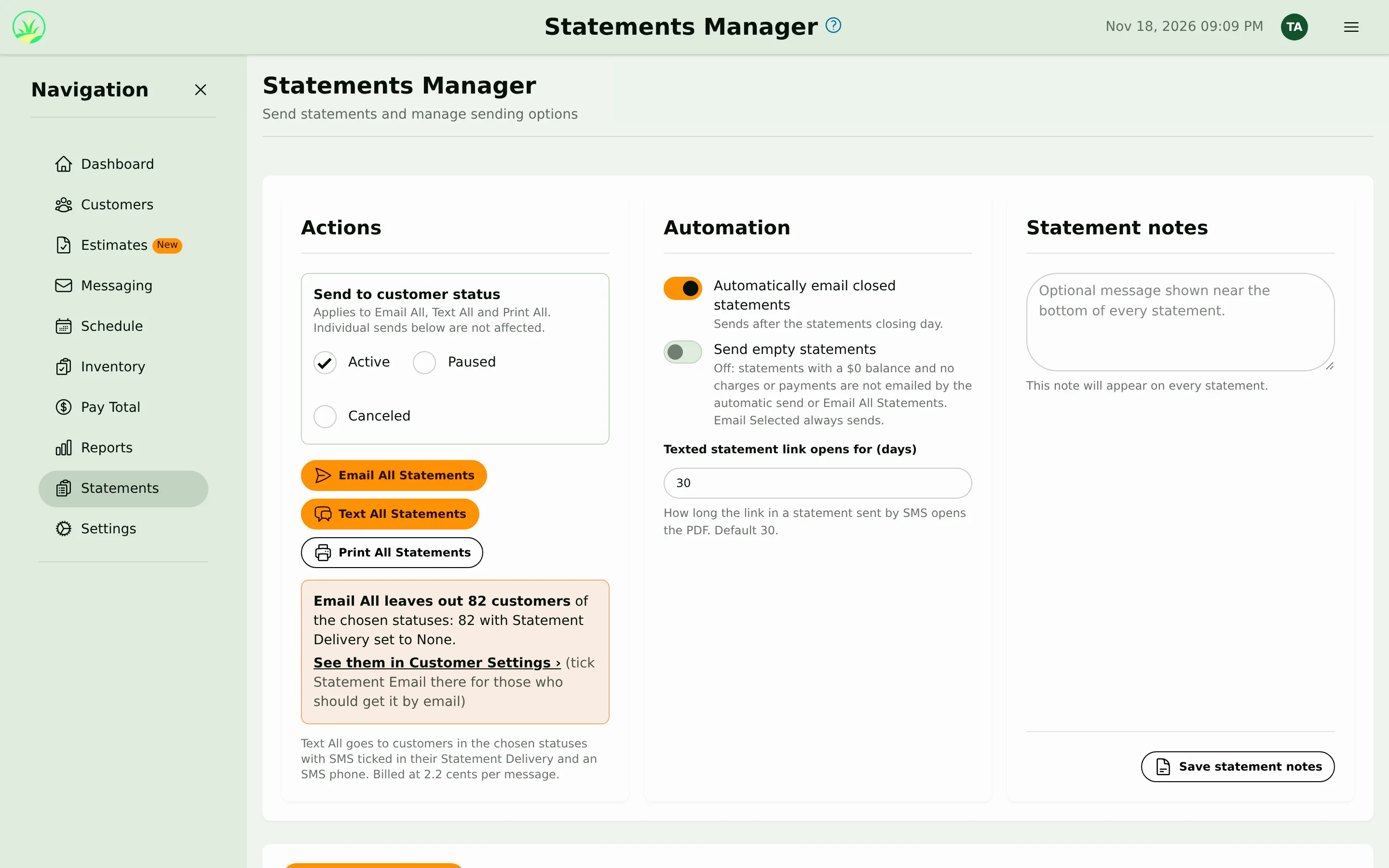
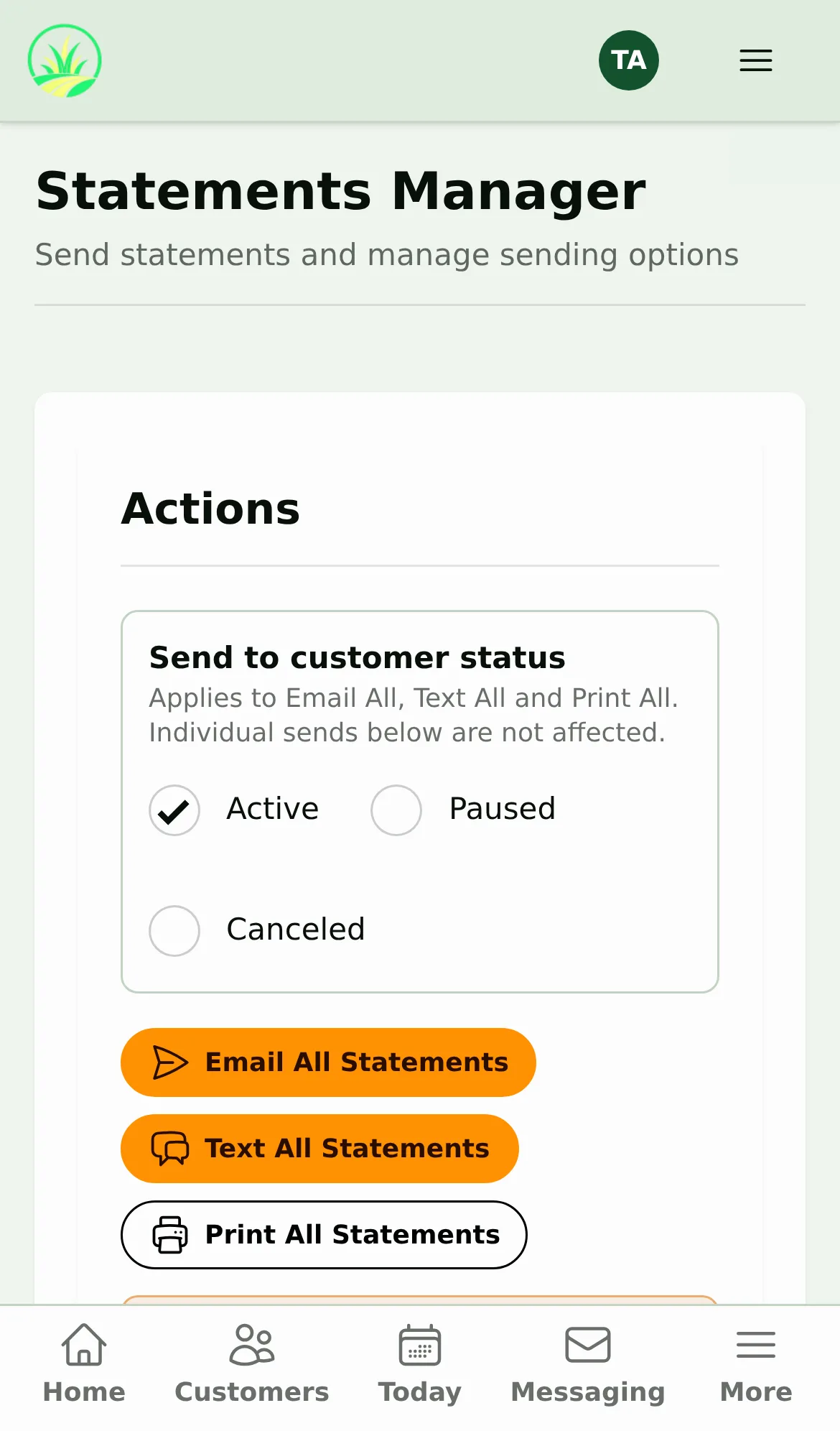
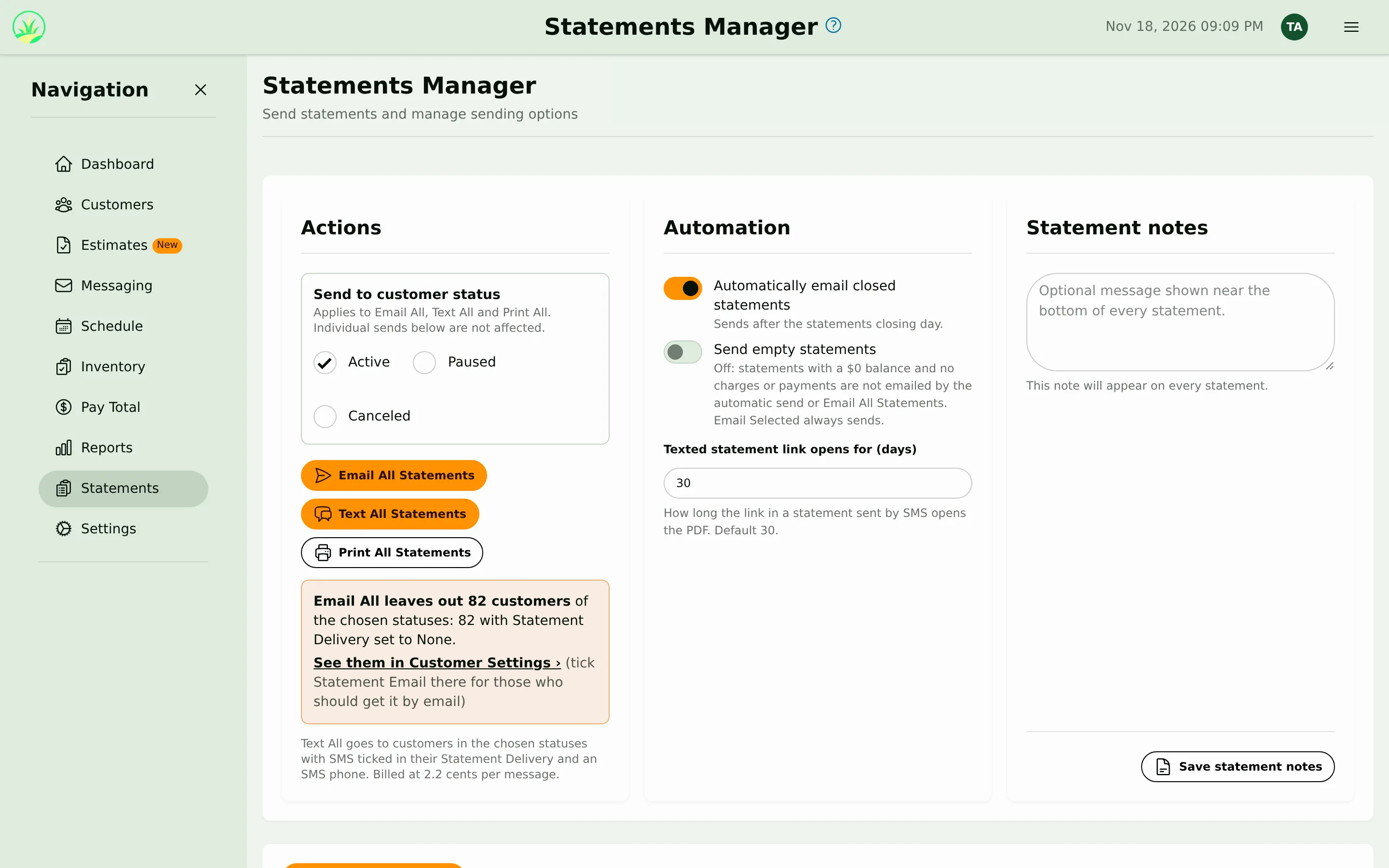
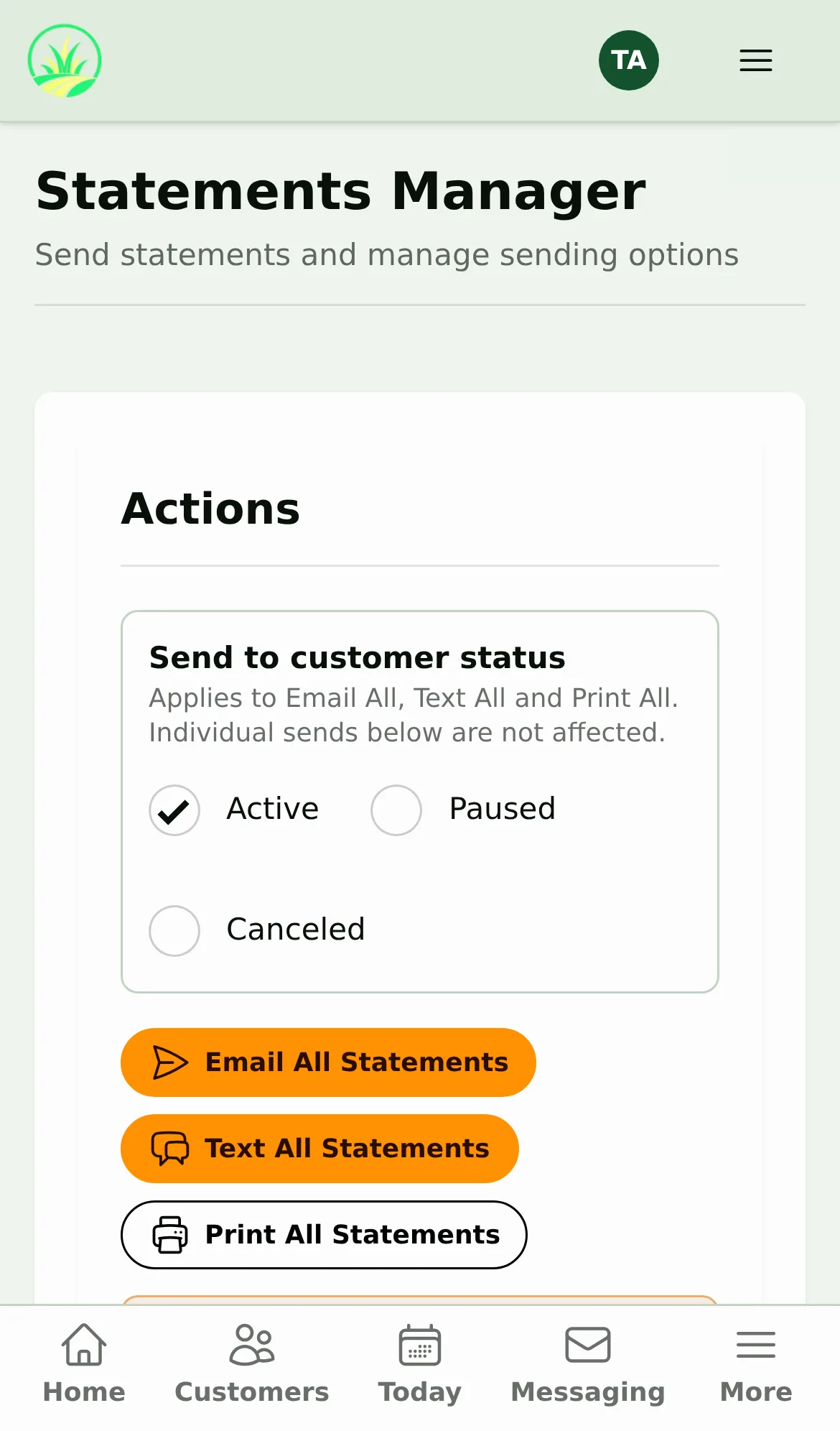
Sending statements from the Statements page. Statements in the menu opens the Statements Manager. Its Actions card sends the current statement to many customers at once:
- Send to customer status chooses which customers the three buttons below reach: Active, Paused and Canceled. With none ticked, they send to no one.
- Email All Statements emails every customer of those statuses with Email in their Statement Delivery. Text All Statements first shows how many texts it will send and what they cost, then Send texts. Print All Statements downloads one PDF with the statements of the customers of those statuses whose Statement Delivery includes Print.
- Email All leaves out …: when some customers of the chosen statuses would not receive the email, a notice under the buttons says how many and why: Statement Delivery set to None, set to Print, or no email address. See them in Customer Settings › opens Customers › Customer Settings filtered to those customers, where you tick Statement Email for the ones who should get it by email (see Section 4).
Send Individual Statements, further down, sends to the customers you tick in the table: Email Selected, Text Selected or Print Selected. It can also send the statement of a past month again.
On a phone, the Statements Manager is arranged for a small screen. When Next month's statements are on, a two-part switch at the top chooses Current statements or Next month's; the explanation of each tab is behind the ⓘ beside the switch, not on the page. In Send Individual Statements, each customer is a card with a tick, their name, status, email address and Statement Delivery; Select this page ticks every card on the page.
10.5 Past-Due Notices
Past-due notices let you pick the customers who owe you money, write one message, and email each of them their current statement with that message on top, all in one go.
Open it from the Send past-due notices → button on the Statements page, or on Reports → Balances.
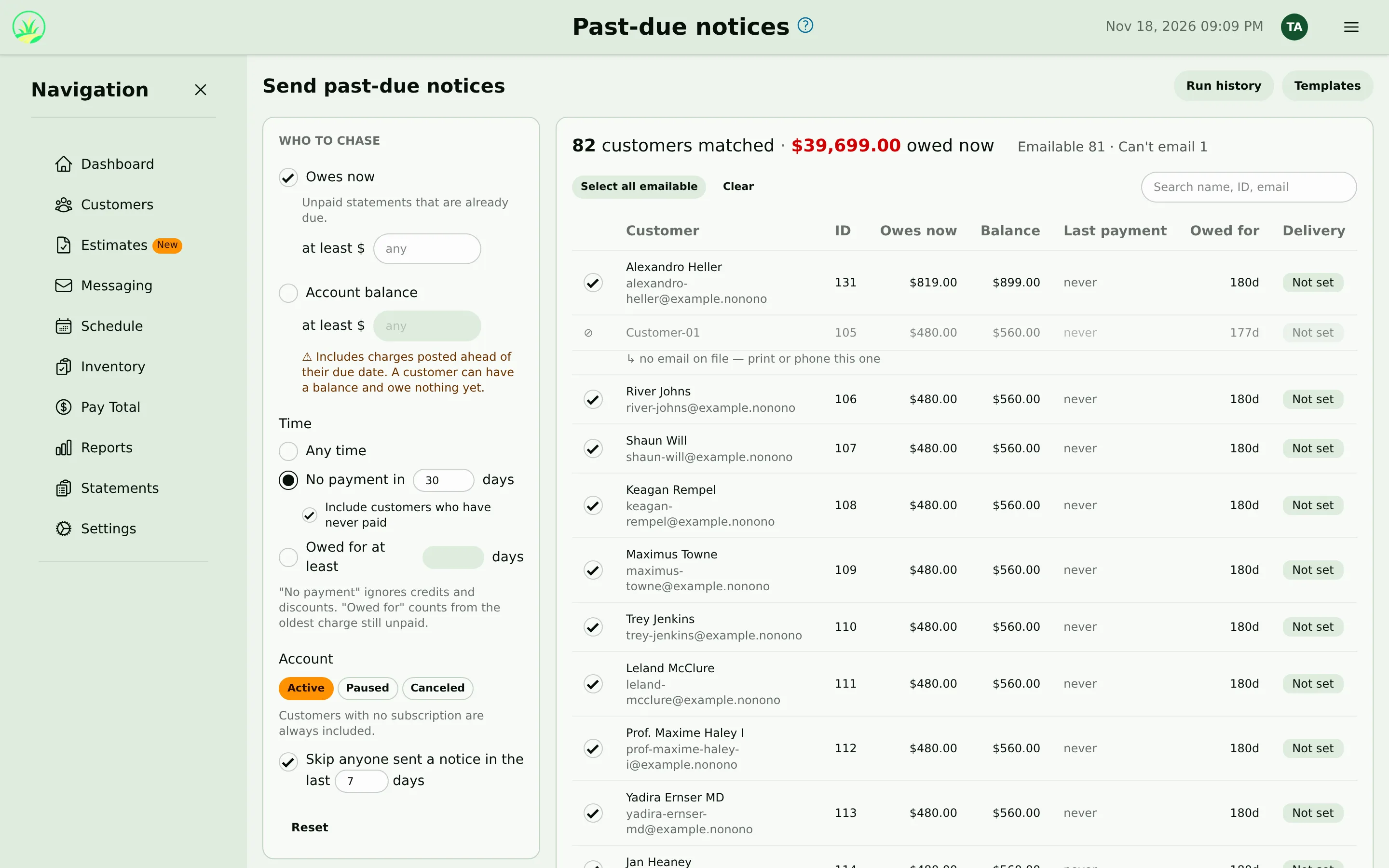
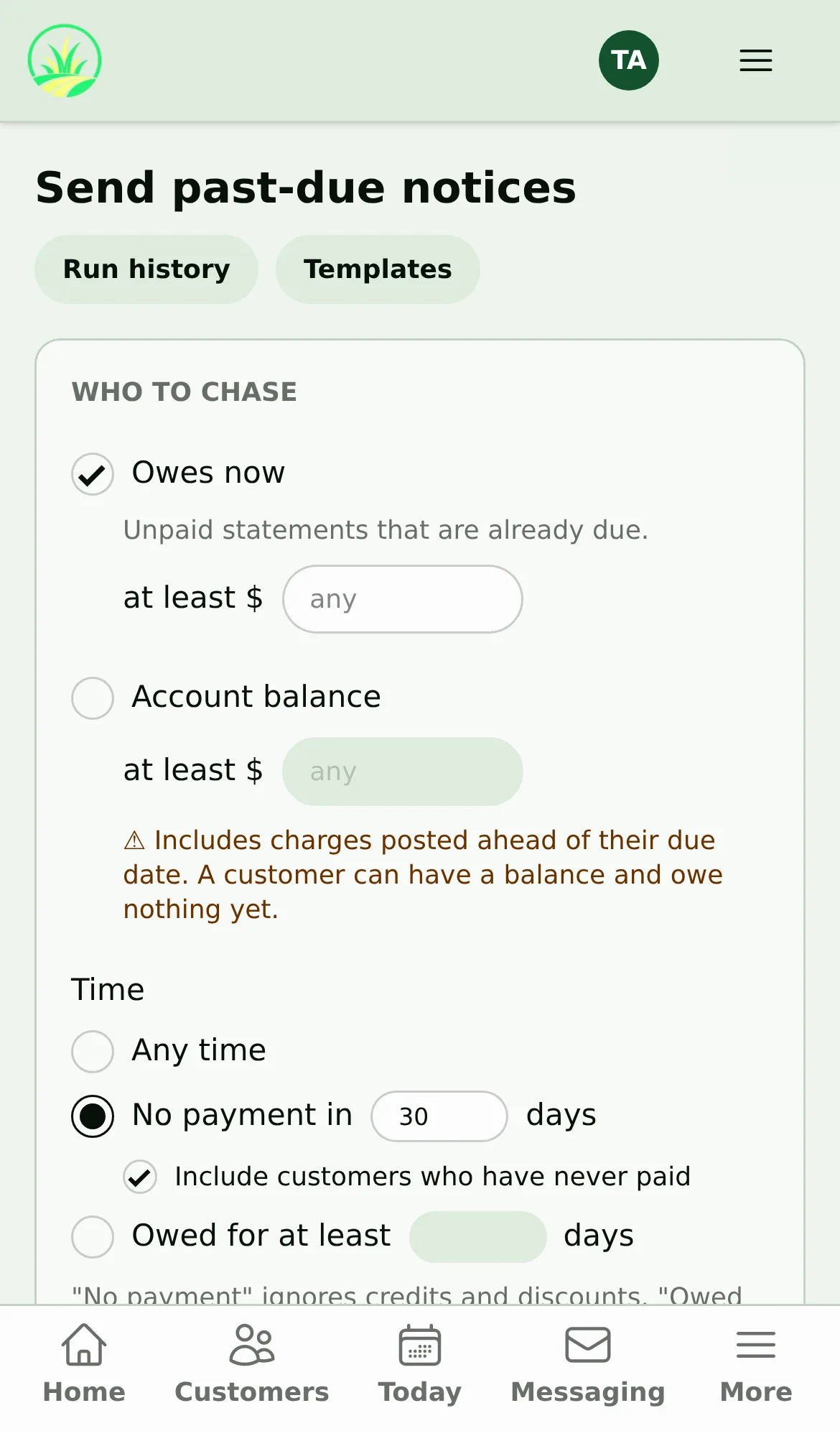
It works in four steps: choose who to chase, write the message, confirm, and watch it go.
1. Choose who to chase
The panel on the left filters your customers. The count and the total owed at the top update as you change it.
- Owes now: unpaid statements that are already due. This is on by default, and it's the one to use. Add at least $ to leave out small amounts.
- Account balance: everything on the account, including charges posted ahead of their due date.
- Time: No payment in a number of days (credits and discounts don't count as payments; tick Include customers who have never paid to keep them in), or Owed for at least a number of days, counted from the oldest charge still unpaid. Any time turns this off.
- Account: which subscription statuses to include (Active, Paused, Canceled). Customers with no subscription are always included.
- Skip anyone sent a notice in the last 7 days is on by default, so nobody gets chased twice in a week. Untick it or change the number of days if you need to.
Every matching customer appears in the table, ticked. Untick anyone you want to leave out. Customers who can't be sent a notice stay in the list, greyed out, with the reason. For example, no email on file means you'll need to print or phone that one. Customers marked as preferring paper are emailed anyway.
Click Continue to message →, or Save as draft to come back later.
2. Write the message
- Pick a saved message from Template, or write a new one. Save as new… keeps it for next time; Update saves changes to the template you picked. Templates, at the top of the page, is where you edit, copy or archive them.
- Write a Subject and a Message in plain text. A blank line starts a new paragraph.
- The buttons under Insert add details that change for each customer:
customer_name,company_name,past_due(the amount owed now),balance,last_payment_date,days_since_payment,owing_since_dateandportal_link. Click one to drop it in where your cursor is. If a tag is typed wrong, you'll get a warning and can't send until it's fixed.
The Preview on the right shows exactly what one customer will receive, with their real amounts filled in. Use ‹ prev and next › to step through the list. Your message sits above the standard wording, which is always kept, so every customer still gets their statement PDF and the link to pay in the customer portal.
Before sending for real:
- Send test to me emails you the notice for the customer on screen, attachment and all.
- Dry run goes through the whole list without sending anything, and shows who would get a notice and who would be skipped.
3. Confirm
Click Review & send … notices →. The confirmation shows how many notices will go out and the total being chased. If that total looks wrong, a filter is probably set wrong, so go back and check it. Above 25 recipients you'll be asked to type SEND to confirm.
Each customer is checked again at the moment their email goes out. Anyone who has paid in the meantime is skipped automatically.
4. Watch it go
The run page shows each customer as Sent, Waiting (handed to your mail server, no result yet), Failed or Skipped, with the reason. From there you can:
- Retry … failed to send the failed ones again, as a new run.
- Print the … who can't be emailed to get their statements on paper.
- Export CSV for your records.
- Cancel run to stop anything not yet sent. Notices already handed to your mail server can't be recalled.
Run history, at the top of the page, lists every past run. Each customer's Messages tab also shows the past-due notices they've been sent.
10.6 Autopay
Automatic payments (autopay) charge a customer's saved card or PayPal account for the balance due, on the Automatic Payment Processing Day set in Settings › Company › Payments, card Automatic payments and statements (2.2). A customer on Next month's statement is charged on that schedule's own payment day instead (10.14).
Setting up automatic payments: the customer sets them up in the customer portal, under Account › Automatic payments (see 13.3):
- They tick the consent, for example "Please charge my whole balance automatically on the 5th of each month."
- When they owe something, Also charge my current balance … now is ticked to start with; they can untick it.
- They choose Use a card or Use PayPal, and enter their details on Stripe's or PayPal's page. EZ Lawn Biller never sees the card details.
- Back in the portal, a message says whether it worked, and the screen shows Active, the card or PayPal account, and the date of the next charge.
A customer has one way of paying automatically at a time. Change how I pay replaces it: when the new way is saved, the old one stops. Automatic payments can be set up only once a monthly service is active on the customer's account. Automatic payments from a bank account are not available yet: bank transfers are for one-off payments (see 10.11).
If an automatic payment fails (a declined card, for example), EZ Lawn Biller tries again; see 10.10.
When a customer cancels automatic payments: in the portal they open Account › Automatic payments, choose Cancel automatic payments, and confirm with Yes, cancel. Every automatic charge for that customer stops, and their saved card or PayPal details are deleted, both from EZ Lawn Biller and from Stripe or PayPal. Their balance is still due, and they can still pay each time with Pay. To go back on automatic payments, the customer sets them up again under Account › Automatic payments and enters their payment details again; the deleted card cannot be reused.
To be emailed each time this happens, turn on Email the company when a customer cancels automatic payments in Settings › Company › Payments, card Automatic payments and statements (off by default). The email goes to the company Email in Settings › Company › General (Contact card), or to your admin users if that is empty, and names the customer and the saved details that were deleted.
Receipt after each automatic payment: turn on Email the customer a receipt after each automatic payment in Settings › Company › Payments, card Automatic payments and statements (off by default). The customer then gets one email per automatic payment that went through: card and PayPal payments when they are charged, bank transfers when the money clears (a bank transfer can still fail during the 3 to 5 days it takes, so no email is sent when it starts). The charge of the balance when a customer sets up automatic payments gets one too. The email shows the amount, the date, the card, bank account or PayPal account, the processing fee when one was charged, and the balance after the payment, with a View your account button. It is not sent for payments the customer makes with Pay, payments you record, refunds or failed charges. Stripe and PayPal may also send their own receipt; to stop Stripe's, open the Stripe Dashboard, Settings > Customer emails, and switch off Successful payments.
If PayPal refuses automatic payments for your account: PayPal only allows automatic payments on business accounts it has approved for them (PayPal calls this Reference Transactions). If it refuses:
- The customer is told: "Automatic payments with PayPal are not available at the moment. You can still pay your balance with PayPal each time."
- You get an alert, and Settings › Company › Payments says so in the PayPal card.
- Customers are no longer offered PayPal automatic payments. They can still pay each balance with PayPal.
Ask PayPal to enable Reference Transactions on your PayPal business account, then click Offer PayPal automatic payments again in the PayPal card of Settings › Company › Payments.
10.7 Manual Payments
You can record payments made outside the system, such as cash or a check:
- Open the customer's page, go to the Billing tab and click Payment (on a phone, + Payment).
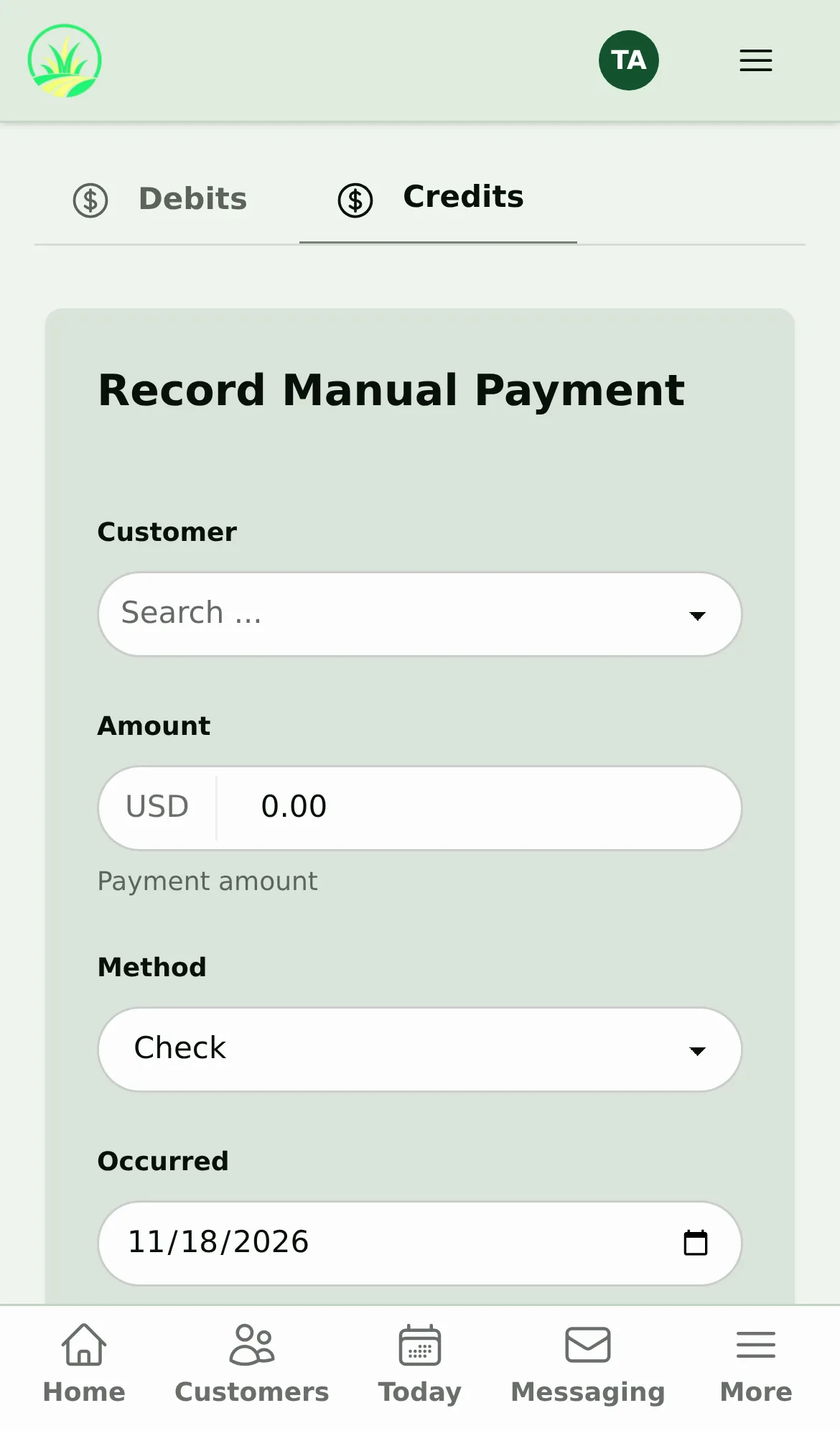
- The form Record Manual Payment asks for the Amount, the Method (Zelle, Check, Cash, Cash App, Credit Card or Other), the date it Occurred, and an optional Description, for example the check number.
- Click Submit Payment. The payment is posted to the customer's ledger and reduces their balance.
The form is view only for a role that may not record payments.
10.8 Credits & Debits
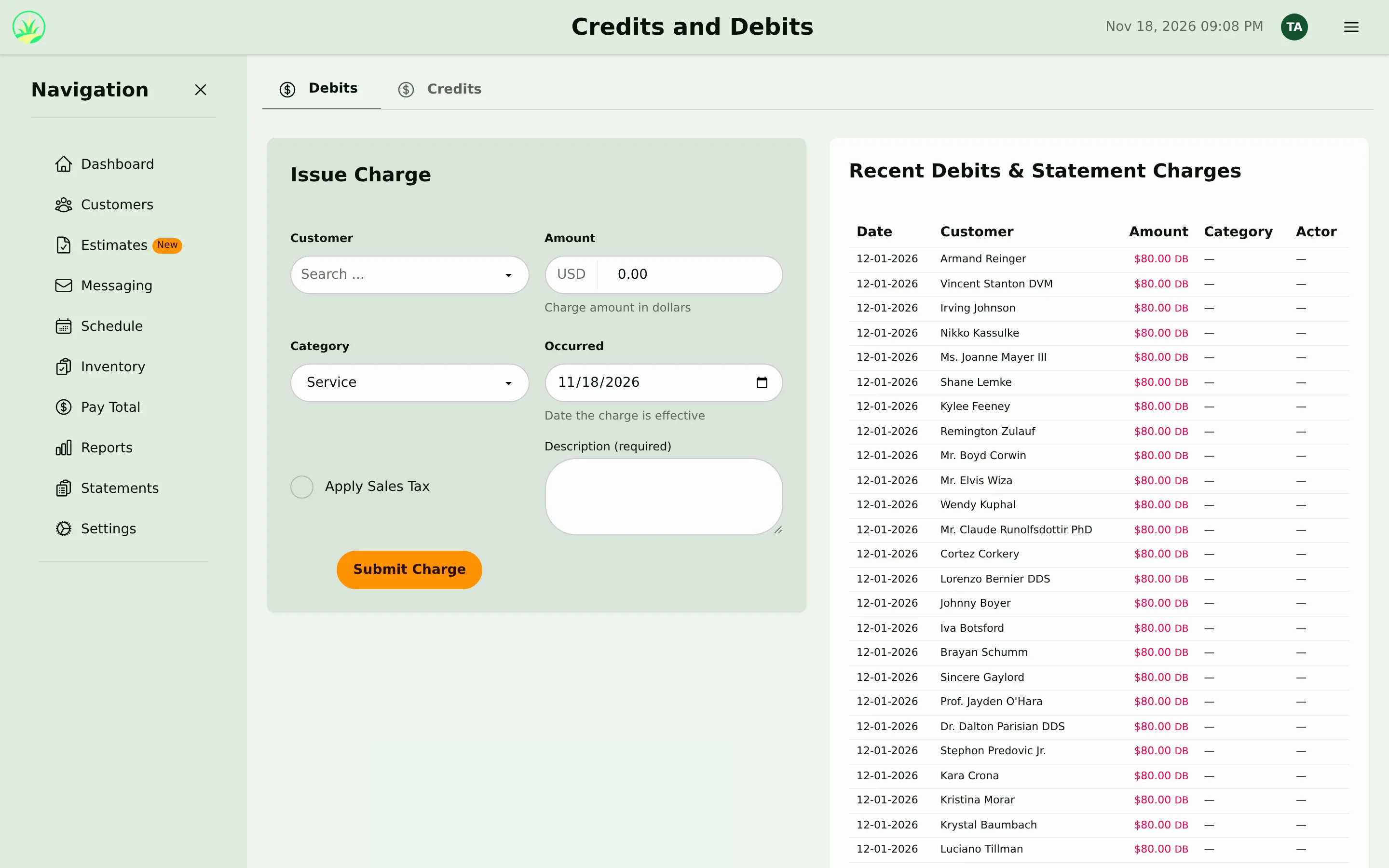
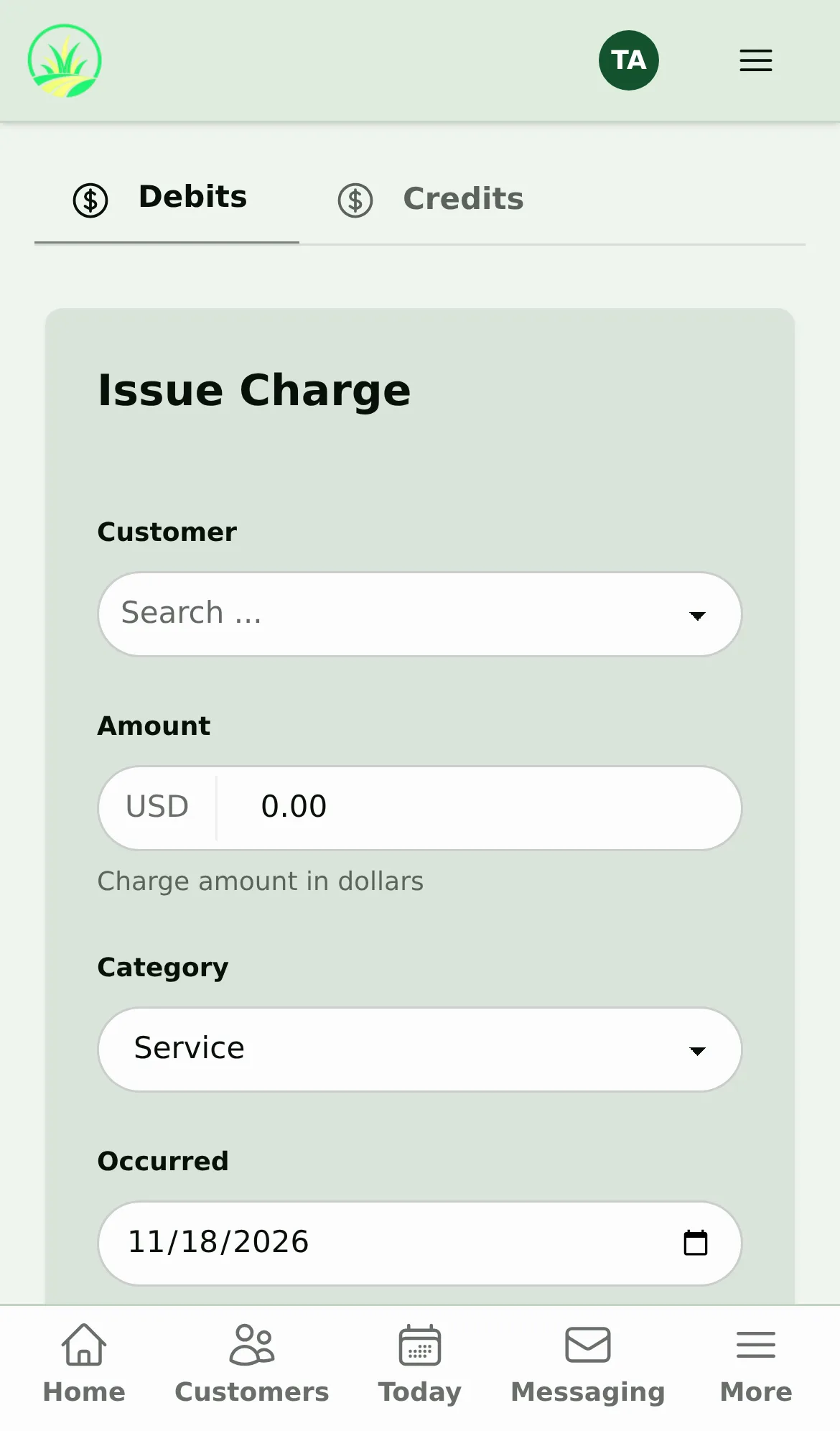
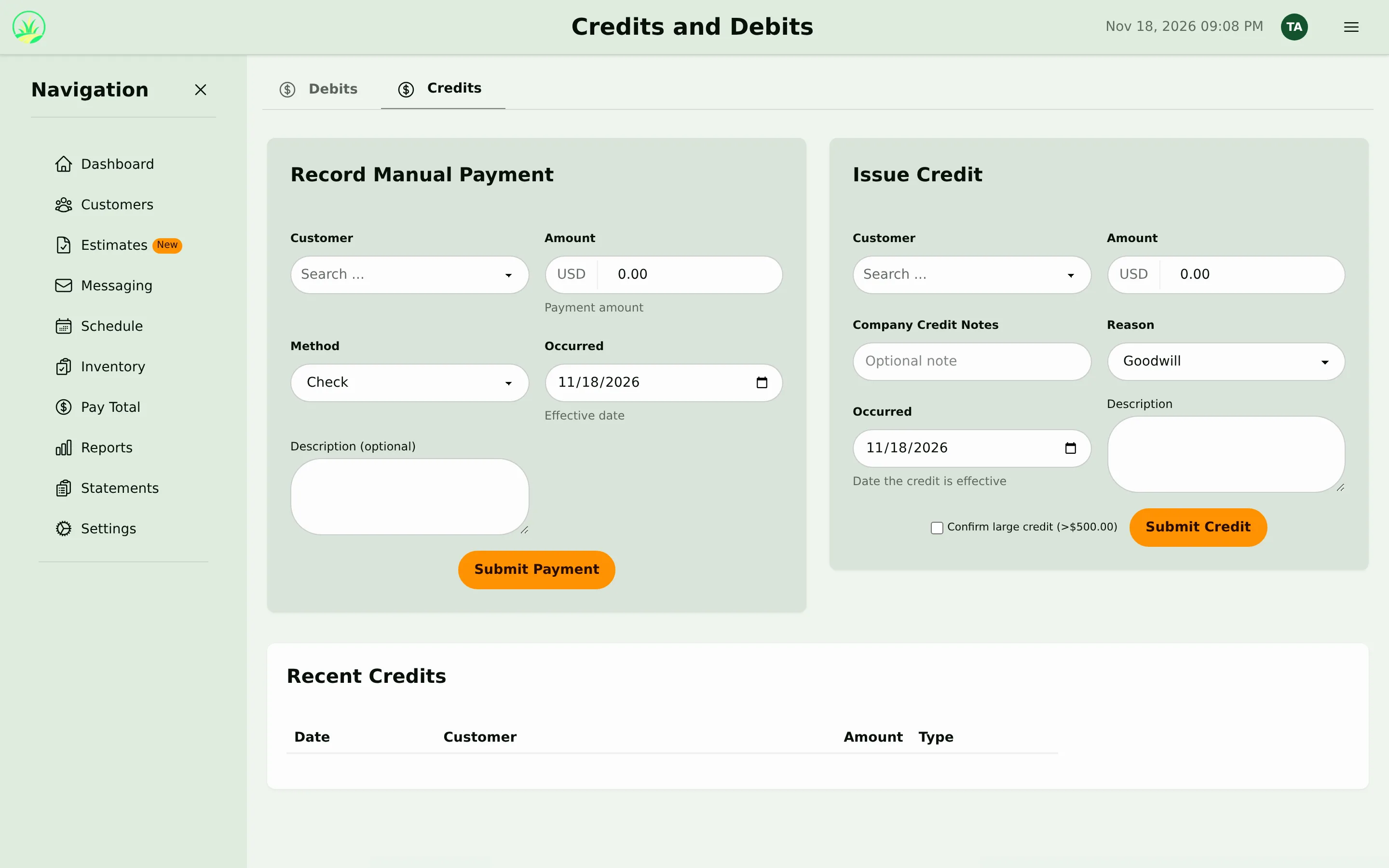
Charges and credits are posted from the customer's page (Billing tab, Charge or Credit; on a phone, + Charge or + Credit), or from Quick Actions on the Dashboard: New Charge and Add Payment/Credit open a page with a Debits tab and a Credits tab, where you search for the customer first.
Issuing a Debit (Manual Charge):
- Use debits for one-time charges outside of regular services (e.g., repair charges, supply fees, service call fees).
- The form Issue Charge asks for the Amount, the Category, the date it Occurred, and a Description (required). Tick Apply Sales Tax to add tax, at your default rate unless you change it.
- Click Submit Charge. The charge is posted as a positive transaction, increasing the customer's balance.
Issuing a Credit:
- Use credits for adjustments, goodwill discounts, or promotional offers.
- The form Issue Credit asks for the Amount, the Reason (Goodwill, Service Issue, Pricing Adjustment, Overpayment Correction, Coupon, Equipment Return, Reverse Charge or Other), the date it Occurred, a Description, and optional Company Credit Notes for your staff.
- Click Submit Credit. The credit is posted as a negative transaction, reducing the customer's balance.
Large credits: a credit of more than $500.00 is posted only when Confirm large credit (>$500.00) is ticked on the form. Without the tick, the form asks you to tick it. The $500.00 limit is fixed; it is not a setting.
10.9 Refunds
EZ Lawn Biller has no refund button. A payment taken online is refunded in your own Stripe or PayPal account, where the money is, and the refund made there does not change the customer's balance in EZ Lawn Biller. To show it on the customer's account, post a charge for the refunded amount (10.8), with a description such as "Refund of the payment of March 3". If the customer should not owe that amount, for example because the work was not done, add a credit for it as well.
A payment you recorded by mistake (10.7) can be removed with Delete in the customer's Billing History, if your role may change transactions.
10.10 Failed Payments & Retry Logic
When an automatic card or PayPal charge fails (a declined card, for example):
- Nothing is posted: the customer's balance stays due.
- EZ Lawn Biller tries the charge again the next day, and once more the day after if it fails again: three attempts in all, one day apart. The number of attempts and the day between them are fixed; there is no setting for them.
- After the third failed attempt, automatic payments stop for that customer. In the portal, their Automatic payments screen shows them as not set up, and they can set them up again with another card or PayPal account (10.6). Meanwhile they can pay with Pay.
On a phone, the Home page counts these customers under Failed automatic payments (1.4). A customer whose balance then stays past due is handled like any other customer who has not paid: a late fee, if you charge late fees (Charge customers on automatic payments once their retries have run out, 2.2), and an automatic pause, if you have switched it on (6.5).
10.11 Bank Transfers (ACH)
If you have switched on Accept bank transfers (ACH) (Settings › Company › Payments, Stripe card, see 2.2), the customer portal's Pay screen offers Bank account (ACH) under Pay with, beside Card and PayPal (see 13.3). It suits large bills, where the fee saving is real — typically 0.8% capped at $5, against roughly 2.9% + 30¢ on a card.
This runs entirely on your own Stripe account. EZ Lawn Biller never touches the money. It is worth being clear about what that means in practice:
- The feature must be switched on in Stripe, not only here. ACH Direct Debit has to be active on your Stripe account before the option appears (see 2.2). Stripe may review your account first.
- The money lands in your Stripe balance and pays out to your bank on your Stripe payout schedule — exactly like your card takings. Changing when you get paid is a Stripe setting, not a EZ Lawn Biller one.
- Stripe sets the fee, not us. The percentages in this manual are Stripe's published ACH pricing at the time of writing; your own rate is whatever your Stripe agreement says. The ACH fee you configure in EZ Lawn Biller is a separate thing — it is what you choose to pass on to the customer.
- Bank details never reach EZ Lawn Biller. The account is confirmed on Stripe's own secure screen, and we only ever store the bank name and last four digits for display.
- Refunds, disputes and payout questions are Stripe's records. We show what happened on the customer's ledger; the authoritative history — and anything you need to contest a dispute — lives in your Stripe dashboard.
If you close or disconnect your Stripe account, bank payments stop working immediately, in the same way card payments would.
What the customer does: on Pay, they choose Bank account (ACH) (it reads "Through Stripe · takes 3–5 business days"), click Continue to Stripe, sign in to their bank through Stripe's secure screen to confirm the account, and approve the payment. They never type an account number into EZ Lawn Biller, and we never see or store it.
The one thing to know: bank transfers are not instant.
| Card | Bank transfer (ACH) | |
|---|---|---|
| Money confirmed | Seconds | 3–5 business days |
| Typical cost | ~2.9% + 30¢ | 0.8%, capped at $5 |
| Maximum payment | $5,000 | $25,000 |
Between the customer approving and the money clearing, the payment sits in a pending state:
- The portal's Home says, for example, "A bank payment of $250.00 is processing. Bank payments take 3–5 business days.", and the balance still shows the amount owed.
- The balance is not reduced yet — reducing it before the money arrives would be wrong if the transfer later fails.
When the money clears, the payment posts to the ledger and the balance drops, dated to the day the customer paid — not the day it cleared. Their statement reads as if it landed when they authorised it.
If a transfer fails (closed account, insufficient funds, a bank return), nothing is posted to the ledger, the balance stays open, and both the customer and your team are emailed. Bank returns can arrive several days after the payment, which is why the balance stays visible until the money is genuinely confirmed.
Disputes: if a customer disputes a settled bank payment, the payment is flagged for manual review rather than reversed automatically, and your team is alerted. Review their ledger and, if the money goes back to the customer, post a charge for it (10.9).
Automatic payments currently run on cards and PayPal only. Bank transfers are for one-off payments: a customer can pay any bill from their bank with Pay whenever they like, but cannot yet put a bank account on automatic payments.
10.12 Held Billing After an Inactive Period
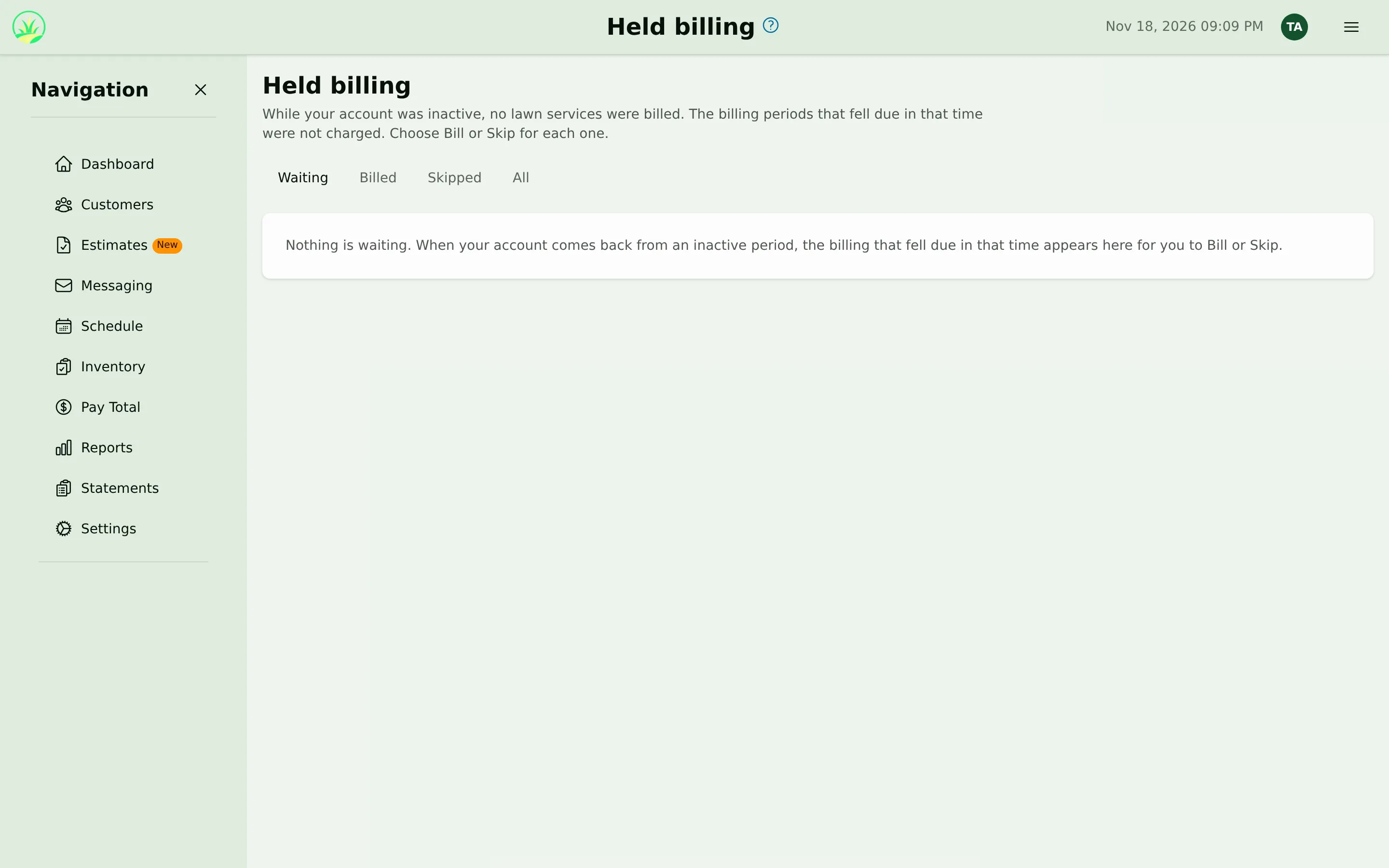
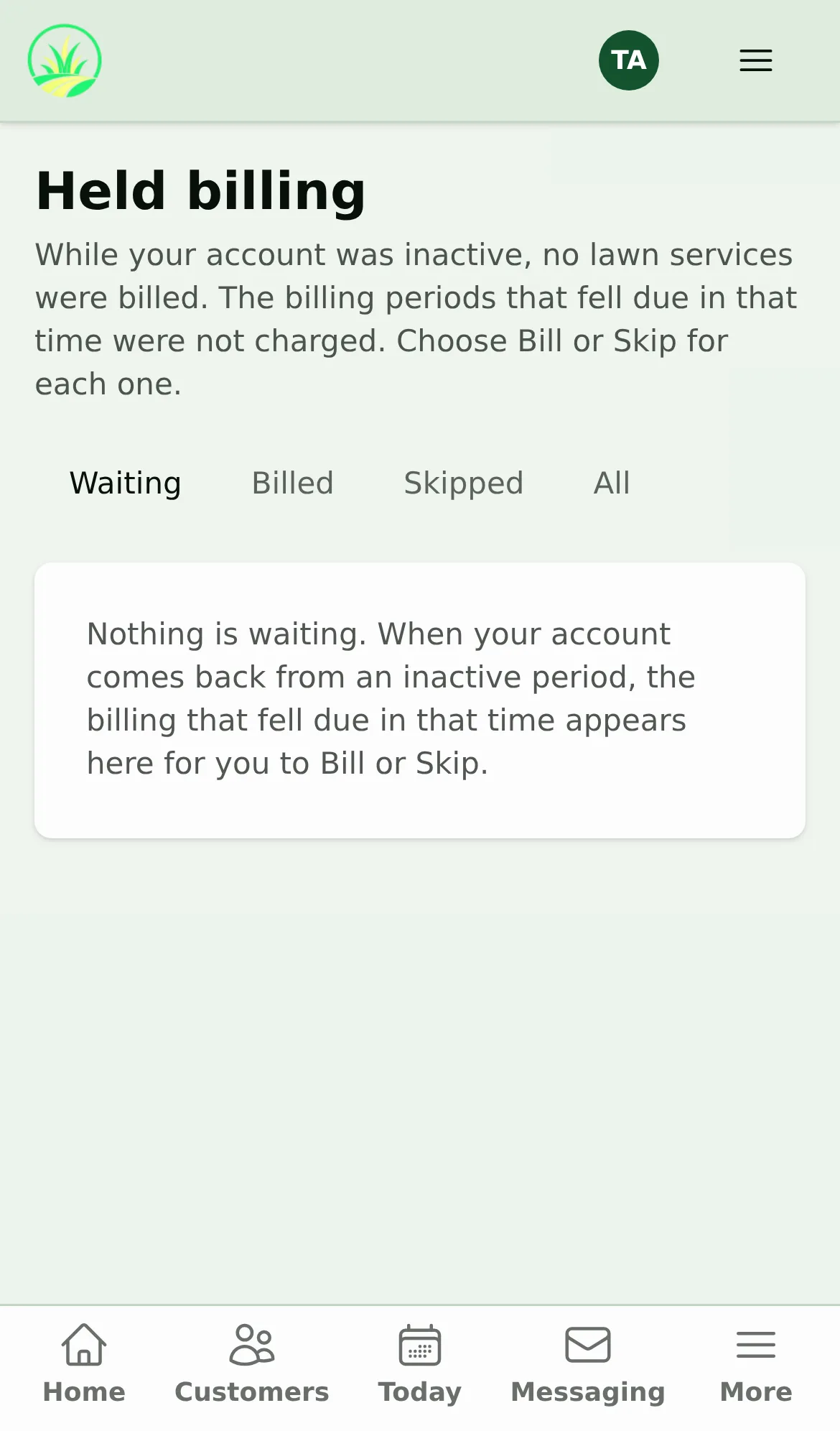
When your account is inactive (for example, disabled), nothing is billed. When the account becomes active again, the billing that fell due in that time is not charged automatically. Each missed billing period is held, and you decide for each one whether to Bill it or Skip it.
What is held
- Each billing period of a subscription that fell due while the account was inactive and was never posted. Periods due from the day the account came back are billed as usual.
- The first charge of a new subscription, and one-time charges, that fell due in that time.
- Automatic card payments that were due in that time are moved, without charging, to your next payment day. On that day the card is charged for the balance as usual. Held lines are not part of that balance until you bill them.
Charges posted before the account became inactive are not held, and neither are per-visit charges for completed visits: the work was done, so they bill as usual.
Where to find it
- A notice at the top of every page shows how many billing periods are waiting, for how many customers, and the total.
- On the Statements page, the Review held billing → button opens the list.
- A reminder email goes to the company email (or to your admin users when it is empty) when the lines appear, and then every few days while any are waiting. Switch it off with Held billing reminder, or change Days between reminders (1 to 60), in Settings › Company › General, in the Statements card (2.1).
Deciding
The page lists the waiting lines by customer: the service, the period, the day it was due, the amount and the tax.
- Bill posts the line as a charge dated today, with the original period in its description followed by "Billed" and today's date. It is added to the customer's current statement and collected like any new charge: on the next payment day for a customer with automatic card payments, otherwise when the customer pays the statement. The amount and tax are the ones shown, even if the price or tax rate has changed since.
- Skip charges nothing and closes the line.
You can decide one line, all lines of one customer, or all lines shown on the page. Each choice asks for a confirmation with the number of lines and the total. Nothing is ever charged for a waiting line on its own, however long it waits.
A decided line can't be changed on this page. Correct a billed line with a credit or refund as usual (10.8, 10.9). The Billed and Skipped tabs list past decisions. When a customer is deleted, their waiting lines are closed as skipped.
10.13 Late Fees on a Customer's Account
When your company charges late fees automatically (2.2, Late fees), each fee appears in the customer's transactions as Late Fee, with a description such as "Late fee: statement Oct 1–31, 2026 unpaid after Nov 5, 2026".
Exempting a customer: on the customer's page, open Financial > Statements. In the side panel, untick Charge late fees to this customer. The customer is never charged a late fee automatically until you tick it again. The switch is shown only while your company has late fees on.
Waiving a fee: open the fee in the customer's transactions and click Waive this late fee. EZ Lawn Biller adds a credit of the same amount, described "Late fee waived: …". The fee stays in the history and on the statement it was billed on; the credit appears on the current statement. A fee can be waived once. You need permission to issue credits.
- Waive a fee rather than deleting it. A deleted fee is not added again for the same statement.
- A payment you record late, dated on or before the last day to pay, does not remove the fee by itself: waive it.
- QuickBooks: credits are not sent to QuickBooks, so a waived fee stays on the QuickBooks invoice. Adjust it in QuickBooks.
10.14 Next Month's Statements
Next month's statement is sent before the month starts, so your customers can pay ahead. It shows what the customer owes so far plus next month's charges, and the date to pay by.
Your monthly statements do not change. The current statement still covers the month in progress and closes the day after the month ends; next month's statement is a separate document.
Turning it on: next month's statements are off until someone who can open the Payments tab switches on Next month's statements and billing schedules in Settings › Company › Payments, card Automatic payments and statements (2.2). It is saved as soon as you switch it. While it is off, the Statements page and the customer page have no tabs, and Email closed statements automatically is in Settings › Company › General, in the Statements card. While it is on, that card points to Statements › Statement settings instead. It cannot be switched off while next month's statement is the statement sent automatically: first choose Current statement in Statement settings.
Where to find it: on the Statements page, open the Next month's statements tab (on a phone, Next month's in the switch at the top). The first tab, Current statements, holds everything the page had before. The Statement settings card at the top of both tabs sets the two billing schedules and the default (see Billing schedules below).
When it can be sent
Next month's recurring charges are created 15 days before the month starts. Next month's statement can be sent from that day until the day before the month starts, so the charges are on it. For a month starting December 1, that is November 16 to November 30. Outside those days, Send next month's statements is greyed out, and the tab shows when it can be sent.
What the customer receives
An email titled "Your statement for November 2026", with the statement attached as a PDF:
- the previous balance: on the first one, the balance before next month; on later ones, the amount due on the last one the customer received;
- next month's charges already created and, after the first one, every other change since the last one;
- the amount due and the pay by date, which is your Automatic Payment Processing Day;
- for a customer on automatic payments, the card or PayPal account that will be charged, and the date;
- a sentence saying that charges added later will appear on the next statement.
The customer portal suggests the same amount until the month starts, and names the charges it includes. A customer who pays early has a credit until those charges' date; the portal says which charges the credit will pay.
Sending by hand
- Click Send next month's statements →.
- Choose the customers. The Statement Delivery ticks start from Email and Both and can be changed for this send only. Customers who cannot receive one stay in the list, greyed out, with the reason.
- Check the preview. It is the email each customer receives, with their own amounts and their statement attached; there is no message to write. Use ‹ prev and next › to see other customers, and View PDF, Send test to me and Dry run to check before sending.
- Confirm. Above 25 statements, type SEND.
- The run page shows each customer as Sent, Waiting, Failed, To print or Skipped. Print the … to print prints the customers without an email address and those whose Statement Delivery is Print.
Billing schedules
Each customer is billed on one of two billing schedules, set in Statement settings:
| Current statement | Next month's statement | |
|---|---|---|
| Statement | Emailed after the month closes | Sent a number of days before the month starts (1 to 15, default 5), at Send at |
| Automatic payment | On the Automatic Payment Processing Day, for the balance due that day | A number of days before the month starts (0 = on the 1st), for the amount of next month's statement |
| Late fee | After the company's late-fee day, on the closed statement | After the schedule's own late-fee day, on what is still unpaid of the amount due on the payment day |
Payments and late fees. The Next month's statement schedule has one more setting: when its customers pay. Before the month (pay ahead) works as in the table above. With As with the current statement, only the statement is sent before the month: the automatic payment stays on the Automatic Payment Processing Day and the late fee follows the closed statement, exactly as for customers on Current statement. Use it to send statements early without changing when customers pay or when late fees apply. Each setting on the card has an info icon that says what it does, when to use it and how it works.
The round button marks the default: customers set to Company default, and new customers, follow it. To bill a customer on the other schedule, change their Billing schedule on their page (Billing › Statements) or, for many at once, in Customers › Customer Settings. The card shows how many customers are on each schedule and the next dates.
When a change applies. For each month, next month's statements are sent on its statement day (the 1st minus the statement days). From that day the month is fixed: a change made on or after it, of a customer's schedule, the default, or the days of the Next month's statement schedule, applies from the following month. The screens say from which month ("From January 2027"), and changing the default, the days or Payments and late fees asks first, with the dates before and after. A customer added on or after the statement day is on Current statement for that month.
Sending automatically. With Send statements automatically on, each customer receives the statement of their schedule: the closed statement after the month closes, or next month's statement on the statement day, by the ways ticked in their Statement Delivery. Print customers are listed to print; a customer who already received next month's statement by hand is not sent it again. Customers on automatic payments receive it with the date and card it will be charged to. Email All, Text All and Print All on the Current statements tab leave out the customers on Next month's statement, and say how many. Any statement can still be sent to any customer by hand.
Automatic payments and late fees follow the customer's schedule whether or not a statement went out. A charge added after the payment day (a visit on the 3rd, for example) is not counted in that month's late fee; it is on the following month's statement. With Print the late-fee terms on statements on, next month's statement says when a late fee is added.
To text customers with SMS ticked as well, switch on Also text customers with SMS ticked. Each text is a link to the statement, billed per text.
Charges added after sending
Next month's statement is a picture of the account when it is made. A repair charged the next day, a late fee, or a cancelled subscription is not on it. The Changes after sending section of the tab lists, for each customer, every change since their statement:
| Label | Meaning |
|---|---|
| Added | Entered after the statement was sent, so the customer has not seen it |
| Changed | Was on the statement, and its amount was edited afterwards |
| Removed | Was on the statement and was deleted afterwards; the customer may already have paid it |
| Adjustment | The balance from before this month changed in a way that matches no single line |
Payments are not listed. Select customers and click Send updated statement to send them a new statement that lists exactly these changes, or Mark as reviewed to hide them; a later change shows the customer again. Once the month has started, the button sends the current statement instead.
One customer: on the customer's page, open Billing › Statements › Next month's statement. It shows the statement as it would be sent now, or as it was sent. Send statement emails or texts it to this customer at once, whatever their Statement Delivery. To leave a customer out of the automatic send, untick Email, Print and SMS in their Statement Delivery.