13. Customer Portal
The customer portal is your customers' own page: their balance, their lawn services with the readings and photos, their statements, payments and automatic payments. It is made for a phone first, and it works the same on a computer.
13.1 Enabling the Portal
The portal is set up in Settings › Company › Customer Portal (see also 2.3):
| Setting | What it does |
|---|---|
| Customer portal on | Customers can sign in to see statements, lawn services and billing history, and pay when a payment provider is on. Turn it on once email and payments are set up |
| New customer portal | Customers open the portal described in this chapter. It is on for every company; it applies as soon as you save |
| Notice for customers (optional) | A message of up to 1,000 characters, for example "No service Dec 21 – Jan 1." It shows at the top of the portal's Home, and in the footer of visit report and broadcast emails. Leave it empty to show nothing |
| Show sign-in details on statements | Prints how to sign in to the portal on each statement. Leave it off if statements go to an email address that several people share |
The portal shows your company logo and name. Its colours are chosen in Settings › Company › General, under Appearance: Customer portal colours is Light, Dark or Follow phone.
13.2 How Customers Access the Portal
Most customers never type a password. Access is via Magic Login Links:
- The customer receives an email (e.g., a statement or visit report).
- The email contains a secure link that logs them in automatically.
- The link is cryptographically signed and time-limited for security.
Alternatively, customers can use the Claim flow to set up first-time access if they haven't received a magic link yet.
There is also a password login, for customers who'd rather sign in the ordinary way, or who share an email address with somebody else. They sign in with their Account # and a password. The Account # is printed on their statement.
Resetting a customer's portal password
When a customer calls because they can't get in, open their page and go to the Passwords tab. There are two buttons:
| Button | What it does |
|---|---|
| Reset Portal Password | Generates a new password for them. You tick I understand and want to reset this password, then click Reset Password. The old one stops working straight away. The new one is not emailed by itself |
| Email Password | Sends the password to the customer's email address |
You never see the password yourself, and you can't type one in for them — it's generated and emailed, so nobody in the office is handling a customer's password. After a reset, click Email Password to send the new one.
Customers can also change their own password in the portal: Account › Change password (13.3).
13.3 What Customers Can Do
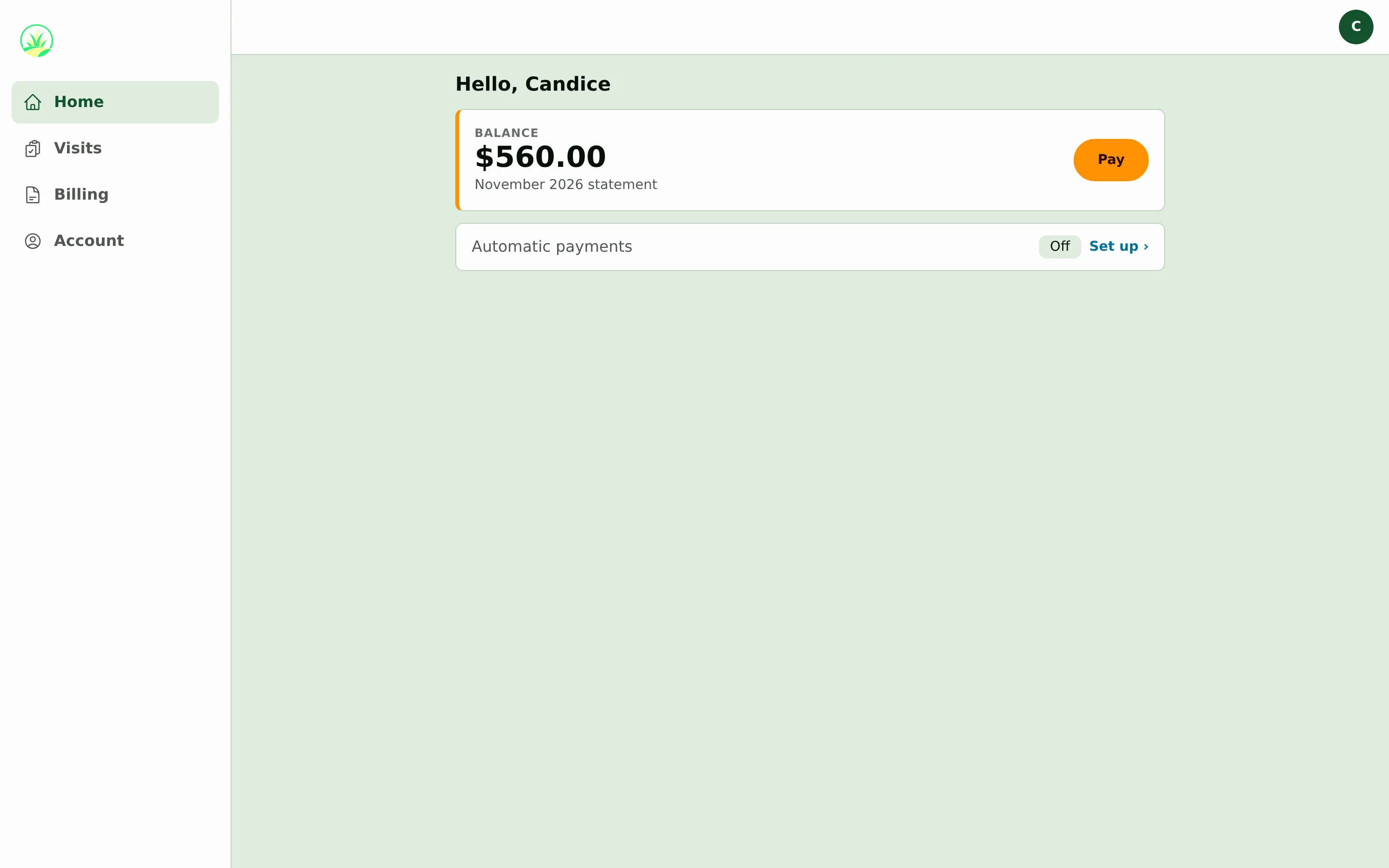
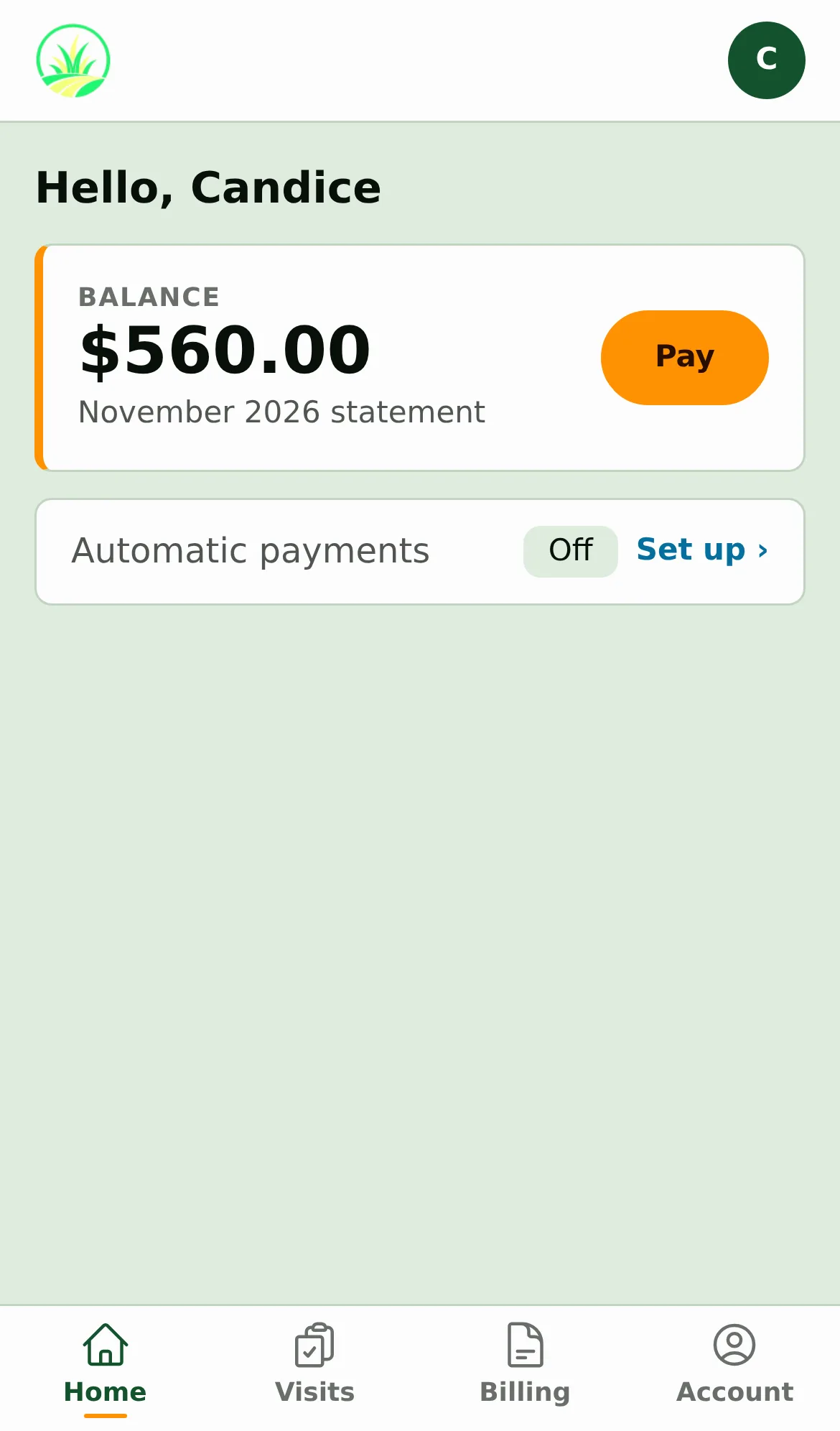
The portal has four tabs: Home, Visits, Billing and Account.
| Tab | What the customer finds there |
|---|---|
| Home | Their balance and a Pay button, whether automatic payments are on, their last lawn service and their next one |
| Visits | Every completed lawn service, each with its report: readings, photos and notes |
| Billing | Their statements, and every charge and payment with the running balance |
| Account | Their contact details, Automatic payments, Change password, and which visit reports they receive |
On a phone and on a computer
On a phone the four tabs sit in a bar at the bottom of the screen, and the customer can also swipe left or right to move from one tab to the next. On a computer the tabs are a menu down the left side of the page.
The customer can add the portal to the phone's home screen from the browser's share or settings menu (Add to Home Screen). It then opens like an app, under your company's name and with your logo.
If the phone loses its connection, a line at the top says the customer is offline and that what they see may be out of date; it updates when the connection is back.
Home
Home greets the customer by first name and shows:
- Your Notice for customers, if you wrote one (13.1).
- The Balance, with Pay when they owe you and online payment is on. A credit shows as Credit; a paid-up account says All paid.
- A note when a bank payment is still processing (bank payments take 3–5 business days).
- A warning when an automatic payment did not go through.
- Automatic payments: On with the date of the next charge, or Off with Set up ›.
- The Last visit: its date, the technician, a photo and up to three of the readings, with View report ›. A reading outside its ideal range is highlighted.
- The next scheduled lawn service, when there is one.
Visits and the visit page
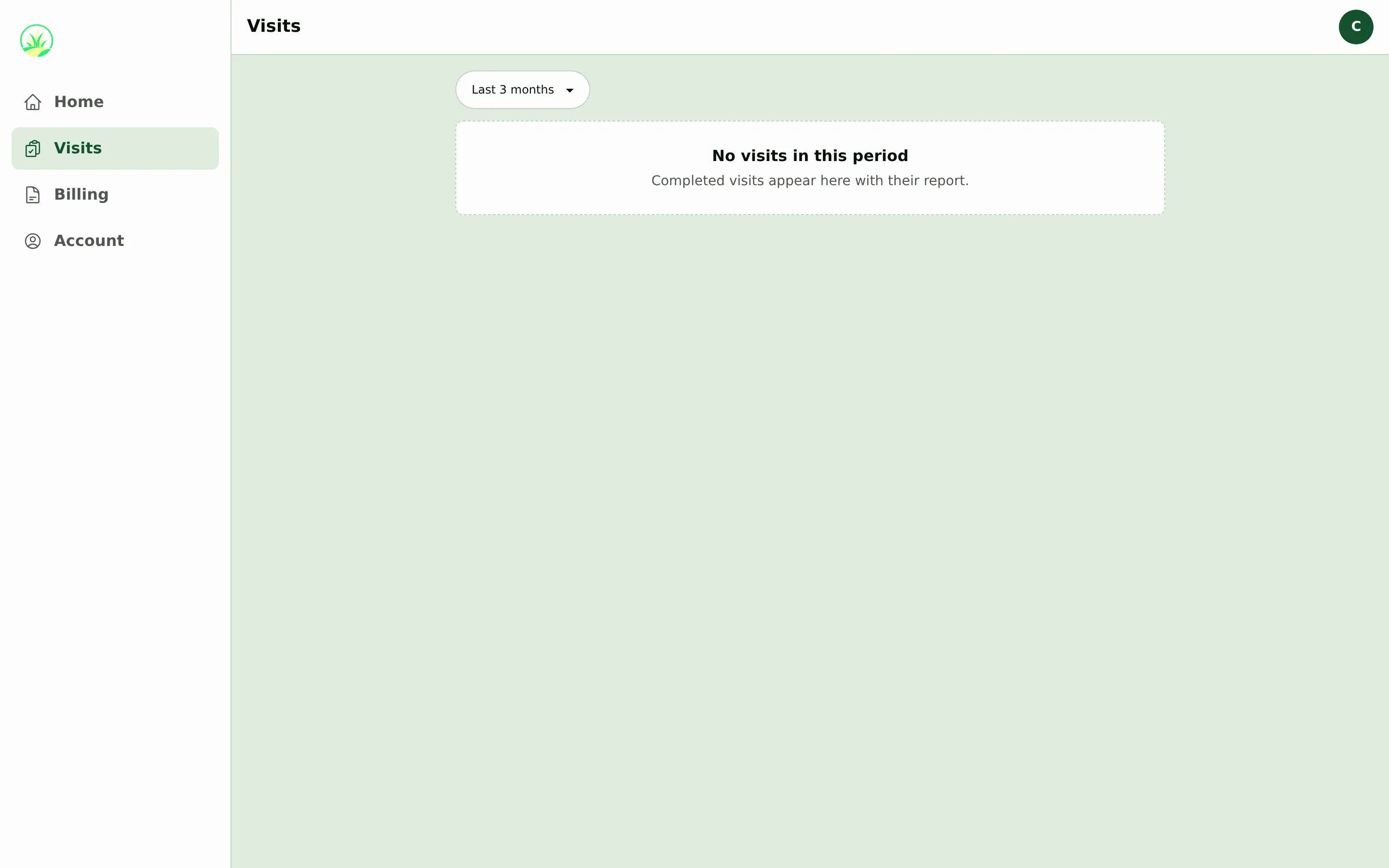
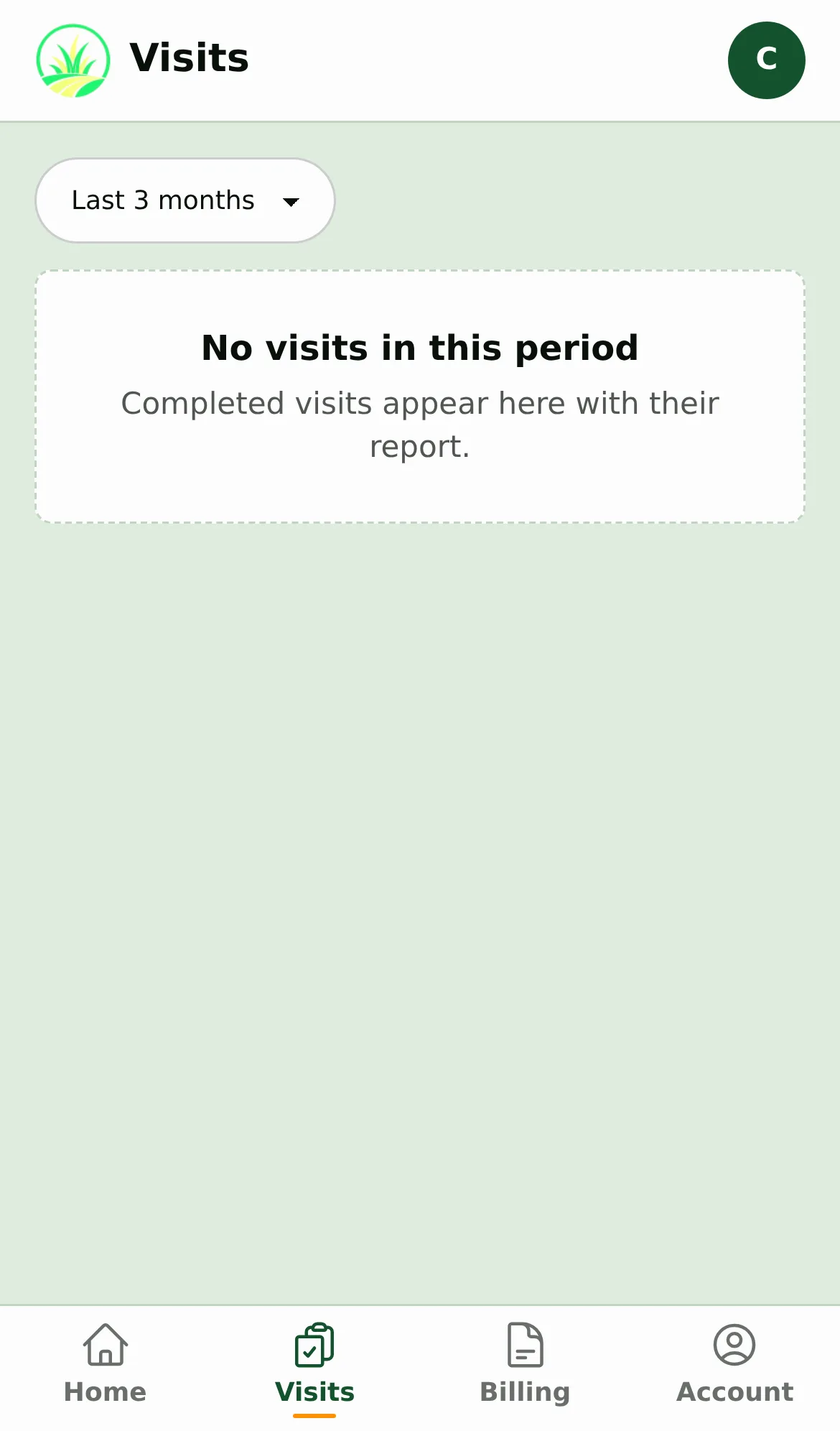
Visits lists the completed lawn services of the Last 3 months; the period menu above the list changes it to the Last 6 months, Last 12 months or Last 2 years. Each lawn service shows a photo, the date, the service, the address, the technician and the time.
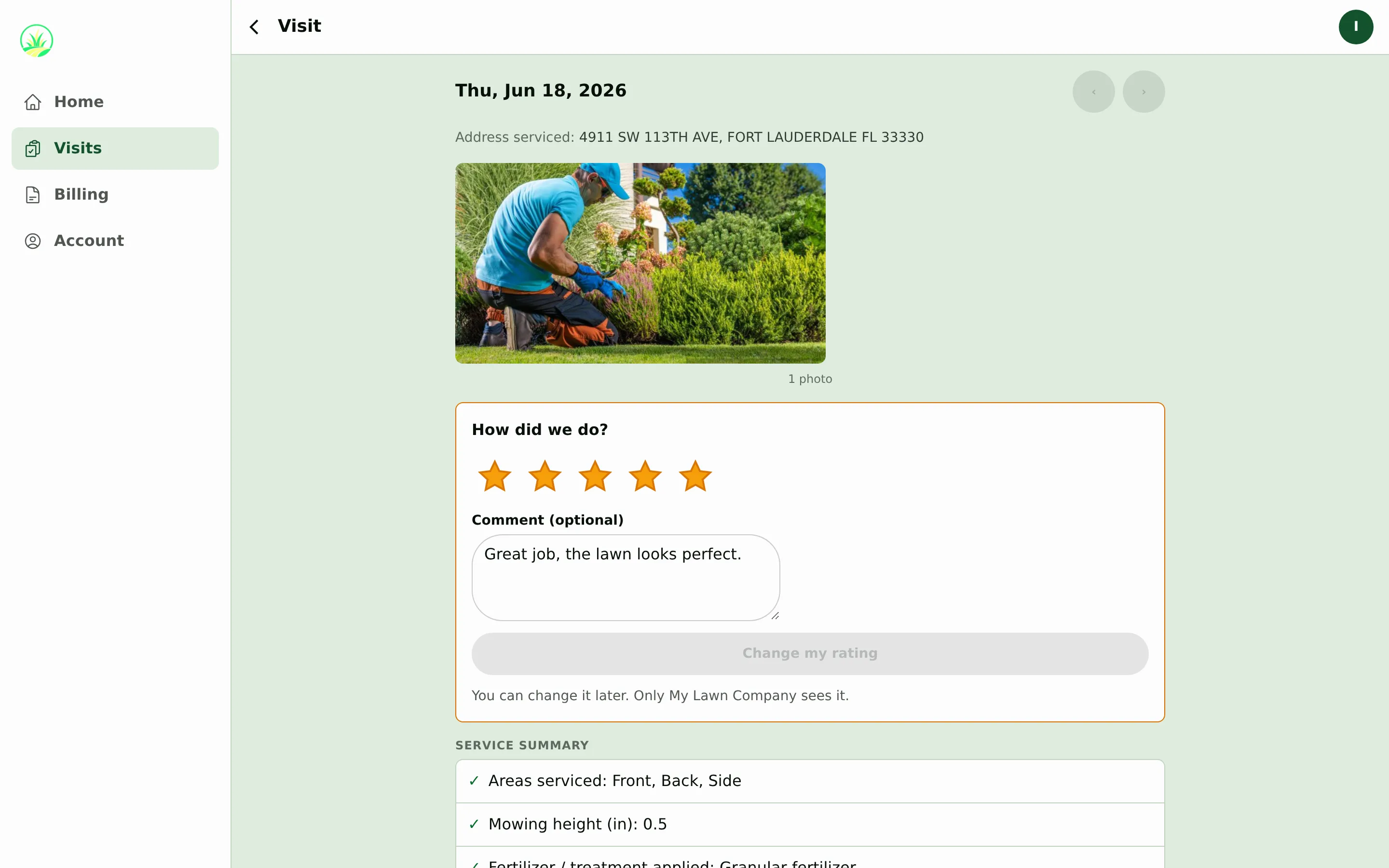
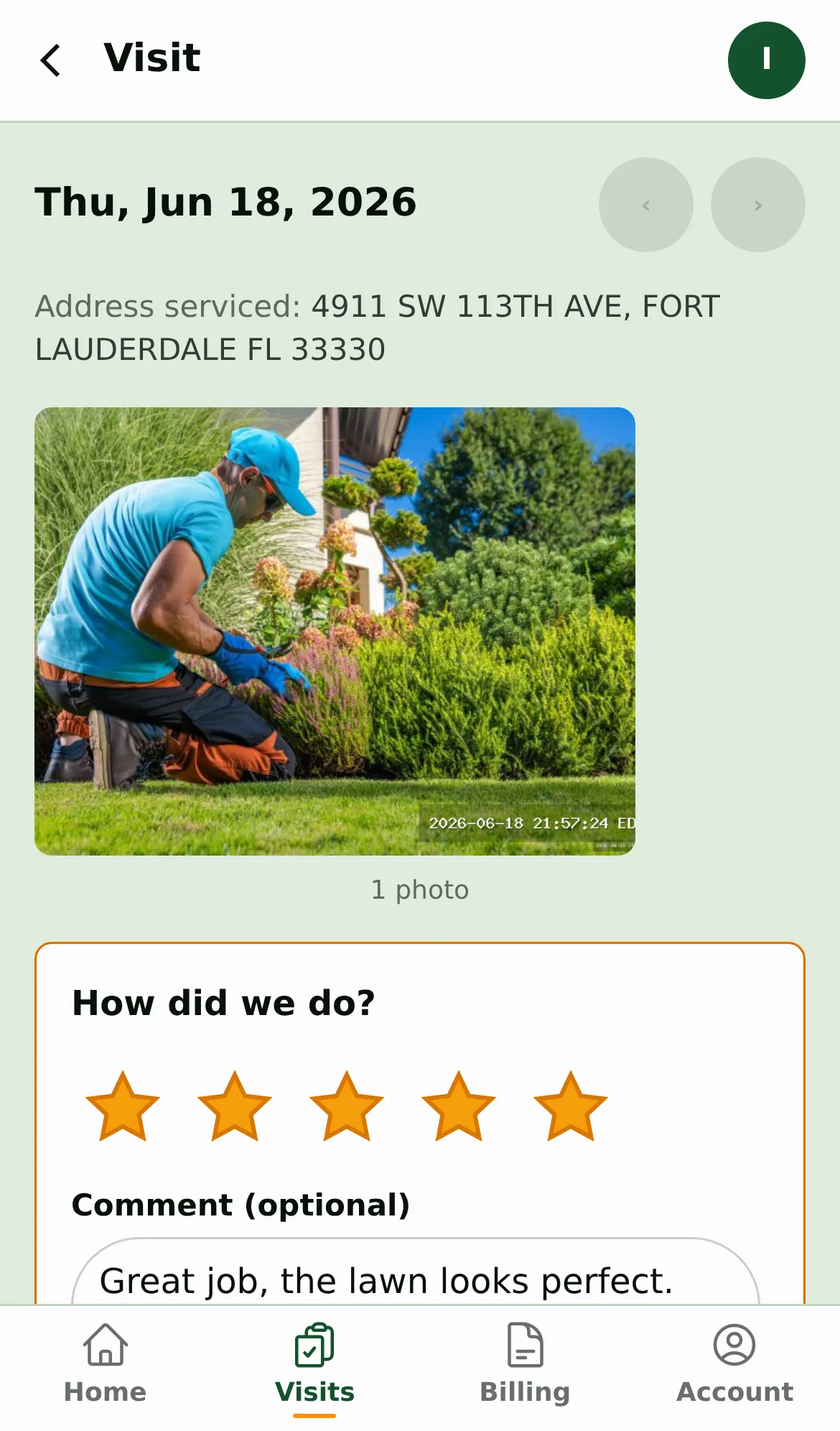
Tapping a lawn service opens its page:
- The photos, in a strip the customer swipes through. Tapping a photo opens it full screen.
- The measurements, each with Low, High or OK beside the value, and its ideal range where it has one.
- The work done, the products used and the notes to the customer.
- The next scheduled lawn service, and your company's name, address and phone.
- How did we do?: the customer gives the lawn service 1 to 5 stars and, if they like, a comment, then Send rating. They can change it later (Change my rating); the last rating counts. Only your company sees ratings (16.9). It shows while Ask customers to rate visits is on (2.5).
What the page shows follows your choices in Settings › Company › Visit Reports (see 2.5), as the visit report does. The arrows at the top, or a swipe, move to the newer or older lawn service.
Billing
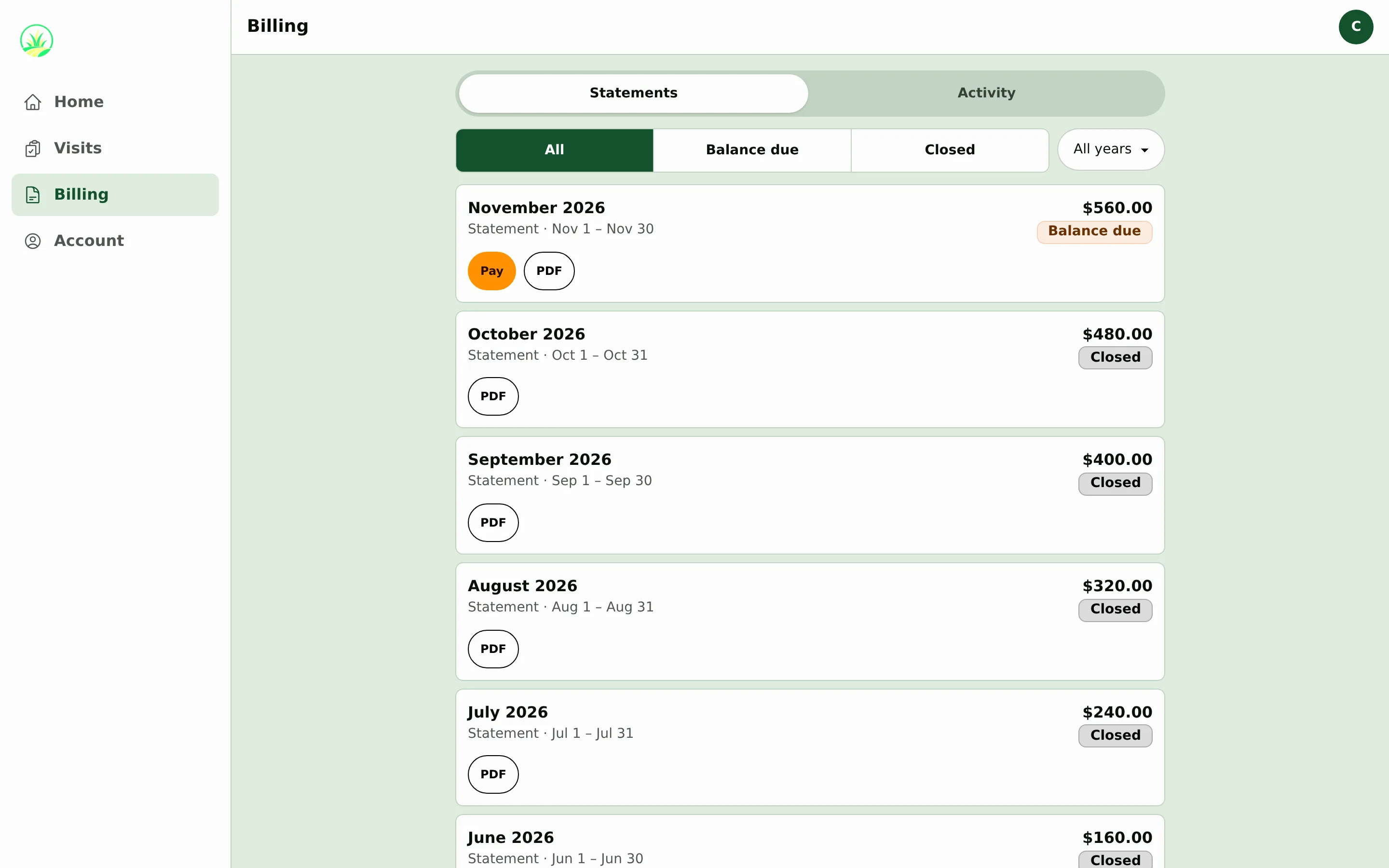
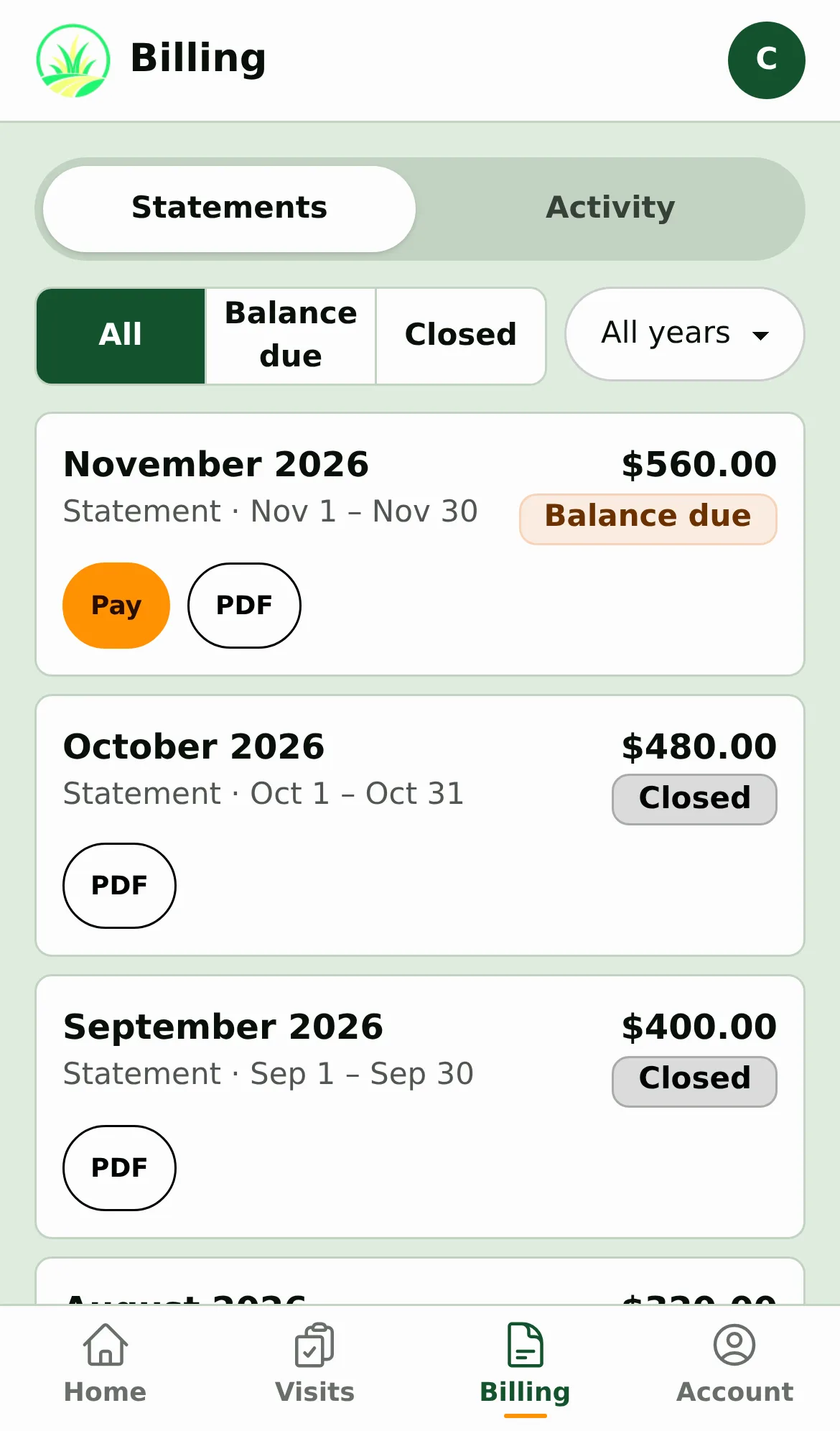
Billing has two parts, Statements and Activity:
- Statements: one line per statement, with the month, the period and the amount, marked Balance due, Open, Closed or Paid. PDF opens the statement; Pay appears on the statement that is due. Above the list, All / Balance due / Closed and a year choice narrow it down; with All years the newest 24 statements are listed, and choosing a year reaches older ones.
- Activity: every charge and payment with its date, its description and the balance after it.
Quotes
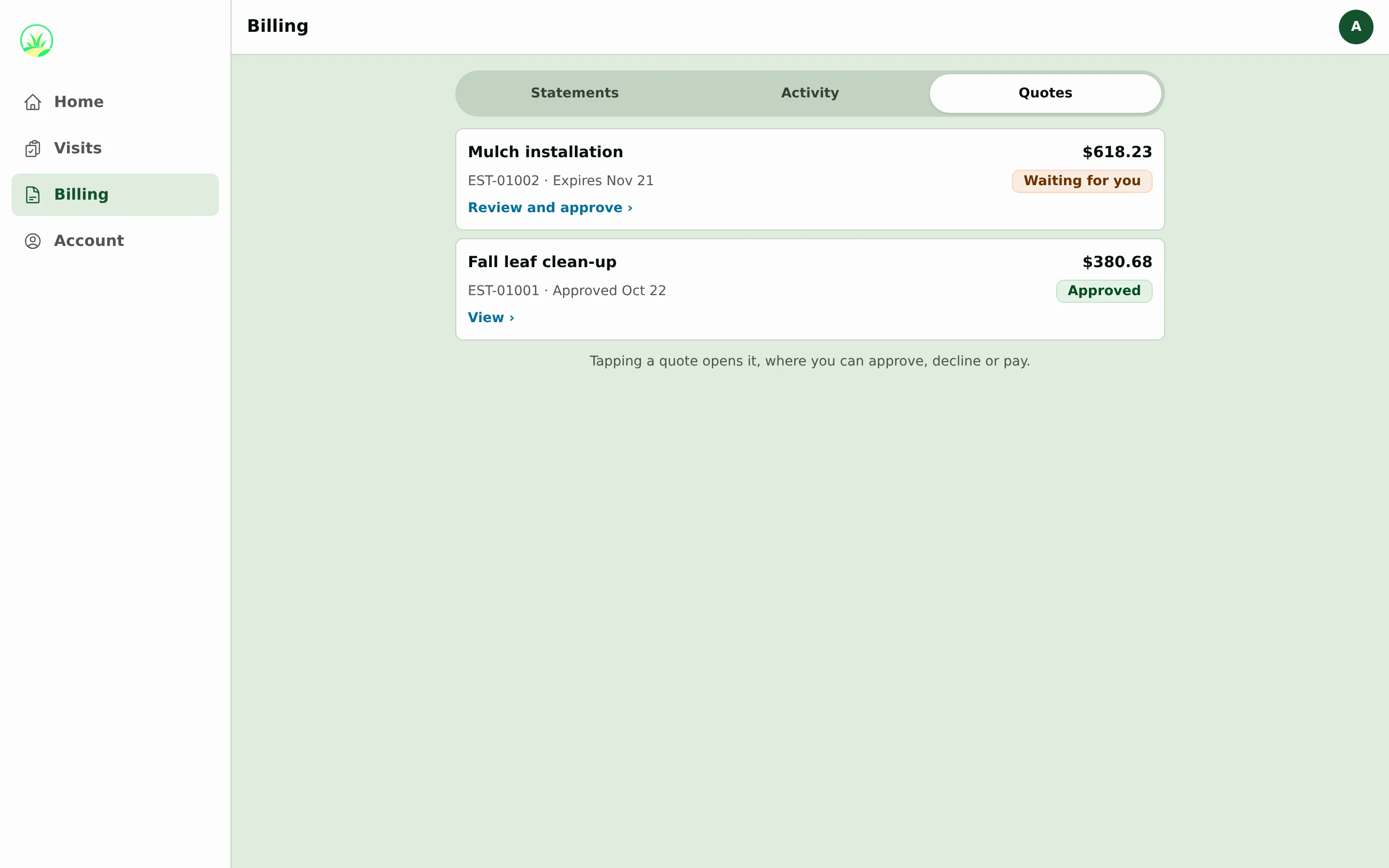
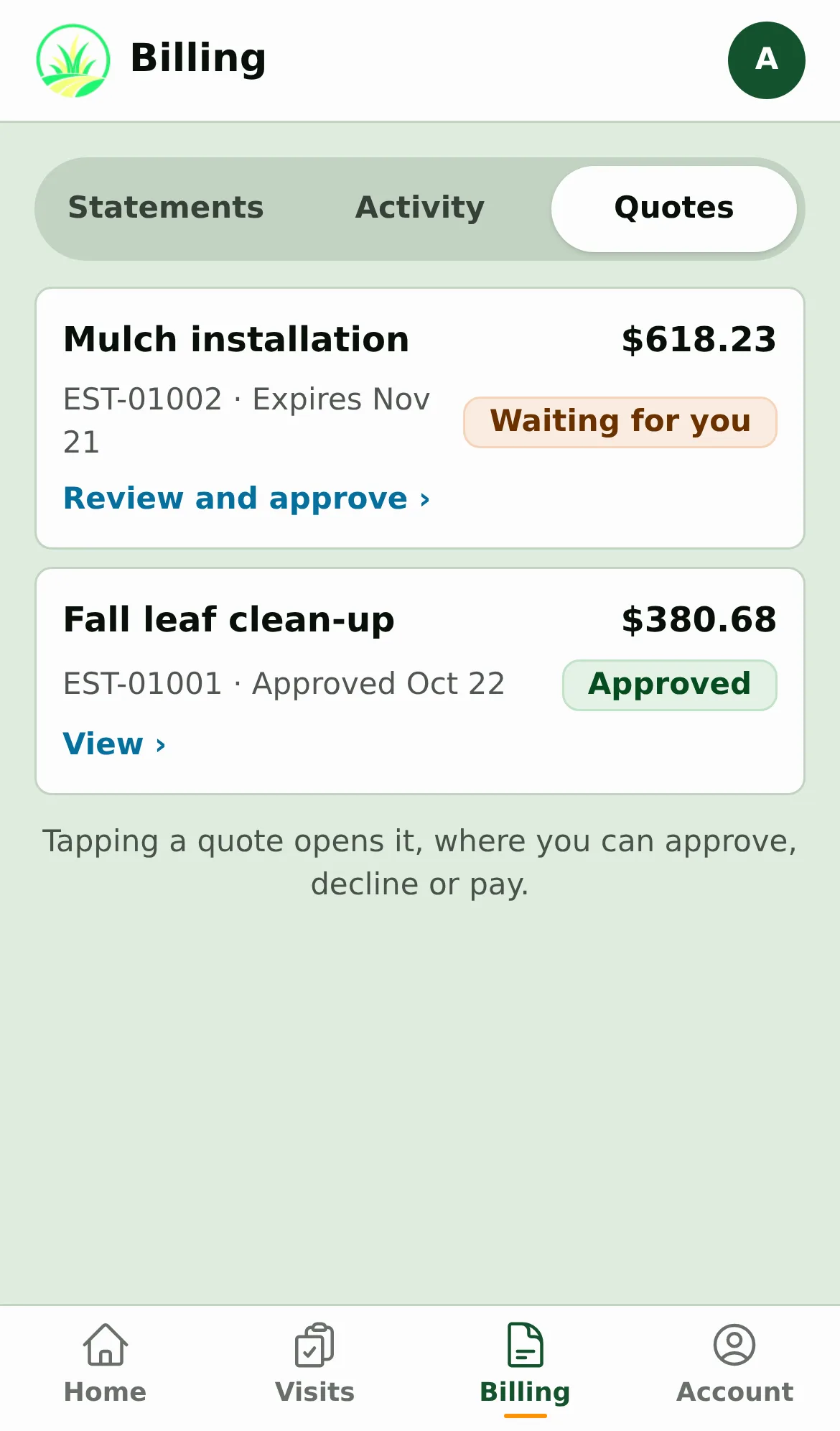
Billing › Quotes lists every quote (estimate) you sent the customer, newest first, with its title, number, amount and state: Waiting for you with its expiry date, Payment pending, Approved, Paid, Declined or Expired. Drafts and voided quotes never appear. Tapping a quote opens the same page as the link in your email, where the customer approves, declines or pays (9.5).
While a quote waits for a decision, Home shows "1 quote waiting for you" with its title and amount; tapping it opens Quotes.
Pay
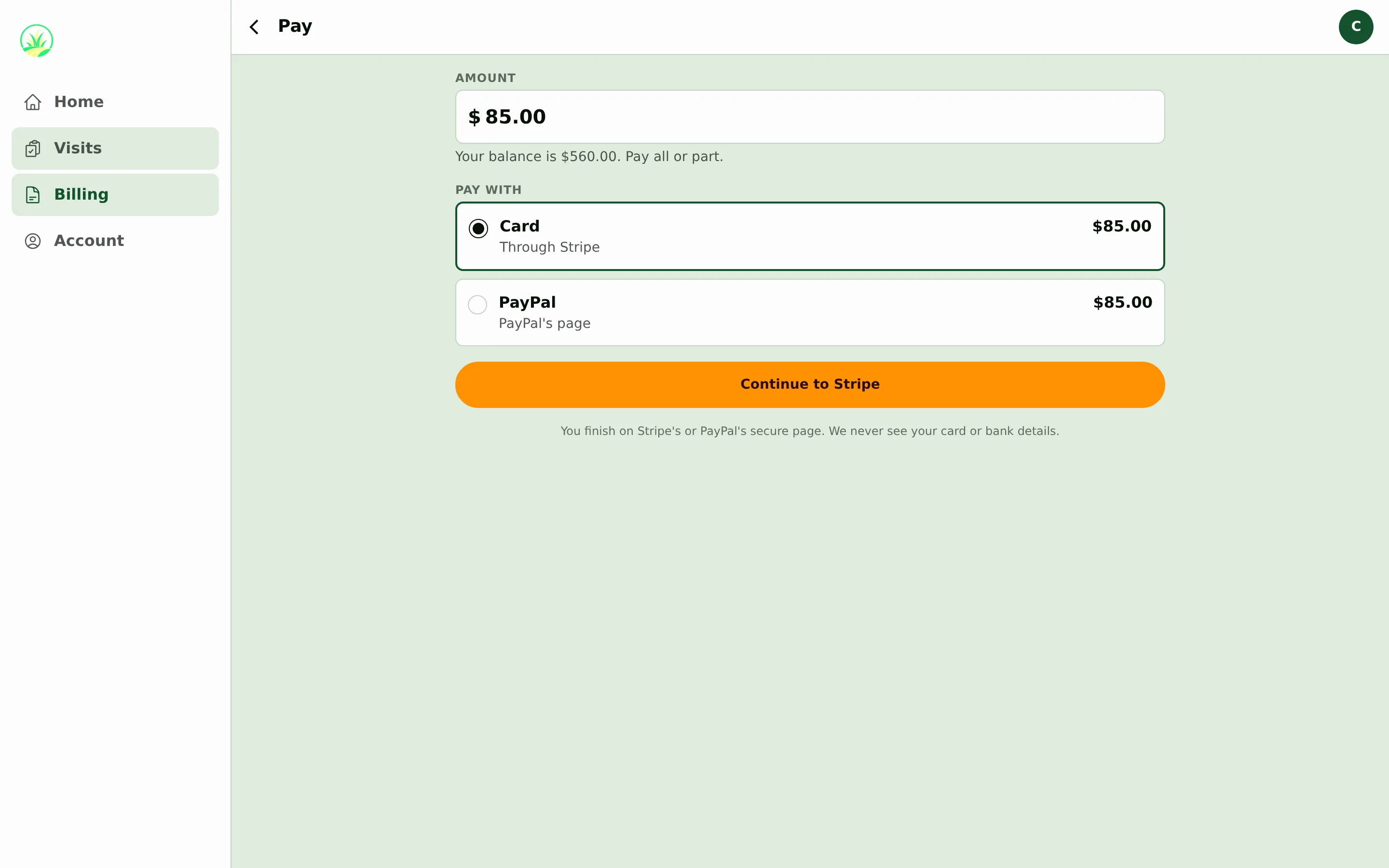
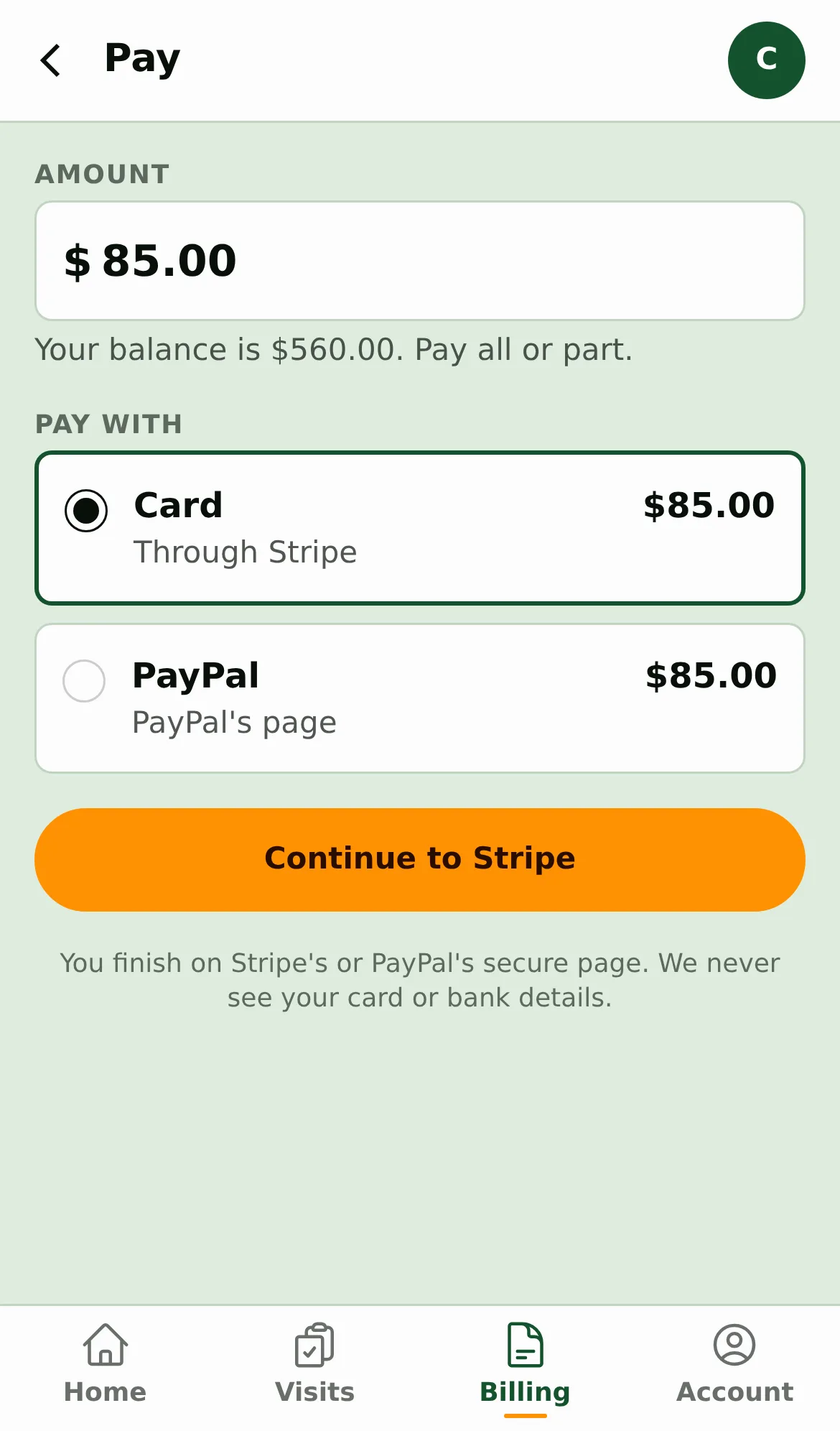
Pay (from Home or a statement) opens with the balance filled in. The customer can pay all of it or part of it, down to the minimum you set. They choose how to pay from the methods you offer (see 2.2):
| Method | How it works |
|---|---|
| Card | Through Stripe |
| Bank account (ACH) | Through Stripe, when you have switched on bank payments. It takes 3–5 business days to clear; the balance updates when it does |
| PayPal | On PayPal's page. When PayPal is your only provider it reads Card or PayPal |
Each method shows the total that will be charged, including your processing fee when you charge one, so the customer can compare before choosing. Continue to Stripe or Continue to PayPal finishes the payment on Stripe's or PayPal's secure page; EZ Lawn Biller never sees the card or bank details. Full detail on bank payments in 10.11.
Account
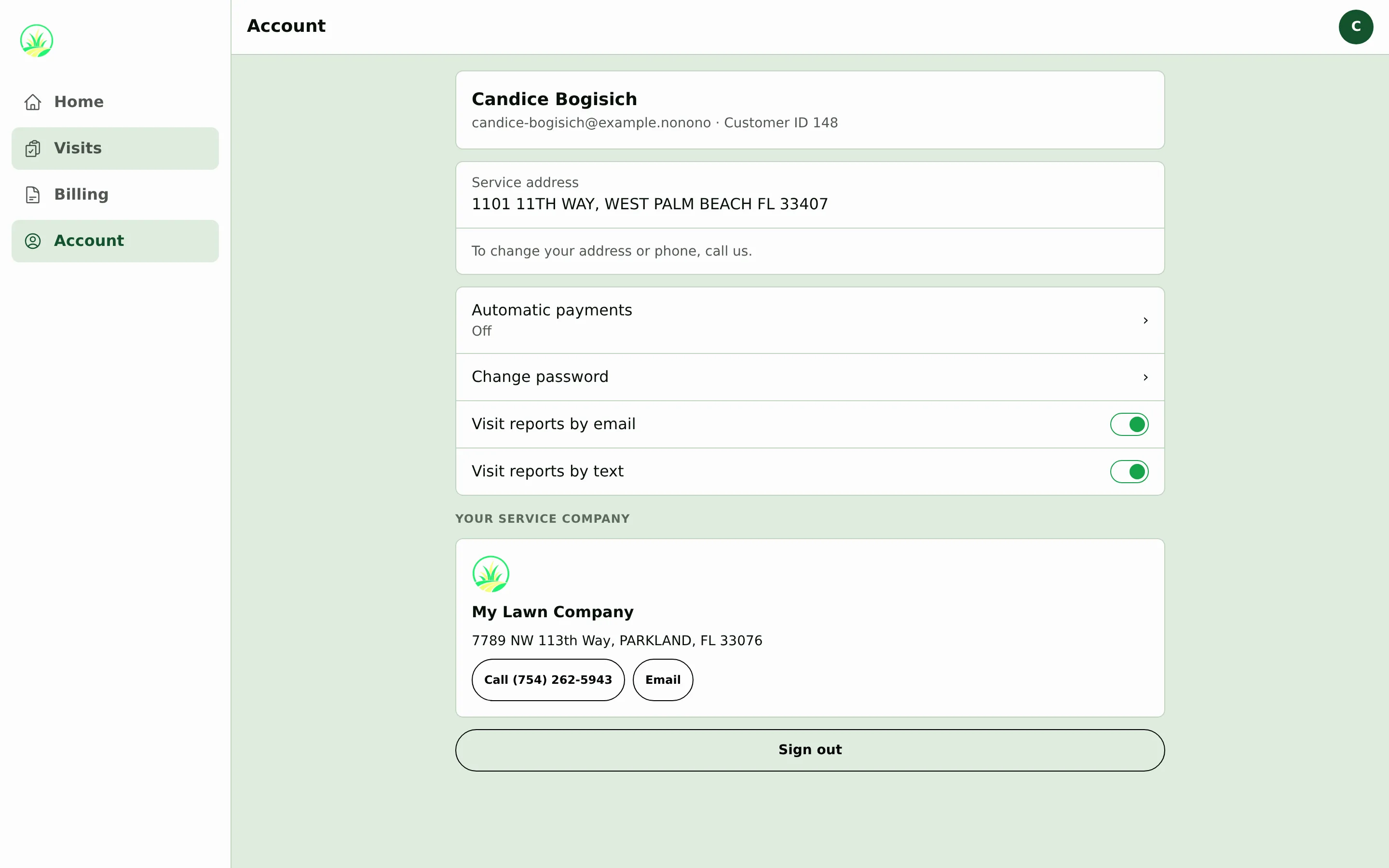
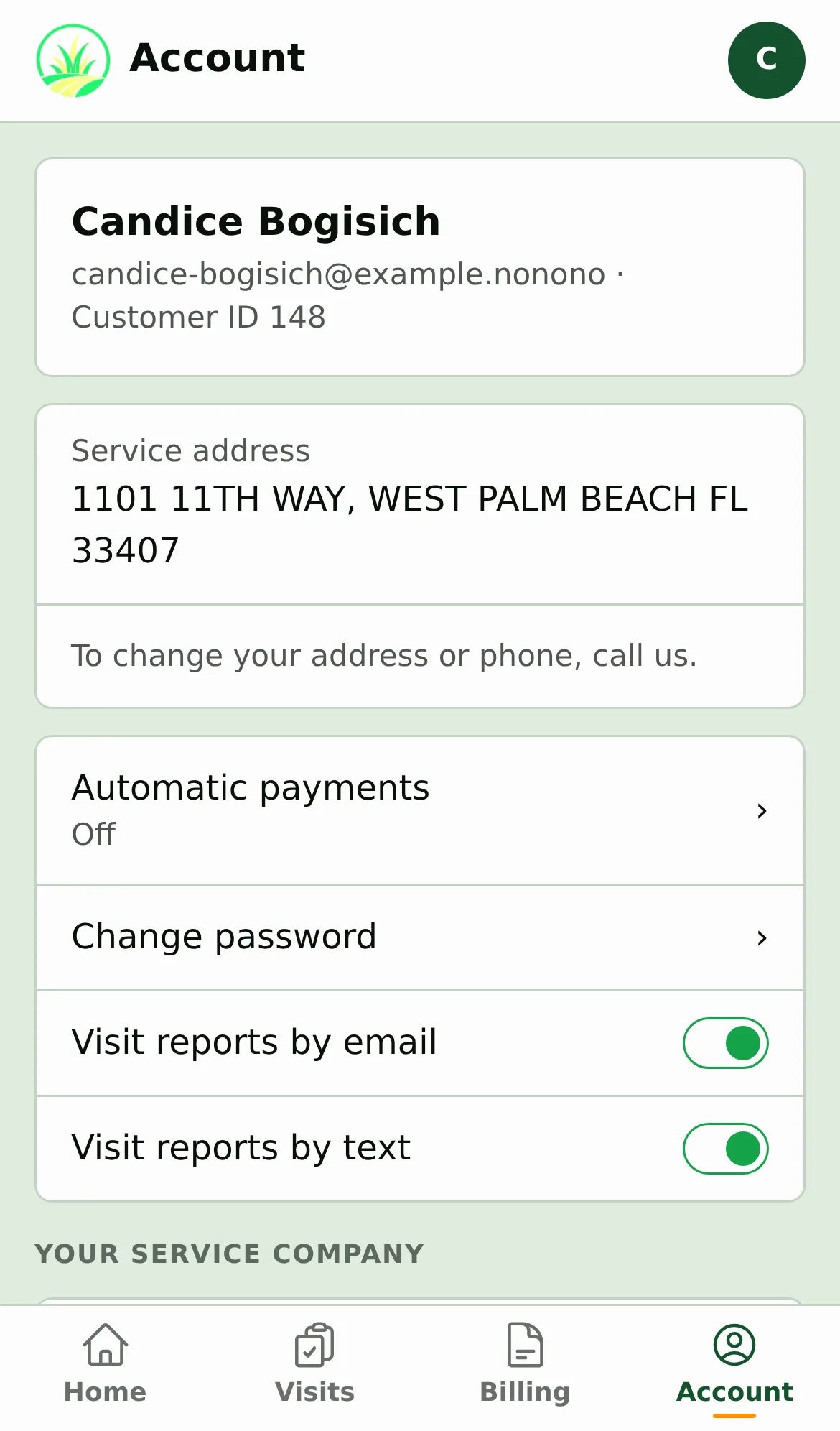
Account shows:
- The customer's name, email address and Customer ID.
- Their phone numbers, service address and billing address. These are shown, not edited: "To change your address or phone, call us."
- Automatic payments, with whether they are on and how they are paid.
- Change password: the current password, then the new one twice.
- Visit reports by email and Visit reports by text: switches the customer turns on or off. They are the same choices you see on the customer's Messages tab (14.5).
- Your service company: your logo, name and address, with buttons to call or email you.
- Sign out.
Automatic payments
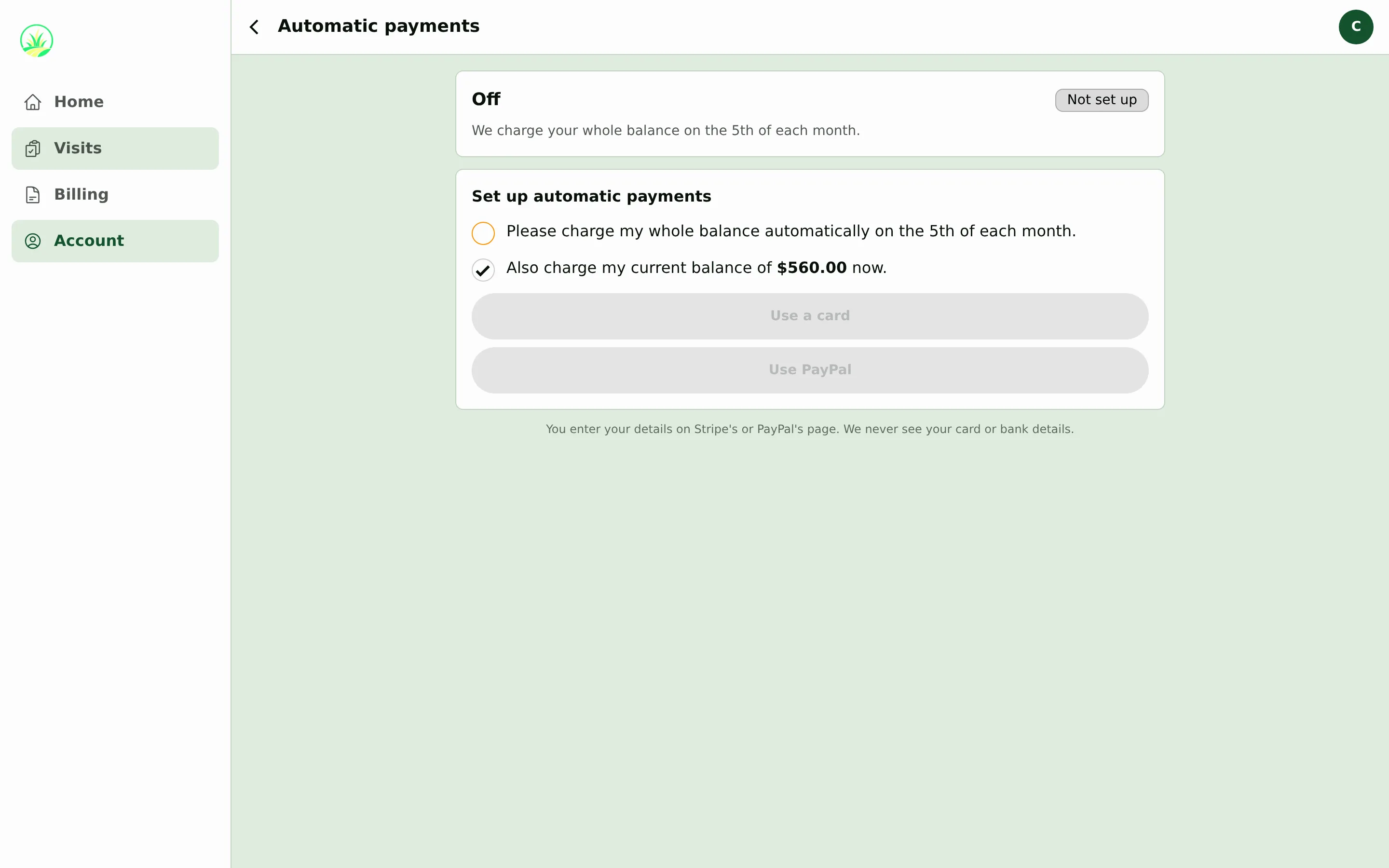
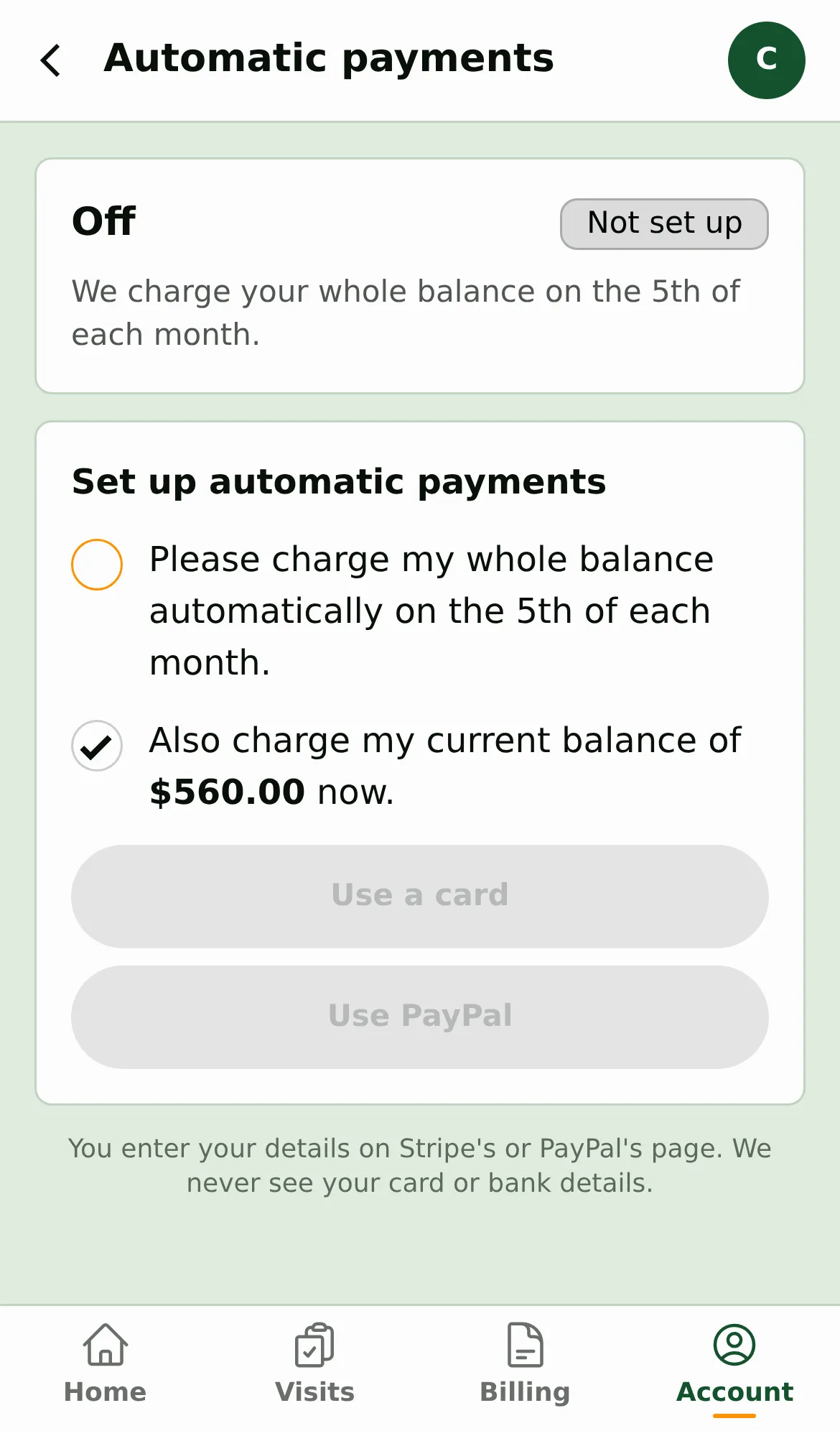
Account › Automatic payments (or Set up › on Home) shows whether automatic payments are Active, Paused or Not set up, the saved method and when the next charge is.
- To set them up, the customer ticks the consent ("Please charge my whole balance automatically on the … of each month", or each month's statement before the month starts when they are billed ahead), then chooses Use a card or Use PayPal, from the ones you offer. When they owe something, Also charge my current balance … now is ticked to start with. They enter their details on Stripe's or PayPal's page and come back to the portal with a message saying whether it worked.
- To switch, Change how I pay, then Switch to card or Switch to PayPal. When the new way is saved, the old one stops. Keep how I pay now leaves it as it is.
- To cancel, Cancel automatic payments, then Yes, cancel. Every automatic charge stops and the saved card or PayPal details are deleted (see 10.6). The customer can still pay each time.
Automatic payments can only be set up once a monthly service is active on the customer's account. The fees, if you charge any, are shown before the customer chooses. Automatic payments run on cards and PayPal; a bank account can be used for single payments (Pay), not for automatic ones.
Customers also receive visit reports after each completed lawn service (if enabled): by email, by text message, or both. A report shows what your company turned on in Settings › Company › Visit Reports (see 2.5) and the lawn service recorded — for example photos, the measurements, the work done and the notes to the customer. It opens as a web page from a secure link in the email or the text message.
The portal reduces support calls by letting customers check their balance and billing history on their own — "How much do I owe?" "When was my last payment?"
13.4 Admin Impersonation (See What They See)
On a customer's page, click Impersonate this customer (the small link beside their name, email address and balance at the top), or the key button beside them in the Customers list, to open the portal as that customer sees it. This is invaluable for:
- Answering customer questions ("I don't see my statement" → check their portal view).
- Verifying that billing information is displaying correctly.
- Walking a customer through the portal over the phone.
You need the permission to impersonate customers to see the link.