1. Getting Started
1.1 What this software does
EZ Lawn Biller runs the whole of your lawn care business from one place. It was built by lawn care professionals with over 70 years of combined experience in the trade.
It covers:
- Customers & Locations: every customer and every address you service, in one list.
- Schedule & Routes: plan the week and reduce driving time.
- Billing & Payments: bill customers automatically and take cards, bank payments and PayPal.
- Mobile app: your technicians get a step-by-step job on their phone, with photos.
- Inventory: track supplies from the warehouse to the truck to the lawn.
- Payroll: work out technician pay by the hour or by the visit.
- Reports: see your revenue, your tax figures and how the team is doing.
- QuickBooks: keep your books up to date without entering anything twice.
- Customer portal: customers can see their bills, pay online and read their lawn service reports at any time.
Every feature is included. What you pay depends on how many locations you service in a month; see Section 18.
1.2 Setup wizard: your first 30 minutes
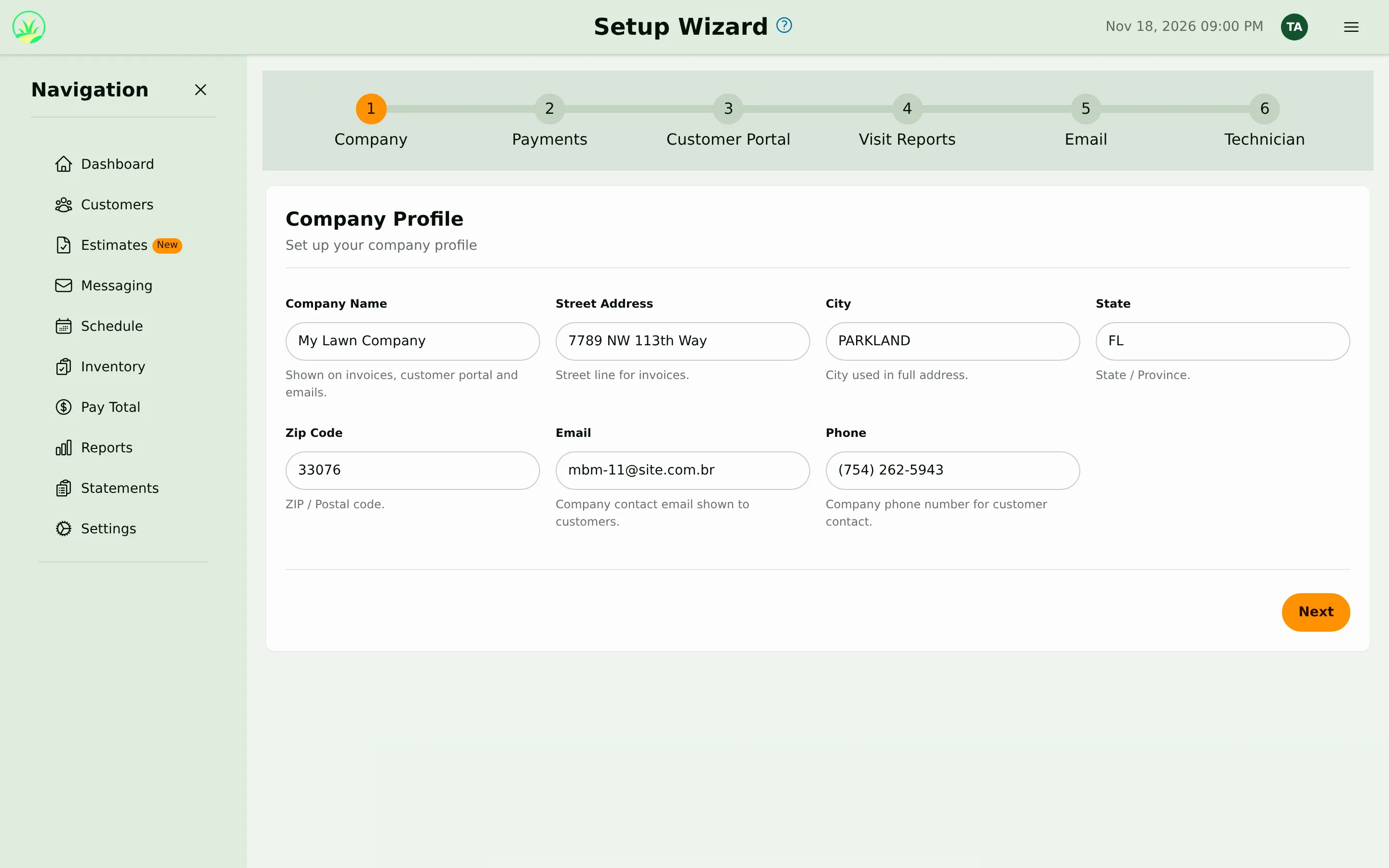
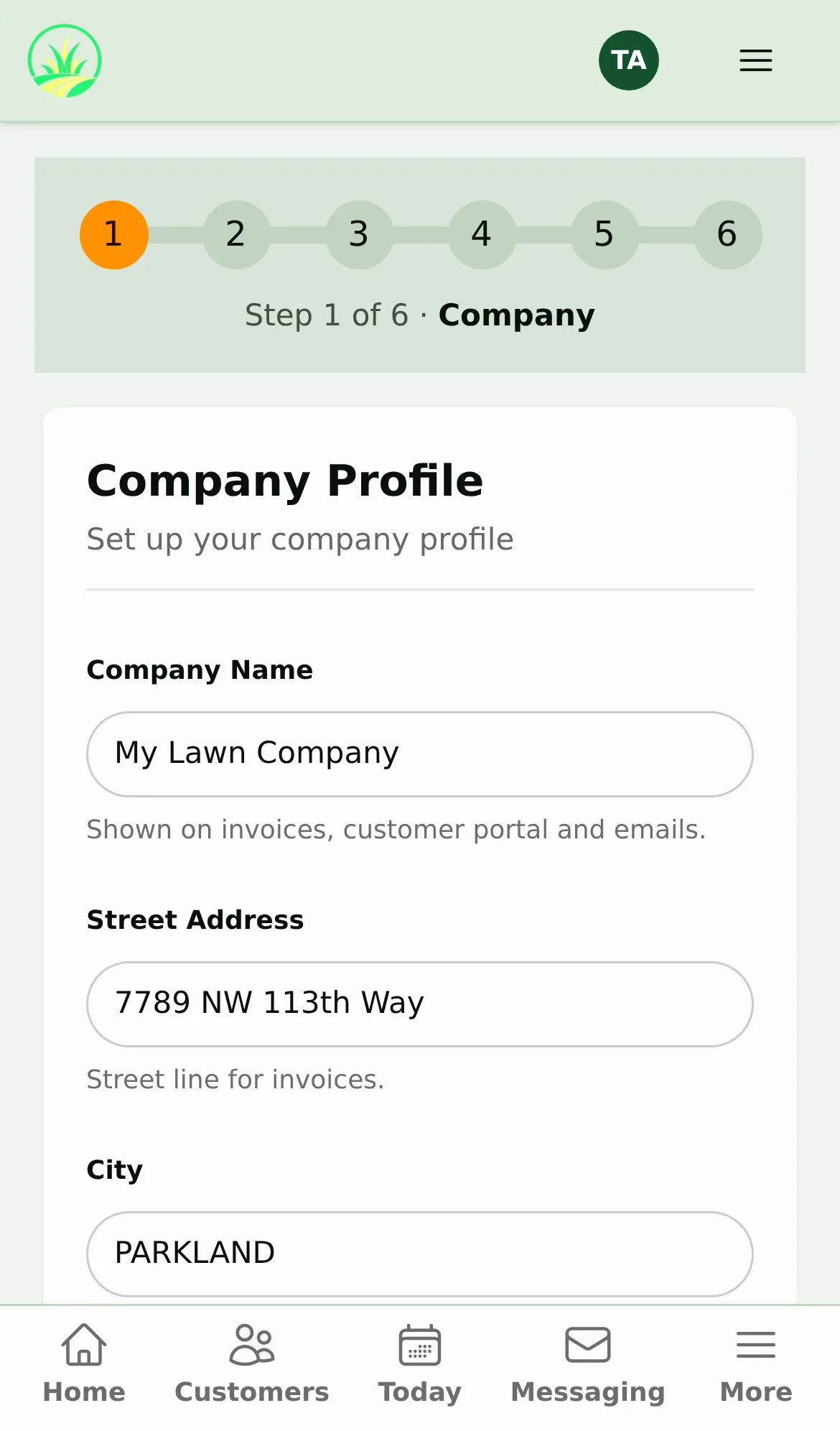
The first time you log in, a 6-step setup wizard takes you through the essentials. Until your company name, address, email and phone are saved and you have at least one technician, opening the Dashboard brings you back to the wizard. You can open it again at any time from Settings › Company › Setup Wizard ↗ (on a phone, Setup Wizard in the Company group of the Settings list). It needs the Setup Wizard permission.
Each step saves when you press Next. Back returns to the previous step.
Step 1: Company
Enter your Company Name, Street Address, City, State, Zip Code, Email and Phone. They appear on statements, in the customer portal and in emails.
The wizard does not ask for your time zone. A new company starts on Eastern time (America/New_York). If you work in another time zone, set it in Settings › Company › General (2.1) before you add customers.
Step 2: Payments
Enter your Stripe key to take card payments, and your PayPal keys if you also want PayPal. You can skip this step and set it up later in Settings › Company › Payments (2.2).
Step 3: Customer Portal
Turn the customer portal on or off, and choose whether customers use the new portal (2.3).
Step 4: Visit Reports
Choose whether customers get an email after every lawn service, and what it shows: for example the technician's name, the address, photos and the Service summary (2.5). The preview uses a sample visit, because a new company has no visits yet.
Step 5: Email
Set up the email account your messages are sent from, and the footer at the bottom of every email (2.4).
Step 6: Technician
Choose one of three options:
- The admin is the first technician: you do the field work yourself. Enter your starting address for route planning.
- I have a team: Open Manager lets you add the technicians who do the field work.
- Skip for now: visits are still created, but they stay unassigned until you add a technician in Settings › People › Technicians (Section 3).
Press Finish. You can then go to the Dashboard or add your first customer with Add a Customer Quickly.
1.3 Finding your way around
On a computer, the Dashboard is the first screen you see. It gives you today's figures at a glance:
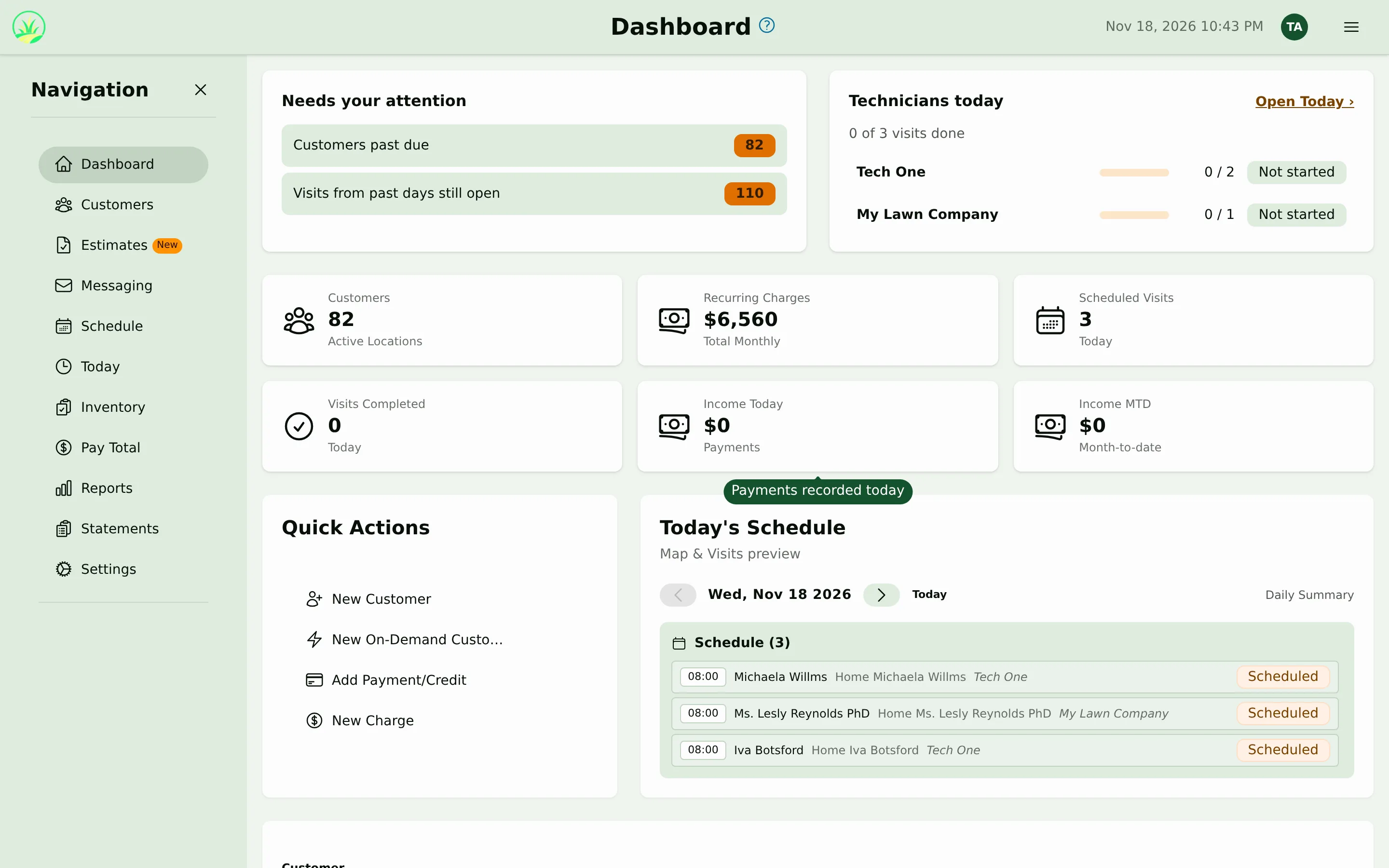
At the top, two panels show what needs you today:
- Needs your attention: failed automatic payments, customers past due, lawn services from past days still open, statements closed but not emailed yet, and low ratings this week (1 or 2 stars, 16.9), each with its count. Click a line to open the page where you deal with it. When nothing is waiting, it says so.
- Technicians today: each technician's progress for the day ("4 / 6") with a bar, and whether they have started, are on site or are done. Click a technician to open their route in Today, or Open Today › for everyone (7.11).
Below them are the figure cards:
| Card | What it shows |
|---|---|
| Customers | How many active locations you service |
| Recurring Charges | What your repeating services add up to each month |
| Scheduled Visits | Stops booked for today |
| Visits Completed | Stops finished so far today |
| Income Today | Money collected today |
| Income MTD | Money collected this month so far |
Below the cards, Quick Actions takes you straight to the tasks you do most: New Customer, New On-Demand Customer (see Section 8), Add Payment/Credit, New Charge, View Statements, Messaging Center and Reports. Today's Schedule shows the day's stops beside it, and a customer search is further down the page.
The menu on the left takes you everywhere else:
| Menu item | What is there |
|---|---|
| Dashboard | Today's figures |
| Customers | Your customer list |
| Estimates | Priced offers your customers approve online (see Section 9) |
| Messaging | Emails and text messages |
| Schedule | The calendar and routes |
| Today | Each technician's progress for the day (7.11) |
| Inventory | Supplies and truck stock |
| Pay Total | Payroll |
| Reports | Revenue, tax and team reports |
| Statements | Monthly bills |
| Settings | Your company setup, payments and portal, your people (Technicians, Staff, Roles & Permissions), what you sell, and QuickBooks (see Section 2) |
There is no Billing or Staff item in the menu. Charges, payments and credits are entered from Quick Actions (Add Payment/Credit, New Charge) and from each customer's page. Staff and roles are in Settings › People (see Section 3).
You may not see all of these. The menu shows only what your role allows. An office staff member with billing access does not see Pay Total unless their role includes it. This is normal, not a fault. See Section 3.
1.4 On a phone
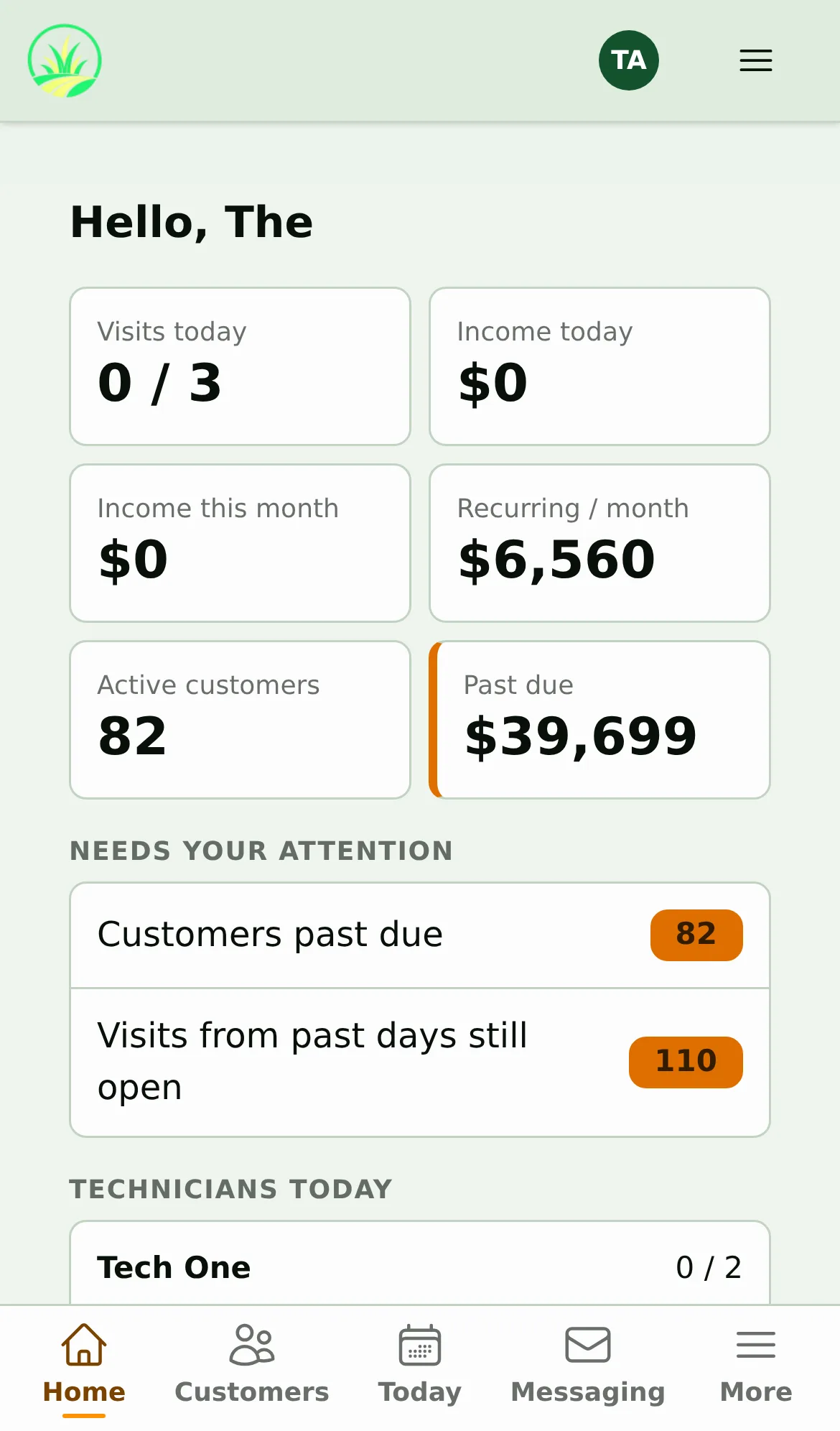
EZ Lawn Biller works in the web browser of a phone as well as on a computer. On a phone, the office pages are laid out for a small screen: lists become cards, and forms open full screen.
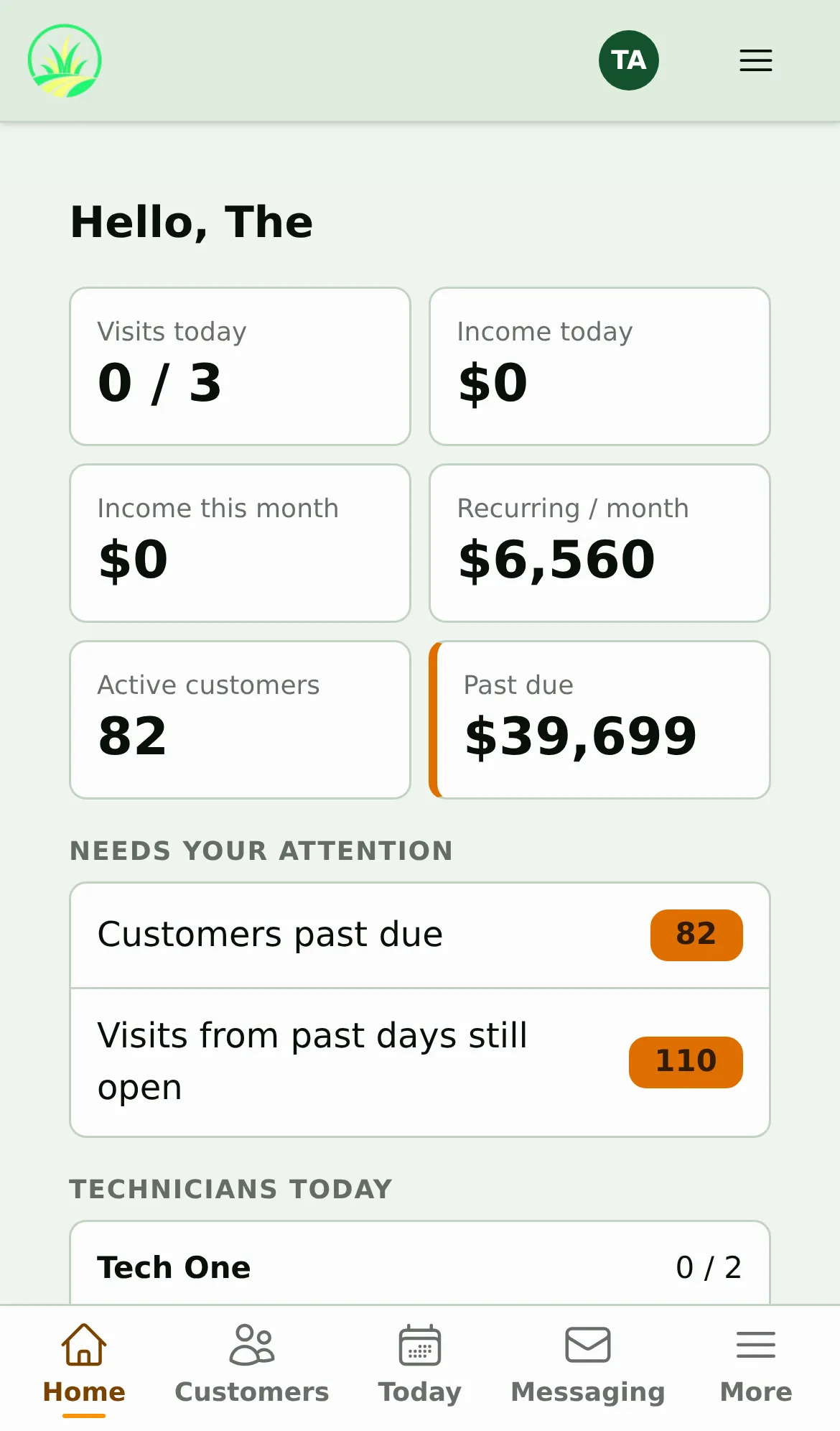
The Home page. On a phone you start on Home instead of the Dashboard. Signing in, the logo at the top left and Dashboard in the menu all open it. It shows:
- Figures, two to a row: Visits today (completed of scheduled), Income today, Income this month, Recurring / month, Active customers and Past due.
- Needs your attention: a count for each item that is waiting, such as Failed automatic payments, Customers past due, Visits from past days still open and Statements closed, not emailed yet. Tap an item to open the page where you deal with it. When nothing is waiting, it says Nothing waiting.
- Technicians today: each technician's completed and total stops for the day, with a progress bar. Today › opens the day's routes.
- + New customer: starts the New Customer wizard.
The bar at the bottom of the screen stays in view on every office page on a phone:
| Button | What it opens |
|---|---|
| Home | The Home page |
| Customers | Your customer list |
| Today | The day's routes for every technician, with Map of the day (see Section 7) |
| Messaging | A new email to your customers (see Section 14) |
| More | The full menu, the same as the menu on the left on a computer |
Like the menu, the bar shows only what your role allows. Someone without access to the schedule, for example, does not see Today.
What stays on a computer. Planning routes is a computer task. On a phone, Schedule shows each day's routes in order, read only: the page says On a phone you see each day's routes. To move visits or change routes, use a computer. Open the full planner shows the full calendar anyway, including the Route Optimizer, but it is built for a computer screen.
If the phone loses its connection, a message above the bar says You are offline. What you see may then be out of date; it updates when the connection is back.